

Physical sticky notes work because they stay in your line of sight. You stick them on your monitor, and they remind you about the client call or the quote you need to send. Digital sticky note apps fail because they hide your notes behind app icons and menu systems. You capture the thought, close the app, and forget the note exists.
The solution isn’t abandoning digital notes. It’s finding a system that keeps your digital sticky notes visible the same way physical ones stay on your desk.
Why Physical Sticky Notes Still Beat Digital (And How to Change That)
Walk into any small business office and you’ll see physical sticky notes covering monitors, desks, and walls. People still use paper despite having computers, phones, and productivity apps because sticky notes do one thing really well: they stay visible.
What makes physical sticky notes effective:
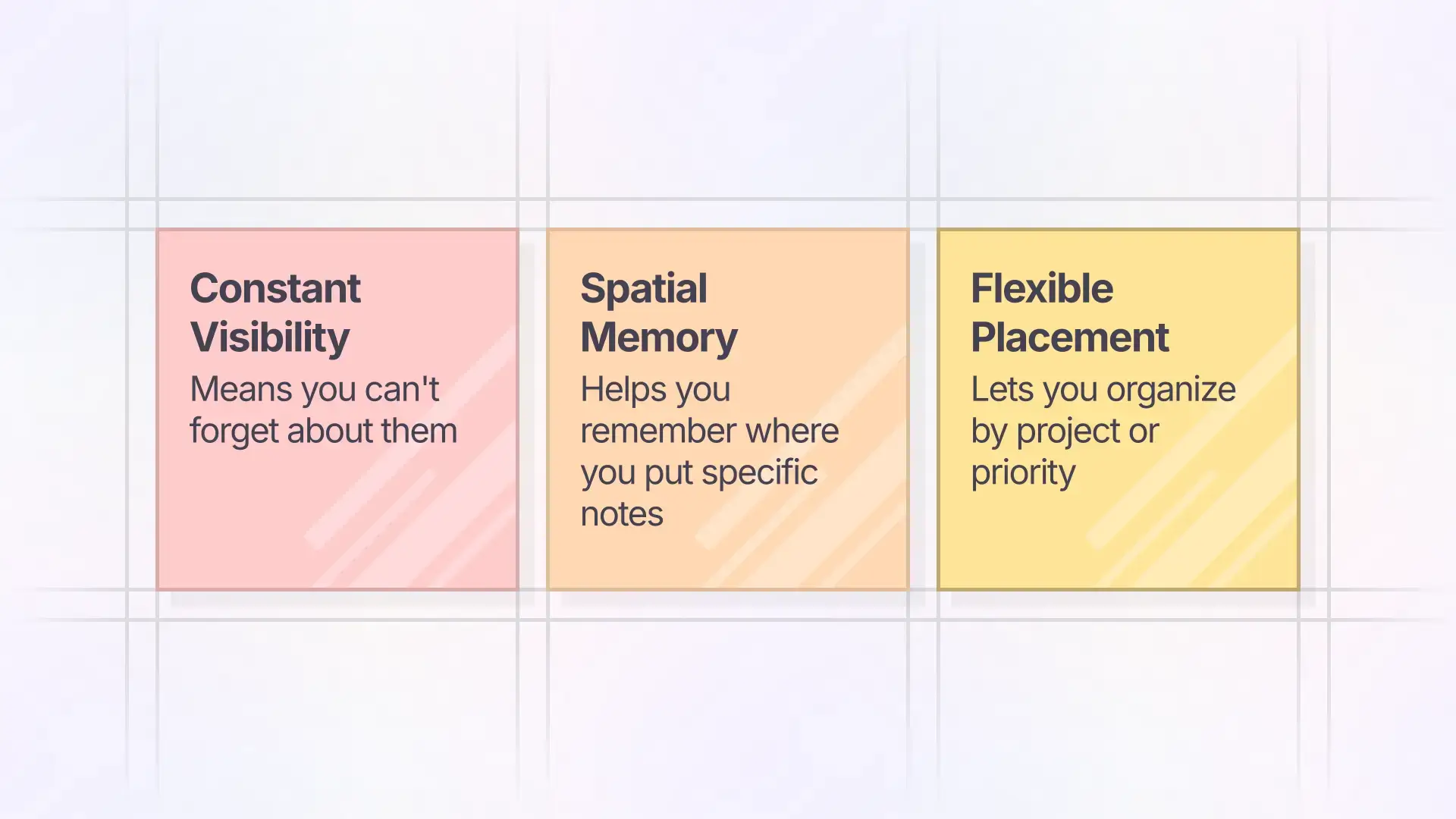
- Constant visibility means you can’t forget about them
- Spatial memory helps you remember where you put specific notes
- Quick capture with no app to open or interface to navigate
- Flexible placement lets you organize by project or priority
- Color coding provides instant visual categorization
- Zero learning curve because everyone knows how to use them
Where physical sticky notes fail:
- Can’t search for specific notes when you have dozens
- Fall off and get lost
- Can’t back up or sync across devices
- Not accessible when you’re away from your desk
- Limited space for detailed information
- Become illegible or fade over time
Most people who try digital sticky notes end up back at paper because the digital versions hide notes in apps. You lose the visibility that made sticky notes useful in the first place.
The goal isn’t to replace physical sticky notes with a perfect digital copy. It’s to keep the visibility that makes sticky notes work while gaining the benefits of digital tools.
The Problem with Digital Sticky Notes That Hide in Menus
Every operating system and note-taking app includes some version of digital sticky notes. They all make the same mistake: hiding your notes when you close the app.
The typical digital sticky note experience:
- Have a thought you need to remember
- Open your sticky note app
- Type the note
- Close the app and return to work
- Forget the note exists because you can’t see it
- Rediscover the note three weeks later while looking for something else
Why this doesn’t work: The moment you close the app, the note disappears from view. Out of sight means out of mind. You’ve traded the visibility of paper sticky notes for the convenience of digital capture, and you’ve lost more than you gained.
Common workarounds that don’t solve the problem:
- Desktop widget sticky notes: They cover your work and you minimize them to get them out of the way, which means you can’t see them anymore
- Always-on-top windows: Same problem, they block what you’re trying to work on
- Notification reminders: You dismiss them when they pop up at inconvenient times
- Mobile sticky note apps: Your notes are on your phone, not where you’re actually working
The fundamental issue is that digital sticky notes live in apps, and apps are either open or closed. When closed, your notes are invisible.
What you need is a digital workspace where sticky notes stay visible without blocking your work.
Ready for sticky notes that stay in sight? Opal keeps your digital notes visible on a workspace you can see anytime, like sticky notes on your desk.
Visual Workspace: Digital Sticky Notes That Stay in Sight
Here’s a different approach to digital sticky notes that keeps the visibility of physical ones.
A workspace that shows all your notes at once: Instead of opening an app to see your notes, you open a workspace where all your notes live. You can see dozens or hundreds of notes simultaneously, organized spatially the way you’d arrange physical sticky notes on a desk.
Zoom and pan to see everything: Your workspace is a 20,000 x 20,000 pixel canvas. Zoom out and see all your notes at once to get the big picture. Zoom in on a specific area to focus on notes for one project or client.
Spatial organization that matches your brain: Put your “urgent this week” notes in the top-left corner. Put client-specific notes in the middle area. Put reference notes you rarely need at the bottom. Your brain remembers where you put things, just like with physical sticky notes on your desk.
Notes stay visible while you work: Your digital workspace is always one click away. You’re not hunting through app menus or searching for notes. You know where your notes live because you put them there.
The key difference from traditional apps: Your notes aren’t hidden behind an app icon. They exist on a persistent visual workspace that you can reference anytime without opening, searching, or navigating.
This is closer to how physical sticky notes actually work. They’re always visible. You know where they are. You see them even when you’re not actively looking for them.
Organizing Sticky Notes for Different Projects and Clients
The beauty of physical sticky notes is flexible organization. You can group them by project, arrange them by priority, or create visual clusters that make sense to you. Digital sticky notes should work the same way.
Organization by project or client: Create a section of your workspace for each active project. Put all sticky notes related to that project in its section. When you need to see what’s outstanding for the Miller project, you look at that section of your workspace.
Priority-based placement: Put urgent notes in the top-left of your workspace where you’ll see them first. Put “important but not urgent” notes to the right. Put reference notes you rarely need at the bottom. Your eyes naturally scan top-to-bottom, left-to-right, so this matches how you process information.
Color coding for context: Just like physical sticky notes come in different colors, digital notes can use color to indicate type. Yellow for general tasks. Blue for client communications. Green for financial notes. Pink for things waiting on someone else.
Grouping related notes: Physical sticky notes cluster naturally. You put three notes about the same topic near each other. Digital sticky notes should allow the same flexibility. Group notes about the upcoming conference in one cluster. Group notes about the Johnson account in another.
Temporary vs. permanent notes: Some sticky notes are temporary reminders you’ll throw away once handled. Others become reference information you keep long-term. On a digital workspace, you can move completed reminders to an archive section or delete them, while keeping permanent notes in active view.
The goal is to replicate the spatial flexibility of physical sticky notes while gaining digital benefits like search, backup, and remote access.
Like simple tools that match how you work, good digital sticky notes should feel as natural as paper ones.
From Quick Capture to Permanent Reference: The Sticky Note Lifecycle
Sticky notes serve different purposes throughout their lifecycle. Understanding this helps you use digital sticky notes more effectively.
Quick Capture Stage
What this looks like: You’re on a call and the client mentions they need a quote for additional work. You jot “Miller – quote for deck expansion” on a sticky note. Fast capture with minimal detail.
Digital equivalent: Create a new note on your workspace in two clicks. Type the quick reminder. That’s it. No templates to fill out, no properties to set, no categories to choose. Just capture and move on.
Active Reference Stage
What this looks like: The sticky note stays on your desk for a week while you work on the Miller quote. You glance at it daily as a reminder. You might add a detail or two as you think about it.
Digital equivalent: The note stays visible in your “Active This Week” section. You see it every time you open your workspace. You can add details directly on the note as they come up. The note is working memory, not archived information.
Resolution Stage
What this looks like: You complete the quote and send it to Miller. The sticky note has served its purpose. You either throw it away or move it to a reference stack.
Digital equivalent: You either delete the note (if the information has no long-term value) or move it to a “Completed” section of your workspace. If the note contains reference information you might need later, it stays accessible but out of your active view.
Reference Archive Stage
What this looks like: Some sticky notes contain information you need to keep but don’t reference often. With physical notes, these end up in a drawer or filed away somewhere.
Digital equivalent: Move the note to an archive section of your workspace or into a reference binder. It’s still searchable and accessible, but not cluttering your active work area.
The key is maintaining the same quick, flexible workflow you have with physical sticky notes while gaining digital searchability and backup.
Making Digital Sticky Notes as Useful as Physical Ones
Here’s what needs to be true for digital sticky notes to match or exceed physical ones.
Visibility without obstruction: Your digital notes need to stay visible without blocking your work. A workspace you can reference with one click solves this better than always-on-top windows that cover what you’re doing.
Spatial organization: Your brain uses spatial memory to recall where you put physical sticky notes. Digital sticky notes should use the same principle. You should be able to put notes in specific locations and find them by remembering where you placed them, not by searching.
Quick capture: Creating a physical sticky note takes three seconds: grab note, write reminder, stick it somewhere. Digital sticky notes should be just as fast. If it takes more than five seconds to create a note, you’ll avoid using the system.
Flexible grouping: Physical sticky notes can be arranged and rearranged freely. You can create clusters, draw connections, and reorganize as priorities change. Digital sticky notes should offer the same flexibility without forcing you into predefined categories or folder structures.
Color and visual distinction: Physical sticky notes use color to convey meaning at a glance. Digital notes should do the same. You should be able to identify note types by color without reading them.
Persistence: Physical sticky notes stay where you put them until you move them. Digital notes should do the same. They shouldn’t disappear into folders or get buried under new notes automatically.
When physical sticky notes still win:
- Working primarily with paper documents at a physical desk
- Collaborating in person with team members who share physical space
- Situations where digital devices aren’t practical or allowed
- Times when the tactile experience of writing helps you think
When digital sticky notes are better:
- Working across multiple locations or devices
- Needing to search hundreds of notes quickly
- Requiring backup and recovery of important information
- Collaborating with remote team members
- Capturing more detail than fits on a 3×3 paper square
For contractors who need simple job tracking from their truck or office, digital sticky notes work better than paper because they’re accessible anywhere. For insurance agents managing client information and renewals, digital notes provide searchability that paper can’t match.
For people who love the sticky note workflow: A visual workspace like Opal keeps the visibility and spatial organization of physical sticky notes while adding digital benefits. Your notes stay visible on a persistent workspace you can access from any device.
For people who need formal note organization: Traditional note-taking apps with folders, tags, and search might serve you better. Sticky notes are about visibility and quick capture, not comprehensive information architecture.
For people who tried digital sticky notes and went back to paper: The problem was probably visibility. Most apps hide your notes when closed. A visual workspace where notes stay in sight solves the problem that made you abandon digital tools.
Ready to keep the benefits of sticky notes without the limitations of paper? Try Opal and organize your digital sticky notes on a visual workspace where everything stays visible. No hidden menus, no lost notes, no limitations. Just the sticky note workflow you love, with search, backup, and cross-device access.