Image from the post
Opal - See Your Work - opalrecall.com
  • Home
  • Features
  • Pricing
  • Resources
      Opal Resources
    • Opal Blog Visual Organization + AI
    • Case Studies See how people use Opal
    • Help Docs Get the most out of Opal
    • AI Agents Opal Recall Agent Skill
    • Release Notes Latest updates and changes
    • Opal - See Your Work - opalrecall.com About Company & History
  • Contact
Register
Sign In
Sign In

Blog.

Florist in a bright glass greenhouse shop in the morning, planning her day in time blocking order before the first orders start

Time Blocking: Plan Your Day in Blocks and Start Each One Ready

Learn time blocking: how to plan your day in blocks, protect focus time, and start each block with its work already in view. Opal gives your notes a desk.

Small project team walking through a finished sunlit kitchen, talking through lessons learned from the job

Lessons Learned: How to Capture Them Before the Next Project Starts

Learn what lessons learned are, how to run a short session, and where to keep the lessons so your next project starts with them. Opal gives your notes a desk.
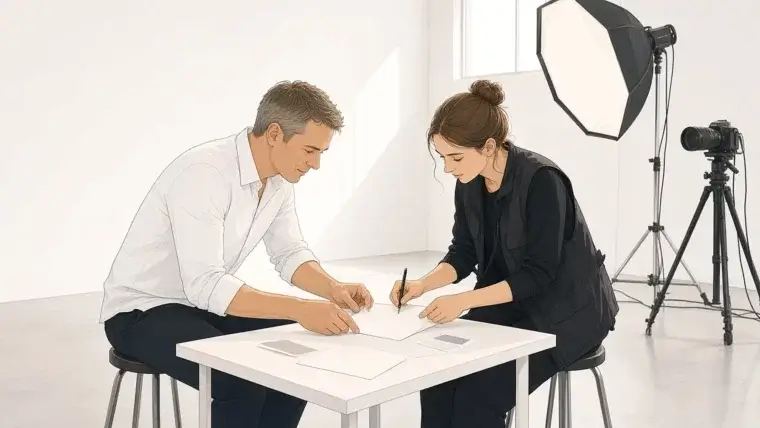
Art director and photographer reviewing a one-page creative brief in a bright white photo studio

Creative Brief: How to Write One and Keep It in View

Learn what a creative brief should include, see a short example, and keep the brief beside the files and feedback it guides. Opal gives your notes a desk.

Architect and client on a sunlit building balcony recording a decision beside rolled project plans

Decision Log: Keep the Why Beside the Work

A decision log records what you decided and why, so the reasoning survives. Keep it beside your files, notes, and tasks. Opal gives your notes a desk.

Freelancer at a wide desk on Friday afternoon, reviewing a calm overview of notes and files laid out together instead of a pile of browser tabs

Weekly Review: See the Week on One Desk Before You Plan the Next

A weekly review clears open loops before you plan next week. See notes, files, and tasks on one desk. Opal gives your notes a desk.

Researcher at a sunlit desk with her notes placed beside the articles and PDFs they came from, all in view at once

Research Notes: How to Take Them and Keep Them Beside Your Sources

Research notes only help if you can find the source behind them. Learn how to take research notes, a simple template, and how to keep them beside your sources.

Overhead view of an architect at a sunlit loft table with one project's notes, sketches and files gathered in view

Project Notes: Keep Every Project’s Notes Where You Left Them

Project notes only help if you can find them later. Learn what to write down, how to organize notes for each project, and where to keep them in plain view.

Designer pausing in a sunlit hallway between two rooms, each project's work still laid out, so context switching back is easy

Context Switching: How to Keep Your Place Between Tasks

Context switching costs time every time you jump between tasks. Learn what the research says, how to switch less, and how to keep your place for a quick return.

Writer standing at a large cork wall in a sunlit shopfront studio, pinning notes and photos the way an online corkboard would

Online Corkboard: Pin Your Work Where You Can See It

An online corkboard keeps notes, files, and photos pinned where you can see them. Opal gives your notes a desk, so each project keeps its place on one board.

Man relaxing on the floor of an attic studio at dusk as his loose thoughts drift out and settle into neat grouped notes in a brain dump app on his laptop

Brain Dump App: Get It Out of Your Head and Onto a Desk

A brain dump app should get every thought out of your head fast, then help you sort it. Opal gives your notes a desk so the dump turns into a plan you can see.

visual collaboration tool keeping a board of grouped cards visible after a meeting as one teammate adds a note while others leave

Visual Collaboration Tool: Keep the Work Visible After the Meeting

Choose a visual collaboration tool that keeps ideas, files, tasks, and decisions visible after the meeting so teams can resume work with less context loss.

Mood board app on a laptop in a sunlit design studio as a woman arranges photos and color swatches beside her project notes

Mood Board App: Keep Inspiration Beside the Work

A mood board app should keep images, colors, and links in view while you work. See what to look for, and how Opal gives your board a desk beside your notes.

Digital declutter on a weekend as a woman at a sunlit home desk clears her laptop screen and stacks old papers, a cup of tea beside her

Digital Declutter: Clear the Mess You Can’t See

A digital declutter plan for files, tabs, apps, email, and notes, plus a weekly reset that keeps the mess away. Keep active work in view and old work close by.

project dashboard with status blocks on a monitor while a project lead keeps related notes, files, and photos around her desk at golden hour

Project Dashboard: See the Work Behind Every Status

Build a project dashboard that keeps status, risks, owners, and context in one visible place, so you can act on it without maintaining another status report.

How to organize notes at home as a woman at a sunny kitchen table sorts colored sticky notes and notebooks into neat groups beside her laptop

How to Organize Notes So You Can Find Them Later

Learn how to organize notes in seven practical steps: gather what you have, give every note a home, and find any of them again in seconds at work or school.

Spatial memory in action as a woman on a phone call at a desk by a window rests her hand on a notebook without looking while her laptop, papers and sticky notes sit in tidy groups

Spatial Memory: Why You Remember Where Things Are

Spatial memory is how your brain tracks where things are. See how it works, everyday examples, and how to set up your notes and files so you find them by place.
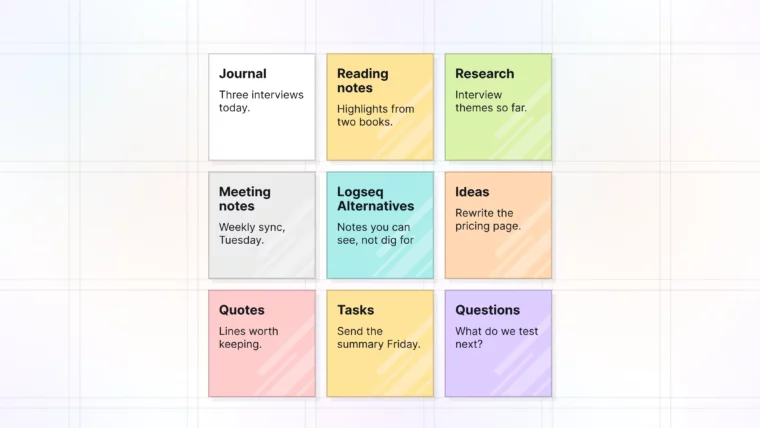
Screenshot of Opal showing colored notes for journal, reading notes, research, and tasks arranged on a grid around a note titled Logseq Alternatives

6 Logseq Alternatives in 2026: Where Your Notes Stay Easy to Find

Compare 6 Logseq alternatives for 2026, including Obsidian, Roam, Tana, Anytype, and Heptabase, with prices, tradeoffs, and when staying on Logseq makes sense.

workspace app keeping tasks, notes, files, and links in one visual place on a monitor as a woman works in a calm home office

Workspace App: One Visual Place for Active Work

Choose a workspace app that keeps tasks, notes, files, and links visible together on one desk, so you can find context faster and get back into the work.
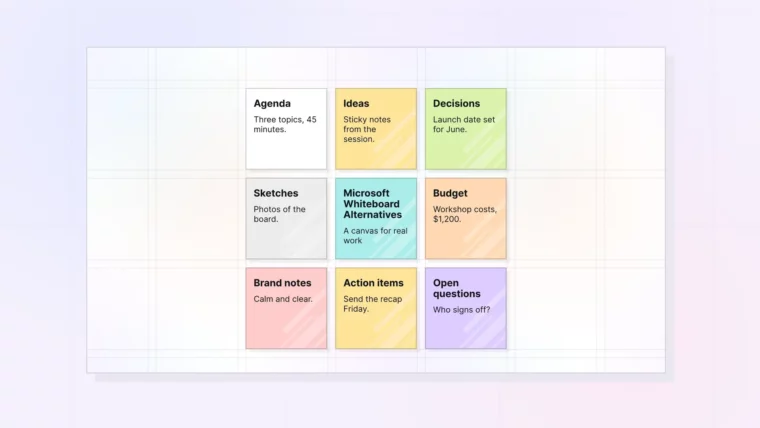
Screenshot of Opal showing colored notes for a planning workshop arranged on a grid around a note titled Microsoft Whiteboard Alternatives

6 Microsoft Whiteboard Alternatives in 2026: A Canvas for Your Real Work

Microsoft Whiteboard’s standalone apps retired in October 2026. Compare six Microsoft Whiteboard alternatives, with prices, trade-offs, and where Opal fits.

A man at a loft desk by a sunny window with small colored notes and a document spread out, weighing Google Keep alternatives for his work notes

Google Keep Alternatives: Sticky-Style Notes That Grow Into Real Docs

Comparing Google Keep alternatives? See what Keep does well, which app fits each need, and how Opal turns quick notes into docs beside your files and tasks.

Posts pagination

Page 1 Page 2 Page 3 Next page
Opal - See Your Work - opalrecall.com
© Opal Recall LLC. All rights reserved.
info@opalrecall.com
Live on FoundrList Verified on Verified Tools

Follow Chevas on X/Twitter

Chevas Balloun, Operator, Opal Recall
Chevas A.F. Balloun
Opal Operator
@Chevas
Register Now
About Contact Terms Of Service Policies Privacy Policy Cookie settings DMCA Policy

Cookies on Opal

We use optional cookies for creator referrals and privacy-friendly analytics. Nothing optional runs until you choose. Cookie policy

Remembers which Opal creator sent you here, for up to 60 days, so they are credited if you sign up.

Privacy-friendly visit counts from Plausible, with no cookies and no personal profile, so we can see which pages help.

Strictly necessary cookies (security, and remembering this choice) are always on.