

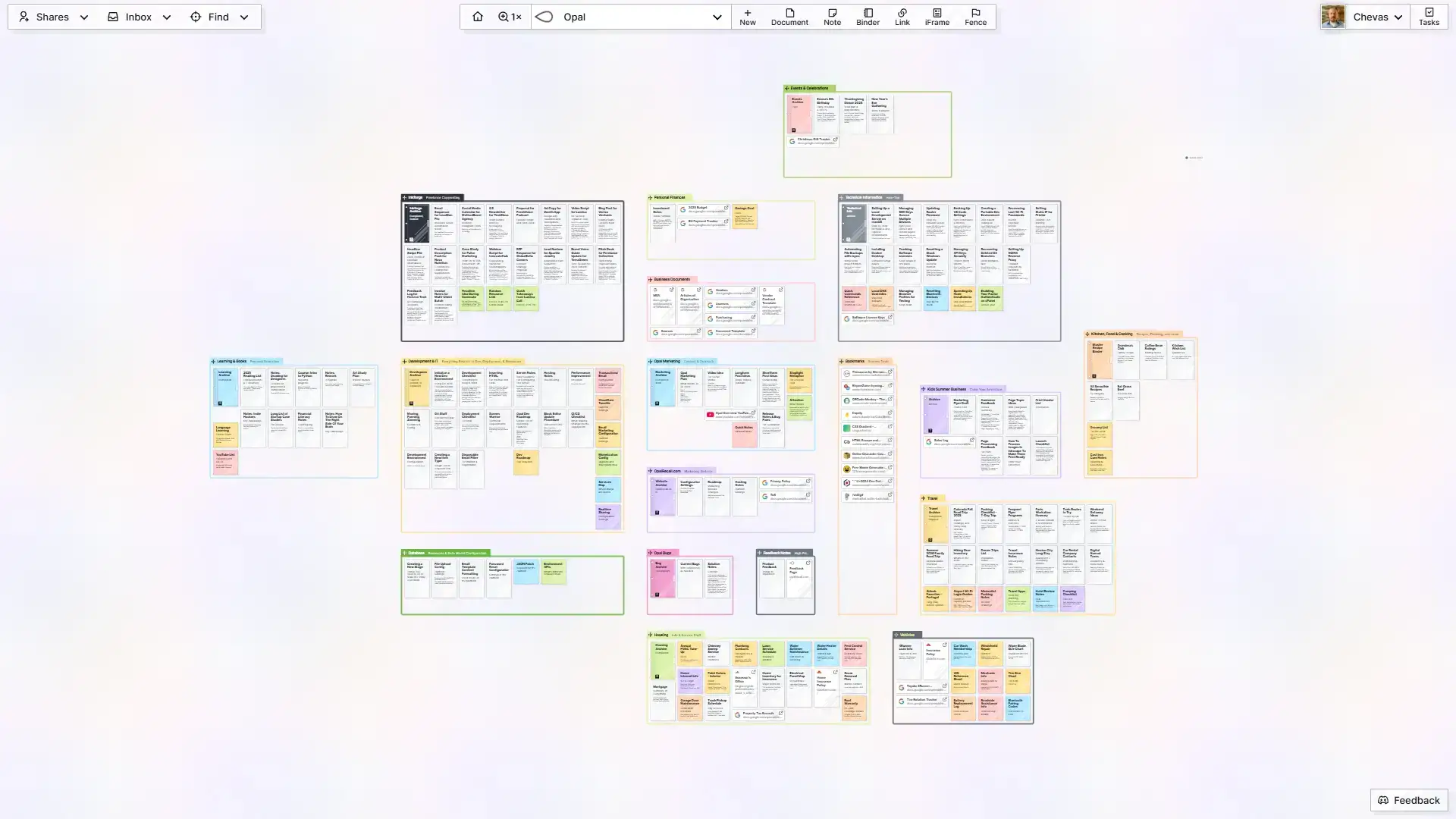
If your work lives across Slack, email, task lists, cloud folders, meeting notes, browser tabs, and a few half-forgotten documents, the problem is not that you need one more productivity app. The problem is that you do not have one place where the work is visible together.
A visual workspace app gives active projects, notes, files, links, tasks, and ideas a shared visual surface. Instead of remembering which app holds which piece of context, you can see the shape of the work in one place and re-enter it faster.
That is the difference between storing information and actually being able to use it.
What is a visual workspace app?
A visual workspace app is a digital workspace where information is arranged spatially instead of hidden only in lists, folders, or separate tools. It usually gives you a canvas where notes, files, links, tasks, screenshots, and project material can sit near each other.
The goal is not decoration. The goal is context.
In a normal tool stack, the task may be in one app, the file in another, the decision in chat, and the useful note in a document. In a visual workspace, those pieces can be placed around the same project or client so the relationship between them is obvious.
That makes a visual workspace different from a whiteboard, a task manager, or a notes app. A whiteboard is often for brainstorming. A task manager tracks assignments. A notes app stores writing. A visual workspace is the place where the active context of the work can live together.
Opal is built around that kind of visual workspace for active work: notes, files, links, tasks, and project context stay visible enough to understand.
Why your work feels scattered across different apps
Work fragmentation usually happens slowly. You add email for clients, chat for quick coordination, a drive for files, a calendar for meetings, a task app for deadlines, and a notes app for everything that does not fit anywhere else.
Each tool solves a real problem. Together, they create a second problem: no single surface shows what is actually going on.
Microsoft’s 2025 WorkLab report describes the modern workday as a flow of messages, meetings, and interruptions. It reports that the average worker receives 117 emails and 153 Teams messages in a day. That kind of volume makes context fragile.
The daily experience is familiar. You check email for one client detail, see something else urgent, answer it, open the task app to update the follow-up, then return to the original work and have to rebuild where you were.
This is why too many apps becomes more than an annoyance. App count is not the real issue. The deeper issue is that the work no longer has one visible home.
The cognitive cost of app switching and context loss
App switching feels small because each switch only takes a few seconds. The cost comes from the re-entry work afterward.
When you are reviewing a proposal, your mind is holding the client goal, the current section, the missing information, and the next decision. When you leave that surface to find a note or message, the work does not simply pause. Some of that context drops out of working memory.
Gloria Mark and coauthors studied interrupted information work and found that people often resume interrupted tasks after intervening activities, with same-day resumptions averaging about 25 minutes. A later study found that interrupted work can come with more stress, frustration, time pressure, and effort.
That does not mean every tiny app switch costs exactly 25 minutes. It means interruptions and tool-hopping create recovery work. You have to remember what you were doing, find the relevant material again, and rebuild the next step.
A visual workspace reduces that recovery work by keeping related material close together. The note, file, task, link, and decision can sit in the same project area, so the next move is easier to see.
Visual workspace: the digital equivalent of a physical desk
A physical desk still works because it lets you spread out the materials for a project. The draft sits in the center. The reference notes are beside it. The printed quote, sketch, invoice, or checklist stays nearby. You can move between them without changing environments.
Digital work often does the opposite. The document hides the note. The note hides the file. The file hides the message. The task app hides the decision. Each surface asks you to remember what the other surfaces were showing.
A visual workspace restores some of the desk’s advantage. It gives your work a layout. A client project can have notes, files, links, decisions, and next actions arranged as one cluster. A research project can have source material, questions, drafts, and screenshots in one area.
This is the same reason a digital desk is a useful metaphor. The point is not to imitate paper. The point is to make digital work visible enough that your brain can orient quickly.
It also explains why sticky notes stay visible. A visible note can keep reminding you without needing to be searched, tagged, opened, or remembered first.
How spatial organization reduces cognitive load
Your brain is good at using space. You remember where things are in a room, on a desk, or on a familiar route without translating everything into a file path.
Research on human cognitive maps describes spatial representations as part of how people remember environments and prepare future behavior. A review in Trends in Cognitive Sciences frames cognitive maps as a way humans represent space for memory, planning, and action.
That spatial strength can help digital work when the interface gives it something to use. If your client work is always in the upper-left of your workspace, business operations live in the middle, and ideas sit below, location becomes part of memory.
Visual organization also shifts work from recall to recognition. Nielsen Norman Group summarizes the interface principle clearly: recognition is easier than recall because visible cues help people retrieve information from memory.
Folders and search force recall: What did I name this? Where did I save it? Which app owns it? A visual workspace supports recognition: there is the client cluster, there is the note, there is the file, there is the next action.
This is why visual work pairs naturally with a visual note taking system and personal knowledge management for visual thinkers. The workspace does not ask your memory to do all the organization alone.
What to look for in a visual workspace app
A good visual workspace app should make active work easier to re-enter. Before choosing one, look for these features:
- A flexible canvas or spatial workspace for arranging work by project, client, status, or idea.
- Support for different objects, including notes, links, files, tasks, images, and reference material.
- Fast capture, so adding information does not become another chore.
- Simple grouping or clustering, so related material can stay near the work it supports.
- Search, because visibility and retrieval should work together.
- Enough structure to keep projects clear without forcing every project into the same template.
- Sharing or collaboration when the workspace needs to support a team.
Some visual workspace apps are built around an infinite canvas. Others are more bounded. The important question is not whether the canvas is technically endless. The important question is whether it lets you place the important parts of your work close enough to make sense together.
Opal’s features are shaped around that kind of visible work: notes, files, links, and project material can live as objects in a workspace instead of disappearing into separate stacks.
Setting up your visual workspace by project and client
The easiest way to organize a visual workspace is to start with active work, not abstract categories.
Create one area for each active client, project, or responsibility. Then place everything needed to re-enter that work in the same area: project scope, notes, files, links, open questions, decisions, deadlines, and next actions.
A simple layout might look like this:
- Top area: active client work and current deliverables.
- Middle area: business operations, templates, and standard processes.
- Right side: waiting-on items, approvals, invoices, and follow-ups.
- Lower area: ideas, research, learning, and future projects.
You can also organize by status. Active this week. In progress. Waiting on others. Planning. Recently completed. That works especially well for service businesses where a project needs to move visibly from one state to another.
The same principle shows up across client work, service work, and small business operations. The exact details change, but the goal stays the same: make the important state of the work visible.
Visual workspace vs. traditional project management tools
Visual workspaces and project management tools solve different problems.
Traditional project management software is useful when you need assignments, dependencies, reporting, workload management, and repeatable team processes. If five or more people need to coordinate tasks across a fixed timeline, that structure can matter.
A visual workspace is useful when the bigger pain is re-entering the work. It helps when projects are diverse, context is scattered, and you need to see related material before you can decide what to do next.
For a small business, solo operator, consultant, creator, or service provider, a heavy PM system can become another system to maintain. A business productivity app should reduce context reconstruction, not create more of it.
A hybrid approach can work too. Use structured PM software for a complex team project when you need it. Use a visual workspace for the active context around clients, ideas, notes, files, and decisions. The visual surface becomes the place where the work makes sense again.
For solopreneurs managing a lot of information, this is close to knowledge management, but with less emphasis on building a perfect archive and more emphasis on keeping the active work visible.
FAQ
What is the best visual workspace app?
The best visual workspace app is the one that helps you re-enter your real work fastest. Look for a flexible canvas, easy capture, support for notes/files/links/tasks, search, and enough structure to keep projects clear without forcing every project into the same format.
How is a visual workspace different from a whiteboard app?
A whiteboard app is usually for brainstorming, workshops, diagrams, or collaboration sessions. A visual workspace can include whiteboard-like space, but it is meant to hold active work over time: notes, files, links, tasks, decisions, and project context.
Can a visual workspace replace a project management tool?
Sometimes. If you mainly need visibility, context, and simple project organization, a visual workspace may be enough. If you need formal task dependencies, workload reporting, and detailed team coordination, use a project management tool and keep the visual workspace for context.
Who should use a visual workspace app?
Visual workspace apps are especially useful for solo operators, creators, consultants, small teams, and visual thinkers who manage many projects or clients at once. They help when the problem is not doing one task, but remembering the whole context around the work.
If your work keeps disappearing into separate apps, try Opal and build one visible workspace for the projects, notes, files, links, and decisions you need to see.