

When you create SOPs (Standard Operating Procedures), you may want to consider this strategic approach, but in this Help Doc, I cover the exact steps for how to link them together using Opal Documents. SOPs provide a great scenario for why Opal’s Internal Item Links are valuable. Below I show a real-life example of how it works.
What is an Internal Item Link?
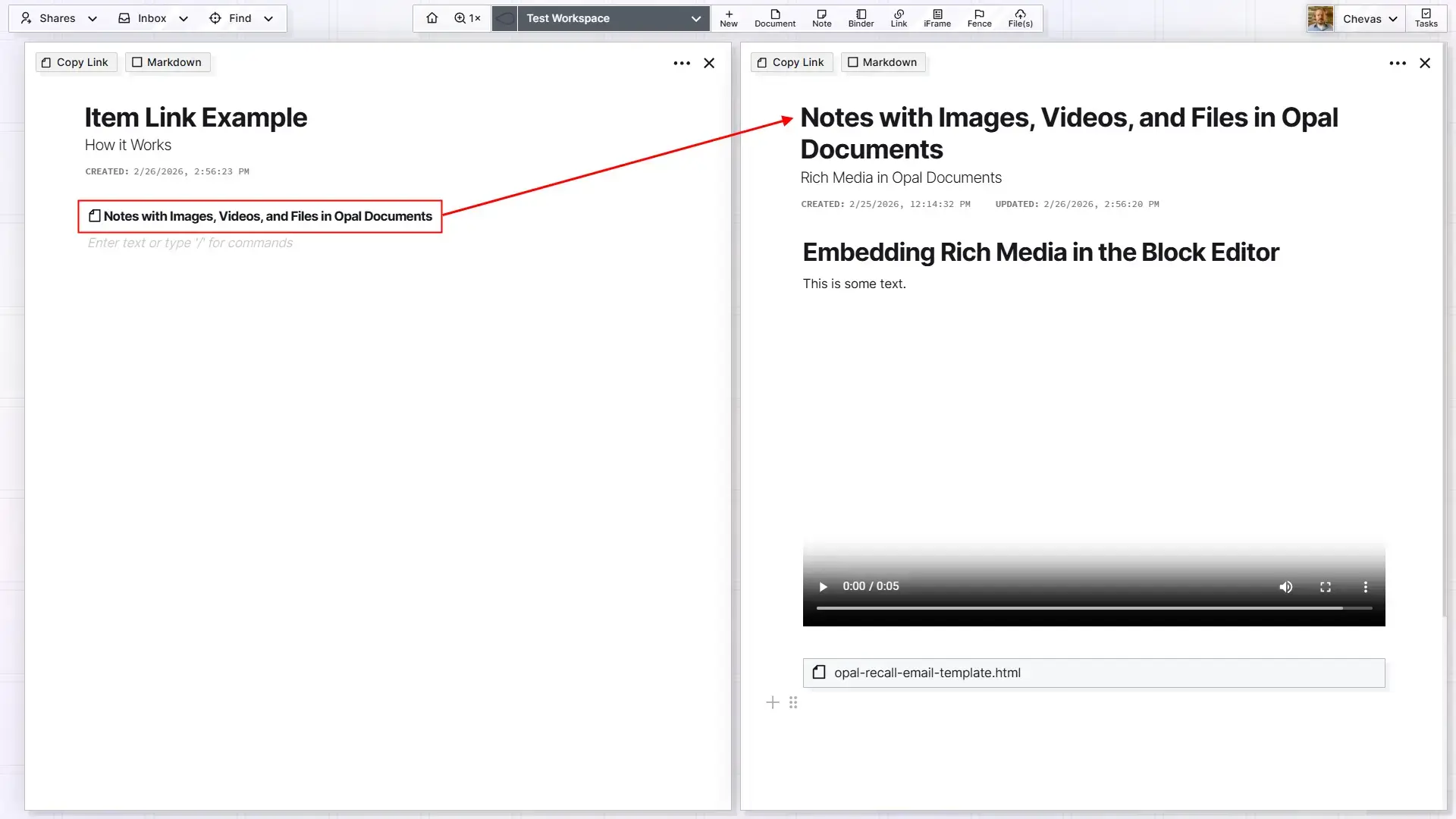
An internal Item Link is when one Opal item links to another Opal Item in the block editor or from a Task description to an Opal item (more on this later).

When you click on an Item Link, shown above, it will open the page view of that item:
Also, you may just want to link two Opal items that have nothing to do with SOPs. That’s all good, the steps below to creating Item Links are the same.
The WordPress Website Migration Scenario
I have a long history of building custom, WordPress websites and the best way to do that is to build them locally and then once they’re ready to be published, migrate them to a hosting provider, in this case Kinsta.com.
Don’t worry about the subject matter being technical, in case you’re not, the point here is to show you how to create SOPs that are linekd together. The reason I chose this scenario is because the process is essentially four different procedures that are all related.
Create SOPs: The Primary Parent Document
The primary parent document is the overarching SOP that will link to a group of child SOPs. Think of this Opal Document as an SOP Group.
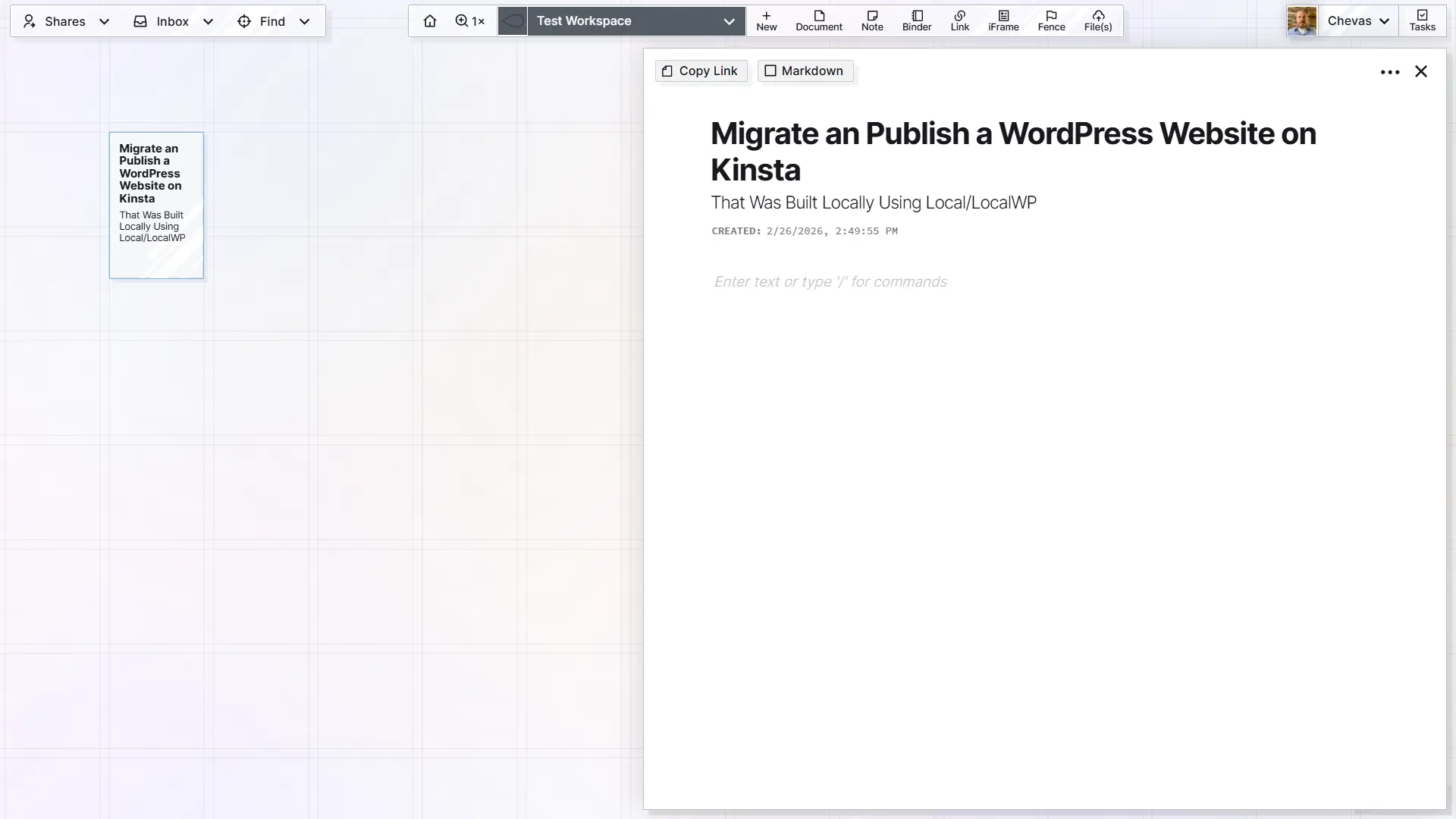
Create a new Document in Opal and give it a title and optional subtitle:
- Title: Migrate an Publish a WordPress Website on Kinsta
- Subtitle: That Was Built Locally Using Local/LocalWP
TIP: For all SOPs, I like to imagine they all begin with “How to …”, then finish the sentence. However, I leave the phrase “How to” out of the title.
Include the following four components when you create SOPs (all good ones have at least 3 where #2 is sometimes optional):
- A stated purpose
- Prerequisites (if applicable)
- Exact steps to success
- Clear indication that the procedure is completed
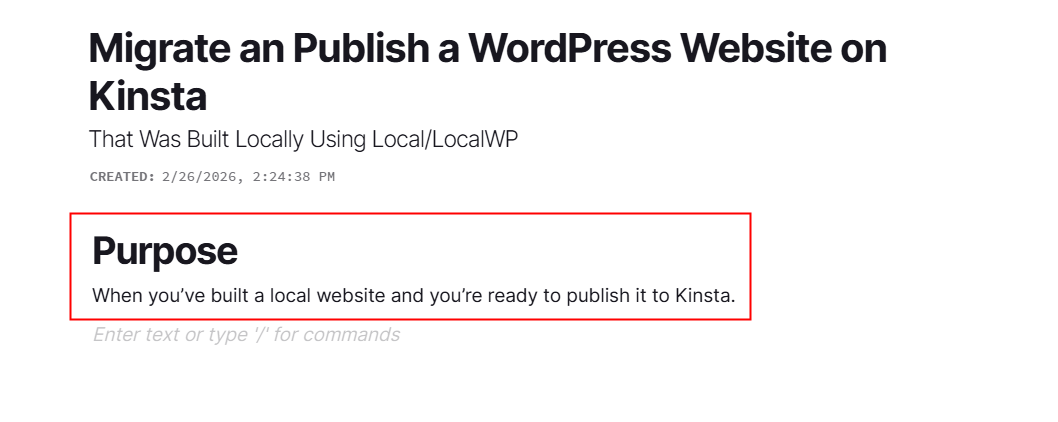
Add a purpose section to the SOP:
Next, add a section for Prerequisites, Steps (which we’ll populate as we go along), and then an indicator at the end that signals the reader has completed the procedure. I like to simply write Done!
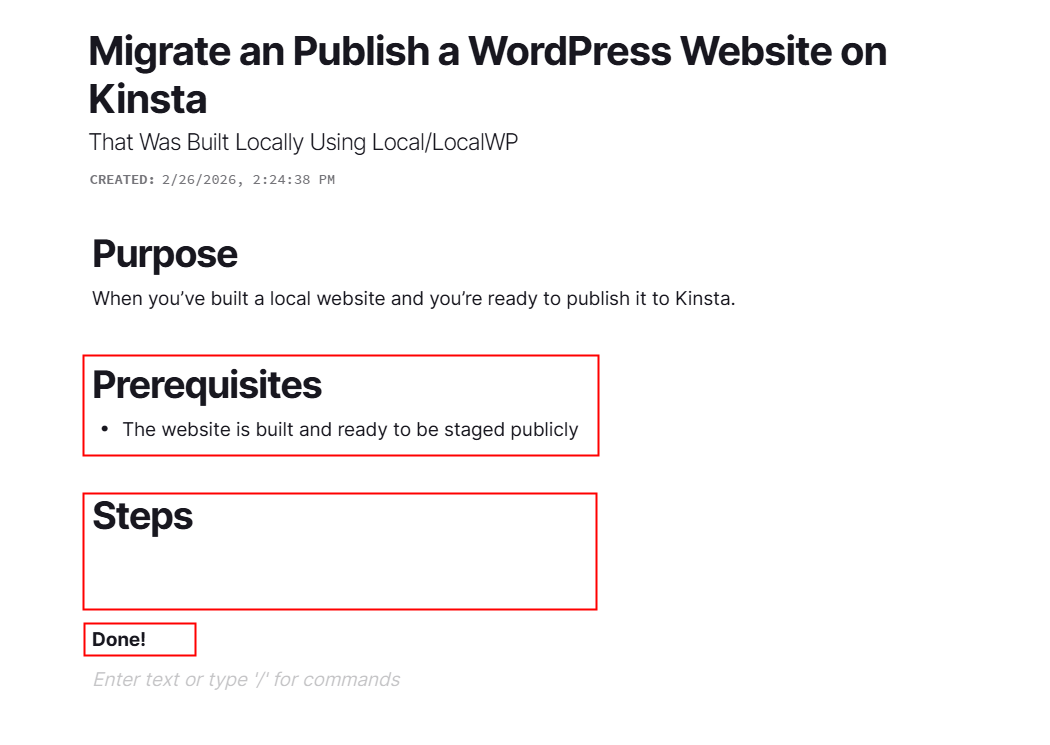
Note: I will often link to an SOP in the prerequisite section.
Method 1: Copy the Internal Item Link
Let’s assume you have all the child SOPs created for this parent procedure:
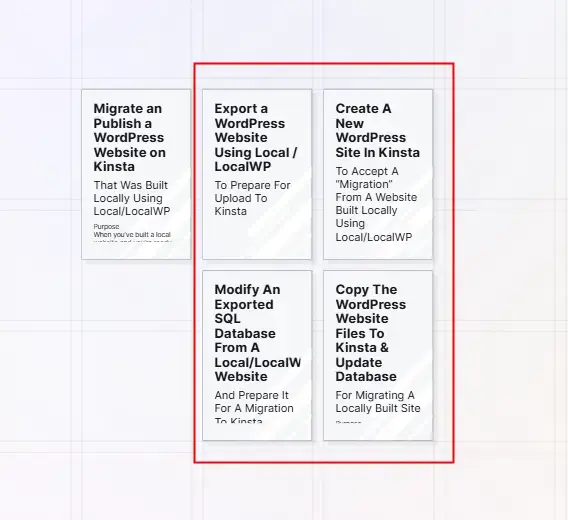
Open the first child procedure, then click the Copy Link button at the top left:
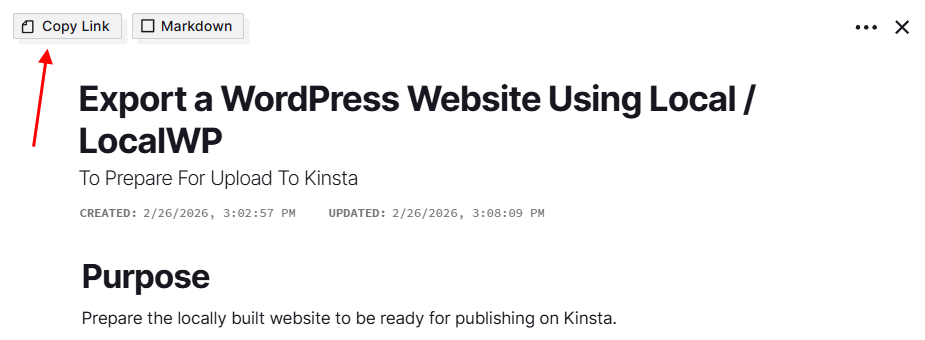
- If the parent procedure is not still open it, then open it.
- Under the Steps, type
1.(include the space to trigger a numbered list) - Press
CTRL+V(orCMD+Von a MAC) to paste the item link - Select Mention Item to create the internal Item Link
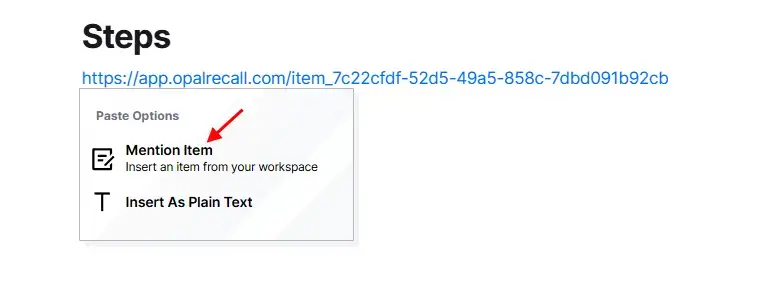
You may notice that the 1. you typed is not visible while the context menu is open. Don’t worry, it will still be there after you click Mention Item.
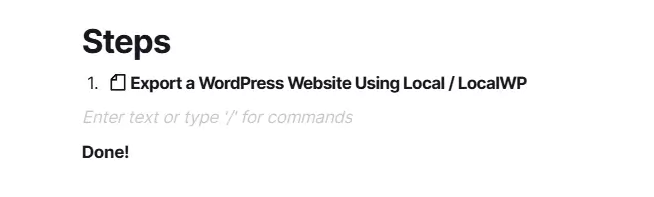
Method 2: Type to Reference the Item
For the second procedure, we’ll use the type to reference feature.
- Press
Enterto create a second item in the numbered list - Type
@to trigger the item list context menu - Start typing the name of the item you want to link to
- Select the item in the filtered list to create the internal item link
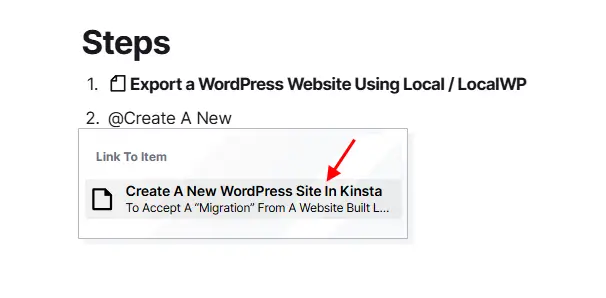
The second item link is created:
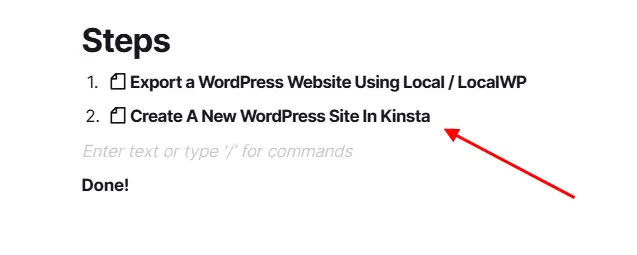
Use either method when you create SOPs. Finish the list to complete the parent procedure.
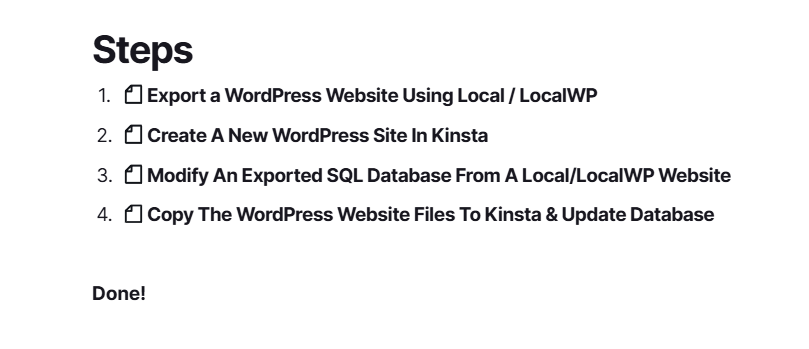
In a subsequent Help Doc related to Opal Binders, I’ll discuss how to use a Binder to organize SOPs so they don’t fill your workspace.
Adding Next and Previous Links When You Create SOPs
At the bottom of SOPs that are in a group, you may consider adding Next and Previous Item Links when applicable:
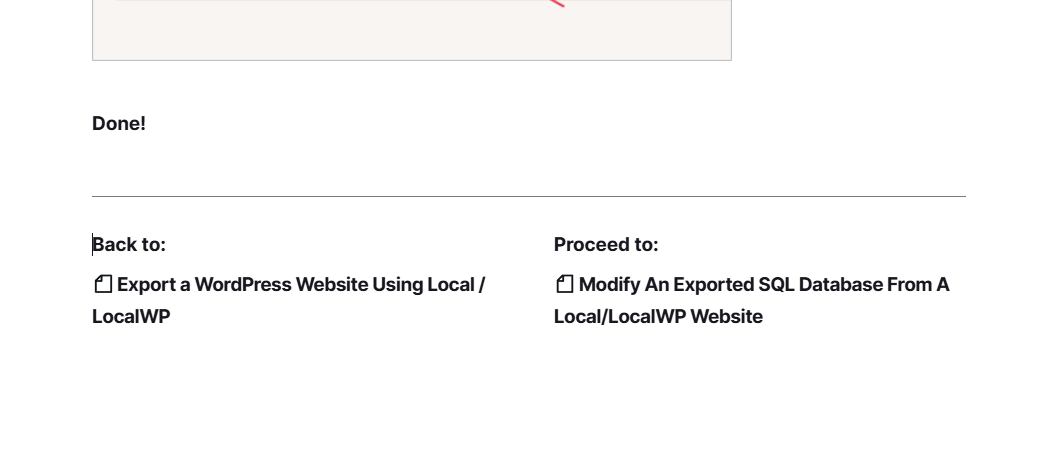
Another consideration is to repeat the same master list that’s on the parent procedure at the top or bottom of each child SOP.
Managing General Links
When pasting an internal link (method 1), you may have noticed that one of the options in the context menu was to paste the link as plain text. On rare occasion, you may prefer this, so the option is there.
When pasting a standard web link, it will automatically be hyperlinked. If you want to remove the hyperlink, you can hover over the link to bring up a context menu and select Remove Link.

As mentioned in the previous Help Doc, pasting links to images, files, or videos will automatically embed them.