

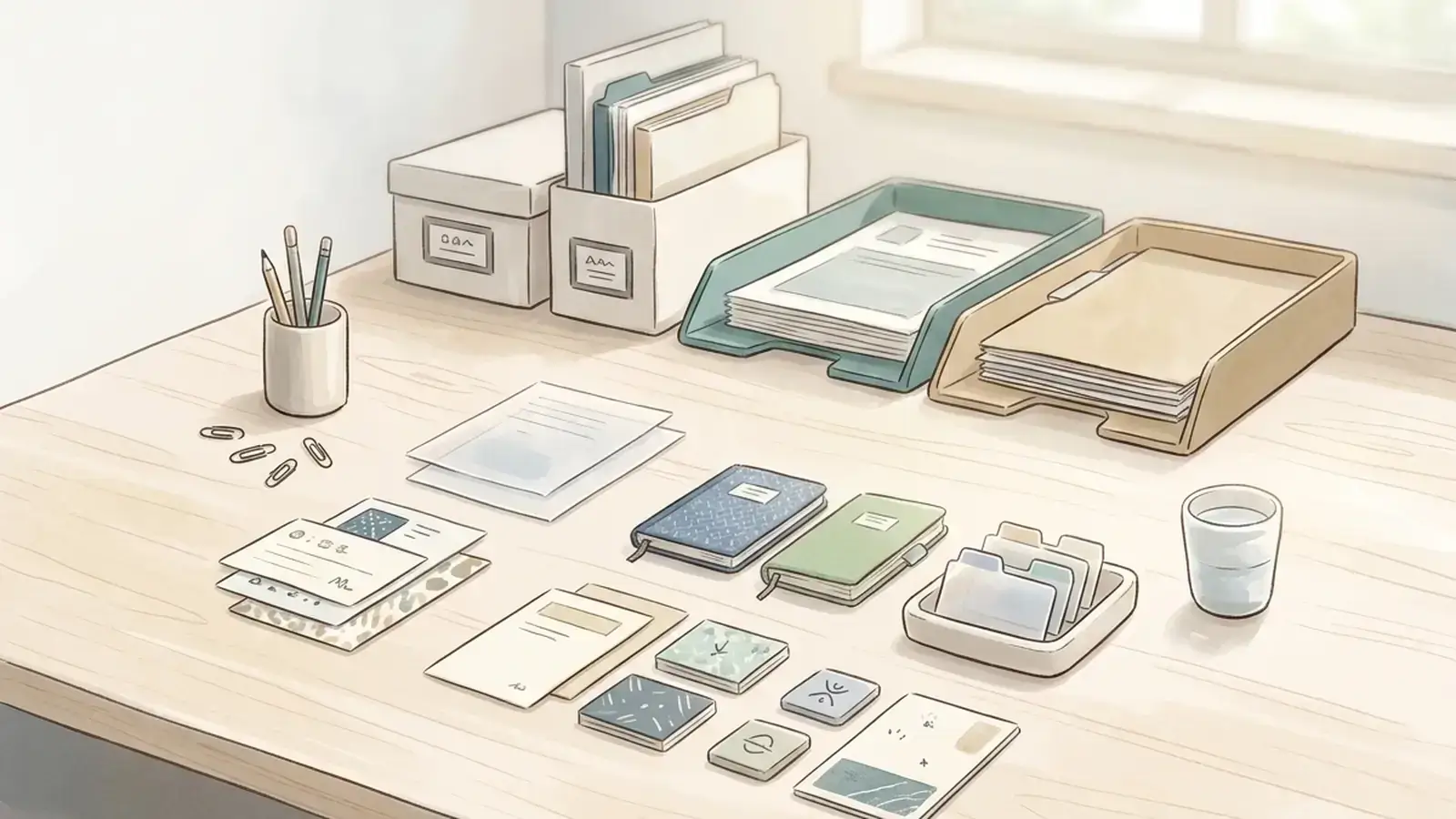
Use folders for storage. Use space for active work.
Most advice about how to organize digital files assumes the real problem is storage. Make better folders. Rename everything. Delete duplicates. That helps, but it does not solve the daily problem: the files you need for a project still disappear as soon as they are filed.
The better system has two layers. Folders keep records stable. A visual workspace keeps active files close to the work.
Start by Separating Active Files From Archived Files
The first step is not renaming every file on your computer. It is deciding which files still belong in your working field of view.
Active files are the ones tied to current work: the proposal you are editing, the screenshots for a bug report, the onboarding PDF a client sent yesterday, the task list you keep opening, the link you need before the meeting.
Archived files are different. They need to be findable later, but they do not need to compete for attention today.
NC State's electronic file guide makes a similar distinction for physical and digital organization: keep active items close at hand and move reference materials farther away. That principle matters online too. A file you are actively using should not be buried three folders deep just because the folder tree is technically correct.
Start with three rough zones:
- Active: files tied to work you expect to touch this week.
- Reference: files you may need again but are not driving current work.
- Archive: files kept for records, history, or compliance.
This split is small, but it changes the whole system. You stop asking one folder structure to serve every purpose. Storage and active work need different treatment.
Use Folders for Storage, Not for Thinking
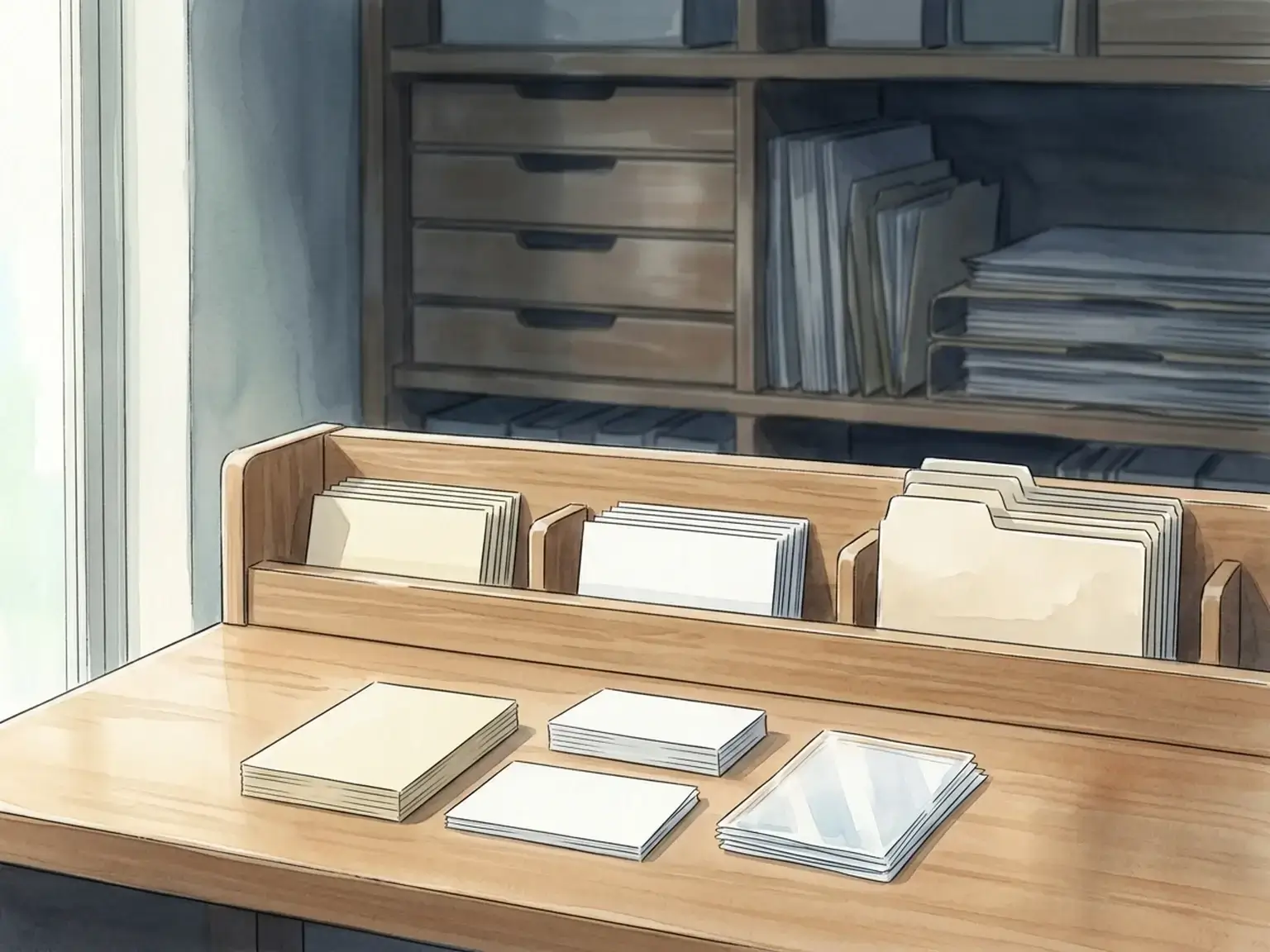
Folders are useful. They give stable records a home. They help teams agree on where final documents belong. They support backup, retention, and handoff.
Folders become painful when you use them as your thinking system.
Deep folder trees ask your memory to do too much. You have to remember the project name, the client name, the year, the department, the subcategory, and whether someone called it "Assets," "Media," "Files," or "Final." If you guess wrong, the file feels lost even when it is sitting exactly where someone put it.
University of Wisconsin-Madison Archives recommends flattening electronic folder structures as much as possible, limiting depth to about 4 or 5 levels, and keeping folder and file paths under 250 characters. NC State gives an even simpler working rule: limit clicks to three levels, such as file, folder, and subfolder.
That is good storage advice. It also exposes the weakness of folder-only organization. If a project needs files, notes, links, tasks, screenshots, and decisions together, a folder can store them, but it cannot show their relationship well.
Use folders for what they are good at:
- final deliverables
- long-term records
- team handoff
- backups
- retention policies
- stable reference libraries
Then use a visible workspace for the messy middle of the work, where context matters more than perfect hierarchy.
Make File Names Descriptive Enough to Survive Context Loss
A good file name should still make sense after you forget the conversation that created it.
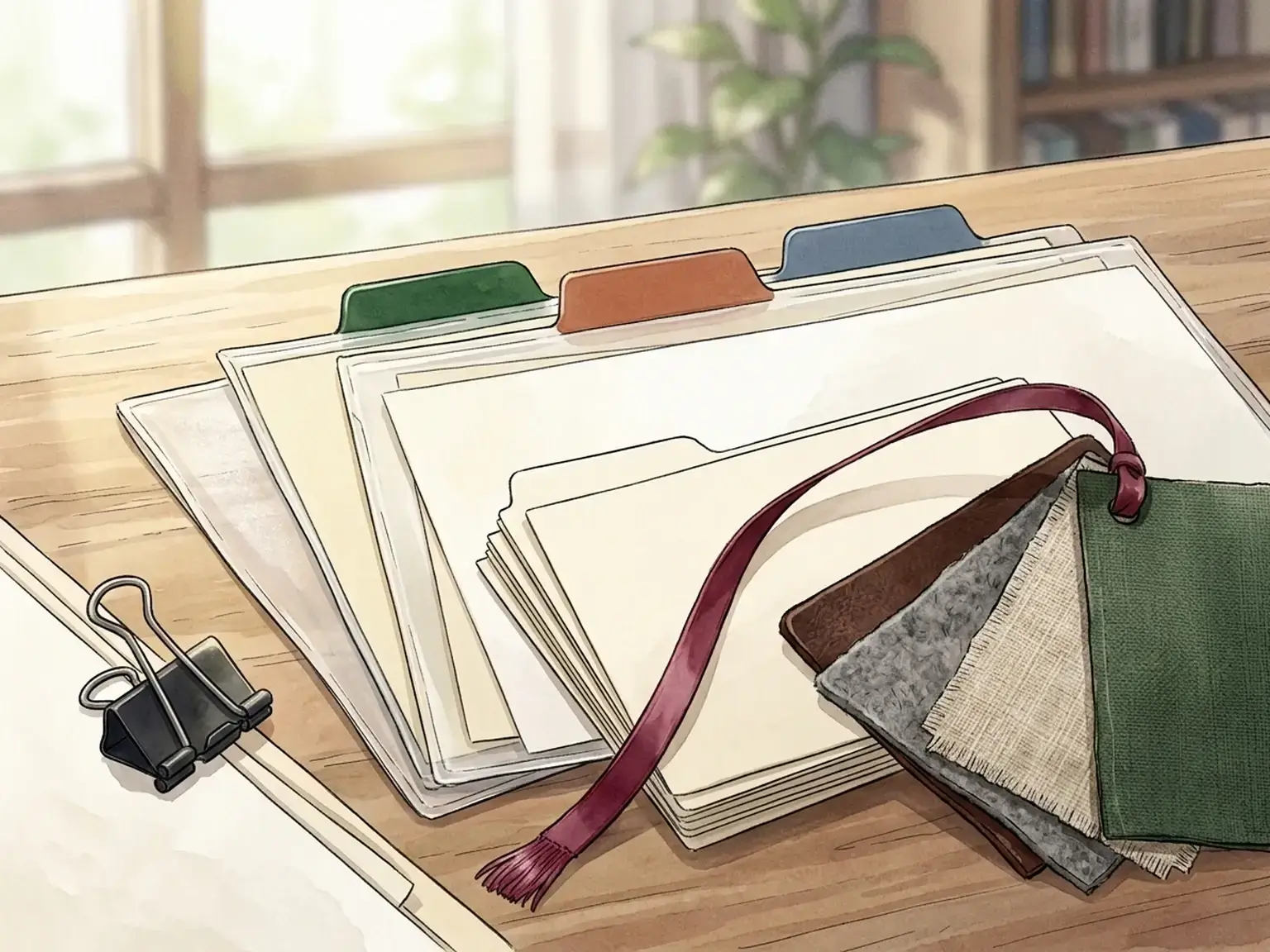
Stanford Libraries shows why this matters with a research-data example. Some file names were still understandable decades later, while other abbreviations no longer made sense even to the researcher who created them. Their guidance is simple: use a consistent naming scheme, include descriptive information, and document the scheme with a README when needed.
South Dakota State Archives gives a practical version of the same rule: file names should identify what the file contains, what version it is, and when it was created, preferably with a date format like yyyymmdd.
For everyday work, use a structure like this:
project-client-document-type-date-version
Examples:
opal-image-workflow-notes-20260520-v1client-name-proposal-20260520-finalhomepage-copy-review-20260520-chevas-comments
You do not need a ceremony for every screenshot or quick export. You do need enough signal that a file can stand on its own.
Good file names reduce the cost of search. They also protect your future self from old shorthand. The name should answer three questions without opening the file:
- What is this?
- What project or person does it belong to?
- Is this draft, final, or a dated snapshot?
If the file name cannot answer those questions, the folder has to carry too much weight.
Build a Simple Digital File Structure
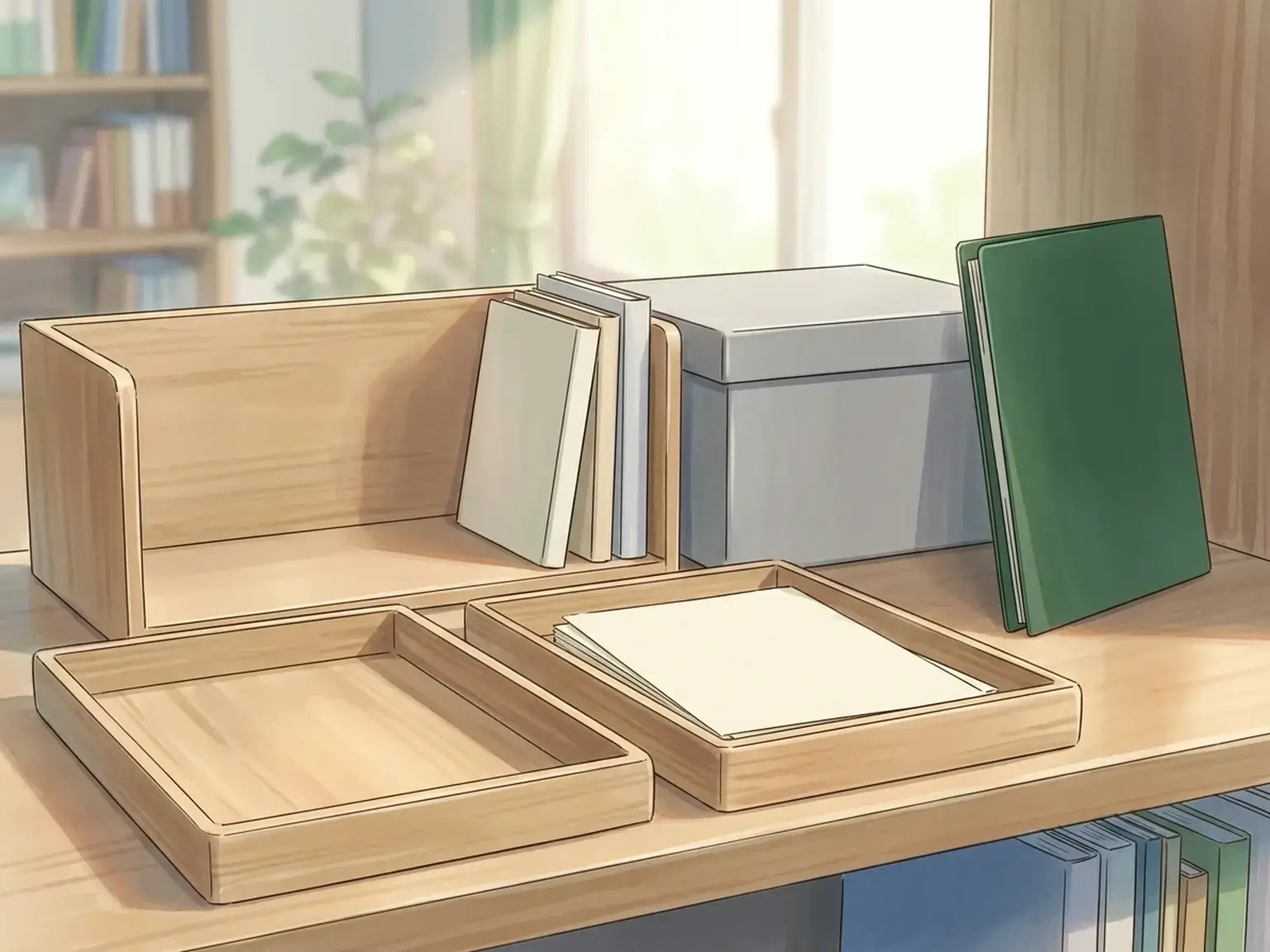
You do not need an elaborate taxonomy. Most people need a small set of durable places.
Try this:
InboxActive ProjectsReference LibraryArchiveTemplates
The inbox is temporary. It catches downloads, exports, screenshots, scanned files, and anything you have not processed yet.
Active projects hold current work. Each project can have a shallow folder with obvious subfolders only when needed: brief, assets, drafts, final, handoff.
Reference is for material you may reuse: brand files, research, swipe files, standard documents, process notes.
Archive is for work that is done but worth keeping.
Templates are reusable starting points. They should not be mixed with active project files, because templates stop being reliable when people edit them directly.
The Library of Congress personal archiving guidance recommends deciding what has long-term value, giving documents descriptive file names, creating a directory structure, writing a short description of that structure, making at least two copies, checking readability yearly, and creating new media copies every five years when needed.
That is the long-term layer. It is not busywork. It is how your files stay available after software, devices, and memory all change.
For active work, keep the structure lighter. If the system takes too much effort to maintain, you will stop using it.
Keep Related Work Visible Together
Folders hide most context. A visual workspace keeps context visible.

Nielsen Norman Group explains that recognition is easier than recall because visible cues help people retrieve information from memory. Their working-memory guidance makes the same point from another angle: interfaces should help users offload task information instead of forcing them to keep everything in their head.
That is why a physical desk still works for many people. A document beside a notebook beside a sticky note is not just clutter. It is context. You can glance at the space and remember what belongs together.
Digital work often removes that advantage. The PDF is in downloads. The note is in one app. The task is in another. The link is in a browser tab. The decision is buried in chat.
This is where a visual workspace app helps. Opal lets you place files, notes, links, and tasks near each other so the project can be recognized at a glance. You still keep the permanent files where they belong. You just stop making folder paths carry the whole cognitive load.
Use a visible workspace for:
- projects that combine many file types
- research collections
- client work with assets, notes, and links
- writing projects with sources and drafts
- personal knowledge work
- anything you keep reopening from memory
If a file matters to current work, it should be visible near the context that gives it meaning.
Use a Weekly Cleanup Instead of a Perfect System
Perfect systems fail because they depend on perfect behavior.
Use a cleanup rhythm instead.
Once a week, spend 15 minutes doing this:
- Empty the inbox.
- Move current files into active projects.
- Rename files that have vague names.
- Delete duplicate convenience copies.
- Mark final versions clearly.
- Move stale projects to archive.
- Pull active files into your visual workspace if you still need them.
NC State recommends filing as you go and cleaning folders at specific times, such as every Friday. Wisconsin's guide also warns against too many convenience copies, because scattered duplicates make it harder to identify official records later.
The point is not to keep a spotless machine. The point is to prevent slow decay.
Most digital clutter is not created in one dramatic failure. It builds through tiny decisions: a download left in place, a duplicate saved for convenience, a final version left unlabeled, a screenshot never tied back to the project.
A weekly cleanup catches those small leaks before the system becomes untrustworthy.
A 15-Minute Setup for Organizing Digital Files
If your current system is a mess, do not start by reorganizing ten years of files.
Start with today.
Minute 1-3: Create the five main places
Create Inbox, Active Projects, Reference Library, Archive, and Templates.
Do not overthink categories yet. You can refine them after the system is moving.
Minute 4-6: Pick three active projects
Choose the three projects you are most likely to touch this week.
Create one folder for each under Active Projects. Keep the folder names obvious. If a client or product name matters, include it.
Minute 7-9: Move only current files
Move the files you know you need soon. Leave old files alone unless they are blocking you.
This prevents the common failure mode: spending the whole session cleaning ancient files and never improving tomorrow's work.
Minute 10-12: Rename the important files
Rename only the files you will actually use. Make each name descriptive enough to survive context loss.
Use dates when sequence matters. Use final only when it is truly final.
Minute 13-15: Build the visible project space
Open Opal and create a workspace for one active project. Add the files, links, notes, and tasks that belong together. If you need a deeper product walkthrough, the Opal help center is the place to start.
Place them in groups that make sense to you. A proposal can sit near source notes. A design file can sit near screenshots. A task can sit beside the document it refers to.
This is the missing layer in most file systems: not another folder, but a place to see the work.
How Opal Helps With Active Files
Opal does not replace your hard drive, cloud storage, backups, or records policy.
It gives active work a visible place to live.
That matters because active work is rarely just a file. It is the file plus the note beside it, the task it supports, the link that explains it, the screenshot that proves it, and the decision that changed it.
In a folder-only system, those pieces are split apart. In Opal, you can keep them together on a visual workspace and return to the whole project without reconstructing it from memory. That same recognition-first idea shows up in Opal's guide to peripheral awareness and visual spatial memory.
That is especially useful if you think spatially, handle multiple projects, or keep losing work that is technically saved but practically invisible.
You can still use folders for permanent storage. Opal becomes the active layer above storage, where current context stays in view. If you are building a broader personal system, the second brain app guide shows how to keep the setup small enough to use.
When the project ends, archive the final files where they belong. Until then, keep the working pieces close enough to recognize.
Key Takeaways
- Separate active files from reference and archive files before reorganizing everything.
- Keep folder structures shallow so storage stays usable.
- Use descriptive file names that make sense without opening the file.
- Treat folders as the storage layer, not the whole thinking system.
- Use a visual workspace for active projects that combine files, notes, tasks, and links.
- Clean up weekly instead of depending on a perfect system.
FAQ
What is the best way to organize digital files?
The best way to organize digital files is to use folders for stable storage and a visible workspace for active work. Keep your folder structure shallow, name files descriptively, and separate active projects from archives. If a file is part of current work, keep it near the related notes, links, and tasks.
How many folders should I use?
Use as few folders as you can without creating confusion. A good starting point is inbox, active projects, reference library, archive, and templates. Add subfolders only when they make retrieval easier.
How deep should my folder structure be?
Keep it shallow. Wisconsin's records guidance recommends limiting folder depth to about 4 or 5 levels, and NC State recommends no more than three clicks for everyday file organization. If you need more levels than that, the categories may be too complicated.
What should I name my files?
Use names that include project, document type, date, and version when those details matter. A file named client-proposal-20260520-final is easier to understand than final2.docx. Avoid private abbreviations unless you document them.
Should I organize files by date or by project?
Use project-first organization for active work and date-first naming when sequence matters. For example, put files inside the project folder, then include dates in the file names. This keeps related work together without losing chronology.
How do I stop duplicate files from taking over?
Create one official location for each project and delete convenience copies during a weekly cleanup. Label final versions clearly. If you need a temporary export, move it to your inbox and process it later instead of letting it become another unofficial record.
What should stay in my downloads folder?
Almost nothing should stay there permanently. Treat downloads as an inbox. Move useful files into active projects, reference, or archive. Delete the rest.
Is search enough for organizing digital files?
Search helps when you remember the right words. It fails when you cannot recall the file name, the project label, or the app where something lives. A visible workspace adds recognition, so you can see related work instead of remembering everything from scratch.
How often should I clean up digital files?
Clean active files weekly. You do not need to reorganize your entire archive every week. Focus on emptying the inbox, clarifying file names, deleting duplicates, and moving stale work out of active view.
Does Opal replace folders?
No. Opal is the active workspace layer. Use folders, cloud storage, and backups for long-term storage. Use Opal when files, links, notes, and tasks need to stay visible together while work is still moving.
What should I do first if my files are already chaotic?
Do not start with the whole archive. Pick three active projects, create simple project folders, rename the files you need this week, and place each project's files, notes, links, and tasks in a visual workspace. Current work is the fastest place to recover trust.
Ready to keep current files visible while you work? Create an active project workspace in Opal and organize the files you need now.
Setup your desk today