
Overview
There are two primary methods for storing and viewing rich media in Opal:
- Inside of block-editor-enabled items, such as Documents, Notes, and Links, as individual blocks.
- As items themselves using the File item type (more on this later).
This Help Doc covers #1, how to use the block editor to author notes with images, videos, and files, inline, with your written content. This is a continuation of the various block types that are available in the block editor in Opal.
Notes with Images: Methods for Adding Images to the Block Editor
Using the Block Editor Tool
In an empty block, click the Plus icon in the left margin or type a slash / to display the Block type selection menu, then select Image:
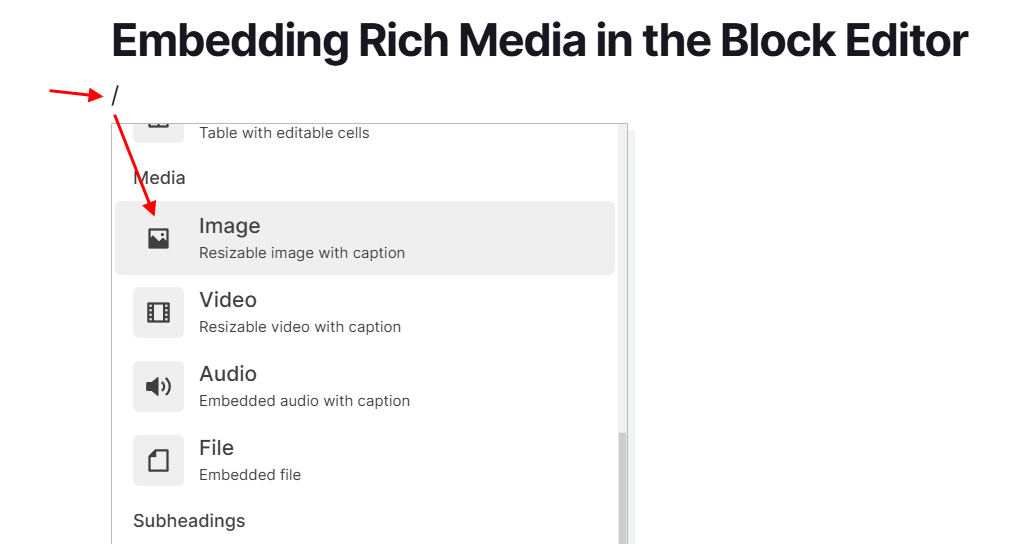
Alternatively, you can type /image to filter the list, then select Image.
An additional menu will appear that defaults to the Upload option. If the image is on your device, click the Upload Image button:
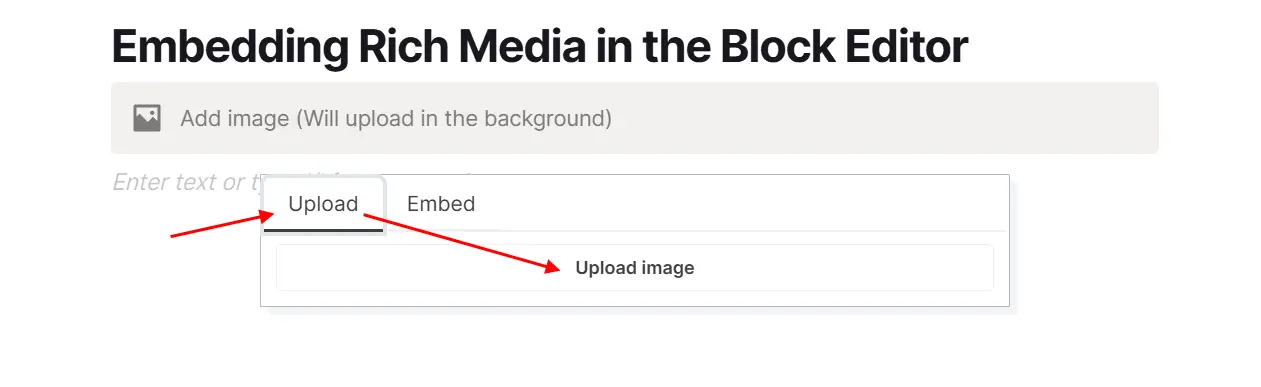
The browse dialog specific to your device will appear where you can select the image and then it will be added to the Document.
If the image is located at a URL, then select the Embed tab, enter the URL directly to the image, then click Embed Image:
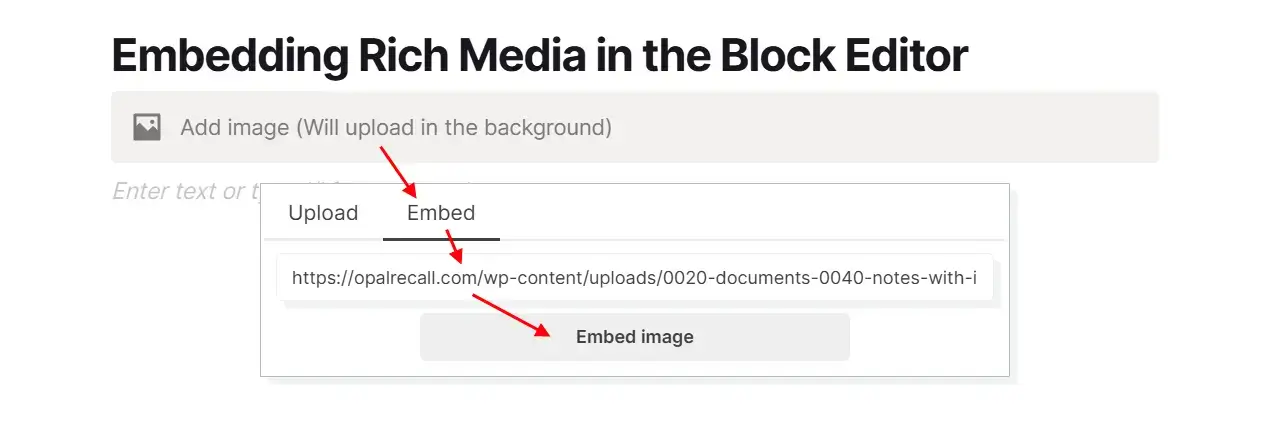
This is essentially hotlinking and image. Feel free to do this from your own websites. Some images services allow this and encourage this, but it’s considered a faux pas to hotlink from someone else’s website, such as a blog.
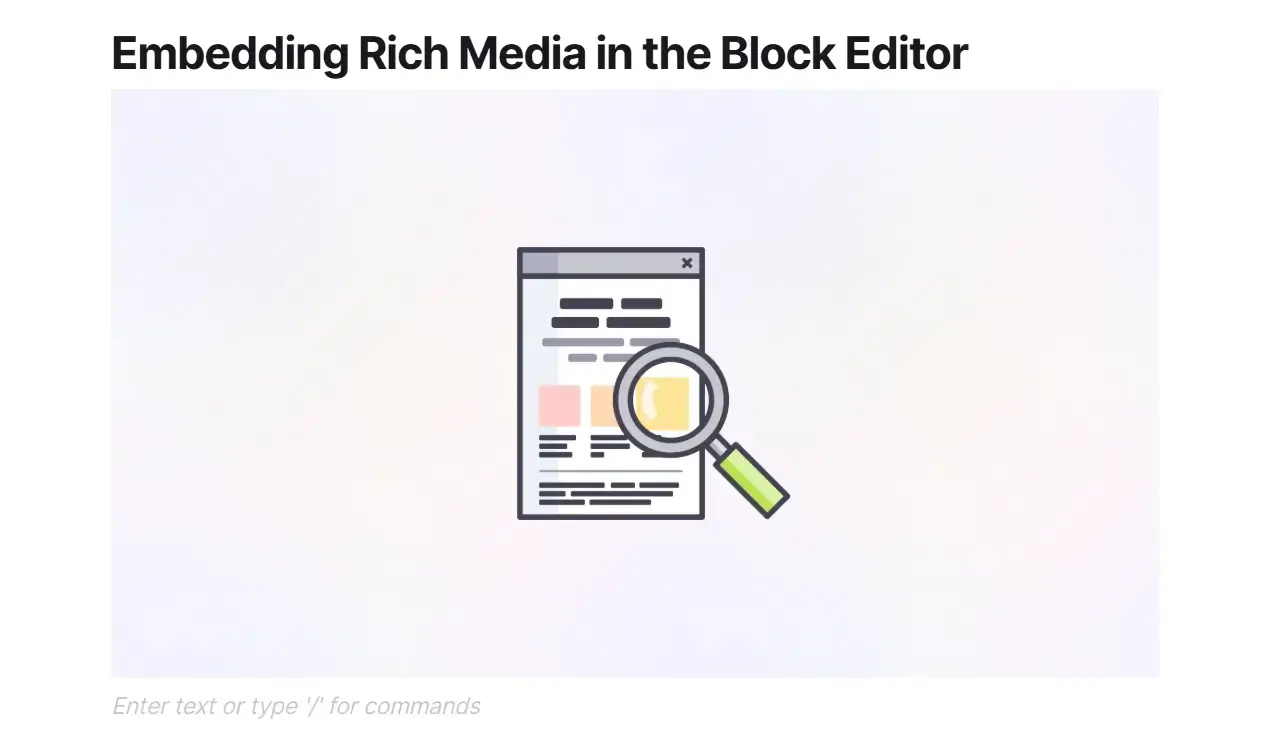
The image will then be added to the Document:
Using Drag and Drop
Drag the image from your file system onto the block editor. Observe the vertical light-blue line that indicates in which block the image will be placed.
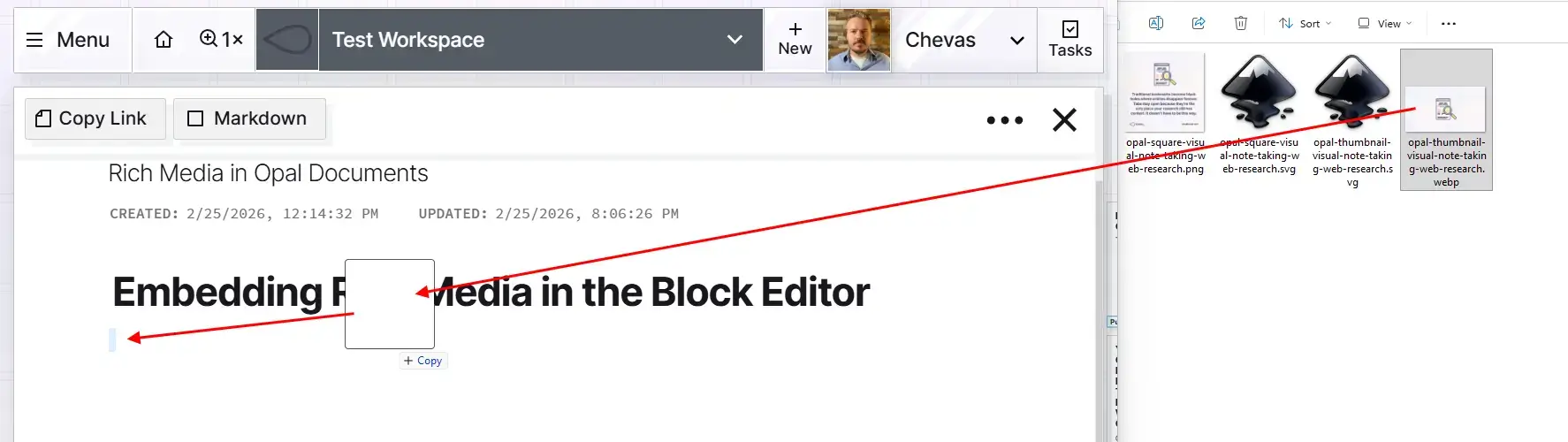
Release the mouse and the image will upload and display in the Document.
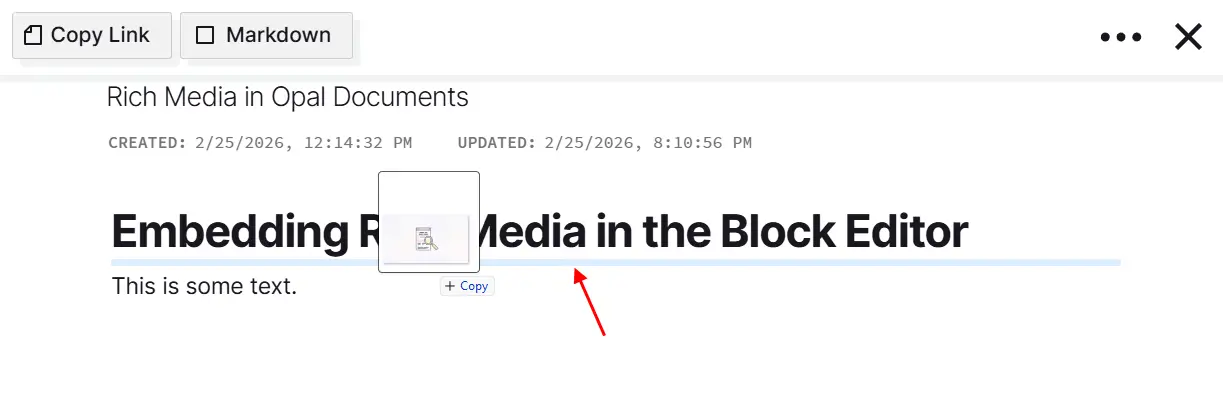
You can also orient your mouse to hover between two existing blocks to display a horizontal blue line in order to create a new block with the image inbetween the existing blocks:
Using Copy and Paste
My favorite and most frequently used method is uploading images from copy and pasting. Whether you right-click an image and select copy from a website, long-press and copy an image from your phone, or take a screen shot, that image is copied to your devices clipboard or memory.
Position the cursor in an empty block:
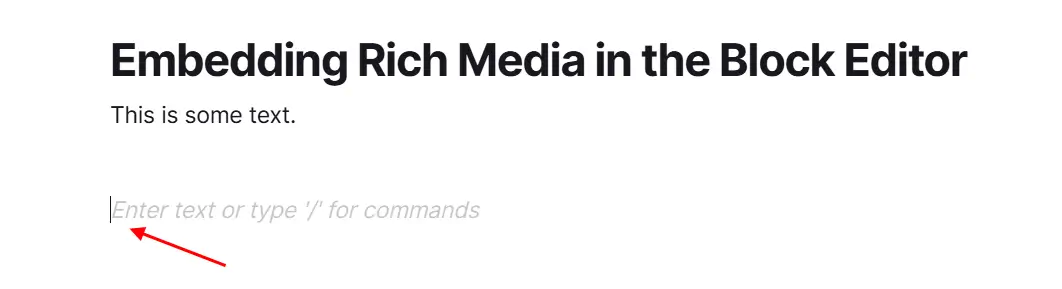
Then paste the image into the block:
- If on a phone, tap the cursor again to display the context menu, then select paste
- If on a PC, press
CTRL+V - If on a MAC, press
CMD+V
Adding Videos or Files
The methods for adding a video or file are exactly the same. You can:
- Use the Block Editor menu selection and select Video or File
- Drag and drop a video or file onto the block editor
- Copy and paste a video file or other kind of file and paste it into the block
An uploaded video:
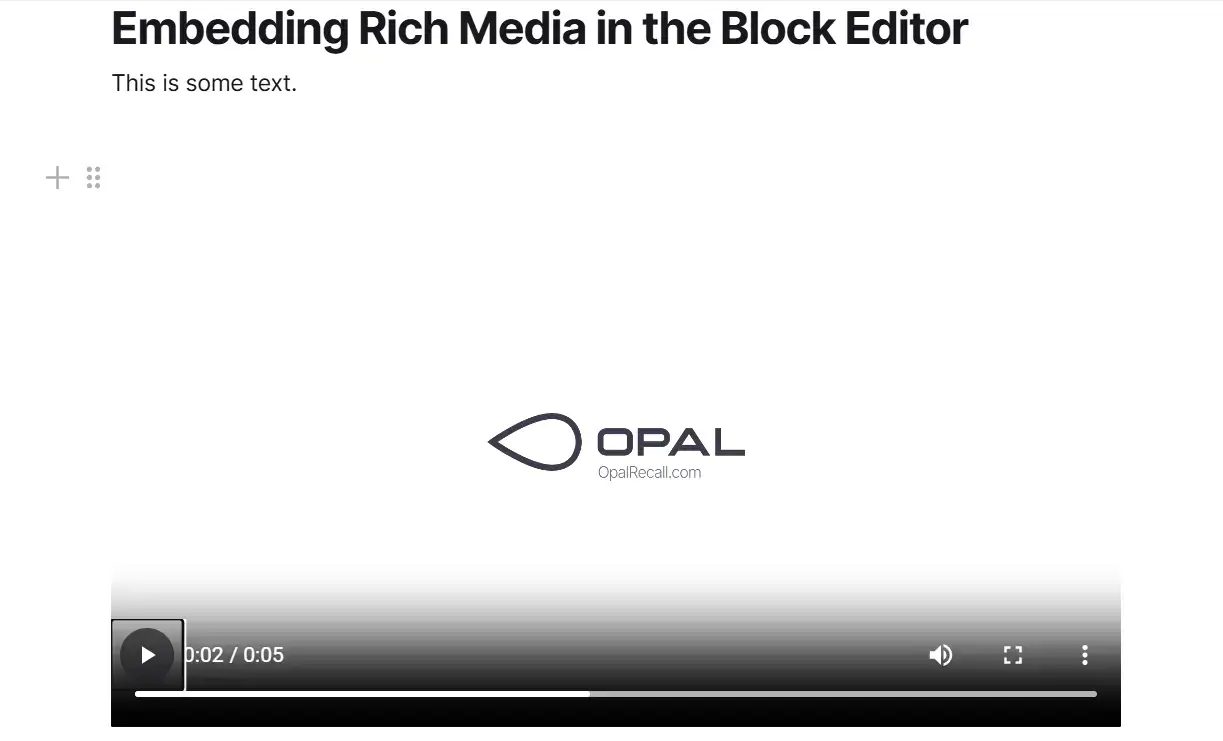
A video that’s been uploaded has all of the the HTML5 video features including:
- Controls to play the video inline in the Opal Document
- Change the playback speed
- Set the video to picture-in-picture
- Set the video to fullscreen
- Mute the video
- Change the position on the timeline.
A file that’s been uploaded will display as a single-line shape shown below:

Clicking on the file shape will trigger a download window.
File Storage
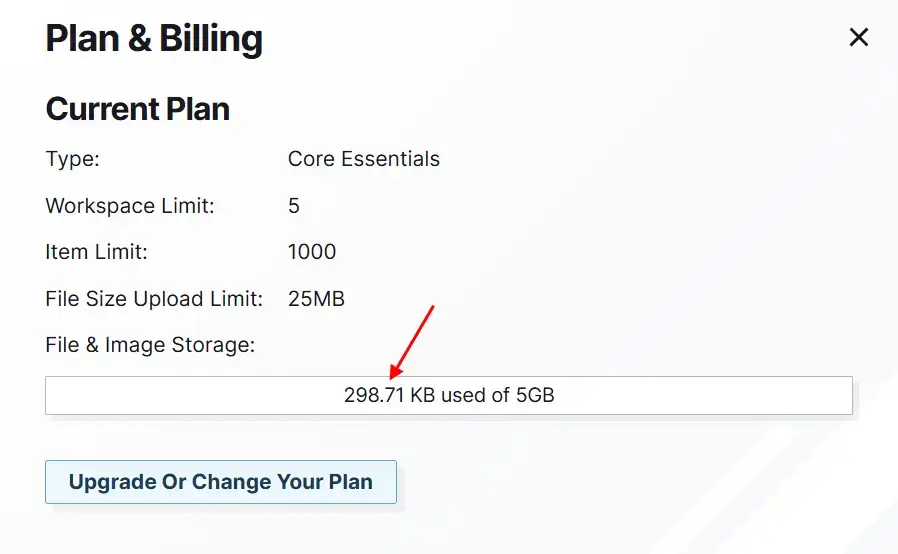
Uploading any kind of files (images, videos, or other files), either within a block-editor-enabled item such as a Document or as a File item type will use up your file storage allotment. To see your storage usage, click on your name at the top right and Select Plan & Billing:
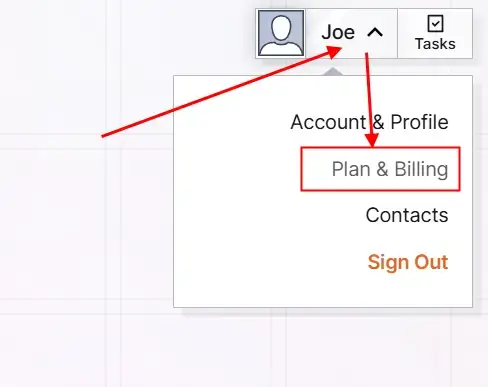
Here you can see your current plan and all its limits: