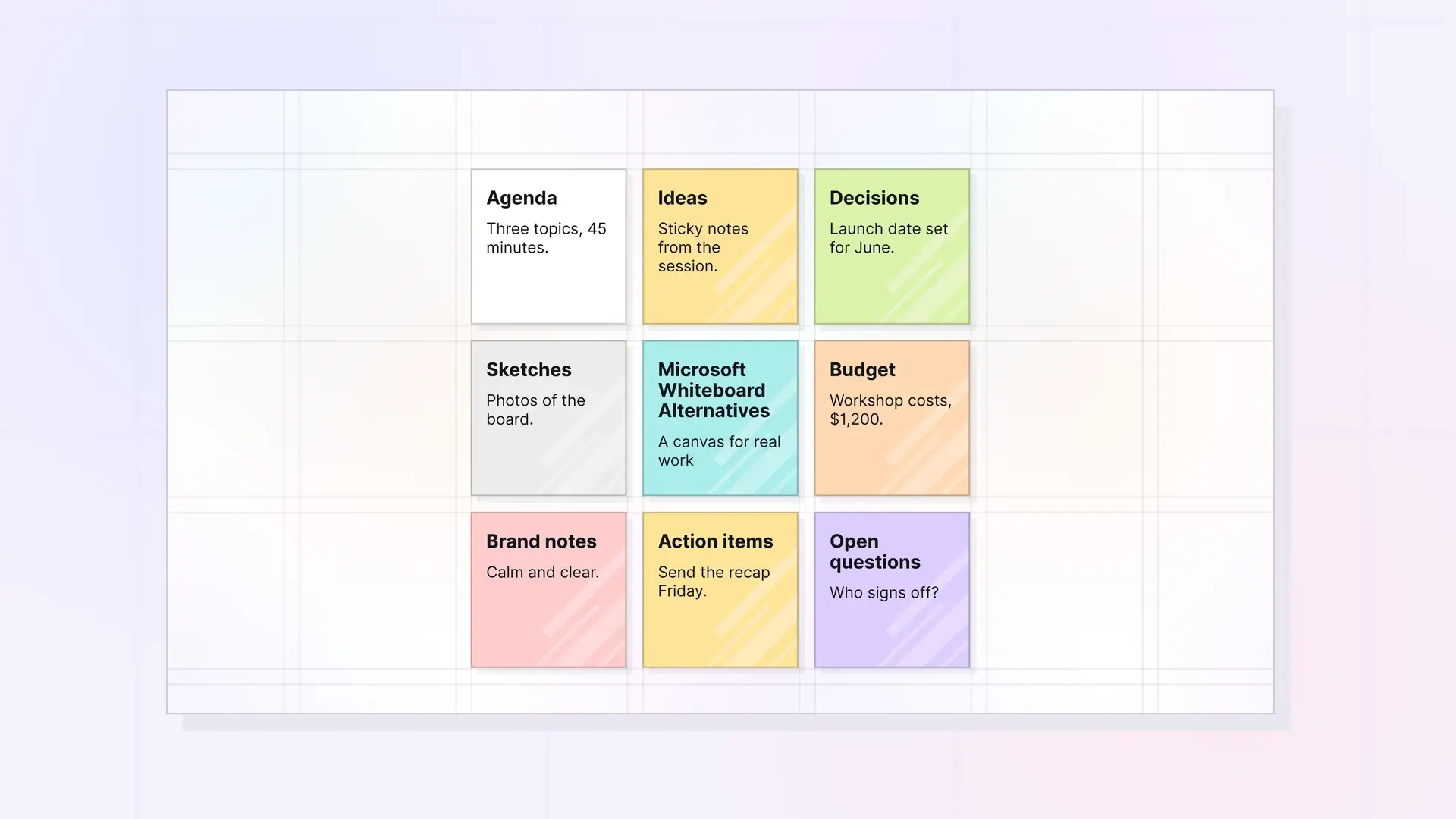
Your Whiteboard app is gone. Here’s where to keep the ideas, plans, and files that came out of it.
On October 16, 2026, Microsoft retired the standalone Whiteboard apps for Windows, iOS, and Android. Work and school accounts can still open Whiteboard in Teams and on the web, but installed apps now show a retirement screen instead of your boards. If that sent you looking, you’re probably asking a bigger question too: where should the work that starts on a whiteboard actually live? This guide compares six Microsoft Whiteboard alternatives, from meeting boards to free sketch tools to a visual desk for everyday work. We make Opal, so it’s listed first, and we say where it falls short.
Microsoft Whiteboard Alternatives at a Glance
| Tool | Best for | Starting price | Key difference | Review |
|---|---|---|---|---|
| Opal | Keeping notes, docs, and files from a session on one visual desk | $9/seat/month ($7/month yearly) | A canvas of real notes, docs, PDFs, and links, grouped in fences | Jump to Opal |
| Miro | Team workshops and facilitated sessions | Free (3 boards); Starter $8/member/month billed yearly | Large template library and 250+ integrations | Jump to Miro |
| FigJam | Design and product teams | Free Starter plan; Collab seat $3/month billed yearly | Whiteboard inside the Figma suite | Jump to FigJam |
| Excalidraw | Quick sketches and diagrams | Free; Excalidraw+ $6/user/month billed yearly | Open-source, hand-drawn style canvas | Jump to Excalidraw |
| Canva Whiteboards | Visual brainstorming next to design work | Free; Pro US$144/year | Whiteboards inside a full design tool | Jump to Canva |
| Milanote | Creative project and mood boards | Free (100 notes, images, or links); $9.99/month billed yearly | Boards built for creative planning | Jump to Milanote |
Prices checked October 2026 on each tool’s own pricing page. Plans and prices change, so check before you buy.
Why People Are Looking for a Microsoft Whiteboard Alternative
The trigger is the retirement. Microsoft’s notice (summarized in Message Center post MC1469557) says the standalone apps are no longer supported from October 16, 2026, and that users should reach Whiteboard through Teams and supported web experiences. That works if your company runs on Microsoft 365. It’s less useful if you sketched on a Surface with a personal account, or if you liked having a whiteboard as its own app.
There’s a second reason that has nothing to do with Microsoft. A whiteboard is good at the meeting and weak at the week after. The sticky notes, decisions, and links end up in a board that nobody reopens, while the follow-up work moves into email, documents, and a task app. Workers in one Harvard Business Review study toggled between apps and websites roughly 1,200 times each day, and spent just under four hours each week reorienting after those switches. If you’re choosing a Microsoft Whiteboard alternative anyway, it’s worth picking a tool that keeps the output of a session close to the work it creates.
1. Opal: Best for Keeping Session Notes, Docs, and Files on One Desk
Opal is a visual workspace where notes, documents, links, files, and tasks sit on an infinite canvas. You can arrange items the way you would on a whiteboard, but each item is a full note or document you can open, edit, and link. It works as a daily desk as well as a place to lay out a session.
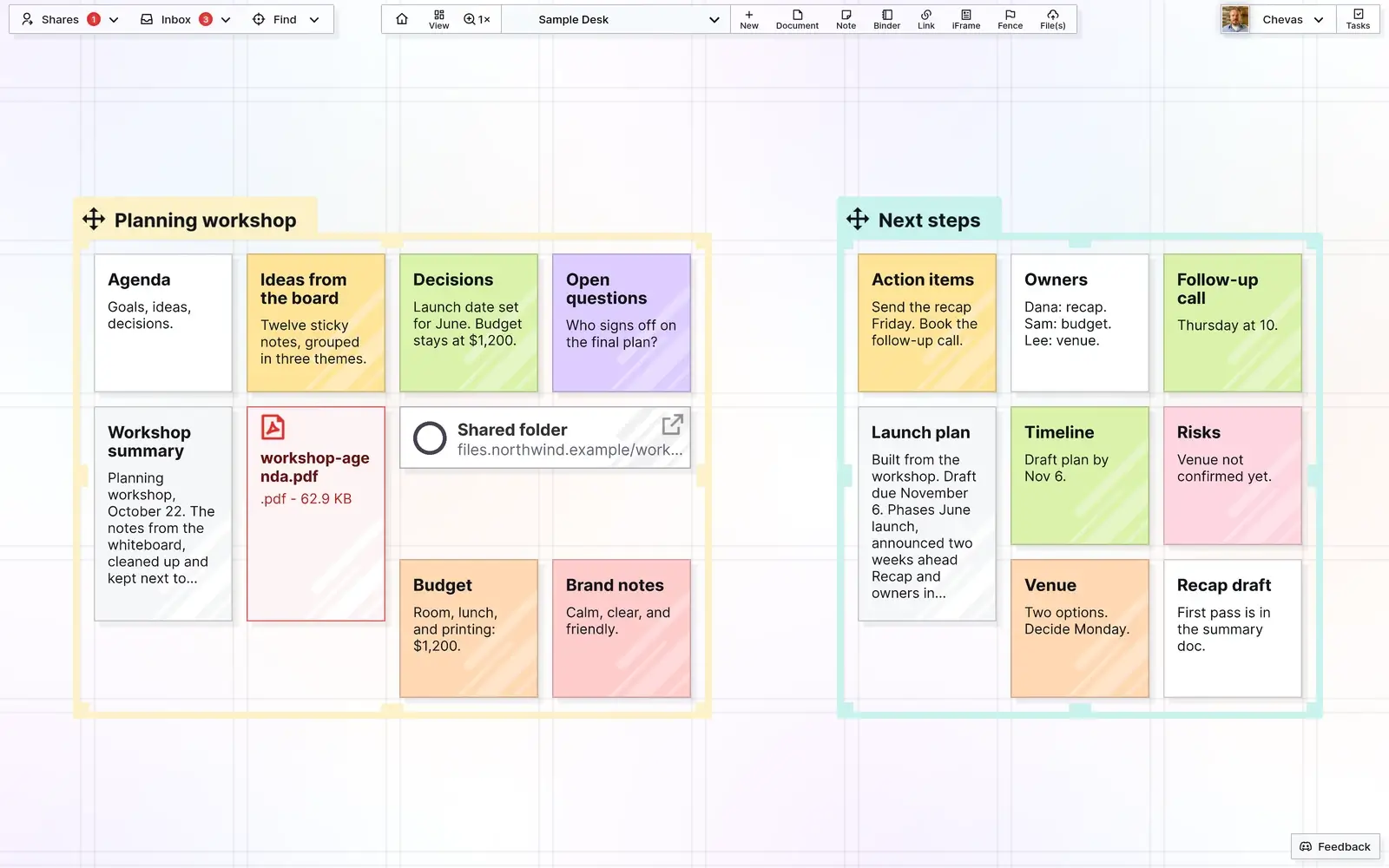
What you get, based on the Opal features page:
- An infinite canvas with multiple desks. Lay work out spatially, zoom out to see everything, and keep separate desks for separate areas of work.
- Fences to group related items. Draw a resizable fence around a session’s notes, docs, and files, then move the whole group together. Colors make categories visible at a glance.
- Notes and documents with real text. Write in a block editor or in Markdown mode, and connect notes, docs, and tasks with wikilinks.
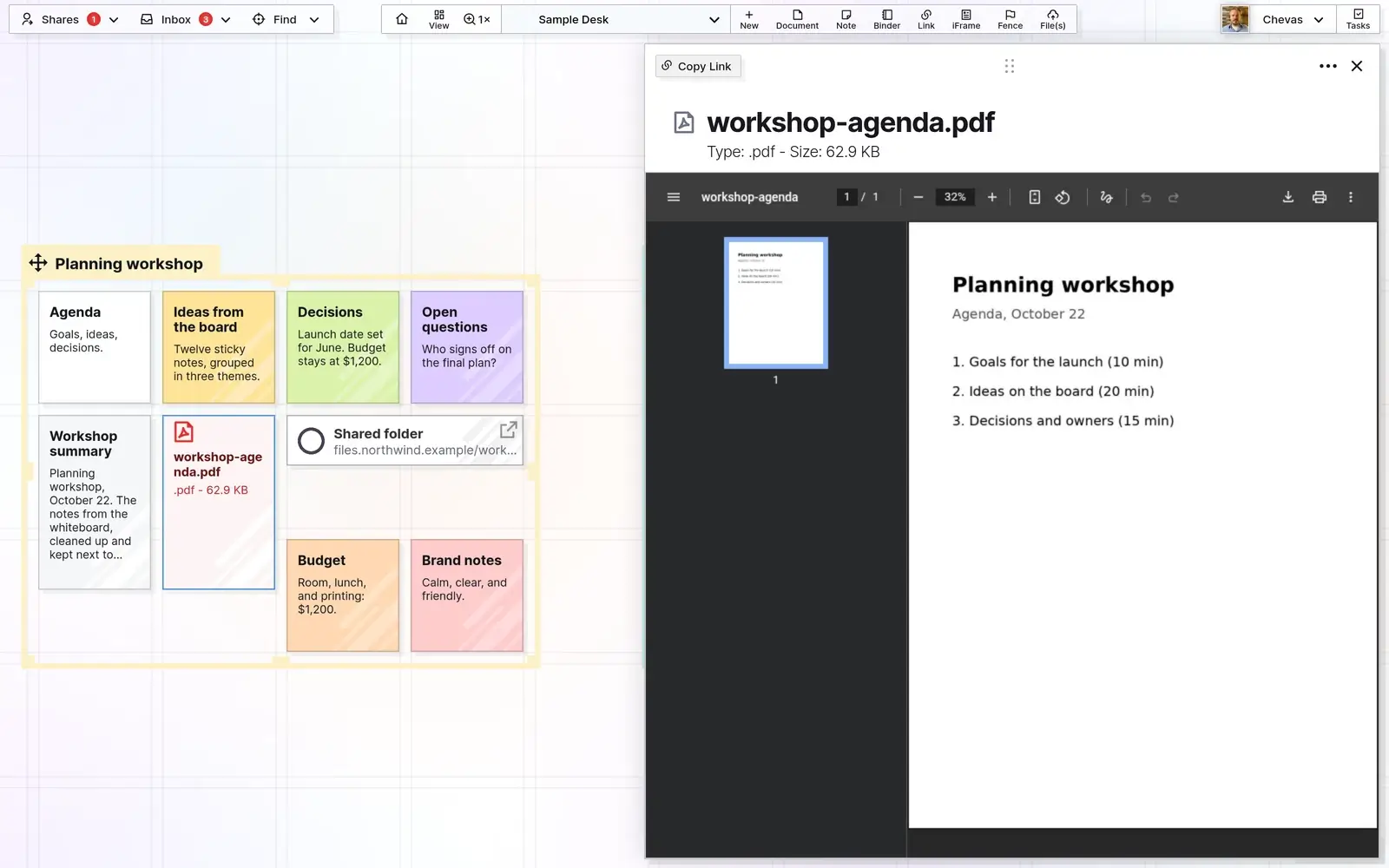
- Files, PDFs, and live Google Docs and Sheets. Drag files and images onto the desk, read PDFs where they sit, and embed a live Google Doc or Sheet beside your notes.
- Many pages open at once in one browser tab, with search that pans you to the item it finds.
- Sharing and publishing. Share a note, doc, or link and edit together in real time. Share a whole fence or binder, or publish an item or container as a read-only page anyone can view.
- Linked tasks on a dedicated task panel, so follow-ups connect to the notes they came from.
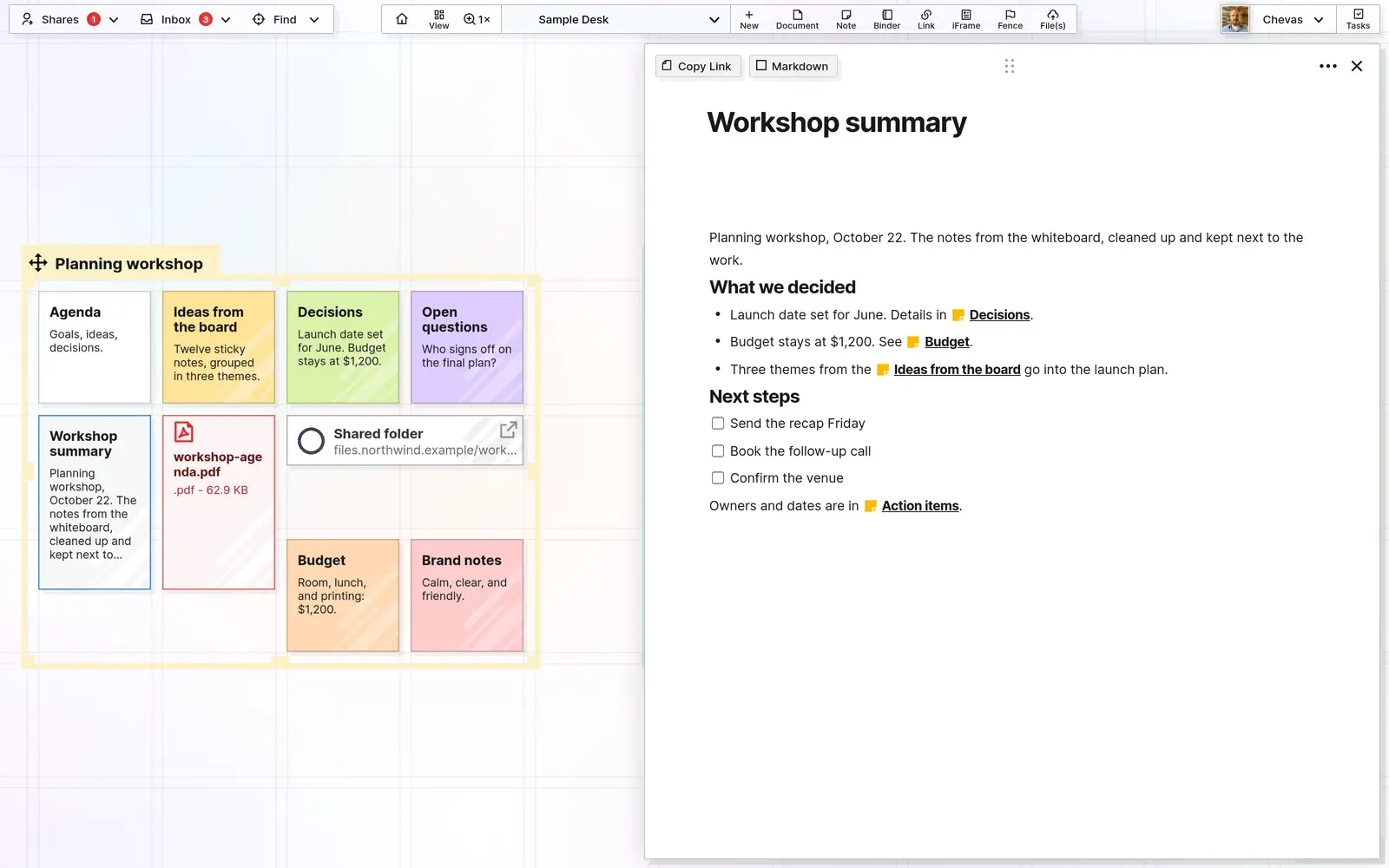
That last point is where Opal differs most from a whiteboard. After a planning session, the agenda, the decisions, the budget note, and the summary doc can sit inside one fence, and the follow-up tasks link back to them. Recognition is easier than recall because it involves more cues, as the Nielsen Norman Group explains. Work you can see in place is work you don’t have to remember to go find.
Pricing: Day Desk is $9 per seat per month, or $7 a month billed yearly (1 workspace, up to 250 items). Studio is $27, or $21 yearly (3 workspaces, up to 1,000 items). Workshop is $47, or $37 yearly (7 workspaces, up to 5,000 items, plus API access). Full details are on the Opal pricing page. Try Opal with the notes from your next meeting before you move anything else.
Why People Choose Opal
Having the big holistic view of the project is the most important thing for me. Opal let me structure a lot of information in a way that makes it convenient without the cognitive overload. And there was no learning curve.
Anna Zhikhareva, Freelance Experience Designer, AZX Design
It nails the one, must-have thing I need. Shared binders are a game changer.
Peter Schmitt, Owner, Durango Renovations
You made something that actually connects to my brain in a way that says ‘I know where to put that thought.’ My brain already knows where it is and I gravitate to it.
Matt Hert, Insurance Agency Owner, Hert Agency
What You Give Up With Opal
Be clear on these before you switch:
- No inking or freehand drawing. Opal has no pen tools, shapes, or connectors. If you draw with a stylus, a sketching tool fits better.
- Browser only. Opal runs in the browser. Native apps for iOS, Android, Windows, and Mac are on the roadmap.
- No Whiteboard importer. Microsoft Whiteboard exports a board as an image. You can drop that image onto your desk and retype or paste the text you want to keep, or import Markdown files as docs.
- It’s paid. Opal has no free plan and no free trial. Plans start at $9 per seat per month ($7 yearly).
- A younger product. Opal is still in beta, and it has no built-in video meeting integration like Whiteboard has with Teams.
Opal vs Microsoft Whiteboard
| Microsoft Whiteboard | Opal | |
|---|---|---|
| Main view | A freeform board for one session or topic | An infinite canvas you work from daily, with multiple desks |
| What goes on it | Ink, sticky notes, text, shapes, templates, and images | Notes, docs, links, files, PDFs, tasks, and live Google Docs and Sheets |
| Drawing | Pen and touch inking | No drawing tools |
| Integrations | Built into Teams meetings, with boards stored in OneDrive for work accounts | Live Google Docs and Sheets, CRUSH voice notes, and a REST API on Workshop |
| Import | Not applicable | No Whiteboard importer; add exported images, paste text, or import Markdown and text files |
| Export | The board as a PNG image | Items as Markdown, HTML, or PDF; Export Everything as a zip, or one workspace at a time |
| Apps | Teams and the web; standalone apps retired October 16, 2026 | Browser only; native apps on the roadmap |
| Price | Included with Microsoft 365 work and school accounts | From $9/seat/month ($7 yearly) |
| Free plan | No separate plan; comes with eligible Microsoft 365 accounts | No free plan or free trial |
You gain: a place where session output becomes working material. Notes are full documents, files open in place, and related items stay grouped in fences you can share. You also get exports in open formats instead of a picture of the board.
You give up: inking, shapes, and Teams meeting integration. If your sessions are drawn with a pen, Opal won’t replace that part.
How to move over: in Whiteboard, open Settings and export each board you care about as an image. In Opal, create a fence for each project, drop the image in as a reference, then rebuild the parts you’ll actually use as notes and docs. Put the agenda, decision notes, and any PDFs inside the same fence so the context travels together.
How We Compared
To pick these Microsoft Whiteboard alternatives, we looked at what Whiteboard users lose most often: a free or included price, real-time collaboration, drawing, templates, and somewhere to keep the results. Prices and plan limits come from each tool’s own pricing page, checked in October 2026. Feature notes come from each company’s public product pages. We didn’t run timed tests, so there are no speed scores here.
2. Miro: Best for Team Workshops
Label: the Microsoft Whiteboard alternative closest to a meeting whiteboard.
Best for: teams that run workshops, retros, and planning sessions together.
Strengths: a large template library, sticky notes, diagrams, and facilitation tools. Miro lists 250+ integrations, including Microsoft, Slack, Google, and Adobe, and lets you embed boards in meetings.
Weaknesses: boards pile up fast, and the free plan caps you at three. Day-to-day notes and documents usually live somewhere else. Our Miro alternative for daily work covers that gap.
Price: free for up to 3 boards; Starter is $8 per member per month billed yearly; Business is $20.
When it beats Opal: you facilitate live sessions with many people drawing, voting, and moving sticky notes at once.
3. FigJam: Best for Design and Product Teams
Label: a whiteboard that sits next to your design files.
Best for: teams already working in Figma.
Strengths: FigJam is part of the Figma suite, and a Collab seat also includes Figma Slides plus view and comment access in Figma Design files, so brainstorms and design work stay together. You can talk with collaborators directly in a file using audio.
Weaknesses: it makes the most sense if your team is in Figma. On paid plans, each person needs a seat, and the full design tools cost more.
Price: the Starter plan is free with limited access; on Professional, a Collab seat with full FigJam access is $3 per month billed yearly, and a Full seat is $16.
When it beats Opal: your whiteboard work feeds design files, or you need diagrams and flowcharts.
4. Excalidraw: Best Free Sketching Tool
Label: the simplest free Microsoft Whiteboard alternative for quick sketches.
Best for: people who used Whiteboard to draw diagrams and explain ideas.
Strengths: a fast, hand-drawn style canvas that’s free and open source. You can invite collaborators by link and sketch together.
Weaknesses: it’s built for drawings, so long notes, documents, and files need another home. The free plan is centered on one scene at a time.
Price: free; Excalidraw+ is $6 per user per month billed yearly, with unlimited scenes and folders.
When it beats Opal: you want to draw, and you want it free.
5. Canva Whiteboards: Best for Visual Brainstorming in a Design Suite
Label: a whiteboard inside a design tool.
Best for: marketers and small teams who already make social posts, slides, and documents in Canva.
Strengths: Whiteboards are part of Canva’s free plan, alongside a drag-and-drop editor, a large template library, and 5GB of cloud storage. A brainstorm can turn into a presentation in the same app.
Weaknesses: Canva is a design tool first, so organizing ongoing project notes and files isn’t its main job.
Price: free; Pro is US$144 per year for one person; Business is US$250 per year per person.
When it beats Opal: your ideas end up as visual designs, and you want brainstorming and design in one place.
6. Milanote: Best for Creative Project Boards
Label: a board tool for creative planning.
Best for: designers, writers, and creative teams building mood boards, storyboards, and project plans.
Strengths: boards for moodboarding, storyboarding, and whiteboarding, with templates and unlimited shared boards on every plan.
Weaknesses: the free plan stops at 100 notes, images, or links, and Milanote is shaped around creative work more than general project notes.
Price: free for 100 notes, images, or links; paid is $9.99 per month billed yearly or $12.50 billed monthly; Team is $49 per month billed yearly.
When it beats Opal: you’re collecting visual references for creative projects and want templates built for it.
When Microsoft Whiteboard Is Still the Right Choice
If your organization uses Microsoft 365 and most of your sessions happen in Teams meetings, keep using Whiteboard in Teams and on the web. It’s included in the license you already pay for, your boards stay in OneDrive, and nobody has to learn a new tool. It’s also a strong pick for classrooms and anyone who draws with a pen.
Many people pair a meeting whiteboard with a separate place for the work that follows. If you’re leaving other Microsoft tools too, our OneNote alternatives guide covers the notebook side. If that’s you, read how an infinite canvas app differs from a meeting board, or how a visual workspace app keeps projects in view.
Microsoft Whiteboard Alternatives FAQ
Is Microsoft Whiteboard going away?
The standalone apps for Windows, iOS, and Android retired on October 16, 2026. For work and school accounts, Whiteboard continues in Microsoft Teams and on the web. If you used the apps with a personal Microsoft account, it’s a good time to move your boards to another tool.
What is the best free Microsoft Whiteboard alternative?
Excalidraw is the simplest free choice for sketching. Miro, FigJam, Canva, and Milanote also have free plans with limits. Opal has no free plan.
How much does Opal cost?
Opal’s Day Desk plan is $9 per seat per month, or $7 a month billed yearly. Studio is $27 ($21 yearly) and Workshop is $47 ($37 yearly). Workshop is the plan with API access.
Does Opal have a free plan or free trial?
No. Opal has no free plan and no free trial. If price is the deciding factor, start with one of the free tools in this list.
Can I import my Microsoft Whiteboard boards into Opal?
Not directly. Export each board from Whiteboard as an image, add it to your Opal desk, and rebuild the notes you need. Opal also imports Markdown and text files as docs.
What does Opal integrate with?
Opal embeds live Google Docs and Sheets, receives AI-transcribed voice notes from a CRUSH device, and has a REST API plus an agent skill for AI tools on the Workshop plan. It doesn’t plug into Teams meetings.
Can I use Opal on my phone or tablet?
Opal runs in the browser. There are no native iPhone, iPad, or Android apps yet; they’re on the roadmap. It also has no pen or ink tools, so it isn’t a replacement for drawing on a tablet.
Can I draw in Opal?
No. Opal has no freehand drawing, shapes, or connectors. It’s built for notes, documents, files, and links laid out on a canvas.
Which Tool Is Right for You?
- You want session notes, docs, and files kept together on a desk you use every day: Opal.
- You run live workshops with a team: Miro.
- Your team designs in Figma: FigJam.
- You mostly sketch and want it free: Excalidraw.
- Your brainstorms turn into designs: Canva Whiteboards.
- You plan creative projects with visual references: Milanote.
Every Microsoft Whiteboard alternative here does one job well, so match the tool to where your work goes after the meeting. If the first line sounds like you, test Opal with the notes from one meeting and see whether you open that desk again the next day. Our guide to keeping sticky notes visible for business shows another way to work from a canvas.
Try Opal