
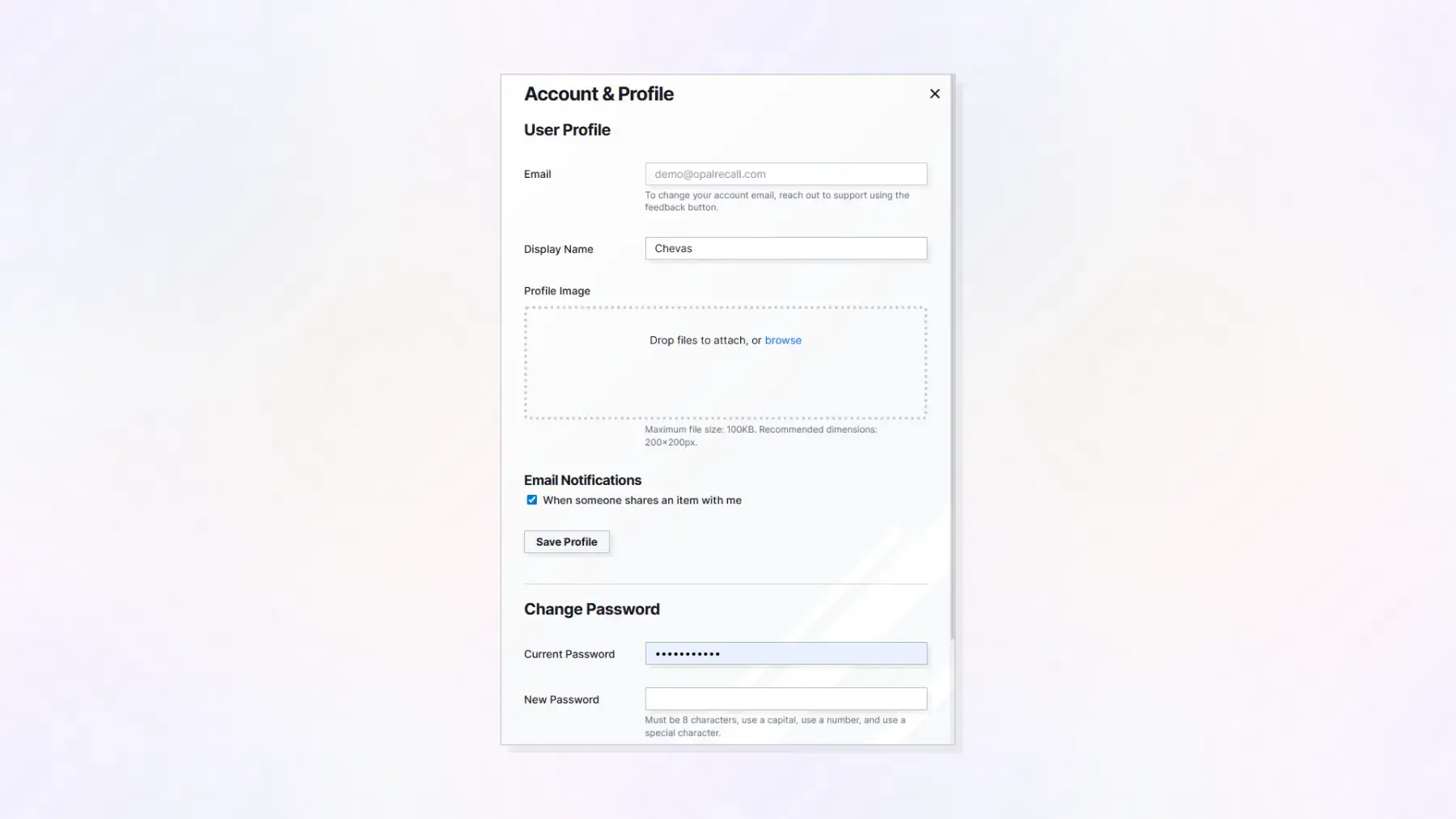
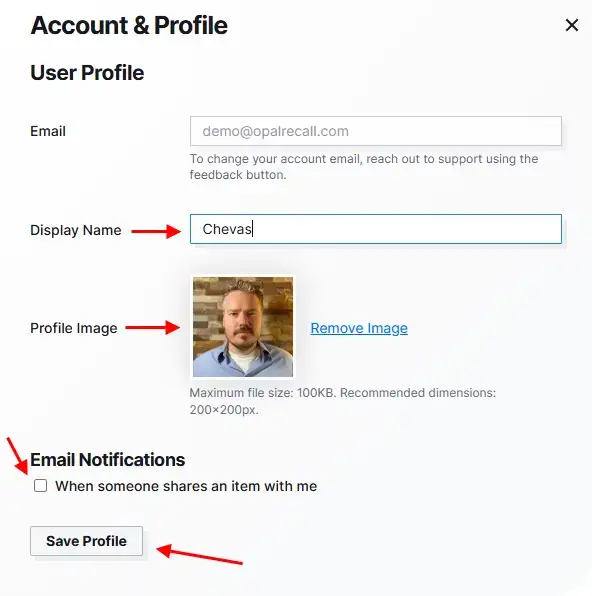
Before you get started with creating content, it’s recommended to set up your profile. Included in your profile:
- Email: Connected to your subscription, if you have one. For now, you can only change your account email by reaching out to support. We’ll enable changing your email in the near future.
- Display Name: What other users see when they share items with you. This defaults to the first name that you specified during waitlist sign up and registration
- Profile Image: The profile image other users see next to your display name when sharing items.
- Email Notifications: By default, when a user shares an item with you, you will receive an email notification. Unchecking this box will disable this feature.
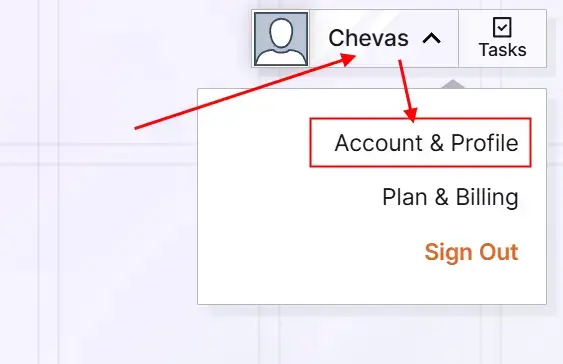
To access your Profile, click the profile menu drop down at the top right:
Edit the Display Name and Profile Image fields above the Save Profile button:
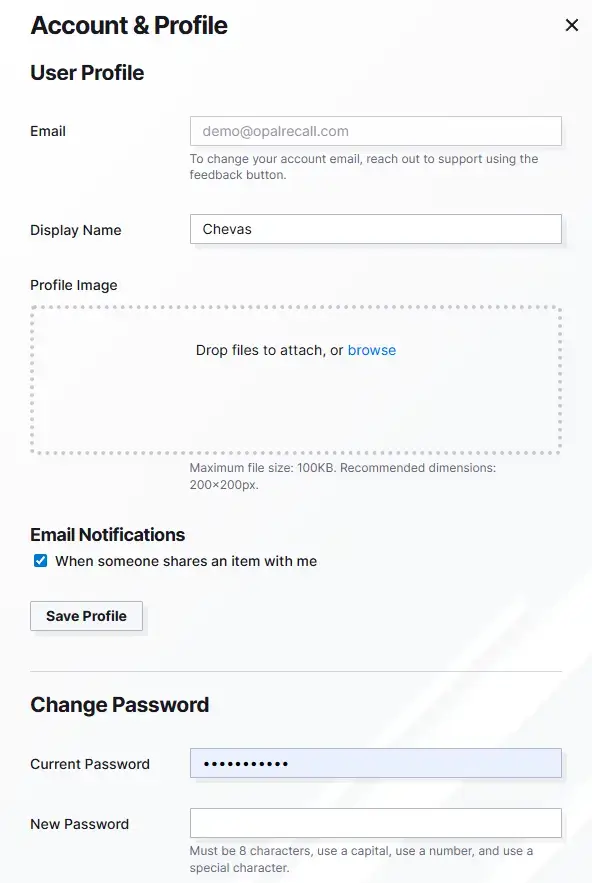
Click the Save Profile button to update your Profile:
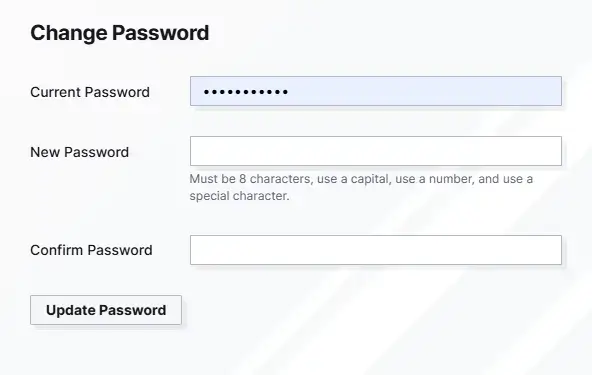
The Change Password form is a separate form that you may use to change your password within the application. Changing your account password from within the Application will trigger a notification email to your account email.