

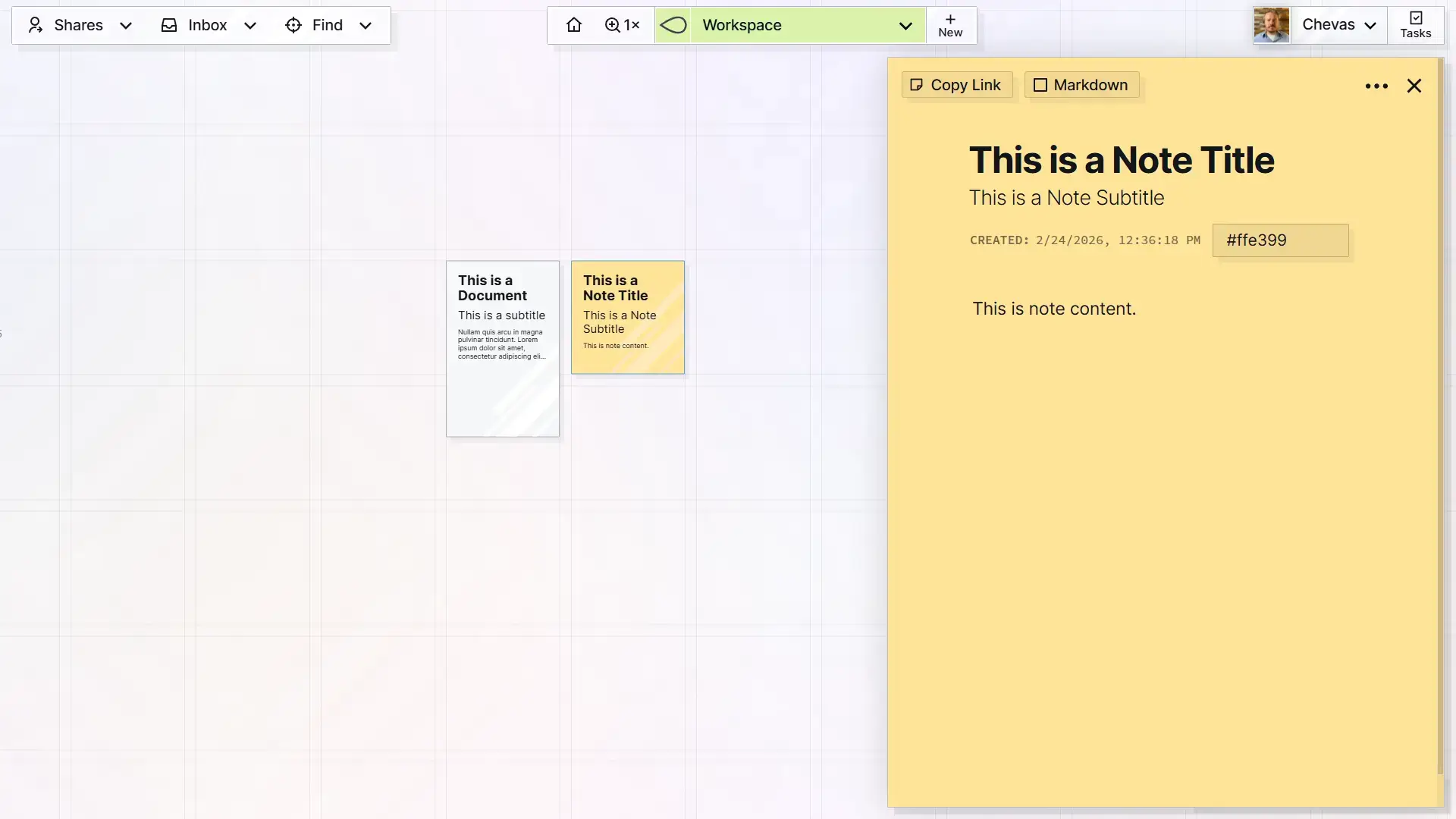
Opal items are your content inside of Opal, such as Notes, Documents, and so on. Opal lets you store and retrieve your content as various item types, depending on your needs. Opal supports multiple item types and more are being added regularly.
Grid View vs Page View
Every item is represented by:
- A. Its Grid View
- B. Its Page View
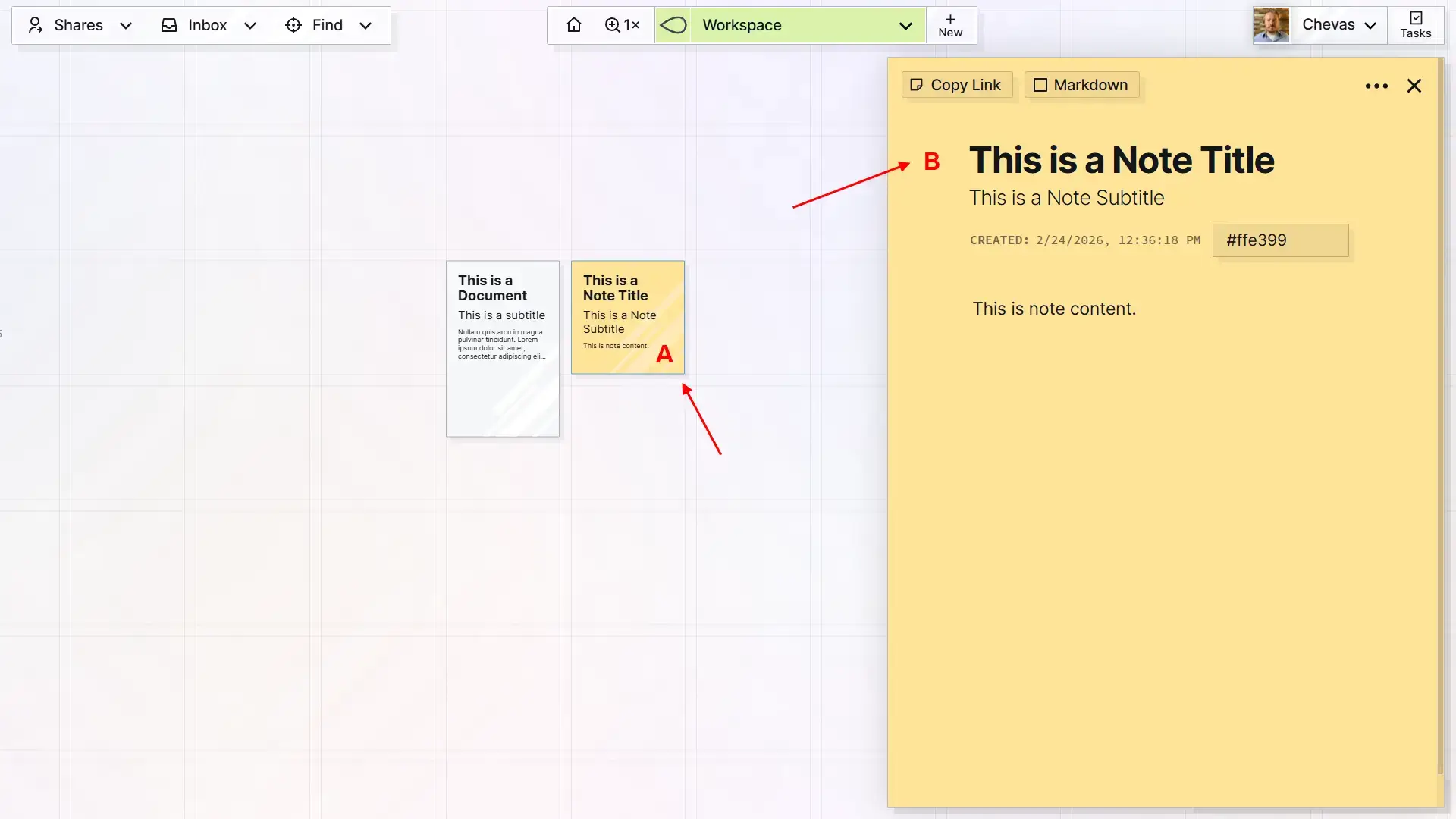
A. Items on the Grid View
When viewing items on the Grid (workspace), each item type has unique semi-skeuomorphic representation of what it would be like in real life. For example, all Notes look like sitcky notes. Depending on the
Depending on the item type, some items will display a preview of their actual contents.
Items can be moved around on the grid, and in some cases resized, but not edited from this this view.
B. Items in the Page View
Clicking or tapping on an item on the grid will open its page view. An item’s page view will display its actual contents. Item types that are editable are edited in the page view.
All item types have an editable title and subtitle, which can be edited on the page view of items.
Item Types
Currently, Opal supports the following Item Types:
- Documents
- Notes
- Binders
- Links
- iFrames
- Fences
- Files
Any file can be uploaded to Opal in case you want to store things in context with other content, but the following file types have additional features in Opal:
- Images: Viewable on the grid, resizable on the grid, and visible on the page view
- PDFs: Visible on the page view, represented by a unique icon and color
- Text Files of any kind: Are editable from the page view. Several text-based file types are represented by unique icons (JSON, MD, etc.)
- DOCX, XLSX: Previewable in the page view (not editable), represented by unique icons and colors.
- PAGES, NUMBERS: Represented by unique icons and colors
Block-Editor-Enabled Items
Documents, Notes, and Link item types have what is called a Block Editor. A block editor is a special type of What-You-See-Is-What-You-Get (WYSIWYG) text editor that lets you easily format text into headings, bold, italics, etc., as well as display inline images and other types of content.
The difference between Block Editors and other WYSIWYG editors is that content in block editors is stored as text-based markdown. The block editor then renders the text-only markdown, based on its unique syntax, into HTML blocks. This method keeps content looking clean and consistent while still allowing rich formattting options. Traditional WYSIWYG editors often store content in HTML, which requires extensive parsing and can get messy, fast.
What’s Included in Block-Editor-Enabled Items
Every block-editor-enabled item lets you:
- Type, copy, and paste rich, formatted content. Block editor content is primarily written, but supports images, embedded videos, and some other rich media
- Create Item Links, which let you link to other Opal items from within your block content, enabling you to author cross-referenced guides, procedures, or simply reference other Opal content as needed
- Publish it to the web so you can share a link to your content with people who are not Opal users (which also supports items links to other published Opal items)
- Share it with other Opal users and supports real-time editing with multiple users.
The block editor in Opal is driven by Blocknote and it supports numerous block types, such as headings, checklists, bullets, tables, and so on.
The details of these features are covered in subsequent help docs.