

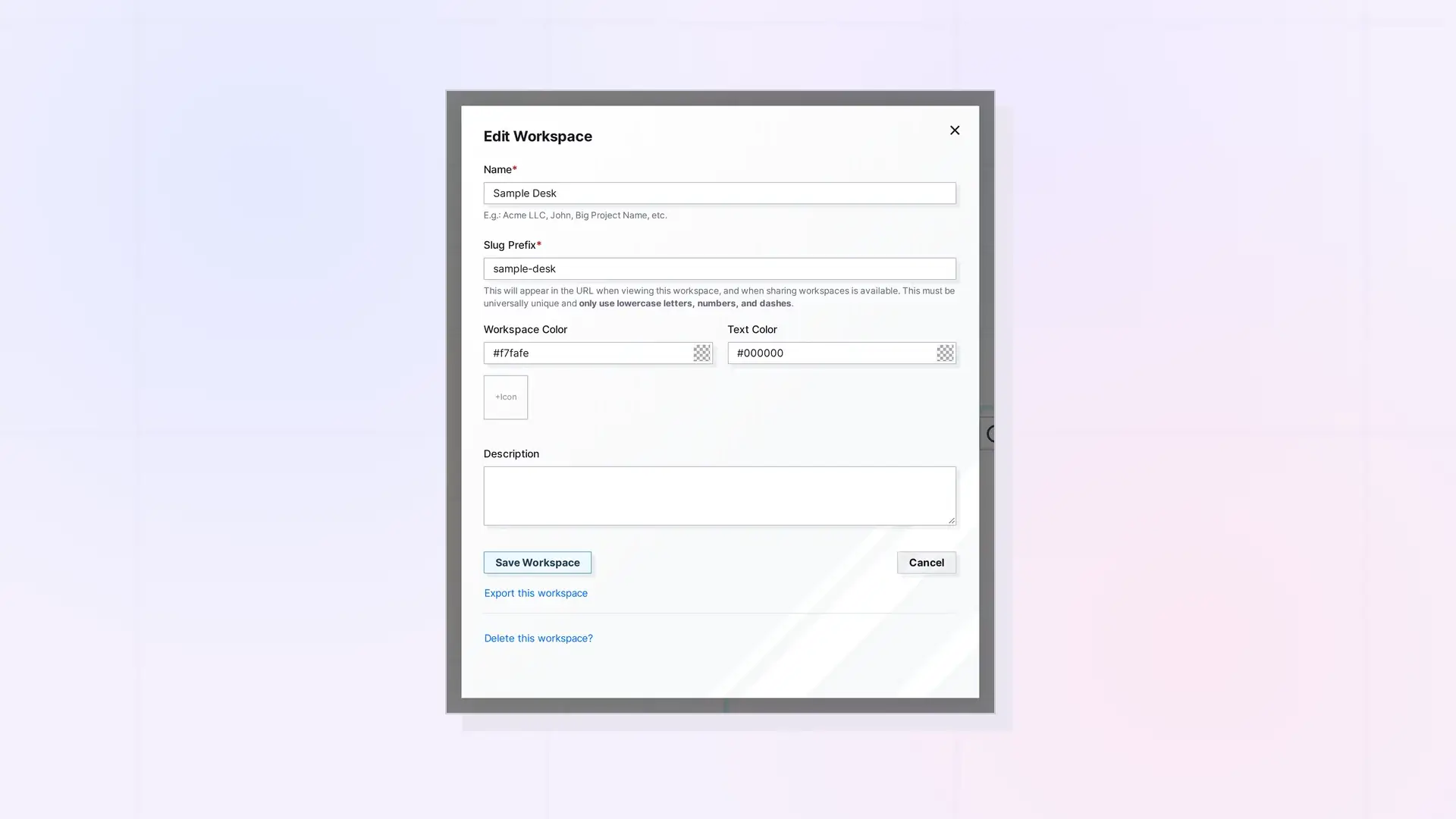
To export one workspace, open the workspace menu, click Edit next to the workspace, and click Export this workspace below Save Workspace. Opal downloads that workspace’s content as a zip file.
Export a Workspace Step by Step
- Click the workspace name in the toolbar to open the workspace menu.
- Click Edit next to the workspace you want.
- In Edit Workspace, click Export this workspace.
- Save the zip file, then click Cancel to close the dialog without changes.
Before Deleting a Workspace
Export it first. Deleting a workspace deletes its items. See Delete a Workspace (and What Happens to Its Items).
Next Steps
FAQ
Is Export this workspace the same as Export Everything?
No. It exports one workspace. Export Everything in Account & Profile exports your whole account.

