

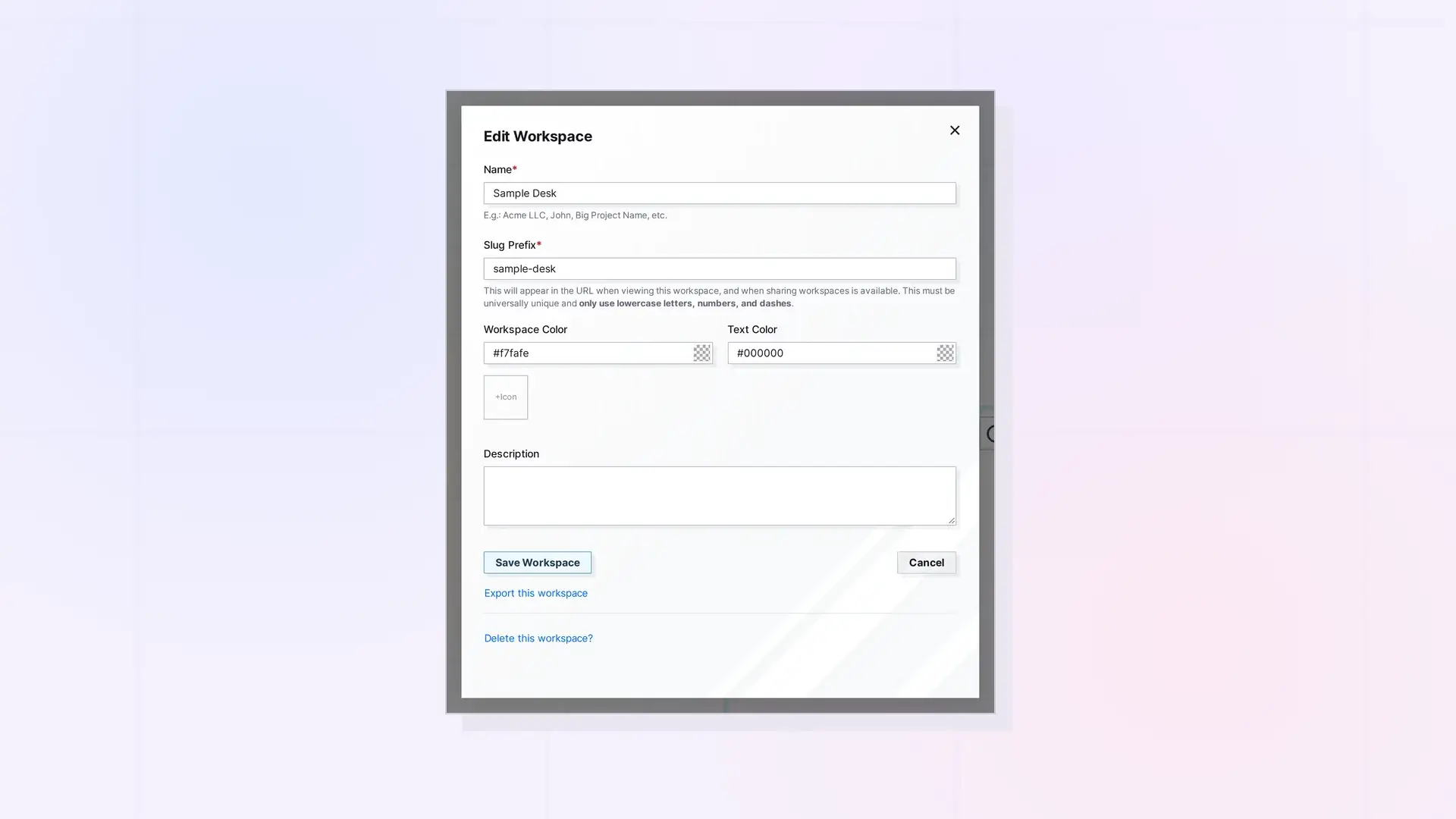
To edit a workspace, click the workspace pill at the top of the screen to open the workspace picker, click the Edit link next to the workspace you want to change, update the form, and save. You can change the name, slug prefix, colors, icon, and description.
Open the Workspace Picker
Click the workspace pill (the workspace name) at the top of the screen. The workspace picker lists every workspace you have. Each row has an Edit link:
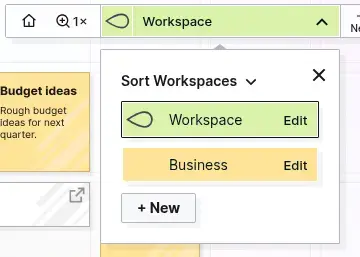
Click Edit
Click Edit on the workspace you want to change. A form opens with the same fields you used when you created the workspace:
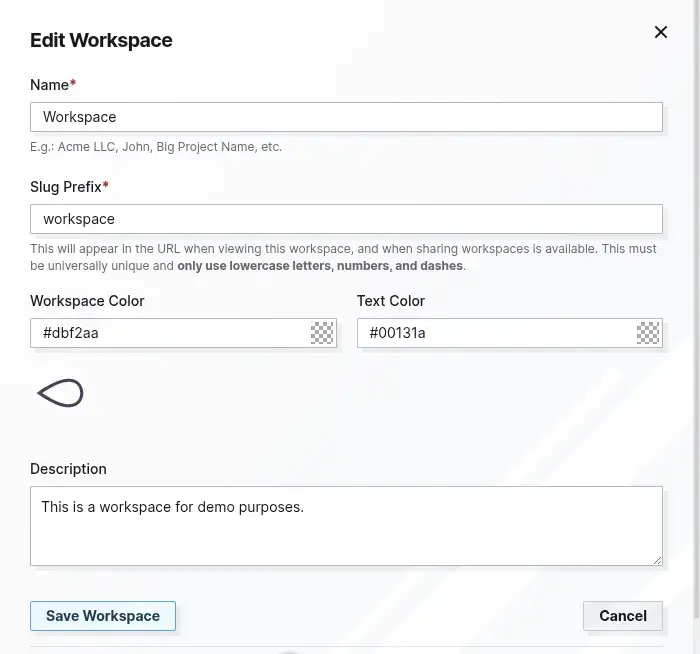
What Each Field Does
- Name: the friendly name of the workspace. It is required, and it appears on the workspace pill.
- Slug Prefix: the short text that appears in the web address while you view this workspace. It is required. See the next section.
- Workspace Color: the background color of the workspace pill. It is a text box that holds a hex value.
- Text Color: the color of the text on that pill, also a hex value. Pick one that stays readable on your background color.
- Icon: the workspace icon area below the color fields. An icon helps you tell workspaces apart at a glance.
- Description: a short note about what the workspace is for.
At the bottom of the form are the Save Workspace and Cancel buttons. Below them is a Delete this workspace? link. Delete a Workspace explains what that does.
Slug Prefix: What to Know Before You Change It
The slug prefix is part of the web address you see while you are on a workspace. It has to be unique across all of Opal, so if someone already has a prefix, you cannot use it. Use only lowercase letters, numbers, and dashes.
The prefix is part of the web address you see while you are on a workspace, so if you bookmarked a workspace address, check the bookmark after you change the prefix.
Tip: Choose a short prefix that you will not want to change, such as your business or project name.
Change the Icon
The form has an icon area below the color fields. A small square image works best: the Create Your First Workspace doc recommends about 200 × 200 pixels and under 100 KB so it loads fast. A tool such as tinypng.com can compress an image that is too large.
Pick Readable Colors
Colors are a small way to brand each workspace, so you can tell Client Work from Personal without reading the name. Make sure the text stays easy to read:
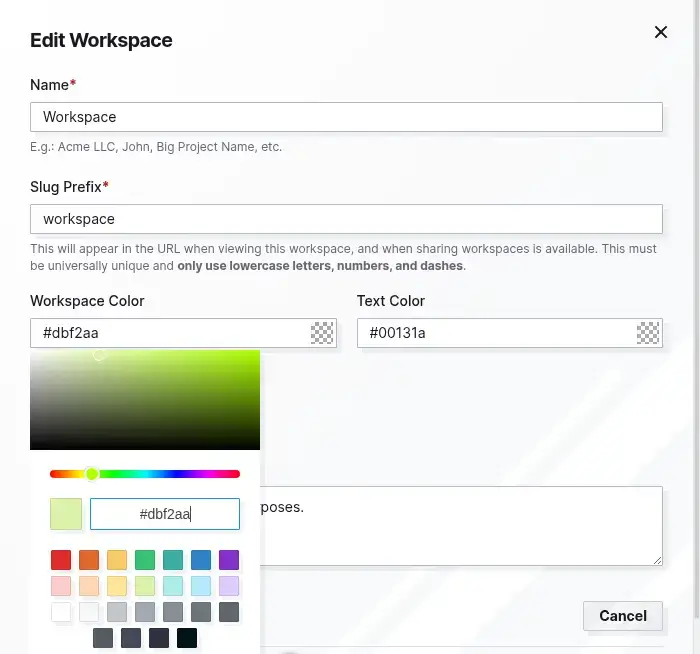
Each color field is a text box that holds a hex value, such as #dbf2aa. Click the Workspace Color field to open the color picker. It has a saturation square, a hue slider, a hex box with a small preview next to it, and rows of preset swatches. You can type a hex value or click a swatch.
- Use dark text on a light background, or light text on a dark one.
- Avoid two mid-tone colors together, such as orange on green.
- Check the workspace pill in the toolbar after you save. If you have to squint, change it.
- Give each workspace its own color so the workspaces look different from each other in the picker.
Save and Confirm
Click Save Workspace to keep your changes, or Cancel to close the form without saving. After you save, check the workspace pill in the toolbar for the new name and colors.
To switch between workspaces or sort the list by name, see Switch and Sort Your Workspaces. If a workspace has run its course, see Delete a Workspace. To create another workspace, start from Create Your First Workspace: A Visual Desk.
FAQ
Can I change my slug prefix later?
The Slug Prefix field is on the Edit form. It is part of the web address you see on a workspace, so check any bookmarks after you change it.
What size should a workspace icon be?
Use a square image of about 200 × 200 pixels and under 100 KB.
Does editing a workspace change the items on it?
The Edit form has fields for the name, slug prefix, colors, icon, and description. It has no fields for items.

