

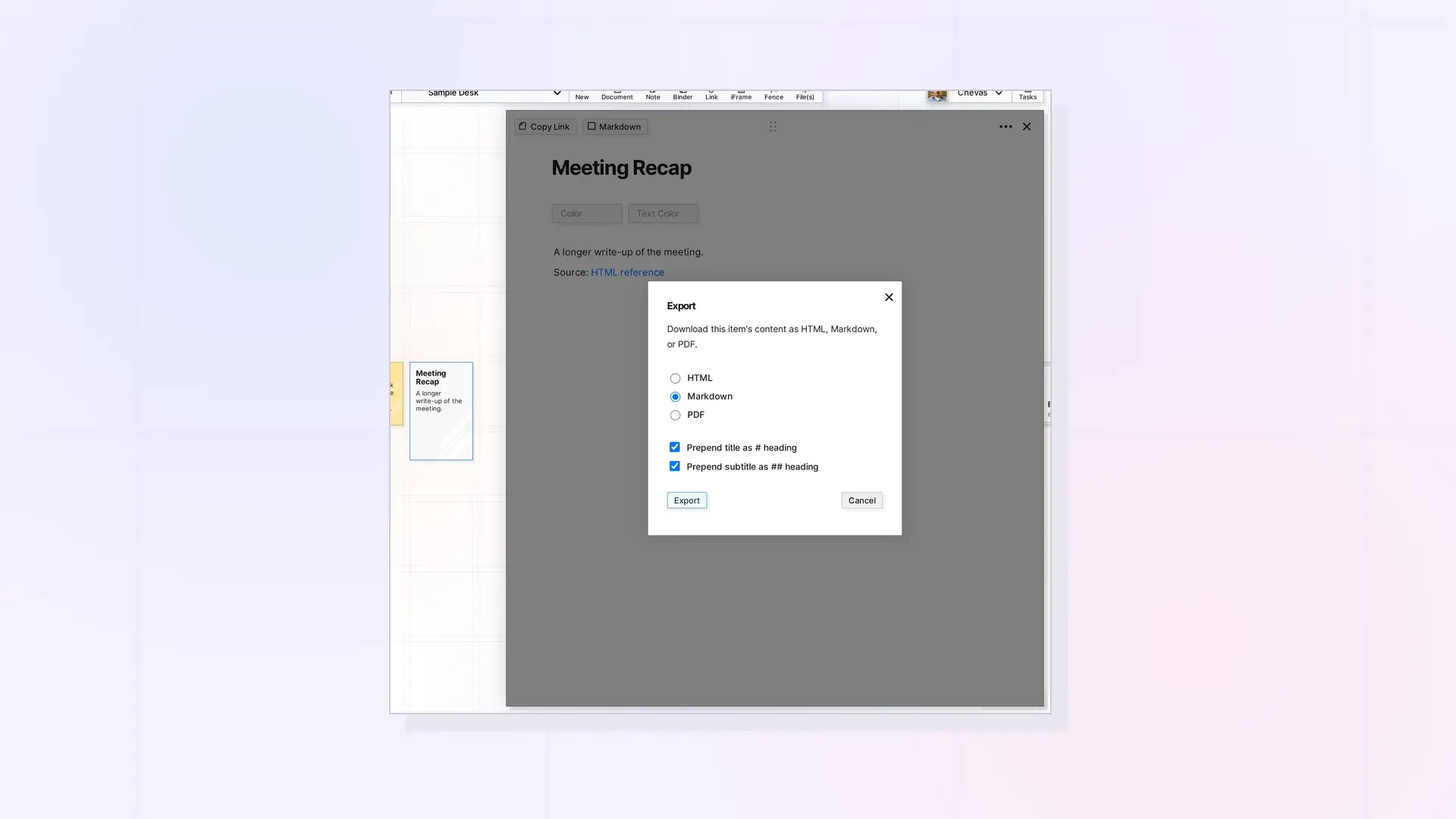
To export a single document, note, or link item, open it, click •••, and click Export. Choose HTML, Markdown, or PDF, pick whether to include the title and subtitle as headings, and click Export.
Export an Item Step by Step
- Click the item to open its page.
- Click ••• at the top right, then click Export.
- Choose HTML, Markdown, or PDF.
- Leave Prepend title as # heading and Prepend subtitle as ## heading checked to start the file with them, or uncheck them.
- Click Export and save the file.
Which Format to Choose
- Markdown for other note apps and text editors.
- HTML for web pages and email.
- PDF to print or send a fixed copy.
Bring Markdown Back In
Import Markdown in the same ••• menu adds a Markdown file’s content to an item. See Import Markdown into a Note.
Next Steps
FAQ
Can I export an iFrame?
No. iFrames do not have an Export option. Click Copy URL to keep the address.
Can I export a binder or a fence?
Export the workspace instead. See Export a Workspace.

