

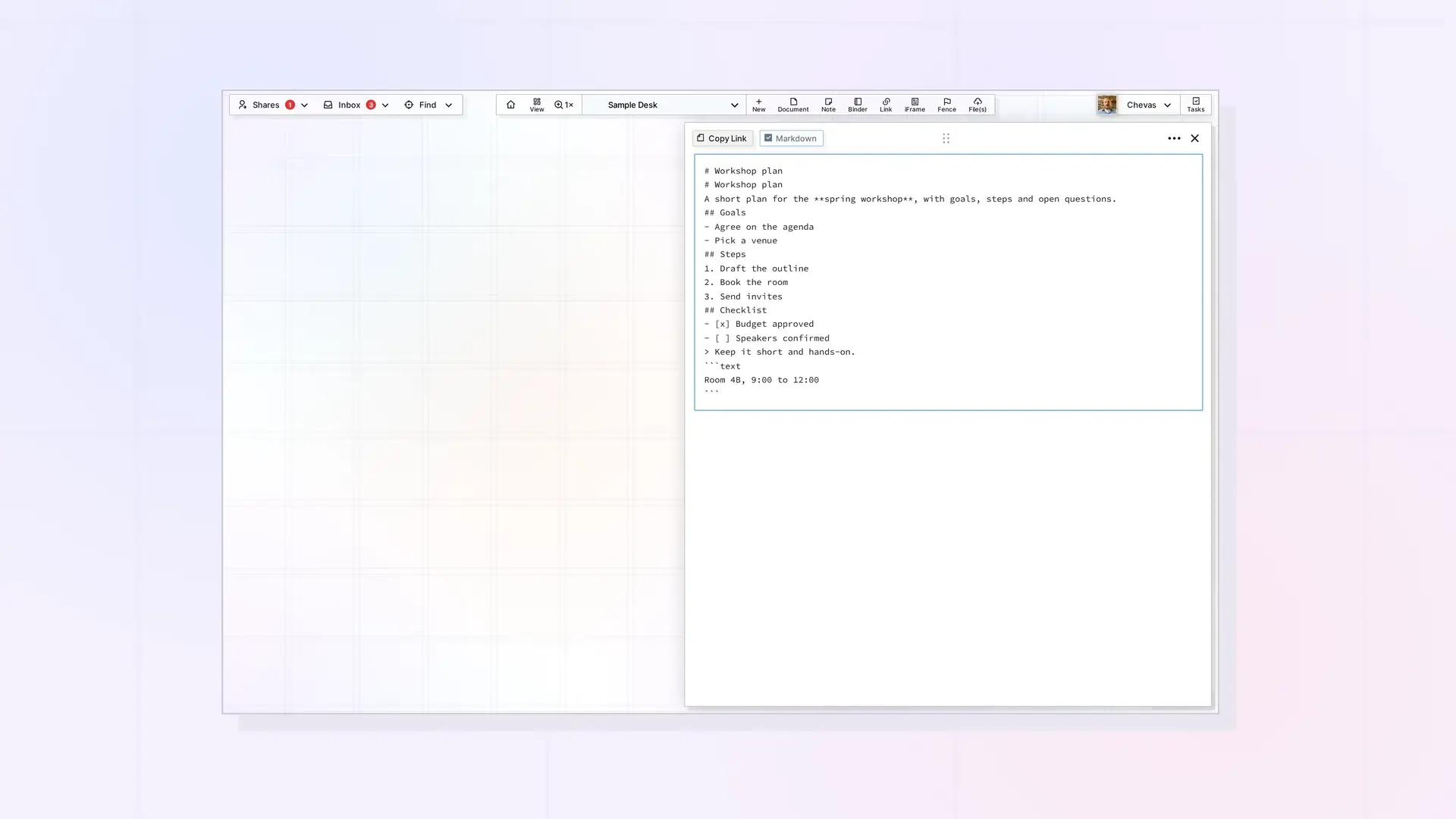
Opal stores the content of a document as JSON, and you can view it and export it as Markdown. Documents have a Markdown button in the page header, and the ••• menu has Import Markdown and Export. Use them to view a document as Markdown, bring a .md file into a document, or save a document out as Markdown.
What Markdown Mode Is
Markdown is a plain-text way to write headings, lists, and links with characters such as # and -. In a normal Opal document you write with the block editor, and Opal stores what you write as JSON, not as Markdown. You can view the same content as Markdown and export it as Markdown. That is useful for longer writing and for content you also use in other tools.
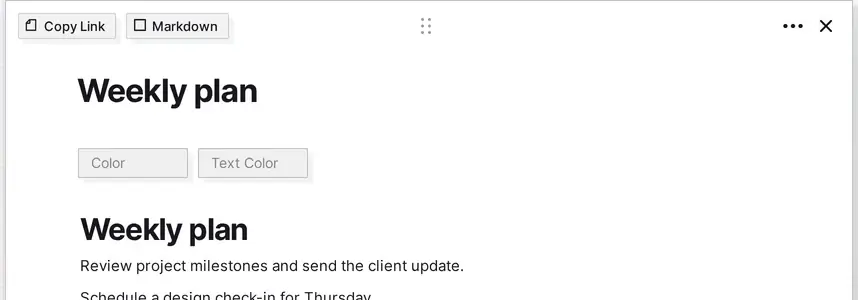
The Markdown button sits in the header of an open item, next to Copy Link. It is on items that use the block editor, such as Documents:
Open Markdown Mode
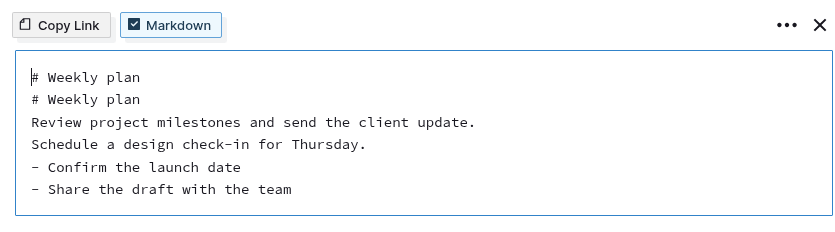
Open a document and click Markdown at the top left of its page view. The checkbox on the button becomes ticked, and the whole page changes into one plain-text box with a blue border. The box holds the entire document as Markdown, and its first line is the title written as # Title, so a document called Weekly plan starts with # Weekly plan. The created and updated stamps and the color fields are hidden while Markdown mode is on.
Click Markdown again to go back to the block editor. The two views stay in sync both ways, so text you type in the box turns into blocks when you switch back. Blocks that only Opal has, such as item links and columns, show up as text inside double curly braces. Leave those markers alone unless you mean to change them.
Supported Syntax
Opal’s Markdown view and export use standard Markdown. These tokens turn into blocks when you switch back to the block editor:
| Markdown | Block you get |
|---|---|
# Heading | A heading |
- item | A bullet list item |
## Heading | A second-level heading |
- [ ] item | A checklist item |
Here is a short sample you can paste into a document to test:
# Weekly plan

- Review the client list
- [ ] Send the draft
Import a .md File
Import a Markdown file into a document with these steps:
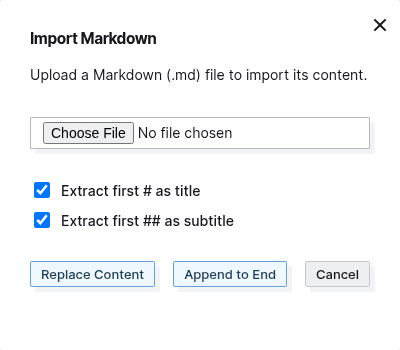
- Open the ••• (more options) menu on the document and choose Import Markdown. A window titled Import Markdown opens with the text “Upload a Markdown (.md) file to import its content.”
- Click Choose File and pick your
.mdfile. - Check the two boxes, Extract first # as title and Extract first ## as subtitle. Both are ticked when the window opens, and you can untick either one.
- Click Replace Content to replace the document’s content with the file, or Append to End to add the file’s content after what is already there. Cancel closes the window without importing.
To see how uploaded files become items, read What Is a File Item? Images, PDFs, Office Files, and More.
Export as Markdown
Open the ••• menu on the document and choose Export. A window titled Export says “Download this item’s content as HTML, Markdown, or PDF.” Choose HTML, Markdown (selected by default), or PDF. Two boxes, Prepend title as # heading and Prepend subtitle as ## heading, are ticked by default. Click Export and your browser downloads the file straight away. A Markdown export is named after the document with hyphens for spaces, for example Weekly-plan.md. Bullets come out as - lines, and blocks are separated by a single line break with no blank line between them.
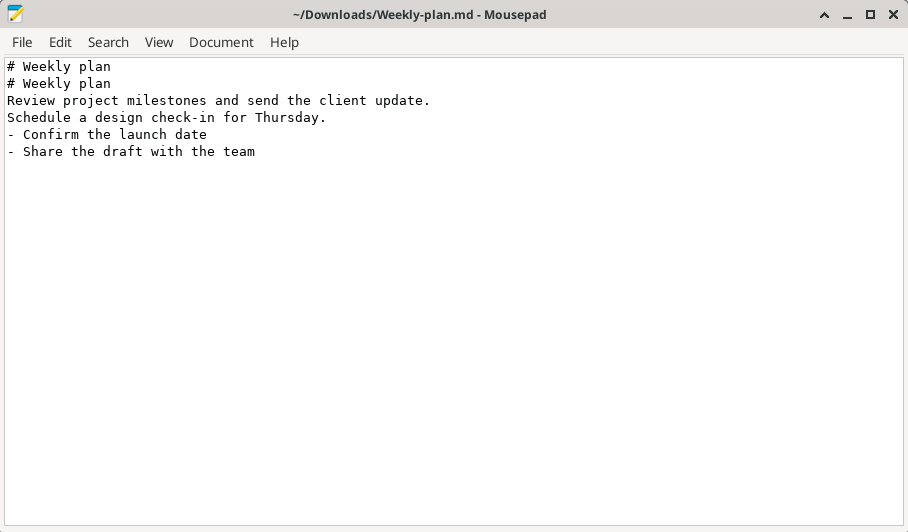
If the document already has a heading that matches its title, untick Prepend title as # heading. In the example below the document body starts with a Weekly plan heading, so the title appears as two # Weekly plan lines.
Using Markdown with AI Agents
Many AI tools read Markdown well, so a document exported as Markdown is an easy way to hand an agent context. Workshop also includes API access, where an agent can read and write your documents directly.
Next Steps
- Learn the blocks Markdown turns into: Opal Block Types Cheat Sheet: Every Block and How to Insert It
- Format text with slash commands: How to Use the Opal Text Editor: Formatting, Slash Commands, and Shortcuts
- See how files become items: What Is a File Item? Images, PDFs, Office Files, and More
- Compare plans, including API access: Pricing page
FAQ
Does Opal support Markdown?
Yes. Opal stores document content as JSON, and you can view and export it as Markdown. Documents have a Markdown button, and the ••• menu has Import Markdown and Export.
Can I import more than one Markdown file at a time?
Import Markdown is an entry in the ••• menu of an open document. Its window asks you to upload a Markdown (.md) file into that document.

