

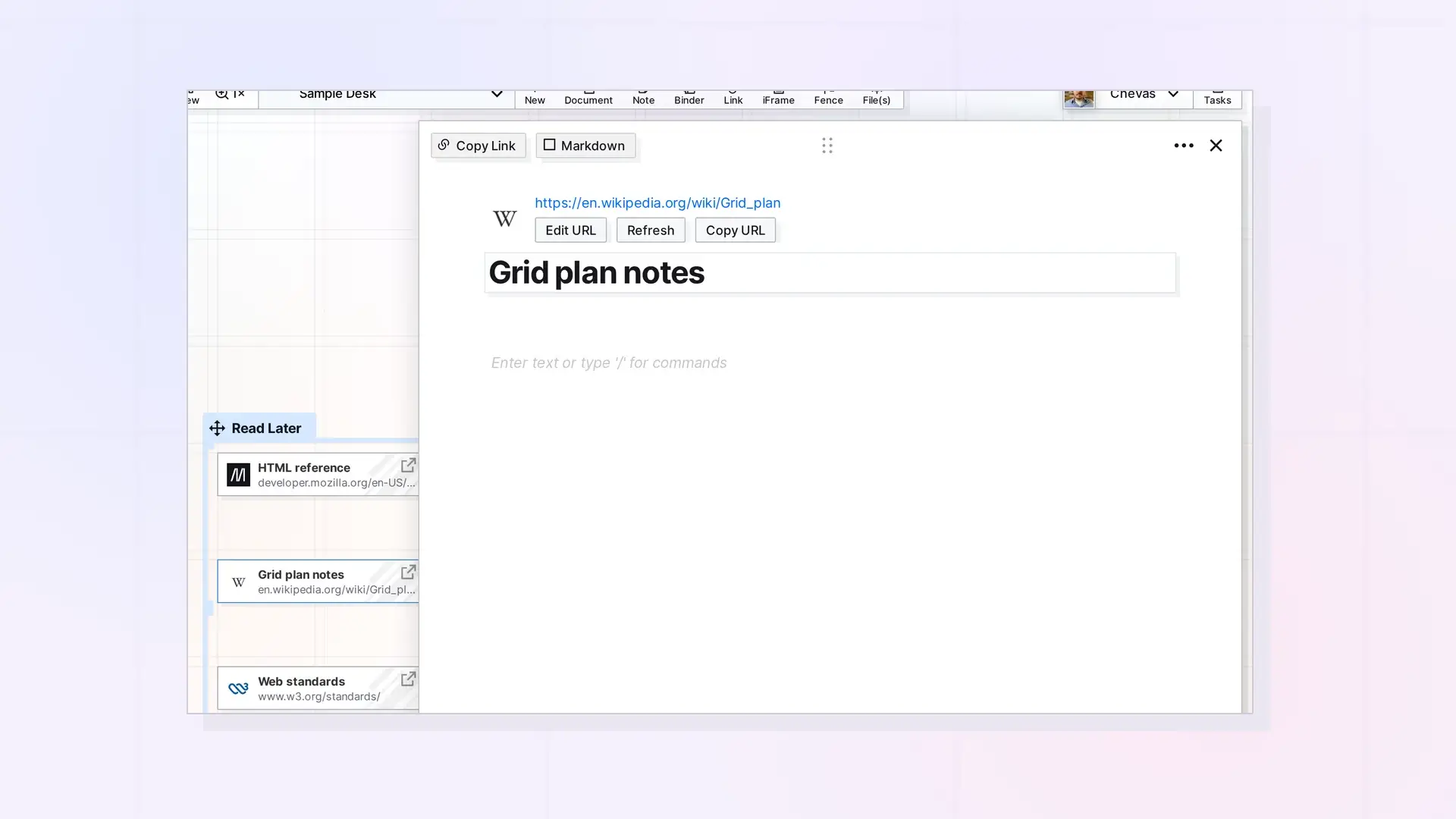
When you create a link item, Opal reads the web page and uses its title. You can rename the link item any time by clicking its title and typing.
Rename a Link Item
- Click the link item on your workspace to open its page.
- Click the title below the web address.
- Type the new name.
- Click anywhere outside the title to finish.
The new name shows on the grid. Short names work best, because a link item is small on the grid and the title is what you read.
Add a Description
Below the title there is a description line. Click it and type a short note, such as why you saved the page.
When Opal Changes the Title
Opal reads the page again, and replaces the title and the description, when you:
- click Refresh on the link item’s page, or
- change the address with Edit URL and click Done.
If the page does not give Opal a title, the link item is renamed Untitled. When that happens, click the title and type the name again. See Refresh or Copy a Link Item’s URL and Change or Update a Link Item’s URL.
Next Steps
FAQ
Why is my link item called Untitled?
The page did not give Opal a title when the link was created or refreshed. Click the title and type a name.
Will my notes stay if the title changes?
Yes. Refreshing changes the title and the description, not the notes below them.

