

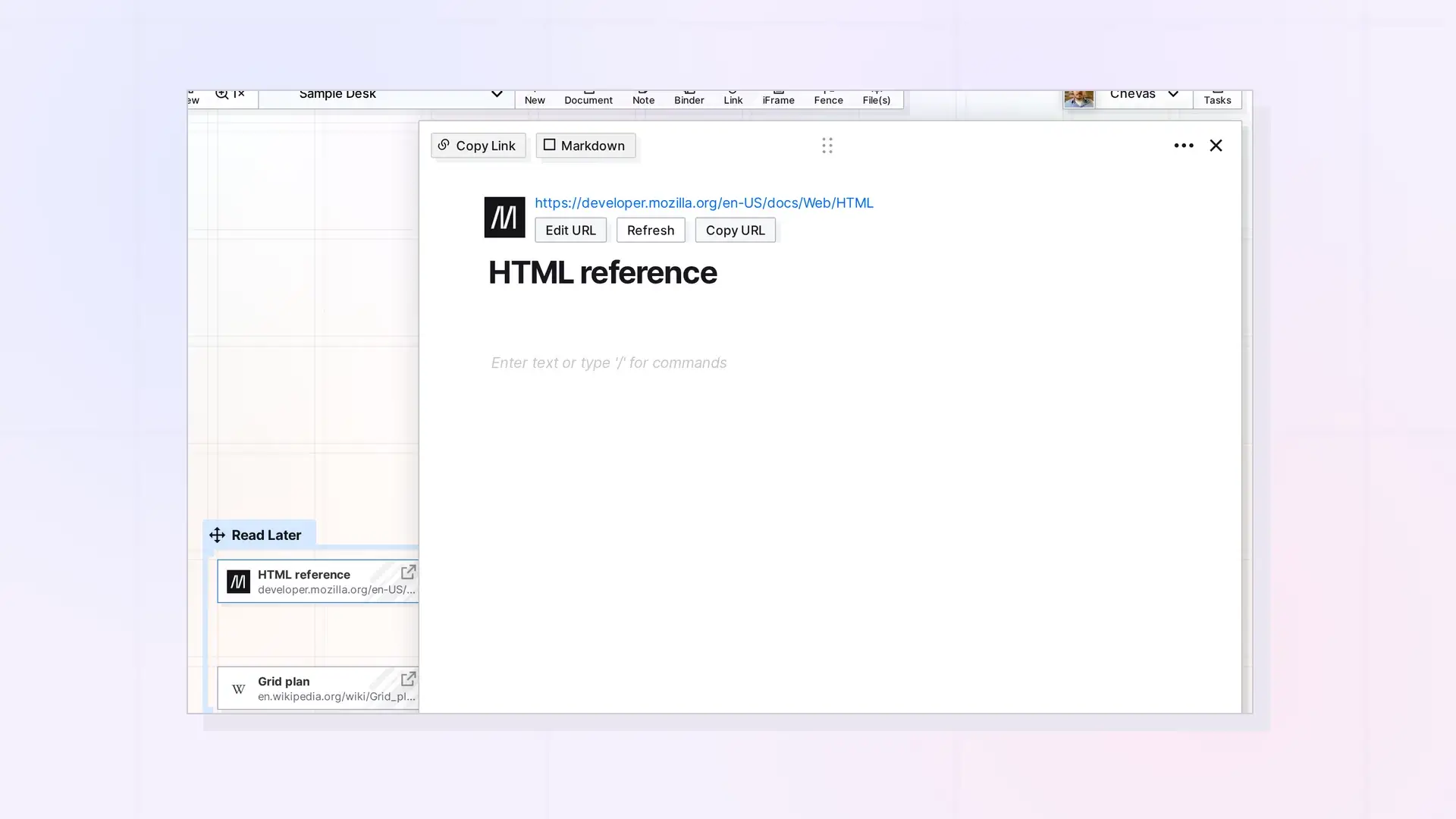
Under the web address on a link item’s page there are three buttons: Edit URL, Refresh, and Copy URL. Refresh reads the page again and updates the title and description. Copy URL copies the web address. The Copy Link button at the top of the page is different: it copies a link to the Opal item itself.
Refresh a Link Item
- Click the link item to open its page.
- Click Refresh under the web address.
Opal reads the page and replaces the link item’s title and description with what the page gives it. This is handy when a page has changed its title. If you renamed the link item yourself, Refresh replaces your name. If the page gives no title, the link item becomes Untitled, so rename it afterwards. See Name a Link Item.
Copy the Web Address
Click Copy URL to copy the link item’s web address. Paste it anywhere, such as an email or a document.
Copy a Link to the Item
Click Copy Link at the top of the page to copy a link to the link item itself. Paste it into a document or note to make an item link. See Item Links: Link Opal Items Together (Wikilinks).
Change the Address
To point the link item at a different page, use Edit URL. See Change or Update a Link Item’s URL.
Next Steps
- Link Items, Hyperlinks, and Item Links: What’s the Difference?
- Save a Link as an Item: Link Items and Their Notes
FAQ
Does Refresh change my notes?
No. Refresh changes the title and the description only.
What is the difference between Copy URL and Copy Link?
Copy URL copies the web address. Copy Link copies a link to the Opal item.

