

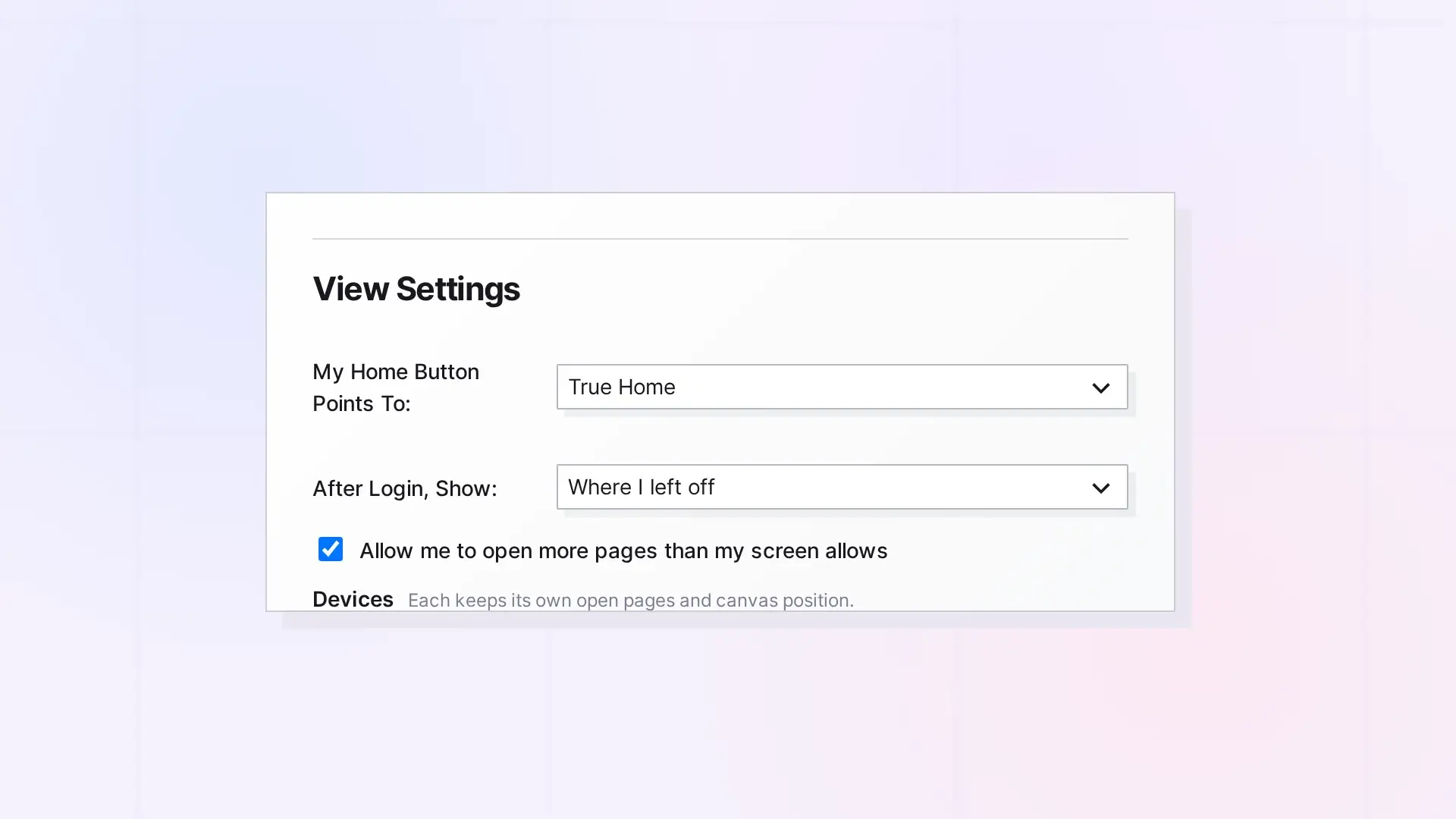
The Home button at the left of the toolbar takes you back to the center of the grid at normal zoom. You can point it at a saved view instead, and you can choose what Opal shows after you sign in. Both settings are under Account & Profile, in View Settings.
Point the Home Button at a Saved View
- Click your name at the top right, then Account & Profile.
- In View Settings, open My Home Button Points To:.
- Choose True Home (the center of the grid) or one of your saved views.
Choose Your First View After Sign-In
In the same section, open After Login, Show: and choose:
- Where I left off: the spot and items you had open last time.
- Everything at a glance: Opal zooms to fit all the items on your workspace.
- What my home button is set to: the same place as your Home button.
Open More Pages at Once
Check Allow me to open more pages than my screen allows if you want to keep more item pages open than fit side by side.
Next Steps
- Save a View of Your Workspace
- Open Items in Opal: One Panel, Pan To Item, and Pop Out Item
- How to Navigate Opal: Pan, Zoom, and Locating Items
FAQ
What does True Home mean?
The center of the grid at normal zoom.
I removed the saved view my Home button used. What happens?
Choose a new target under My Home Button Points To:.

