

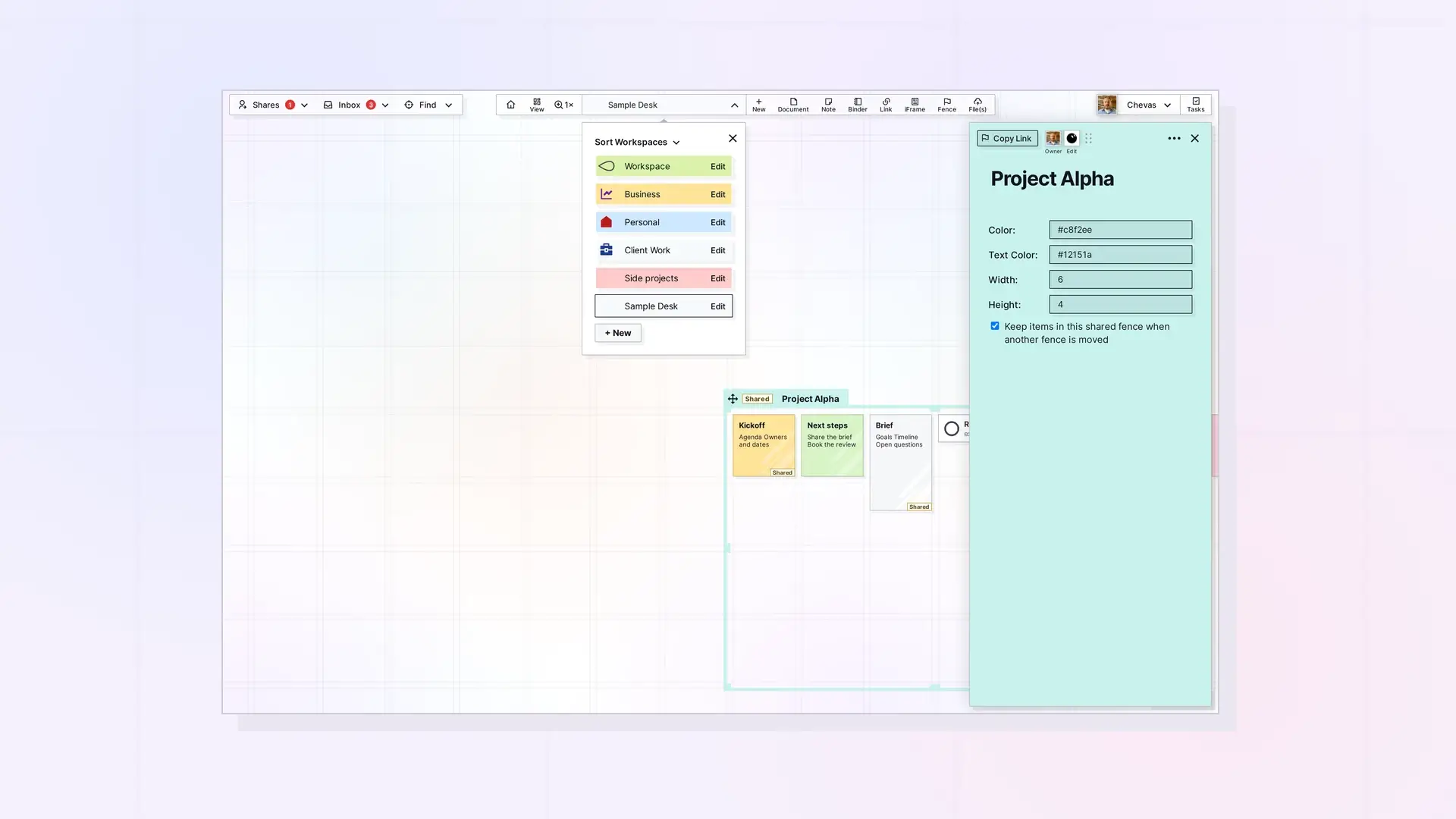
To switch workspaces, click the workspace pill (the workspace name) in the toolbar to open the workspace picker, then click the name of the workspace you want. To sort the list, click Sort Workspaces in the same picker. Each click switches between alphabetical order, A to Z, and Z to A. You cannot drag workspaces to reorder them. Opal remembers where you were panned and zoomed in each workspace, so you come back to the same view.
Switch Workspaces
Click the workspace pill (the workspace name) in the toolbar to open the workspace picker. It lists every workspace you have, with an Edit link on each row and + New at the bottom. Click the name of the workspace you want to switch to. Click the name itself, not Edit, which opens the form for changing that workspace’s details:
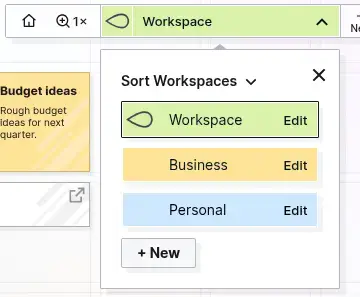
The picker closes, the address in your browser changes to that workspace’s address (for example, app.opalrecall.com/personal1), and the workspace’s canvas appears. A brand-new workspace has an empty canvas. If your plan includes only one workspace, as Day Desk does, there is nothing to switch to.
Sort Workspaces
The top of the workspace picker has a Sort Workspaces control with a small arrow beside it. It does not open a menu of sort options. Click it to sort your workspaces by name from A to Z, and the arrow points down. Click it again to sort from Z to A, and the arrow points up. Each click switches between those two orders, so it does not simply reverse the list as it was before.
Sort Workspaces has only these two orders. After you click it once, there is no way to get back to the order you created your workspaces in. Opal keeps the sort you chose when you reload the page in the same browser.
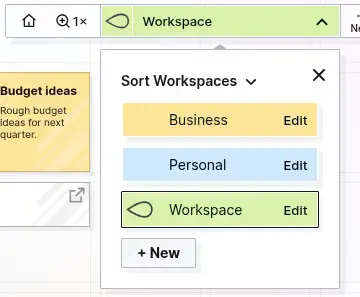
In the picture, the sort is set to A to Z, so the three workspaces read Business, Personal, then Workspace. Click Sort Workspaces again and they read Workspace, Personal, then Business.
Change the Order of Your Workspaces
You cannot drag a workspace to a new spot in the picker. Dragging a row does not move it. The list order comes from Sort Workspaces, which sorts by name.
Opal Remembers Your Pan and Zoom for Each Workspace
Opal saves the position you panned to and the zoom level for every workspace. If one workspace is zoomed out and panned to the right, that is the view you get when you return to it. Another workspace can be zoomed in near the middle of the grid, and it keeps its own view. How to Navigate Opal explains panning and zoom in full.
Tip: Give your workspaces short names. A short name stays readable on the workspace pill, even on a small screen.
Next Steps
- Create Your First Workspace: A Visual Desk
- Edit a Workspace
- One Workspace or Many?
- How to Navigate Opal
FAQ
Can I drag workspaces to reorder them?
No. Dragging a workspace row in the picker does not move it. You can sort the list by name with Sort Workspaces.
Does Sort Workspaces reverse the list?
Not exactly. It switches between alphabetical order, A to Z, and Z to A each time you click it. The arrow beside the label points down for A to Z and up for Z to A. You cannot get back to the order you created your workspaces in.
Does my sort stay after I reload the page?
Yes, in the same browser. Opal keeps the sort you chose after a reload. If you use Opal in a different browser or on another device, check that the list is sorted the way you want.
Does Opal remember where I was in each workspace?
Yes. Opal saves your pan position and zoom level for each workspace and restores them when you switch back.
How many workspaces can I have?
It depends on your plan. As of October 2026, Day Desk includes 1 workspace, Studio includes 3, and Workshop includes 7. The Pricing page has the current numbers.

