

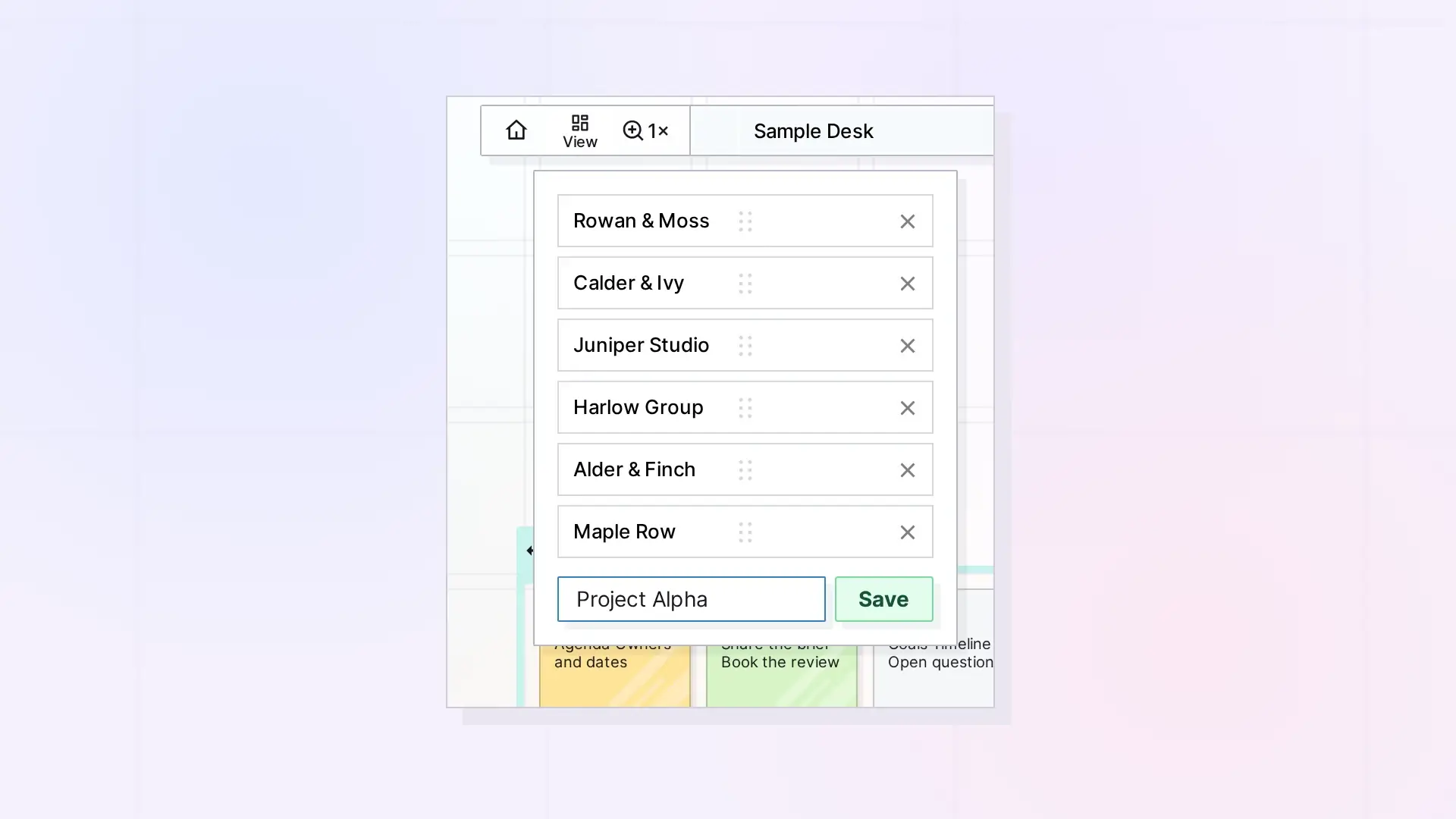
A saved view remembers a spot and zoom level on your workspace so you can jump back to it in one click. Pan and zoom to the area you want, click View in the toolbar, type a name under Save current view, and click Save.
Save a View Step by Step
- Pan and zoom until the area you want fills the screen.
- Click View in the toolbar.
- Type a name in the Save current view box, for example the client or project name.
- Click Save.
Jump to a Saved View
Click View and click the view’s name. Opal moves and zooms to that spot.
Reorder or Remove Views
- Drag a view by its handle to change the order of the list.
- Click the X next to a view to remove it. The items in that area are not touched.
Ideas for Saved Views
- One view per client or project fence.
- A view of your status notes for a quick daily check.
- Make a saved view your Home button target. See Set Your Home Button and First View.
Next Steps
FAQ
Does removing a view delete anything?
No. It only removes the shortcut from the list.
Can I jump to a view in another workspace?
Yes. The View menu lists all your saved views, and each one remembers its workspace. Choosing a view from another workspace switches to that workspace first.

