

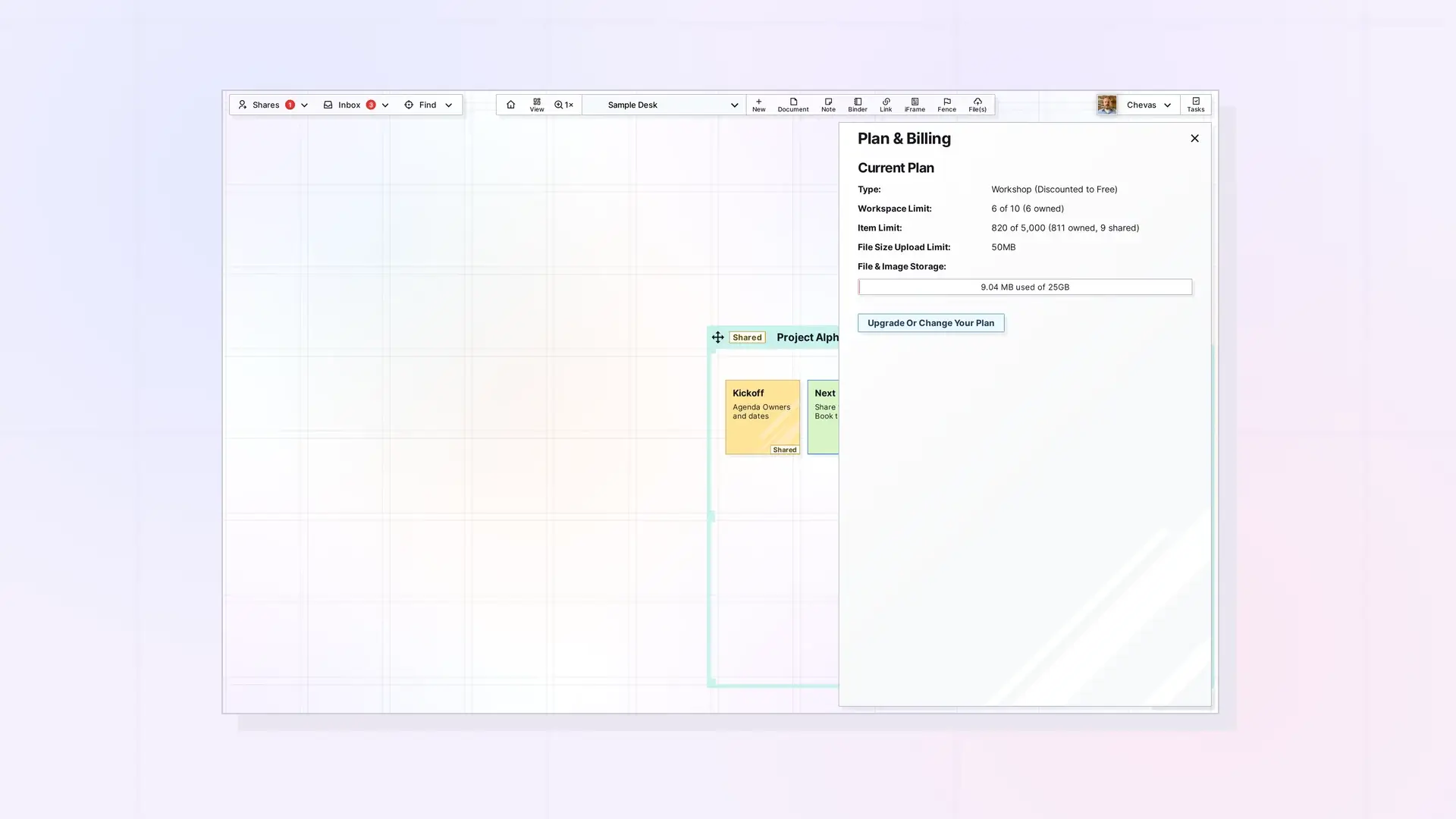
Start with one workspace unless you have a clear reason to split. Use several when you need to keep clients, projects, or personal and business content apart. Keep one when you switch topics often and want everything in view. Your plan sets the limit: Day Desk includes 1 workspace, Studio 3, and Workshop 7.
Reasons to Use More Than One Workspace
- Cleaner separation. You see only what belongs to one client, project, or part of your life.
- Less rearranging. A workspace with a single purpose stays tidy.
- A head start on sharing. Opal does not share whole workspaces yet, but it is planned. If you expect to share one group of content with a team, keep it on its own workspace now.
Reasons to Keep Everything on One
- No switching. Moving between workspaces takes a moment and breaks your train of thought.
- Everything in view. You can pan from one project to another without opening anything.
A Simple Decision Table
| If this describes you | Try this |
|---|---|
| You work with several clients who should never see each other’s names | One workspace per client |
| You want work and personal content kept apart | Two workspaces |
| You jump between topics all day | One workspace, with fences to group items |
| You plan to share a group of content with a team later | A dedicated workspace for that group |
| You are just starting out | One workspace. Add another when it feels crowded |
Fences are zones you draw on a workspace to group items. They give you structure without needing another workspace.
Examples
Consultant With Several Clients
Create one workspace for each client, and name each one after the client. Pick a different color for each, so you can tell which desk you are on before you read the name.
Small Team
Keep one workspace for shared reference material and one for each person. Share individual items, a binder, or a fence with teammates, because whole workspaces cannot be shared yet.
Solo Founder
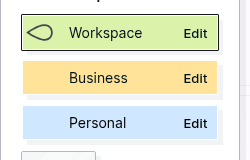
Use a Business workspace and a Personal one. If you only want one desk, put everything on it and use fences to group projects.
How Many Workspaces Your Plan Allows
The number of workspaces depends on your plan. This is what each plan includes as of October 2026:
| Plan | Workspaces | Items | Storage |
|---|---|---|---|
| Day Desk | 1 | 250 | 250 MB |
| Studio | 3 | 1,000 | 1 GB |
| Workshop | 7 | 5,000 | 5 GB |
Plan limits can change, so check the Pricing page for current numbers.
Note: You can share individual items, binders, and fences today. Sharing an entire workspace is not available yet.
To create your first workspace, read Create Your First Workspace: A Visual Desk. To change a workspace’s name or colors, read Edit a Workspace. If you change your mind later, Move Items Between Workspaces explains how: drag the item into your Inbox, change workspaces, and drag it out of the Inbox onto the new workspace.
FAQ
How many workspaces can I create?
Day Desk includes 1, Studio includes 3, and Workshop includes 7 (as of October 2026).
Can I share an entire workspace?
Not yet. You can share individual items, binders, and fences. Sharing whole workspaces is planned.
Can I change my mind and combine workspaces later?
You can move an item to another workspace. Drag the item into your Inbox, change workspaces, and drag it out of the Inbox onto the new workspace. The ••• menu on an item has no move option. Move Items Between Workspaces has the steps. Save anything you want to keep before you delete a workspace.

