

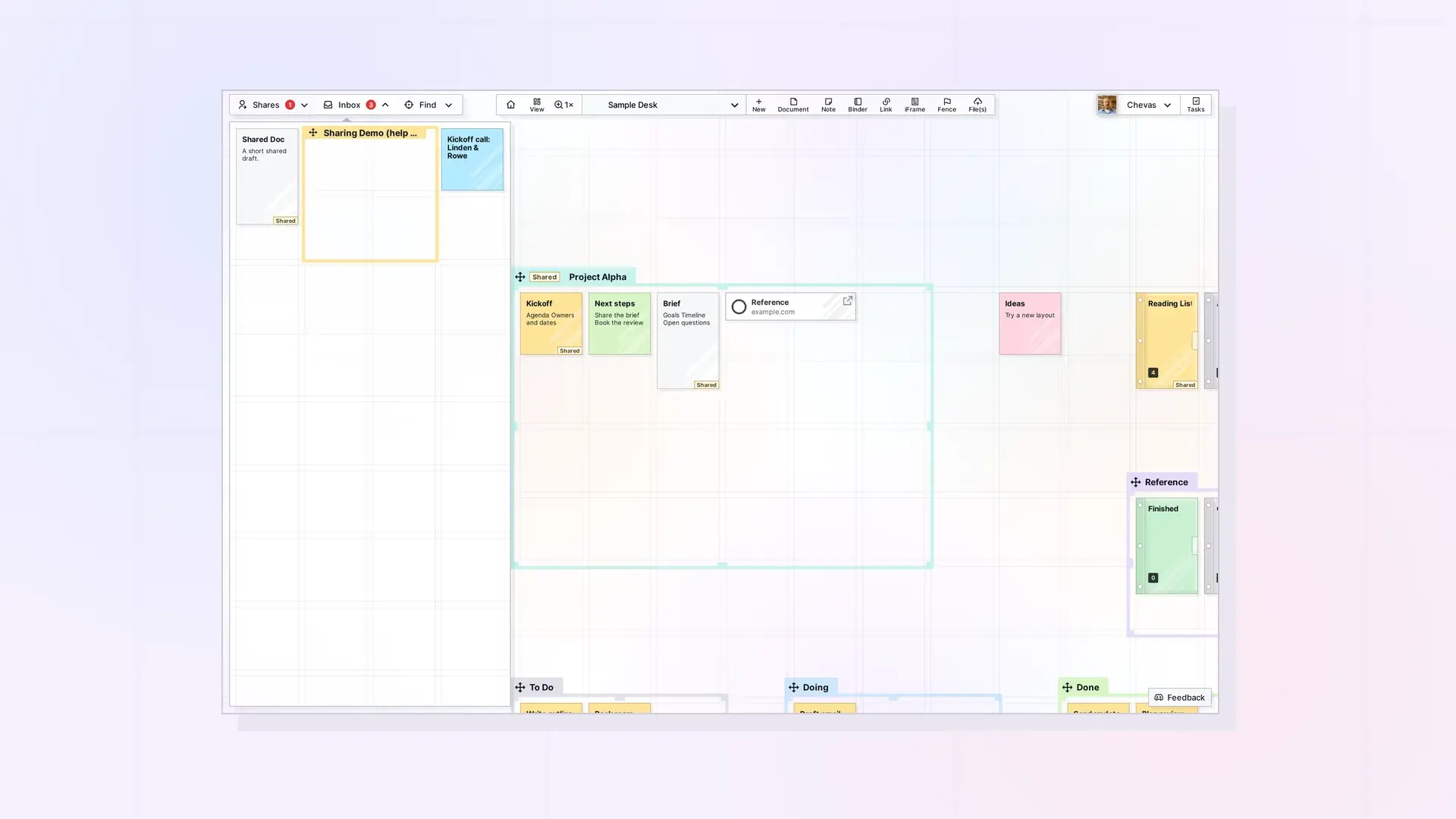
To move an item to another workspace, drag it into your Inbox, switch workspaces, and drag it out of the Inbox onto the new workspace. The item menu (the ••• button) has no move option, so the Inbox is how you do it.
Move an Item in Four Steps
The steps below move a note called Move me from the Workspace workspace to a workspace called Business.
1. Open the Inbox
Click Inbox in the toolbar at the top left. The Inbox panel opens below it. If nothing is waiting there, the panel is empty.
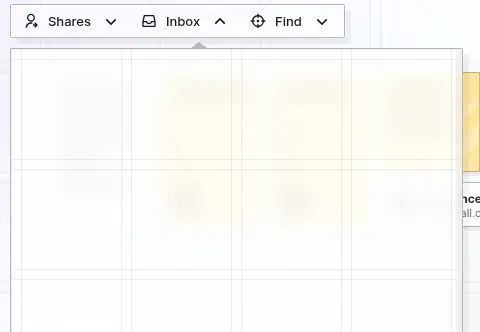
2. Drag the item onto the Inbox
Press and hold the item on your workspace, drag it onto the open Inbox panel, and release. The item leaves the workspace and appears in the panel, and a red number on the Inbox button shows how many items are waiting.
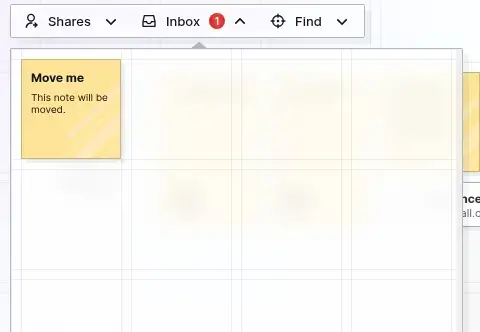
3. Change workspaces
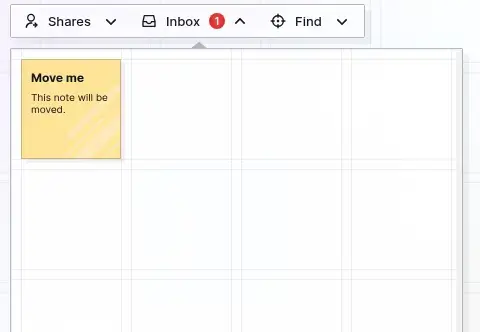
Click the workspace name in the toolbar and choose the workspace you want to move the item to. The panel closes when you switch, so click Inbox again. The item is still there.
4. Drag the item onto the new workspace
Drag the item from the Inbox panel onto an empty spot of the new workspace and release. It lands where you drop it, and the Inbox is empty again. Close the panel when you are done.
When to Move an Item
You may have started something on a personal workspace that belongs with a client, or you may be splitting a crowded workspace in two. If you are still deciding how to organize your desks, read One Workspace or Many? first.
Next Steps
- One Workspace or Many?
- Moving, Positioning, and Managing Items on a Workspace
- Switch and Sort Your Workspaces
- Create Your First Workspace: A Visual Desk
FAQ
Can I move an item to another workspace?
Yes. Drag the item into your Inbox, change workspaces, and drag it from the Inbox onto the new workspace. The ••• menu on an item does not have a move option.
Where is the Inbox?
The Inbox button is in the toolbar at the top left, next to Shares and Find. A red number on it shows how many items are waiting.

