

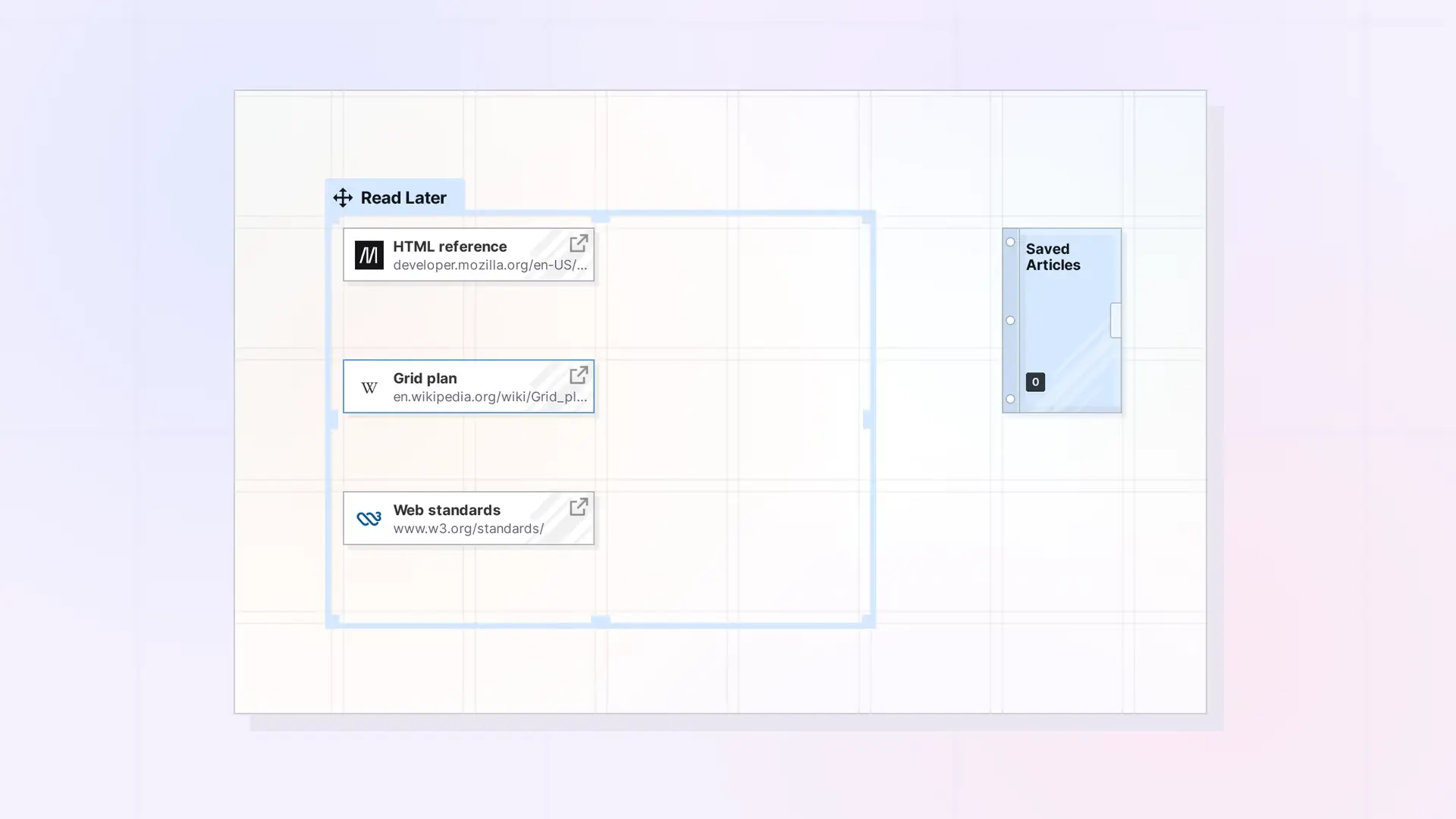
A Link item saves a web address on your Opal workspace as a compact item. Click + New, choose Links from the type dropdown, and create it. Open the item to add notes in the full block editor, so the link sits next to your own thoughts about it.
What a Link Item Is
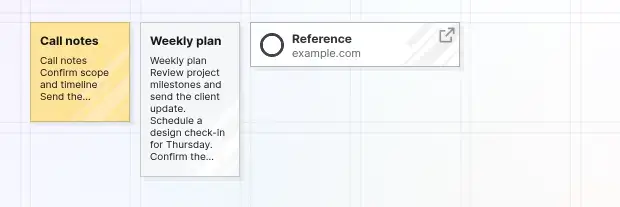
Link is one of Opal’s seven item types. Each Link item holds a web address and opens into a page view with the block editor, so you can write notes about the page. On the grid, a link item is small, about 210 x 45 pixels at 100% zoom.
Create a Link Item
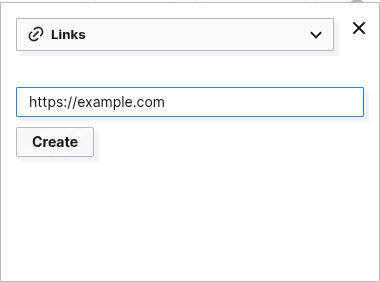
- Click + New to open the New panel.
- Choose Links from the type dropdown. The panel now shows just a URL box and the Create button.
- Type or paste the full web address, starting with
https://, in the URL box. There is no title box, because Opal takes the title from the page. - Click Create. The link item is created and its page view opens straight away.
Type the full address with https://. A bare domain such as example.com is accepted, but the page then shows Invalid URL where the address should be. Opal does not show an error for an address with spaces or without https://, so check what you typed.
Add Notes to a Link
Click the link item on your workspace to open its page view. It has the same block editor as a document, so you can add headings, lists, checklists, and images. Opal Block Types Cheat Sheet: Every Block and How to Insert It lists every block.
Open the Link
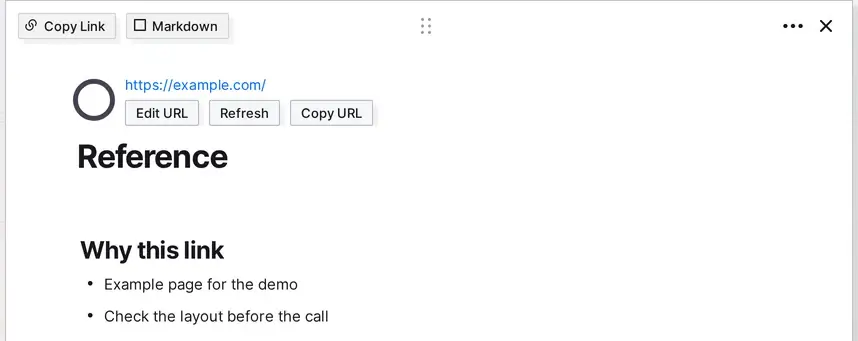
Click a link item on the workspace to open its page view. The saved address shows as a blue link above the title, with three buttons under it: Edit URL, Refresh, and Copy URL. Your notes are below the title.
Link Item vs iFrame Item
| Link item | iFrame item | |
|---|---|---|
| What it holds | A web address and your notes | A web page shown inside Opal |
| Best for | Articles, references, and any site you want to save | Sites that allow embedding, such as Google Docs and Google Sheets |
| Editing the page | You add your own notes | You can edit a Google Doc from Opal |
If a site does not allow embedding, save it as a link item instead.
Organize Links on the Grid
Link items are wider than notes, so line them up in a row of grid squares to keep them tidy. Choose Links in the Find panel filter to see every link item in your workspace. Moving, Positioning, and Managing Items on a Workspace explains the grid and snapping.
Next Steps
- Change a saved address: Change or Update a Link Item’s URL
- Create other item types: Creating Items in Opal: Your First Few
- Choose between item types: Link Item, iFrame, or Document? Choosing the Right Opal Item Type
- Learn how items work: What Are Opal Items
FAQ
Does Opal fill in the title of a link item?
Opal takes the title from the web page for you when you create the link. A link item is compact on the grid, so the title is what you read. If the automatic title is not clear, open the link item, click the title, and type a new one.
How is a link item different from pasting a link in a document?
Pasting a web address into the block editor makes a hyperlink inside that document. A link item is its own item on your workspace, with its own notes.
Can I add notes to a link?
Yes. Open the link item and write in its block editor.

