

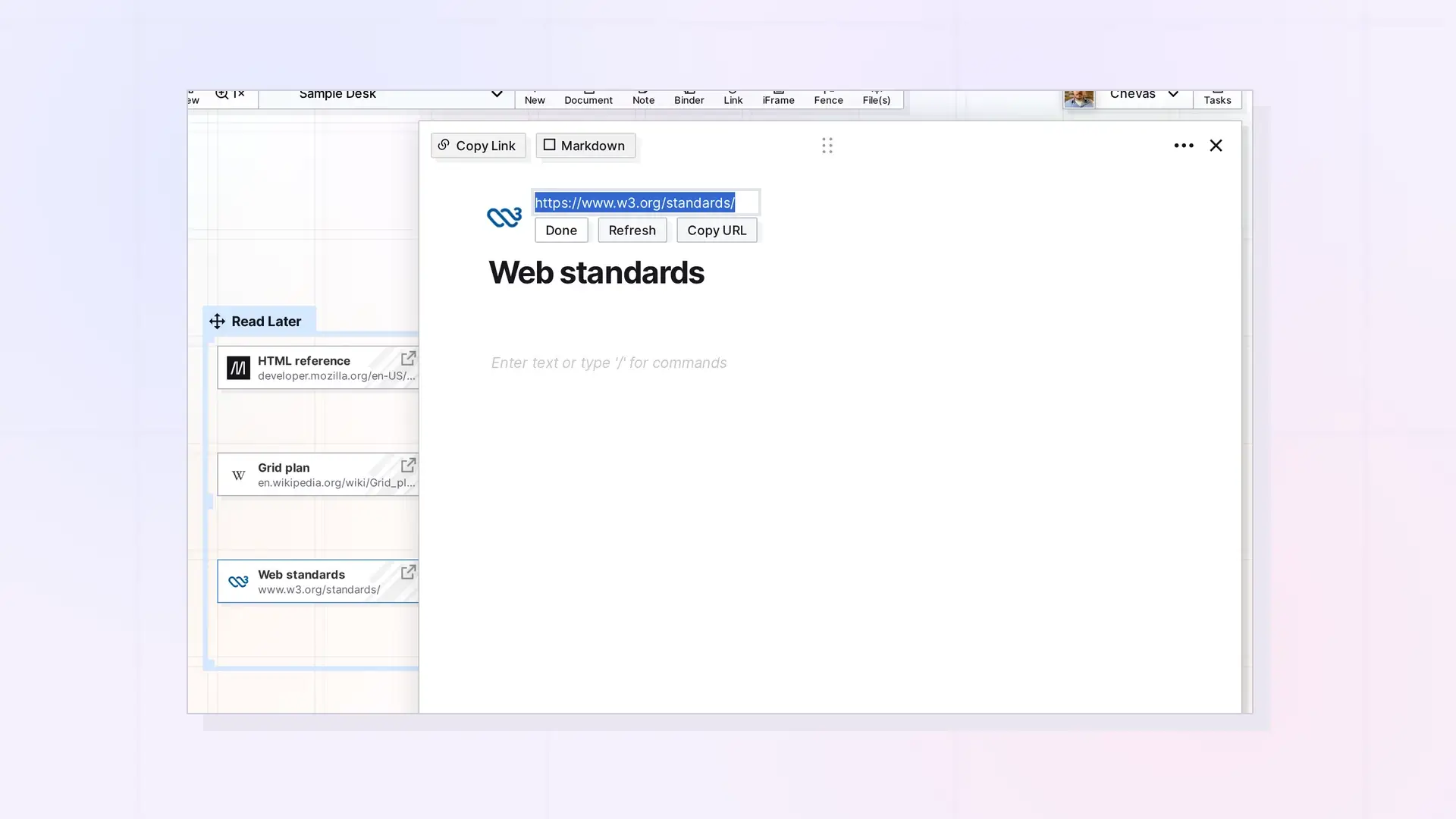
To change a Link item’s URL, open the link item, click Edit URL, type the new address, and click Done. You do not need to create a new link, because the notes and position stay with the same item. Opal refreshes the title from the new page, so rename the item afterwards if you want a different title.
Open the Link Item
Click the link item on your workspace to open its page view.
Edit the URL
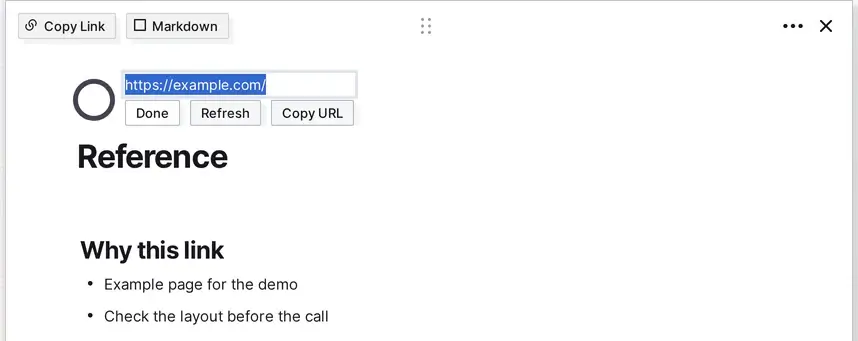
Click Edit URL under the blue address. The address turns into a text box with the old address selected, and the button changes to Done. Type the new address in full, starting with https://. Pressing Enter only adds a new line, so it does not save. Opal does not warn you about an address with spaces or without https://, so check it before you go on.
Save and Test
Click Done. There is no separate Save button and no confirmation message. Close the page view with the X, and open the item again to confirm the new address is there. Then use the link to confirm the page loads.
What Stays the Same
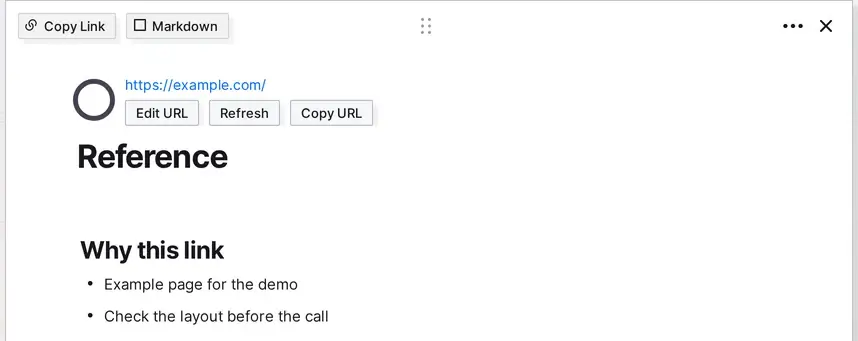
The notes in the block editor and the item’s place on your workspace stay as they are, because you changed the address and not the item. The title is the exception: as soon as you click Done, Opal reads the new page and replaces the title, even one you typed yourself. In the screenshot above the title became Untitled because the new address is a page that does not exist. Click the title and type a name to rename it after you change the address. If you want to keep the old address too, create a new link item instead. Save a Link as an Item: Link Items and Their Notes explains how.
If someone shared the link item with you, you may need edit permission to change its address.
Next Steps
- Learn about link items: Save a Link as an Item: Link Items and Their Notes
- Choose between item types: Link Item, iFrame, or Document? Choosing the Right Opal Item Type
- Create more items: Creating Items in Opal: Your First Few
FAQ
Will my notes stay when I change the URL?
Yes. Your notes belong to the link item, so they stay when you change its address.
Can I fix a typo in a saved link?
Yes. Open the link item, click Edit URL, correct the address, and click Done.
When should I create a new link instead?
Create a new link item when you want to keep the old address as well as the new one.

