

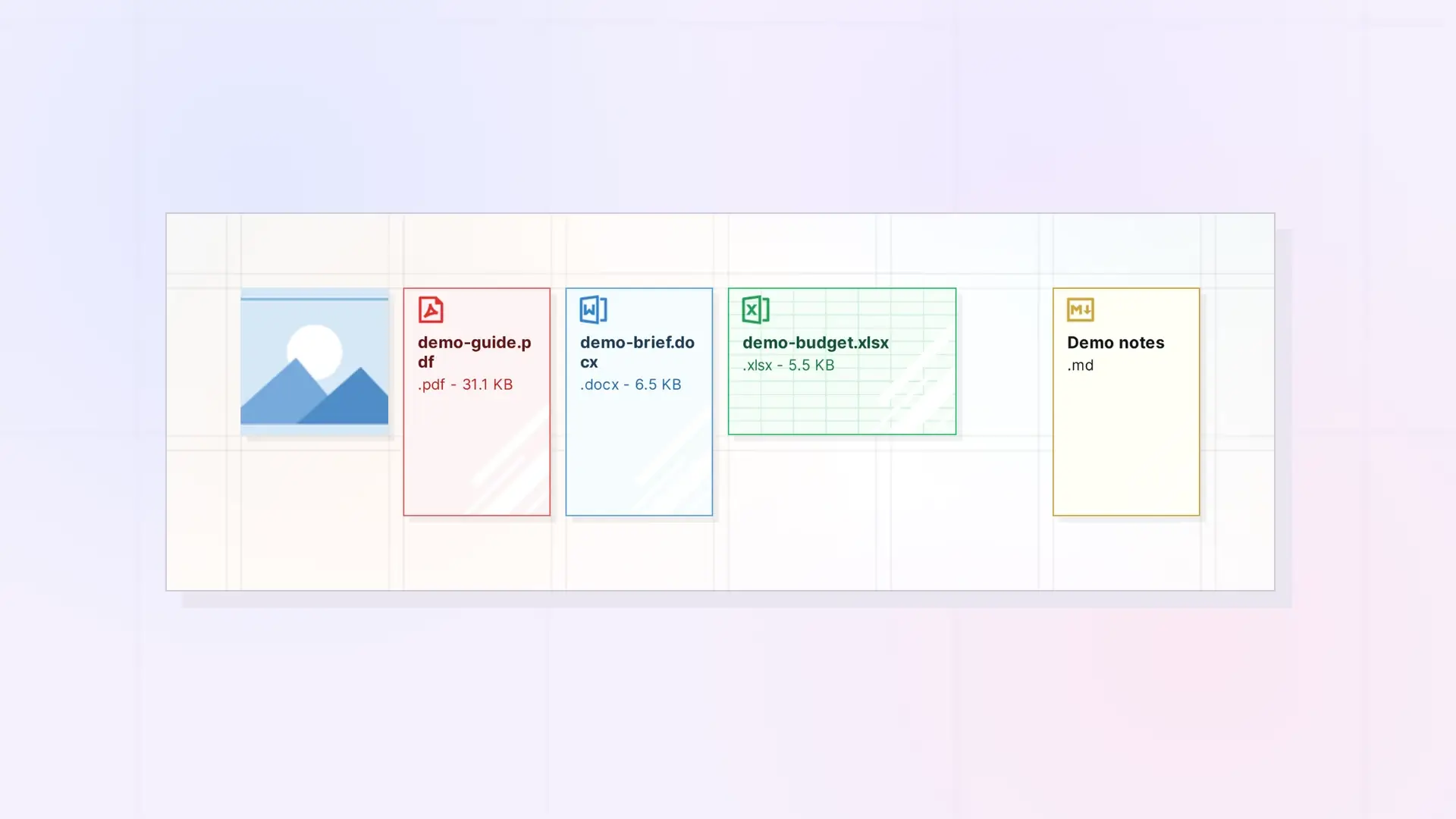
A File item stores a file you upload, such as an image, PDF, Word document, spreadsheet, or text file, as its own item on your Opal workspace. Images, PDFs, .docx and .xlsx files, and text files get extra features, which the table below lists.
File Item vs a File Inside a Document
There are two ways to keep a file in Opal. A File item sits on your workspace like a note or a document. A file inside a document is a block in the block editor that shows as a single-line shape, and clicking it starts a download. Both count toward your storage. Notes with Images, Videos, and Files in Opal Documents covers files inside documents.
Supported File Types and What Each Can Do
| File type | What Opal does with it |
|---|---|
| Images | View them on the grid, resize them there, and see them in page view |
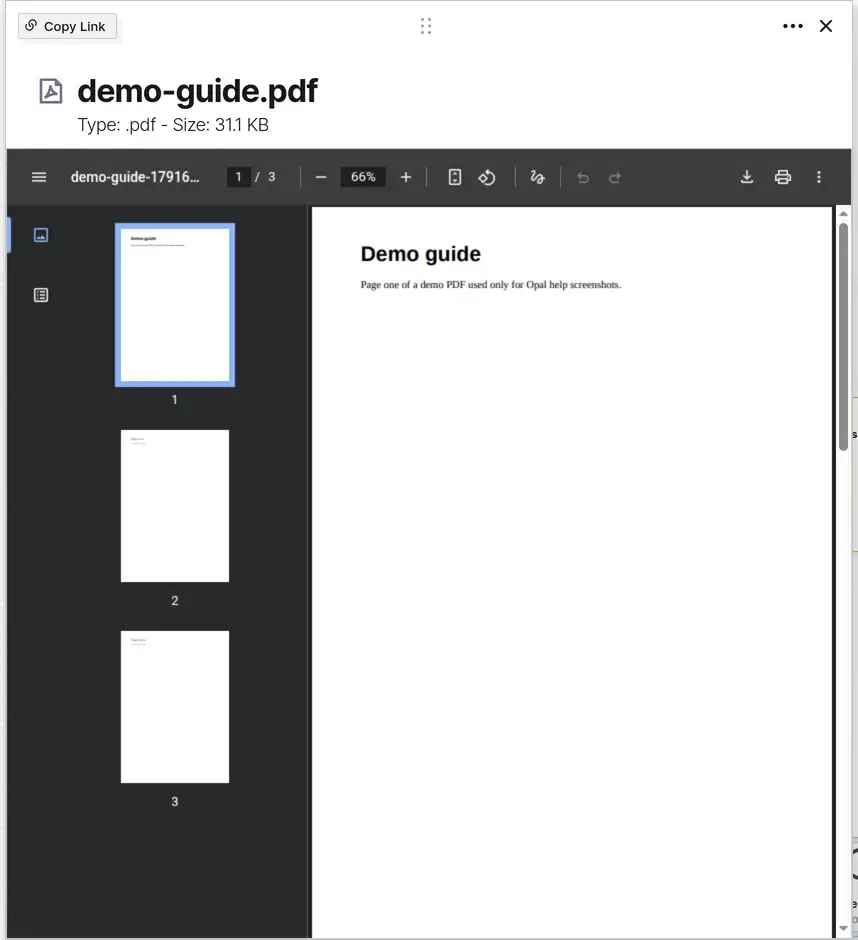
.pdf | Shown with its own icon and color on the grid, and readable in page view |
.docx | Own icon and color, and a preview in page view. You cannot edit it in Opal |
.xlsx | Own icon and color, and a preview in page view. You cannot edit it in Opal |
.pages and .numbers | Own icon and color |
Text files, such as .md, .json, and .txt | Own icon, and you can edit the text in page view |
| Other files | Can be uploaded as a File item to keep them in context with your other content, but may not have a preview or editor |
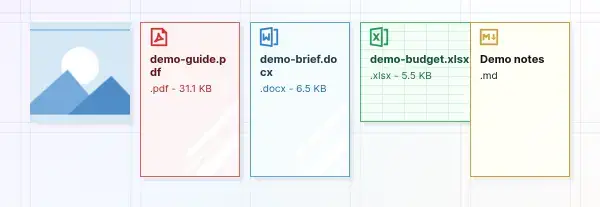
Where Files Live on the Grid
A File item sits on your workspace like any other item. Drag it where you want it, and it snaps to the grid. Moving, Positioning, and Managing Items on a Workspace explains moving items and the grid.
Storage and Size Limits
Every plan has a per-file upload limit and a storage amount, and uploads count toward your storage. File Size and Storage Limits by Plan: Workshop, Studio, and Day Desk lists the numbers for Day Desk, Studio, and Workshop.
Download a File
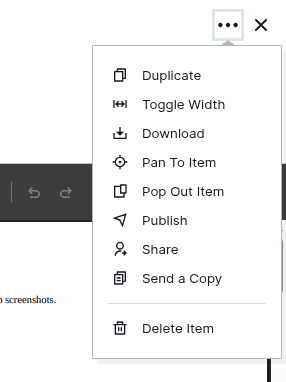
To get a file back out of Opal, open its File item, click the ••• (more options) menu, and choose Download. Your browser saves the file. The saved file name may have extra characters added after the original name, such as a long number and a few letters, so rename the file if you need the original name. For a file inside a document, click the file shape and your browser’s download window opens.
Next Steps
- Upload files and images: Upload Files and Images to Your Workspace (Drag and Drop)
- Check your upload and storage limits: File Size and Storage Limits by Plan: Workshop, Studio, and Day Desk
- Add files inside a document: Notes with Images, Videos, and Files in Opal Documents
- Learn how items work: What Are Opal Items
FAQ
What file types can I upload to Opal?
Images, PDFs, .docx and .xlsx files, and text files get extra features, and .pages and .numbers files show with their own icon and color.
Can I edit a Word document in Opal?
No. Opal previews .docx and .xlsx files but does not edit them. To edit a Google Doc from Opal, embed it as an iFrame.
Do files count toward my storage?
Yes. Images and files count toward your storage limit, whether they are File items or files inside a document. Text you type in the block editor does not.

