

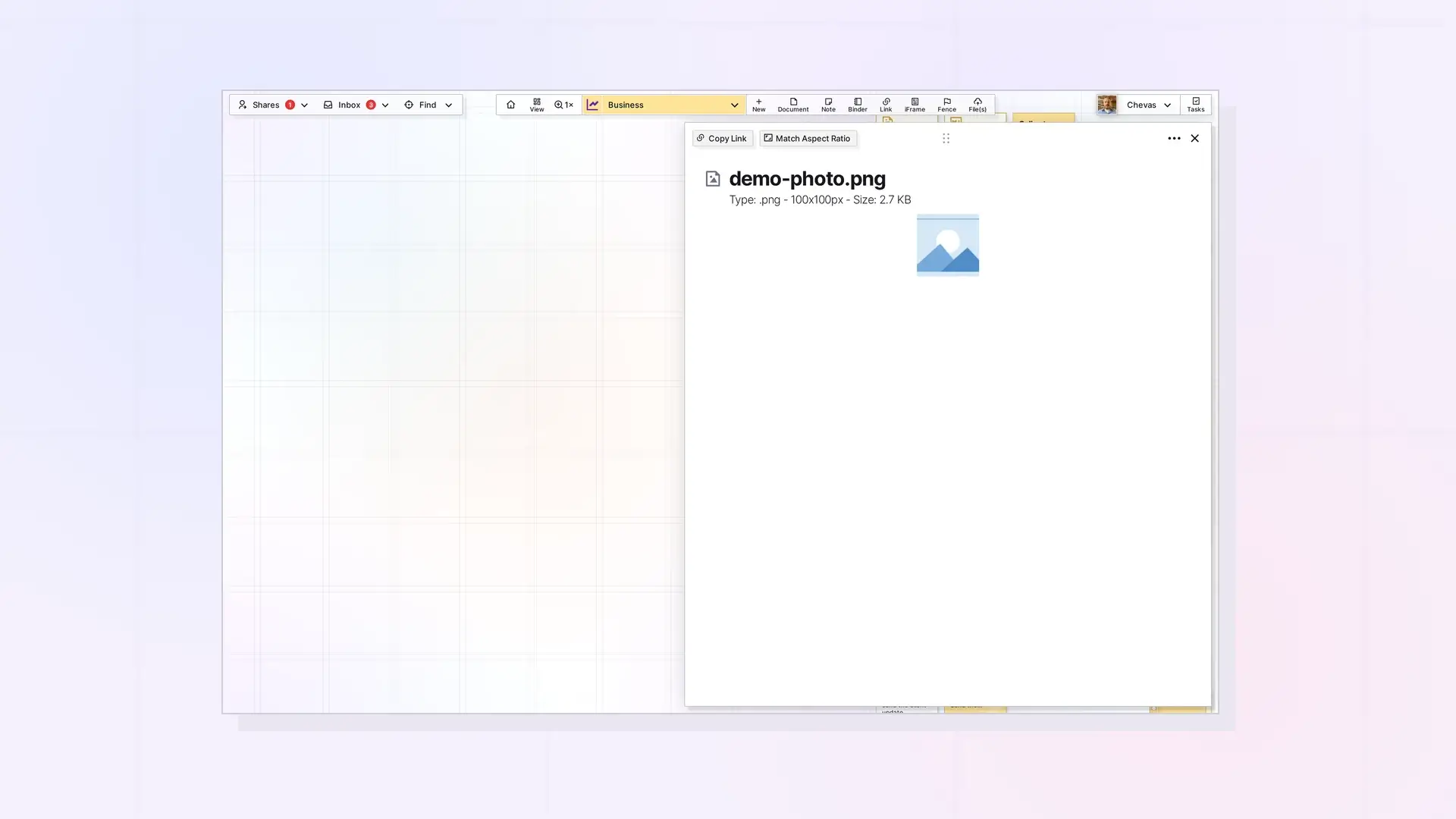
An image you upload to your workspace becomes a File item you can see on the grid, resize there, and open in page view. Drag an image onto the workspace to add it. To put an image inside a document instead, add it as a block in the block editor.
Image Item vs Image Block
| Image item | Image block | |
|---|---|---|
| Where it lives | On your workspace, as its own item | Inside a document, note, or link |
| How you add it | Drag it onto the workspace | /image, drag it into the editor, or paste it with CTRL+V or CMD+V |
| What you can do | See it on the grid, resize it there, and open it in page view | Read it in line with your writing |
Use an image item when the picture matters on its own, such as a floor plan or a screenshot you want next to related items. Use an image block when it illustrates the text around it. Notes with Images, Videos, and Files in Opal Documents covers image blocks.
Add an Image to the Grid
Drag the image from your computer onto the workspace. You can also choose Files in the type dropdown of the New panel. Each plan has an upload limit, which File Size and Storage Limits by Plan: Workshop, Studio, and Day Desk lists, and an image compressor such as tinypng.com can shrink large files.
Resize on the Grid
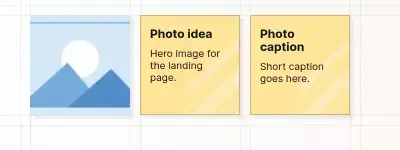
Images are resizable on the grid. When you hover over or select an image, a thin blue outline appears around it.
Open the Full-Size View
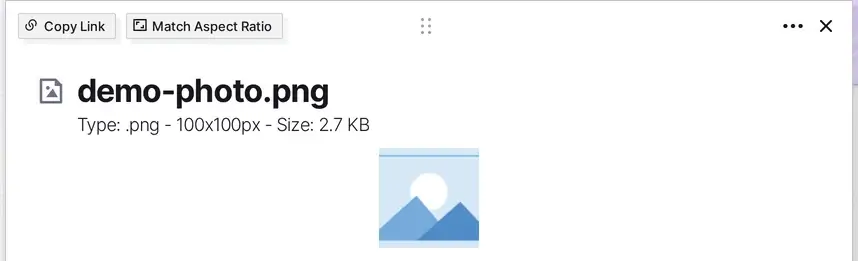
Click the image to open its page view. The image shows at its real size under the file name, with a line listing its type, pixel size, and file size. The header has Copy Link and Match Aspect Ratio buttons, and there is no zoom control. The ••• menu has Download if you want a copy of the image.
Replace or Delete an Image
To replace an image, upload the new one and delete the old item. To delete an item, open it, click the ••• (more options) button, and choose Delete Item. Opal asks you to confirm. Deleting is permanent, and Delete or Archive an Item in Opal explains the steps and what to check first.
Next Steps
- Learn what a File item is: What Is a File Item? Images, PDFs, Office Files, and More
- Add images inside a document: Notes with Images, Videos, and Files in Opal Documents
- Check upload and storage limits: File Size and Storage Limits by Plan: Workshop, Studio, and Day Desk
- Upload more files: Upload Files and Images to Your Workspace (Drag and Drop)
FAQ
Can I resize an image on my Opal workspace?
Yes. Images are resizable on the grid.
Which image files work on the grid?
An image you upload shows on the grid as its own item. Upload yours and check that it displays before you rely on it.
What is the difference between an image item and an image block?
An image item sits on your workspace on its own. An image block sits inside a document, note, or link and is part of your writing.

