

To upload a file to Opal, drag it from your computer onto your workspace. Opal creates a File item from it. Each plan has a per-file size limit: 5 MB on Day Desk, 25 MB on Studio, and 50 MB on Workshop, as of October 2026.
Drag a File onto the Workspace
- Open the workspace where you want the file.
- Find the file in your computer’s file manager.
- Drag the file onto the grid.
- Release the mouse button over the grid.
Upload with the New Panel
Files is in the type dropdown of the New panel too:
- Click + New and choose Files from the type dropdown. The panel shows one button, Upload Files.
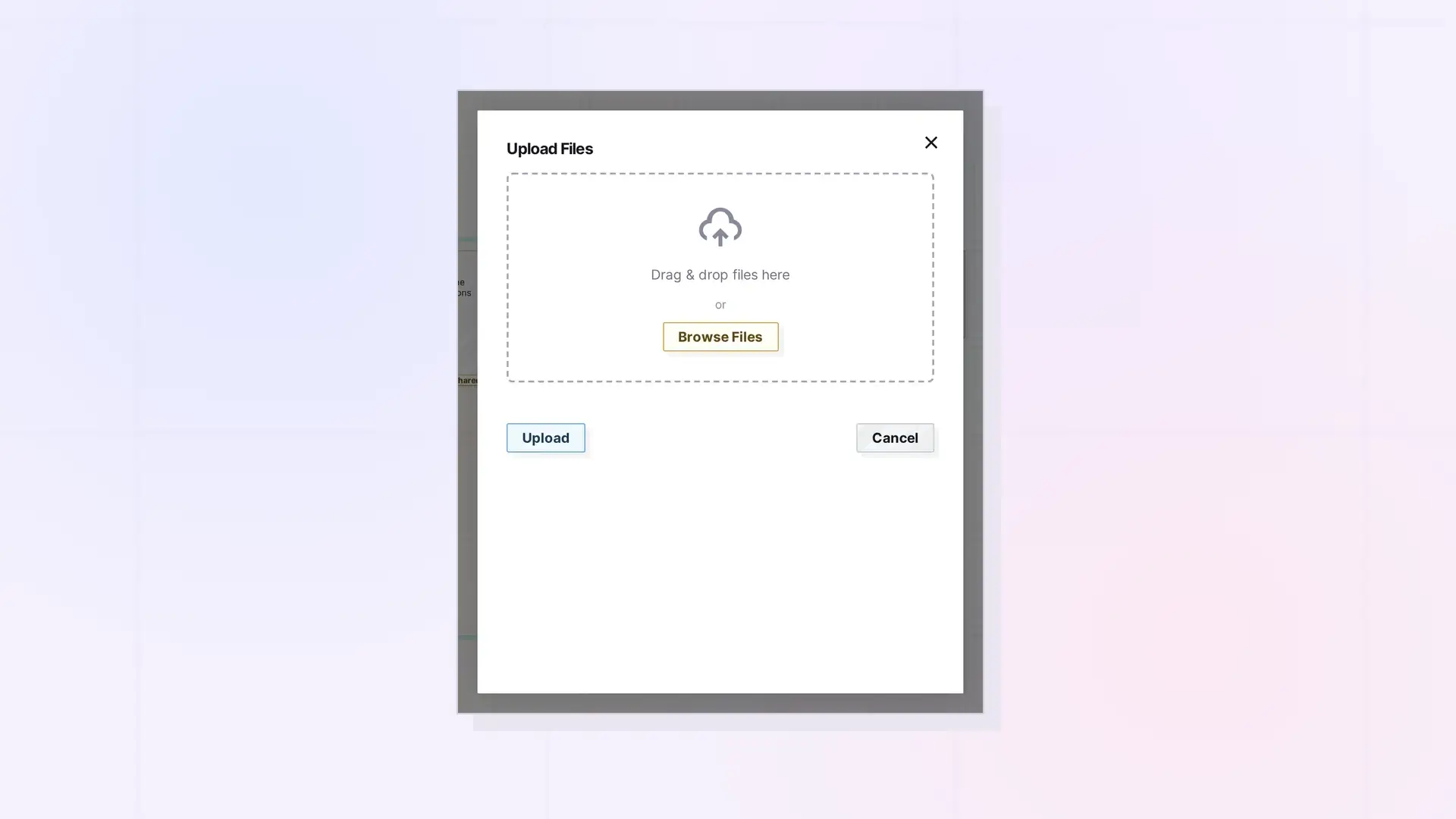
- Click Upload Files. A window titled Upload Files opens with a drop area that says “Drag & drop files here”.
- Drag files into the drop area, or click Browse Files and pick them. Each chosen file is listed with its size and an × to remove it.
- Click Upload. Cancel closes the window without uploading.
Where the Item Appears
The new File item appears on your workspace. Drag it like any other item and it snaps to the grid. What Is a File Item? Images, PDFs, Office Files, and More explains what each file type can do.
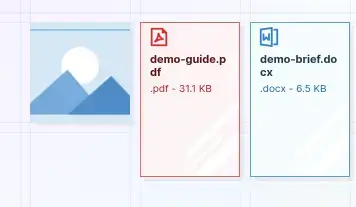
Upload Several Files
Start with one file at a time. Each file becomes its own item, so each counts toward your item limit, and its size counts toward your storage.
Upload Fails? Limits and Tips
Opal enforces your plan’s file size and storage limits when you upload. If an upload does not work, check these first:
| Plan | Largest file | Total storage |
|---|---|---|
| Day Desk | 5 MB | 250 MB |
| Studio | 25 MB | 1 GB |
| Workshop | 50 MB | 5 GB |
- Is the file under your plan’s per-file limit? Opal does not warn you when you choose a large file. The file’s size shows in the list, and the check happens after you click Upload.
- Do you have storage left? Open Plan & Billing in the profile menu to check.
- Have you reached your plan’s item limit? Each uploaded file is one item.
- Can you shrink the file? An image compressor such as tinypng.com makes images smaller.

If a file is over your plan’s per-file limit, the Upload Files window closes and a red message appears at the bottom of the screen, for example Error uploading: Your file size limit is 50MB. The number in the message is your plan’s per-file limit. No item is created, and the message fades after a few seconds.
Dropping a file onto the editor of an open document adds it to that document as a block instead of creating a File item. Notes with Images, Videos, and Files in Opal Documents covers that method.
Next Steps
- Learn what a File item is: What Is a File Item? Images, PDFs, Office Files, and More
- Check your limits in detail: File Size and Storage Limits by Plan: Workshop, Studio, and Day Desk
- Add images and files inside a document: Notes with Images, Videos, and Files in Opal Documents
- Move items around the grid: Moving, Positioning, and Managing Items on a Workspace
FAQ
What is the maximum file size?
As of October 2026, 5 MB on Day Desk, 25 MB on Studio, and 50 MB on Workshop. Limits can change, so check the Pricing page.
Can I upload multiple files at once?
Start with one at a time. Each file becomes its own item and counts toward your item limit and storage.
Do uploads count toward my storage?
Yes. Images and files count toward storage. Text you type in the block editor does not.

