

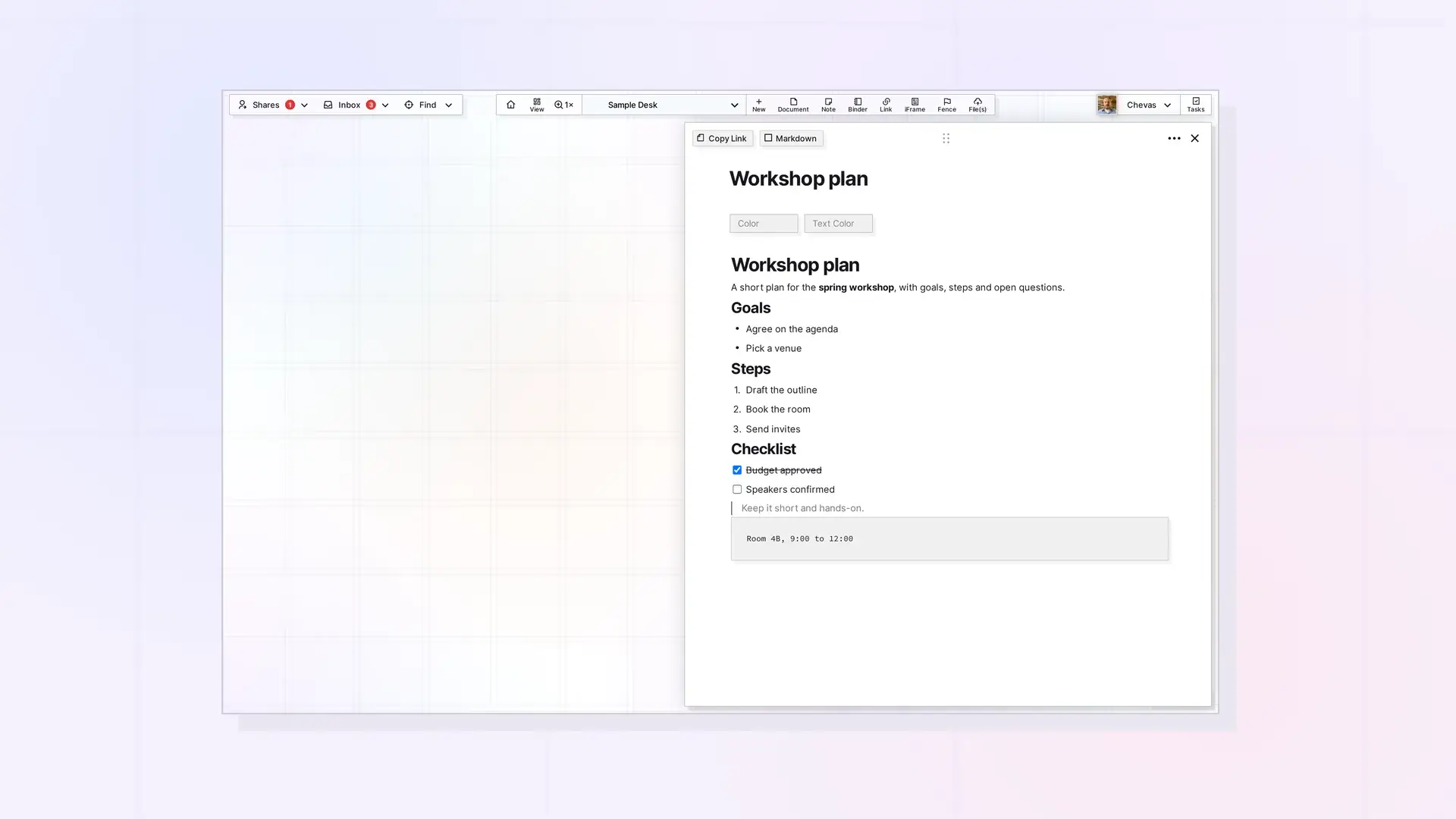
To format text in an Opal document, type / in an empty block to choose a block type, select text to show the formatting toolbar, and use the Plus and 6-dot icons beside a block to add, move, delete, or color it. This page shows the fastest way to do each one. It works the same in Documents, Notes, and Links, because all three use the block editor.
Create Blocks with / and Plus
Every line you write lives in a block, and a new empty block is a paragraph. To change what kind of block it is, use either method:
- Type
/while your cursor is in an empty block. - Hover over an empty block and click the
Plusicon in the left margin.
Both open the block type menu. Keep typing after the slash to narrow the list, for example /quote or /table, then press Enter to choose the highlighted block:
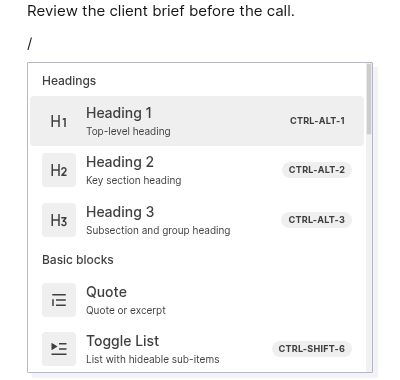
Many entries in the block menu show their keyboard shortcut in a small gray tag on the right. You can press the shortcut instead of opening the menu:
| Shortcut | Block you get |
|---|---|
CTRL+ALT+1, CTRL+ALT+2, CTRL+ALT+3 | Heading 1, Heading 2, Heading 3 |
CTRL+ALT+4, CTRL+ALT+5, CTRL+ALT+6 | Heading 4, Heading 5, Heading 6 |
CTRL+ALT+0 | Paragraph |
CTRL+ALT+C | Code block |
CTRL+SHIFT+6 | Toggle list |
CTRL+SHIFT+7 | Numbered list |
CTRL+SHIFT+8 | Bullet list |
CTRL+SHIFT+9 | Check list |
Format Selected Text
Select a word or phrase inside a paragraph or heading and the text formatting toolbar appears. These options change only the text you selected:
- Bold
- Italic
- Underline
- Strikethrough
- Text color
- Background color
- The hyperlink for the selected text
The toolbar also has options that change the whole block no matter how much text you select: the block type and indentation. With text selected you can also press CTRL+B, CTRL+I, or CTRL+U to turn bold, italic, or underline on or off.

To format a word as code, wrap it in backtick characters. Type a backtick before the word and another after it, and Opal shows the word in a monospace font on a green background.
Headings and Lists in Two Keystrokes
Typing shortcuts change a block without opening any menu:
| What you type | What you get |
|---|---|
* and a space | A bullet list item |
1. and a space | A numbered list item |
Choose Check List in the / menu | A checklist item you can tick off |
/quote, then Enter | A quote block |
/code, then Enter | A code block with a language selector |
/table, then Enter | A table |
# and a space | A Heading 1 |
## and a space | A Heading 2 |
[] and a space | A checklist item you can tick off |
--- | A divider |
Press Enter at the end of a list item to start the next one. Press Enter again on an empty item and the block turns back into a paragraph. For a heading, type # or ## and a space, or open the block type menu and choose the heading level you want (Heading 1 to 6). When you press Enter in a heading, the next block is a normal paragraph.
Move, Delete, and Color a Block
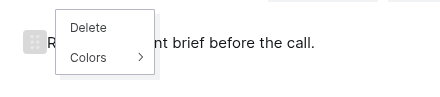
Hover over a block and use the 6-dot icon beside it. The icon is pale, so look for a light gray square in the left margin when you hover:
- Delete: click the
6-doticon and choose Delete to remove the whole block and its content. - Color: click the
6-doticon, choose Colors, then pick a text color or a background color for the entire block. - Move: drag the
6-doticon to a new spot. A light blue line shows where the block will land when you release.
To place one block beside another as a column, drag it to the side of that block. Advanced Layouts covers columns in full.
Keyboard Shortcuts You Will Actually Use
| Keys | What they do |
|---|---|
/ | Opens the block type menu from an empty block |
Enter | Starts a new block, or turns an empty list item back into a paragraph |
CTRL+V or CMD+V | Pastes text, or pastes an image or file into an empty block |
| Backtick before and after a word | Formats the word as inline code |
Opal’s profile menu also has a Keyboard Shortcuts entry for the app-wide list.
Next Steps
- Learn how blocks work: What is a Block Editor, What are Blocks, and the Basics of Editing Text
- Add lists, code, tables, and more: Additional Text-Based Block Types in Opal Documents
- Look up any block and how to insert it: Opal Block Types Cheat Sheet: Every Block and How to Insert It
- Build side-by-side layouts: Advanced Layouts: Drag Blocks to Build Multi-Column Content
FAQ
What keyboard shortcuts does the Opal editor support?
You can type / for the block menu, * or 1. and a space for lists, --- for a divider, and backticks around a word for inline code. The block menu shows the shortcut beside many block types, such as CTRL+ALT+1 for Heading 1, and the profile menu has a Keyboard Shortcuts entry.
Can I use Markdown shortcuts in Opal?
Some of them. * and a space makes a bullet, a number and a space makes a numbered list, # and ## and a space make headings, [] and a space makes a checklist item, and backticks make inline code. For Markdown files, see Markdown Mode: Write, Import, and Export Markdown in Opal Documents.

