

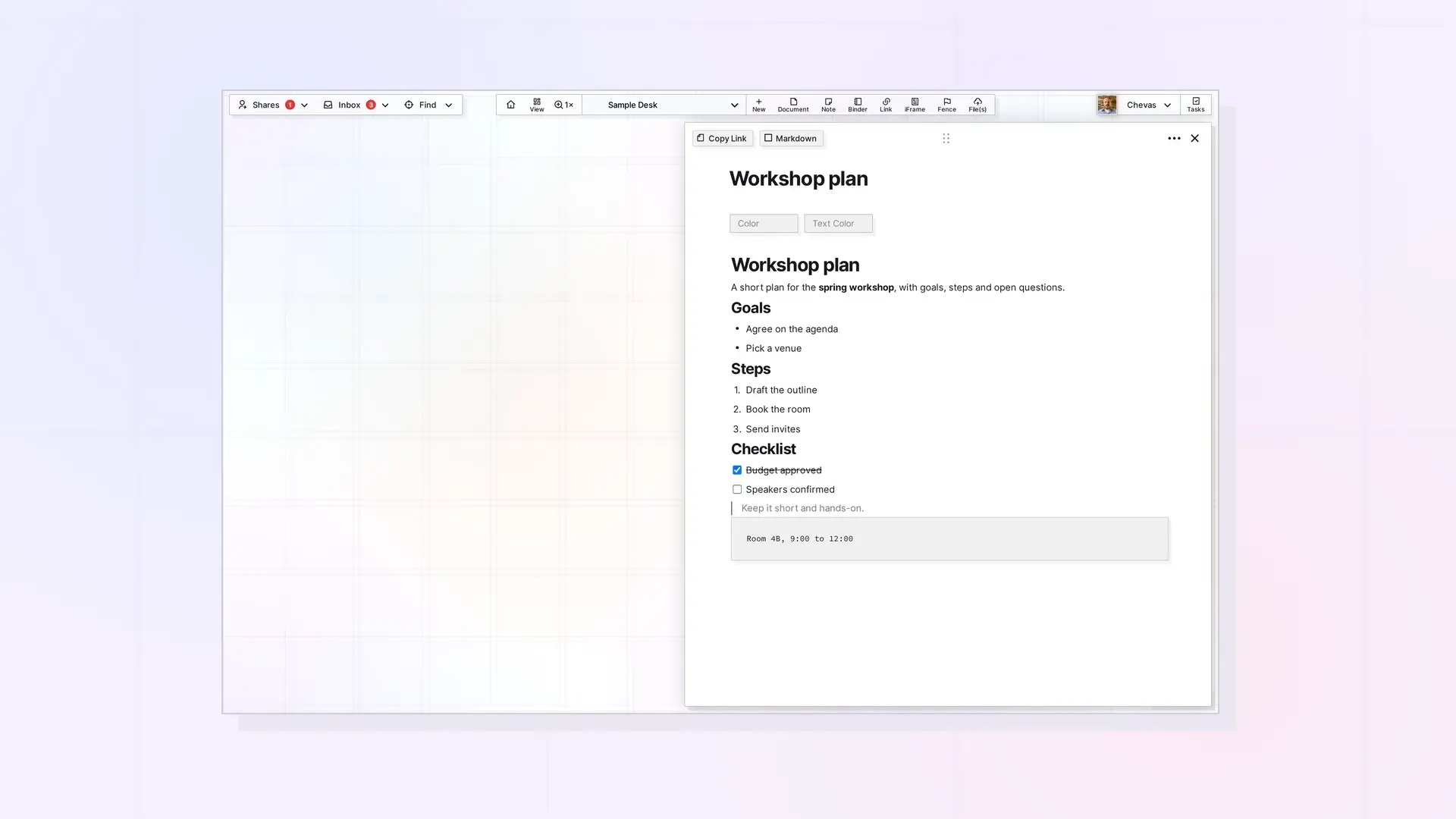
To make columns in an Opal document, drag a block by its 6-dot icon to the right side of another block. When a vertical light blue line appears beside that block, release the mouse button and the two blocks sit side by side. This page shows the steps and a few layouts that work well.
Drag a Block Beside Another Block
Every block has a 6-dot icon in the left margin. It is pale, so look for a light gray square when you hover over the block. Press and hold it and drag the block. A light blue line shows where the block will land. A horizontal line means the block moves above or below another block. A vertical line next to an existing block means Opal will create an additional column. Aim for the empty space to the right of the other block, level with its row and not on top of its text. The vertical line is thin and light blue, so watch for it before you let go.

Build a Two-Column Layout
- Write two blocks, for example a short paragraph and a checklist.
- Hover over the block you want to move and press and hold its
6-doticon. - Drag the block to the empty space at the right end of the other block’s row until a thin light blue vertical line appears.
- Release the mouse button. The block moves and a second column is created. Both columns get the same width.

Add a Third Column
To add another column, drag a third block to the side of the columns in the same way. Three columns fit well. Opal gives every column the same width, and dragging between columns does not resize them, so each column gets narrower as you add more. Short text, checklists, and images work best, and an image shrinks to fit its column.

Move Blocks Between Columns
Use the same drag. Press and hold the block’s 6-dot icon, drag to the new spot, and release where the light blue line shows. You can drop a block above or below another block inside a column. A new block you add from a line inside a column (for example with /image) goes into that column. Drops near the bottom of a column can start a new column unexpectedly, so go slowly and watch the line before you release. To remove a column, move all of its blocks out; the column disappears once it is empty.
Layout Patterns
- Sidebar callout: a short text block in a narrow column beside the main text.
- Two-column checklist: split a long checklist into two columns so it fits on one screen.
- Image beside text: put a small image next to the paragraph that explains it.
Limits and Tips
- A document’s page view is 840 px wide by default on a large screen, and columns share that width. Click the ••• menu and choose Toggle Width to give the page the full width of your screen.
- Keep text short in narrow columns.
- Check your layout on the screen sizes you use. Using Opal on a Phone or Tablet describes the phone-width screen.
Next Steps
- Learn how blocks and the drag handle work: What is a Block Editor, What are Blocks, and the Basics of Editing Text
- Look up block types: Opal Block Types Cheat Sheet: Every Block and How to Insert It
- Add images and files to a layout: Notes with Images, Videos, and Files in Opal Documents
FAQ
How do I create columns in an Opal document?
Press and hold a block’s 6-dot icon, drag the block to the right side of another block until a vertical light blue line appears, and release.
Can I use columns in notes and links?
Notes and Links use the same block editor as Documents. The steps on this page were written for documents, so try them on a note or link to see how its narrower page changes the layout.
Can I make a column layout wider?
Yes. Click the ••• menu on the open item and choose Toggle Width so the page uses the full width of your screen.

