

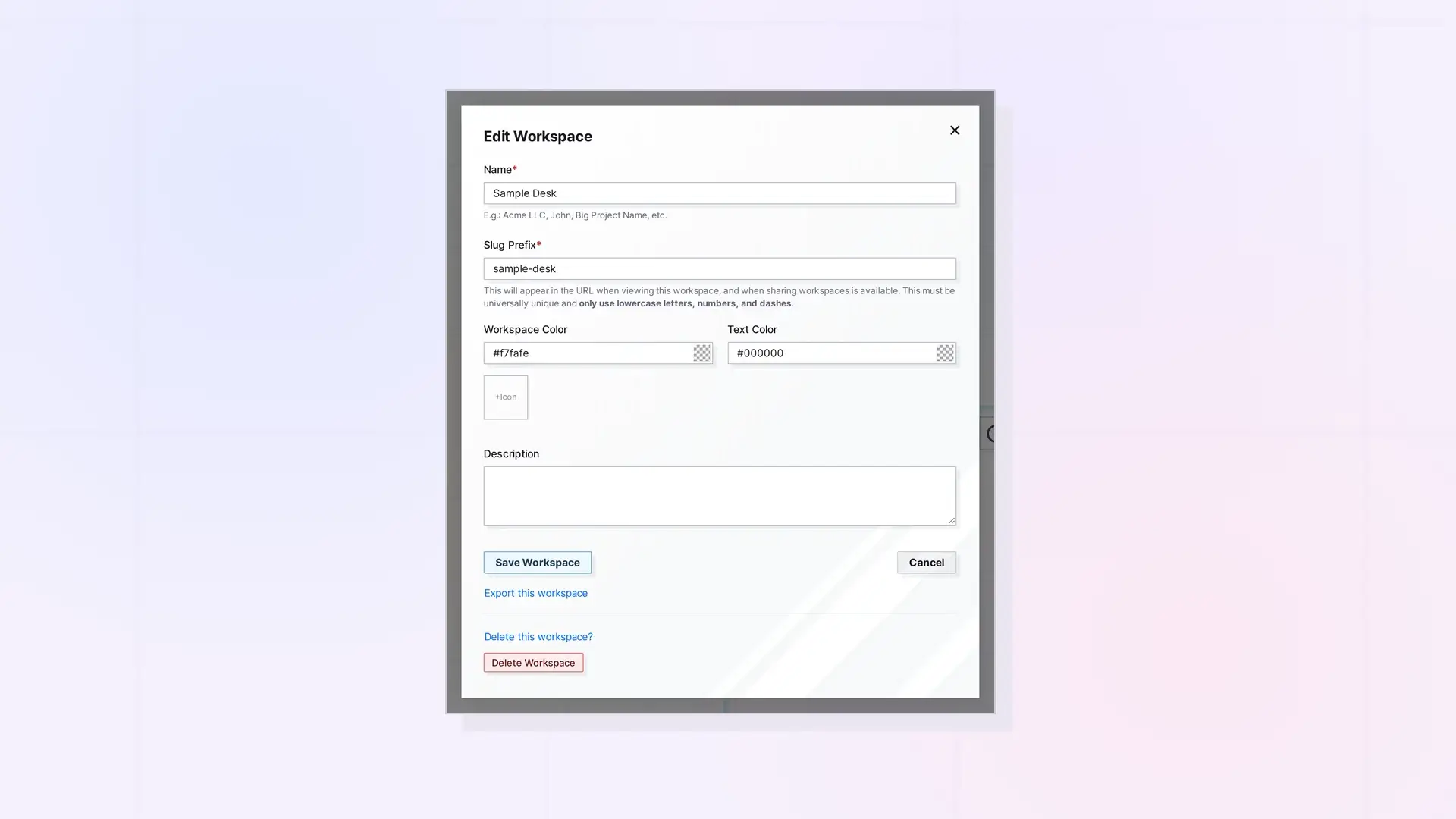
To delete a workspace, click the workspace pill to open the workspace picker, click Edit next to the workspace, and scroll to the bottom of the Edit Workspace form. Below Save Workspace and Cancel is a blue link, Delete this workspace?. Click it and a red Delete Workspace button appears right under the link. Clicking that button deletes the workspace. Opal does not open a dialog, and it does not show a Trash or Undo option, so export what you need before you delete.
Before You Delete: Export or Move What You Need
Run through this checklist first:
- Export any documents, notes, or links you want to keep as a file.
- Save a copy of any items you still need somewhere else.
- Check for items you shared or published from this workspace, because deleting the workspace deletes the items on it.
- Download any files you uploaded that you do not have elsewhere.
Move Items Between Workspaces explains how to move an item to another workspace: drag the item into your Inbox, change workspaces, and drag it out of the Inbox onto the new workspace. Delete or Archive an Item in Opal covers saving content as a file before you delete.
Delete a Workspace Step by Step
Click the workspace pill at the top of the screen and click the Edit link next to the workspace you want to delete. Scroll to the bottom of the Edit Workspace form. Below the Save Workspace and Cancel buttons is a blue link that reads Delete this workspace?:
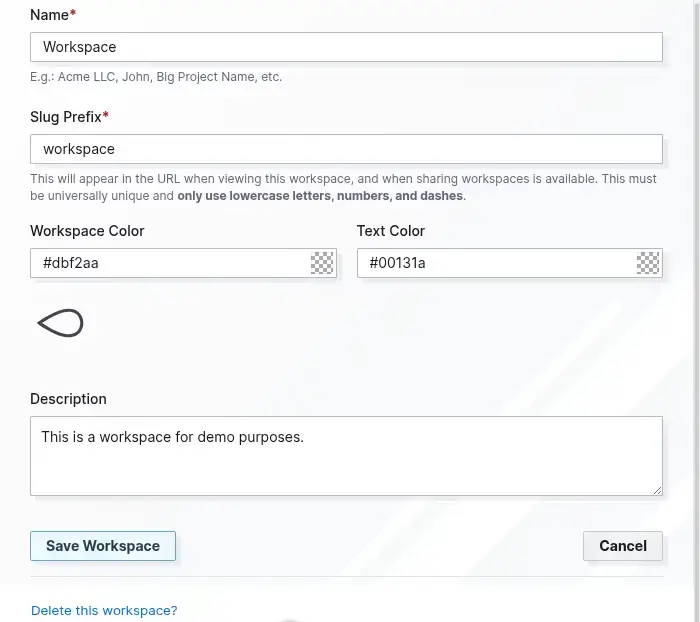
Click Delete this workspace?. This does not open a dialog. A red Delete Workspace button appears right under the link:
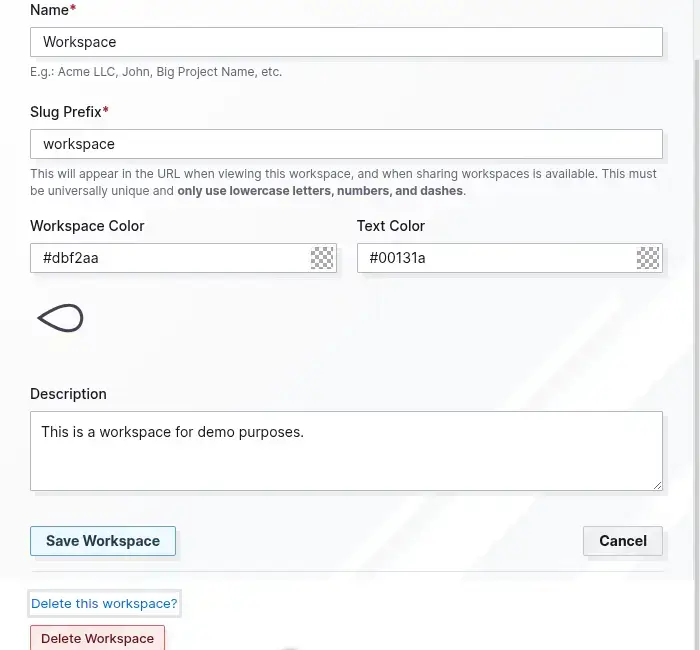
When you are sure, click the red Delete Workspace button. This is the step that deletes the workspace.
What Gets Deleted
- The workspace itself, including its name, colors, icon, and description.
- The items on it: documents, notes, links, binders, fences, iFrames, and files, along with their content.
What Cannot Be Undone
Opal does not have a Trash, an Archive, or an Undo for workspaces. Once you click Delete Workspace, treat the workspace and its items as gone, so take your time with the checklist above.
Important: Deleting a workspace is permanent. Export or move anything you want to keep first.
Alternatives: Rename, Archive in a Binder, or Move Items
- Rename it. If the workspace is just named wrong, use Edit a Workspace.
- Archive in a binder. Keep content you rarely use in a binder on a workspace you are keeping.
- Keep it and ignore it. An unused workspace still counts toward your plan’s workspace limit.
FAQ
Can I recover a deleted workspace?
Treat a deleted workspace as gone. Opal does not offer a Trash or Undo for workspaces, so export what you need first.
Can I delete a workspace I share with others?
You can share individual items, binders, and fences today. Sharing an entire workspace is planned but not available yet.

