

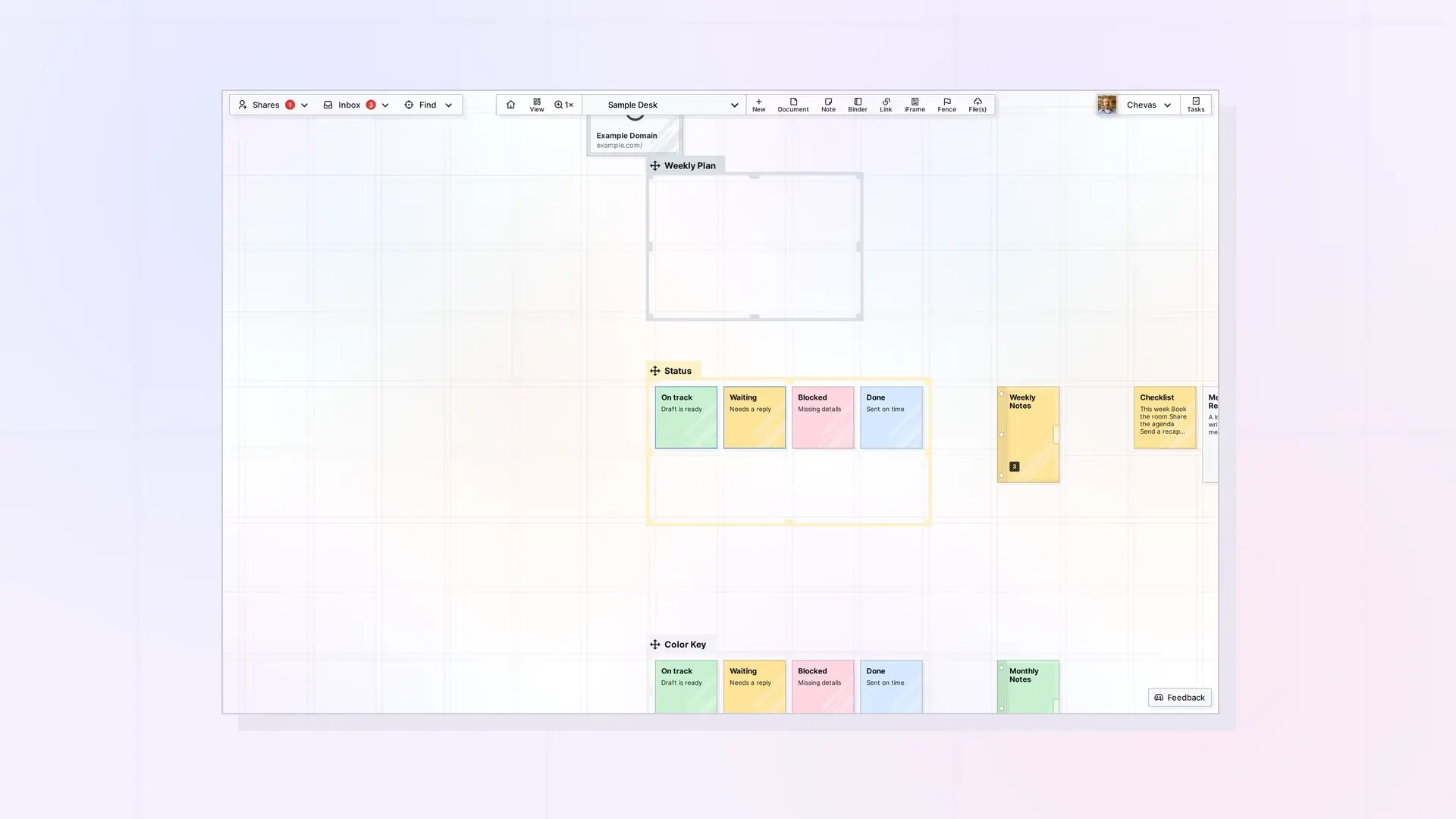
To delete an item in Opal, open it, click the ••• (more options) button at the top right of its page view, and choose Delete Item. Opal asks you to confirm, and the item is deleted only after you click Yes, Delete. Opal does not have a Trash or Archive today, so a deleted item cannot be recovered. If you might want it later, put it in a binder or export it first.
Delete One Item
Delete a single item from its ••• menu. To delete several at once, see the FAQ below.
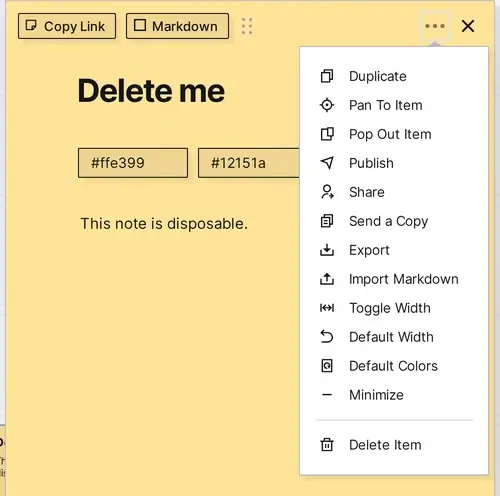
Open the item you want to delete. Click the ••• (more options) button at the top right of the page view, then click Delete Item:
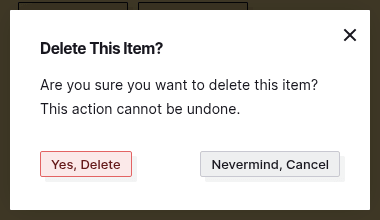
A confirmation dialog titled Delete This Item? appears. It says, “Are you sure you want to delete this item? This action cannot be undone.” It has two buttons, a red Yes, Delete and Nevermind, Cancel, and an X to close it. Click Yes, Delete to delete the item. If you change your mind, click Nevermind, Cancel or the X and the item stays:
After you click Yes, Delete, Opal removes the item.
Important: Deleting an item cannot be undone. If you are not sure, read the safer options below first.
Deleting a whole workspace also removes the items on it. See Delete a Workspace before you do that.
Delete a Binder: Keep or Delete the Contents
A binder holds other items. To delete one, click the ••• (more options) button, then Delete Item. Opal opens a Delete This Binder? dialog that says, “This action cannot be undone.” You can delete the binder together with everything inside it, or delete only the binder. The dialog also has a Nevermind, Cancel button and an X.
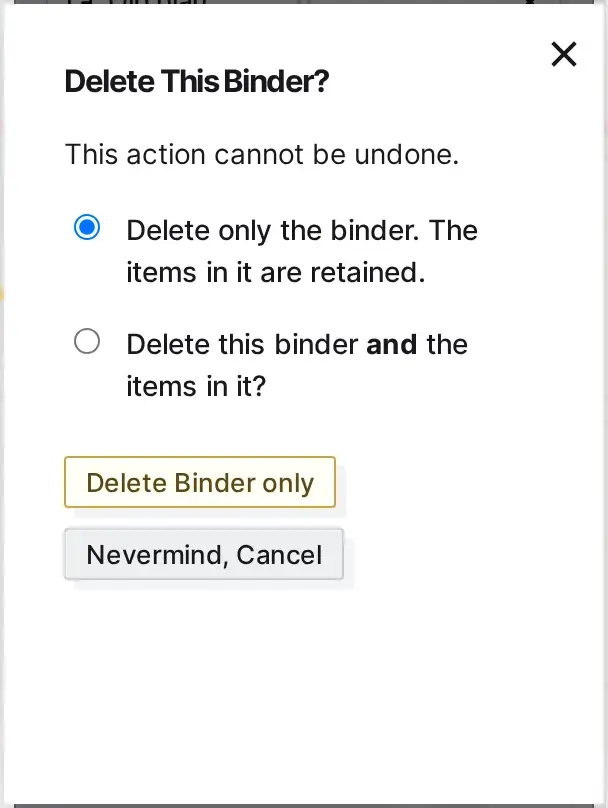
- Delete only the binder. The items in it are retained. This is selected by default, and the yellow button reads Delete Binder only. The binder is removed and its items go back onto your workspace, to the right of where it was.
- Delete this binder and the items in it? Deletes the binder together with your items in it. Items other people added go back to them, unless the binder’s owner setting Assume delete capabilities and ownership of items of removed participants is on.
Important: check which option is selected before you confirm. Deleting the binder and the items in it cannot be undone. Fences use the same dialog, titled Delete This Fence?, with the button Delete Fence only. For details, see Delete a Binder and Delete a Fence (Your Items Stay Put).
What Happens to Shared and Published Items
You decide what other people can do with an item you share, so review its permissions before you delete it.
Before you delete an item you shared or published, check who has access, because deleting the item affects everyone who has access to it. If someone shared an item with you, check what permissions you were given before you delete it.
Can You Undo a Delete?
No. Opal has no Trash, no Archive, and no Undo for deleted items, and the delete dialog says the action cannot be undone.
Safer Alternatives: Archive in a Binder or Export
- Archive in a binder. Drag items you do not need right now into a binder. They leave your workspace view but stay in Opal. Keep this for content you truly rarely use, because items in a binder are out of sight.
- Export a copy. Open the item, click the ••• (more options) button, and choose Export. Documents, notes, and links that use the block editor can be exported to PDF, HTML, or Markdown, so you keep a file of the content before you delete the item.
- Rename it instead. If the item is only in your way, change its title or move it to a corner of the workspace.
Moving and arranging items without deleting them is covered in Moving, Positioning, and Managing Items on a Workspace.
FAQ
Does Opal have a trash or undo?
No. Once you delete an item, it is gone. Use a binder to archive items and export anything you want to keep as a file.
What happens if I delete an item I shared?
Check who has access before you delete. If someone needs to keep their own version, use Send a Copy from the ••• menu first.
Can I delete several items at once?
Yes. Select the items with Shift+Click or by drawing a box around them, then press the Delete key. Opal asks Delete N items? (with the number of items) and warns that the action is permanent and cannot be undone. Click Yes, Delete to confirm or Cancel to keep them.

