

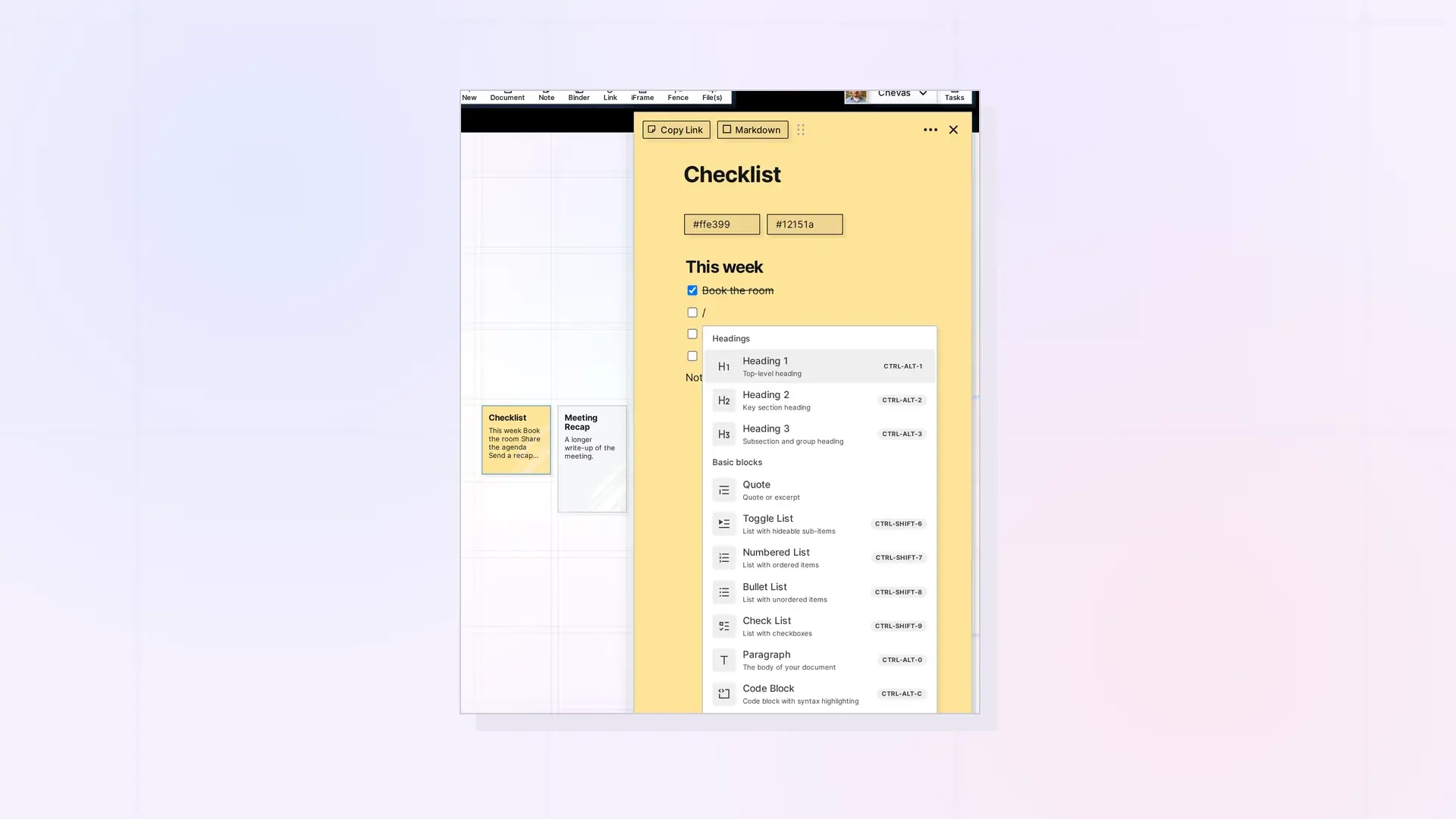
The Opal block editor has blocks for paragraphs, headings (six levels), quotes, bullet, numbered, and check lists, toggles, code, tables, dividers, emoji, images, videos, audio, and files. Insert any of them by typing / in an empty block or clicking the Plus icon, then choosing from the menu. The table below shows each block, how to insert it, and where to learn more.
Block Types Table
| Block | How to insert it | What it is for | Learn more |
|---|---|---|---|
| Heading 1 | Block menu (Headings), CTRL+ALT+1, or # and a space | Top-level heading | Block editor basics |
| Heading 2 | Block menu (Headings), CTRL+ALT+2, or ## and a space | Key section heading | Block editor basics |
| Heading 3 | Block menu (Headings) or CTRL+ALT+3 | Subsection and group heading | Block editor basics |
| Quote | /quote, then Enter | Quoted text, shown indented with a vertical line | Text-based blocks |
| Toggle List | /toggle, then Enter, or CTRL+SHIFT+6 | A parent line that shows and hides child blocks | Text-based blocks |
| Numbered List | 1. and a space, or CTRL+SHIFT+7 | Steps and ranked lists | Text-based blocks |
| Bullet List | * and a space, or CTRL+SHIFT+8 | Lists where order does not matter | Text-based blocks |
| Check List | Block menu, [] and a space, or CTRL+SHIFT+9 | Items you tick off | Text-based blocks |
| Paragraph | Every new empty block, block menu, or CTRL+ALT+0 | Plain text | Block editor basics |
| Code Block | /code, then Enter, or CTRL+ALT+C | Code or plain text, with a language selector | Text-based blocks |
| Divider | --- or the block menu | A horizontal line between sections | Text-based blocks |
| Table | /table, then Enter | Rows and columns of data | Text-based blocks |
| Image | /image, or drag or paste an image | Pictures inside a document | Images, videos, and files |
| Video | Block menu (Media) | An uploaded video with playback controls | Images, videos, and files |
| Audio | Block menu (Media) | Embedded audio with a caption | Images, videos, and files |
| File | Block menu (Media) | A file people can download | Images, videos, and files |
| Toggle Heading 1, 2, and 3 | Block menu (Subheadings) | A toggle that matches heading size | Text-based blocks |
| Heading 4, 5, and 6 | Block menu (Subheadings), or CTRL+ALT+4, CTRL+ALT+5, CTRL+ALT+6 | Minor, small, and lowest-level headings | Block editor basics |
| Emoji | /, then choose Emoji (Others) | An emoji inside a line of text | Text-based blocks |
Text Blocks
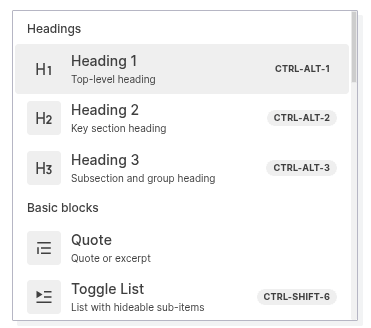
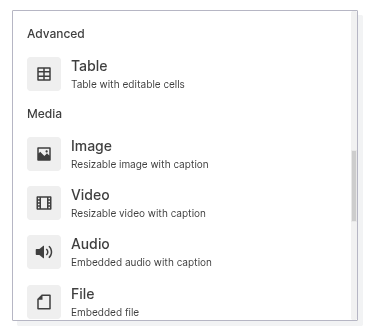
The block menu groups its 23 entries as Headings, Basic blocks, Advanced, Media, Subheadings, and Others, and a gray tag on the right shows the keyboard shortcut for blocks that have one. Paragraph is the default block. Headings run from level 1 to 6, and the toggle headings are in the Subheadings group. A heading is for titles and sections, and pressing Enter in a heading starts a normal paragraph. A quote block shows an indented line with a vertical bar. For code, /code creates a code block, and the light gray language label (Plain Text by default) lets you pick a language for syntax highlighting. To format a few words as code inside a sentence, wrap them in backticks.
List Blocks
Type * and a space for bullets, 1. and a space for numbers, or [] and a space for items with checkboxes. Press Enter to add the next item and Enter on an empty item to end the list. Toggle lists show and hide their child blocks when you click the triangle beside the parent line.
Media and File Blocks
Use /image, drag a file onto the editor, or paste with CTRL+V or CMD+V. Video, Audio, and File are in the Media group of the same block menu. Anything you upload counts toward your storage, which File Size and Storage Limits by Plan: Workshop, Studio, and Day Desk explains.
Layout: Columns and Dividers
To build columns, drag a block by its 6-dot icon to the side of another block until a vertical light blue line appears. A divider (---) separates sections without changing the layout. The steps for columns are in Advanced Layouts: Drag Blocks to Build Multi-Column Content.
Next Steps
- Format text fast: How to Use the Opal Text Editor: Formatting, Slash Commands, and Shortcuts
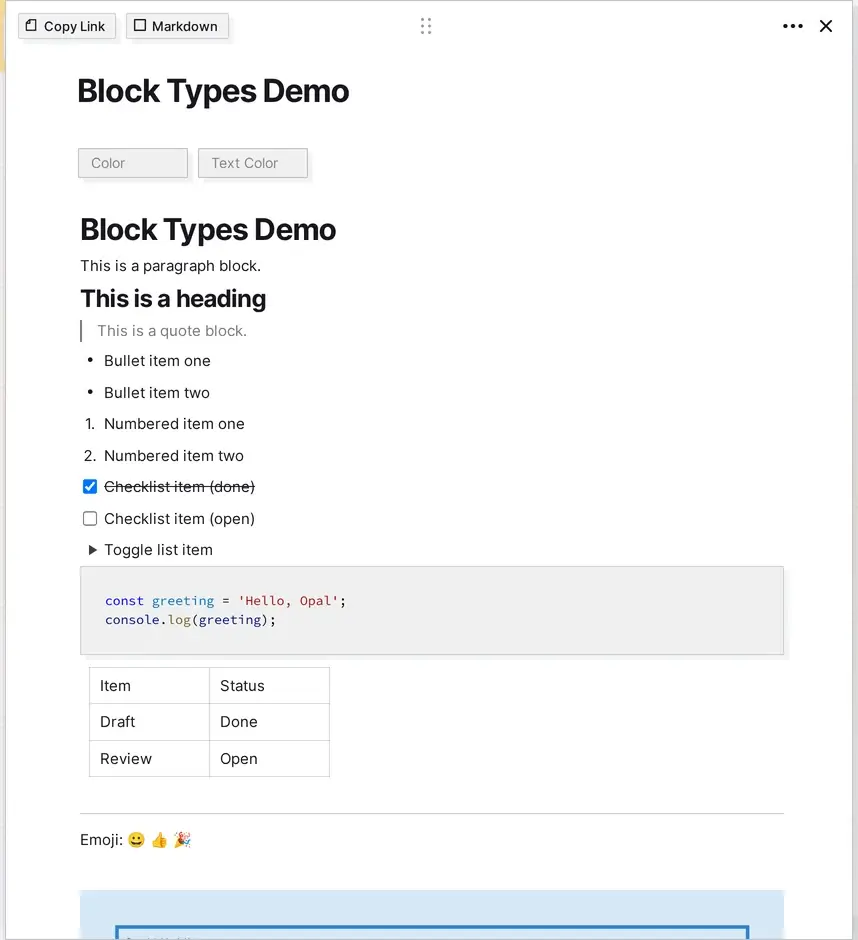
- See every text-based block in action: Additional Text-Based Block Types in Opal Documents
- Add images, videos, and files: Notes with Images, Videos, and Files in Opal Documents
- Put blocks side by side: Advanced Layouts: Drag Blocks to Build Multi-Column Content
FAQ
How many block types does Opal have?
The block menu has 23 entries: three headings, eight basic blocks, a table, four media blocks, three toggle headings and three more heading levels, and an emoji picker. Open the block menu in any document to see the current list, because Opal adds block types over time.
How do I add a code block?
Type /code and press Enter. Click the light gray Plain Text label on the block to choose a language, and Opal highlights the code to match.
How do I make a checklist?
Type [] and a space, or open the block menu with / and choose Check List. Press Enter at the end of an item to add the next one, and click a checkbox to mark an item done.

