

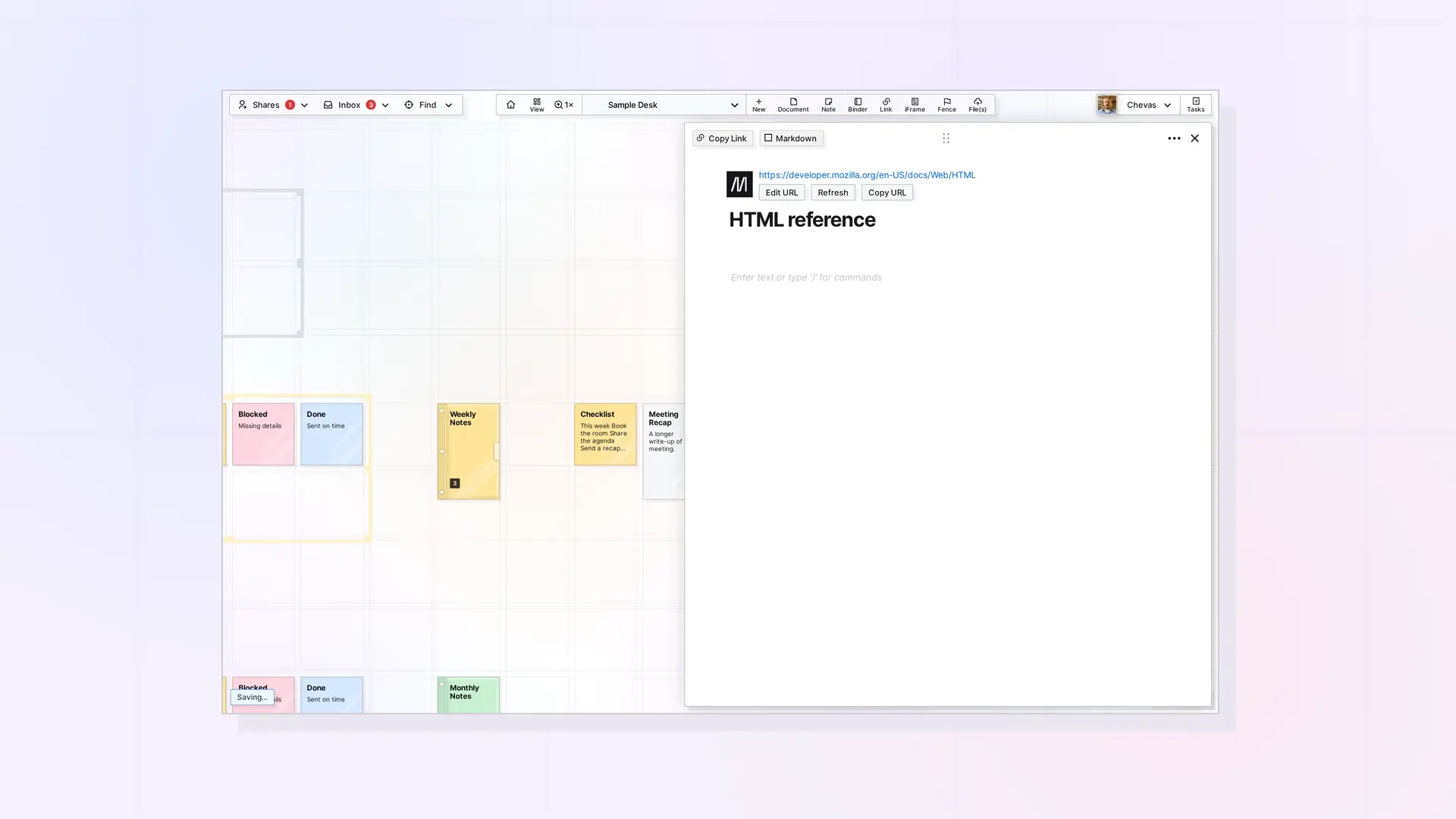
An item link connects one Opal item to another from inside the block editor. Click Copy Link on the item you want to link to, paste it into a document, and choose Mention Item. Or type @ and pick the item from the list. Clicking an item link opens that item’s page view.
What an Item Link Is
An item link is a clickable reference to another Opal item. You add it inside the block editor, so you can use it in Documents, Notes, and Links. Item links let you cross-reference your content, for example a procedure that points to the procedures it depends on. For a long worked example, read What are Internal Item Links and How to Create SOPs with Them in Opal Documents.
Create a Link by Copying
Use this method when you already have the target item open:
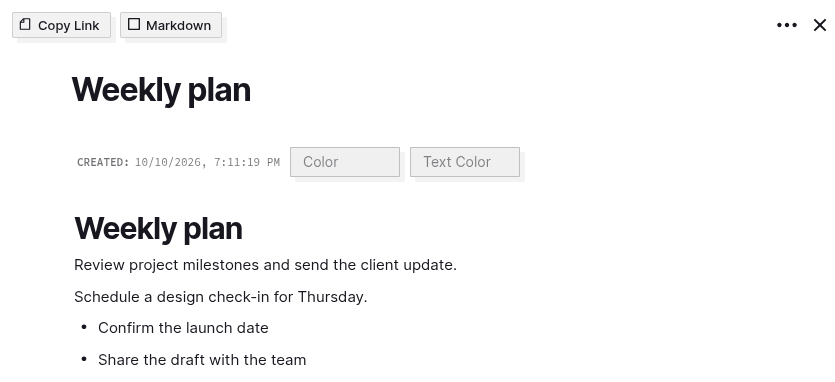
- Open the item you want to link to.
- Click Copy Link at the top left of its page view. A short Copied. message appears.
- Open the document or note where the link should go and put the cursor on the line where it belongs.
- Press
CTRL+V(CMD+Von a Mac) to paste. A small menu titled Paste Options appears with two entries, Mention Item and Insert As Plain Text. - Choose Mention Item to turn the pasted address into an item link. The link shows as a small document icon followed by the item’s title in bold and underlined.

If you choose Insert As Plain Text instead, you get the raw address as text, not a link to the item.
Create a Link by Typing @
Use this method when you know the name of the item:
- Put the cursor where the link should go.
- Type
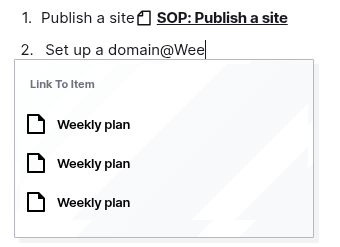
@. A menu titled Link To Item lists your items, each with an icon for its type. - Start typing the item’s name to narrow the list. The list can take a moment to filter, and items that share a name all show up, so check the icon before you choose.
- Select the item in the list to create the link.
To close the menu without choosing anything, press Esc. Esc also takes the cursor out of the editor, so click back into your text before you type or press Backspace. Pressing Backspace while the editor has lost focus can open a Delete 1 item? message for the open item, and you should choose Cancel.
Open a Linked Item
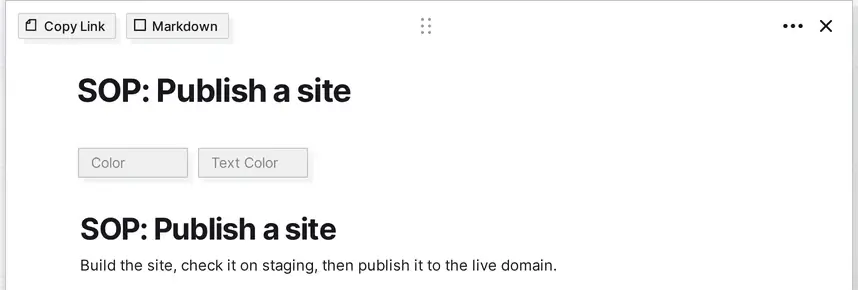
Click an item link and Opal opens the page view of the item it points to. The linked item replaces the one you had open in the same panel. Nothing opens beside it and the workspace does not pan, so open the first item again from the workspace when you want to go back.
Item Links in Published Pages
When you publish an item, anyone with the link can read it without an Opal account. Item links in a published item work for readers when the item they point to is published too.
Remove or Change a Link
When you paste a standard web address, Opal turns it into a hyperlink automatically. To remove a web hyperlink, hover over it and choose Remove Link from the small menu. To point at a different item, add a new item link with either method above.
Next Steps
- See the full SOP walkthrough: What are Internal Item Links and How to Create SOPs with Them in Opal Documents
- Learn how blocks work: What is a Block Editor, What are Blocks, and the Basics of Editing Text
- Find every block type: Opal Block Types Cheat Sheet: Every Block and How to Insert It
- Read the blog guide: the SOP app approach
FAQ
Do item links work in published pages?
Yes, when the item they point to is published too. Publishing supports item links between published items.
Can I make SOPs in Opal?
Yes. Documents with item links are a good fit for SOPs, because each procedure can link to the procedures it depends on. What are Internal Item Links and How to Create SOPs with Them in Opal Documents walks through a full example.
What happens to a link if I delete the target item?
Deleting an item is permanent and there is no Trash, so check which items link to it first. Delete or Archive an Item in Opal explains the delete steps.

