

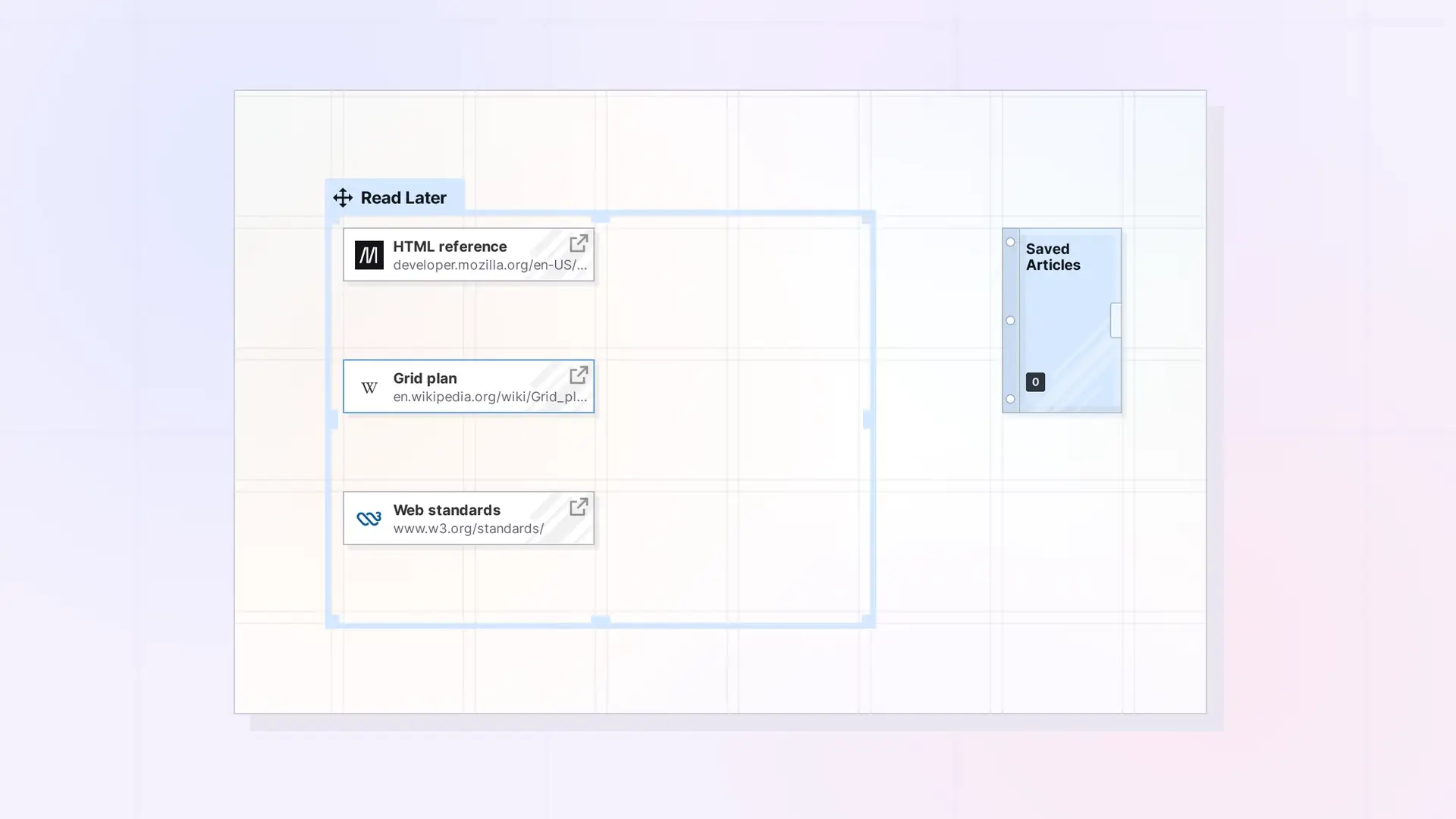
Link items make a simple reading list. Save each page you want to read as a link item, keep the list in a fence, and move each one into a binder when you are done.
Set Up the List
- Create a fence and name it Read Later. See Create a Fence.
- Create a link item for each page. Click + New, choose Links, paste the address, and click Create. See Save a Link as an Item: Link Items and Their Notes.
- Drag each link item into the fence and line them up in a column along the grid lines.
Add Your Notes
Open a link item to write notes about the page under its title, such as a summary or the parts worth coming back to. Give the link item a short name so the list is easy to scan. See Name a Link Item.
File Finished Reads
Put a binder in the fence, such as Saved Articles. When you finish a page, drag its link item into the binder. The fence stays short and your finished reads are still close by. See Add Items to a Binder.
Find a Link Later
Choose Links in the Find panel filter to list every link item in your workspace.
Next Steps
- Link Items, Hyperlinks, and Item Links: What’s the Difference?
- Organize a Workspace with Fences: Layout Ideas
- Use Binders as an Archive (and for Recurring Notes)
FAQ
Can a link item go in a binder?
Yes. Drag it onto the binder, the same as any other item.
How do I see all my saved links?
Open the Find panel and choose Links in the filter.

