

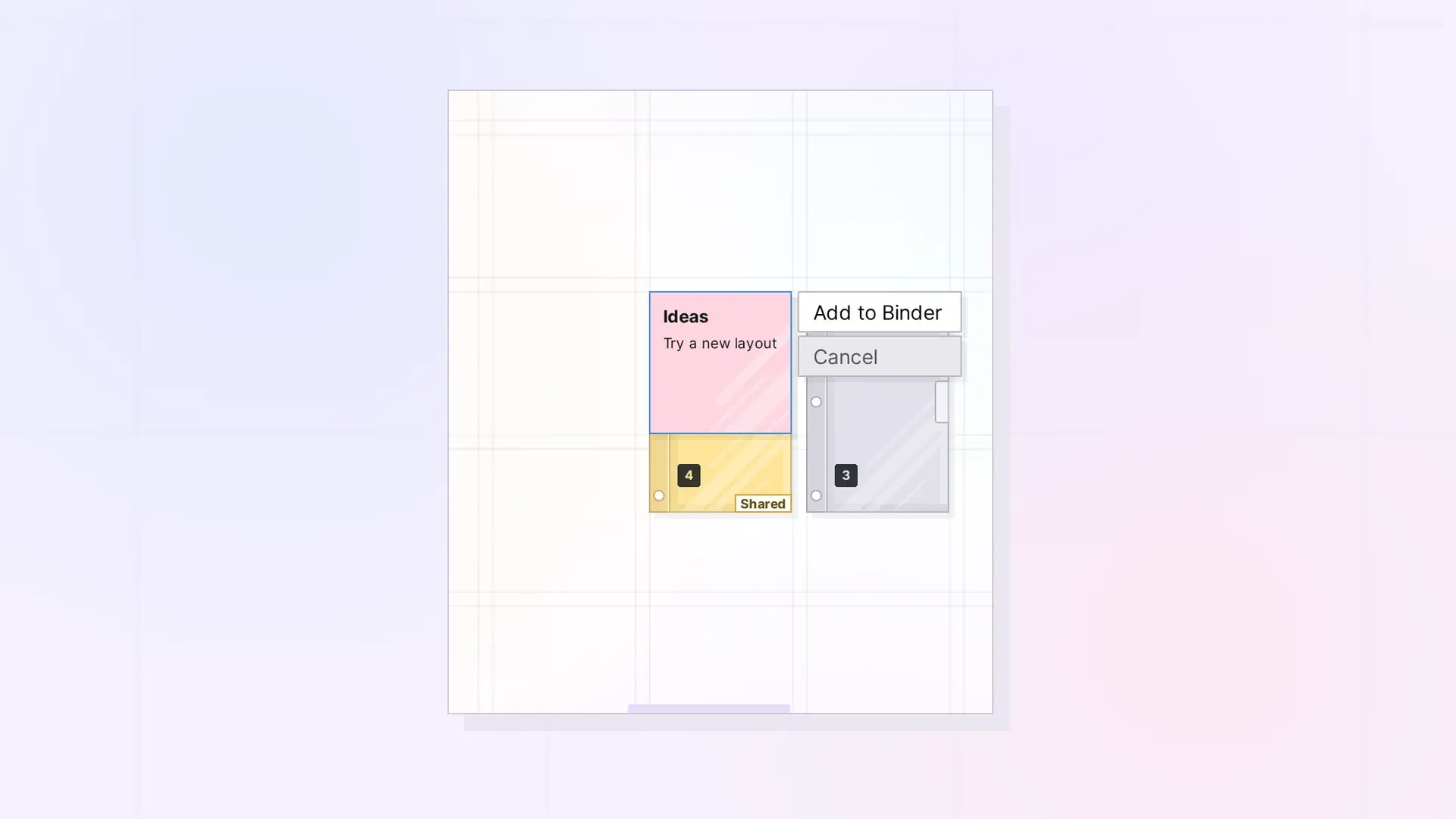
There are three ways to add items to a binder: drag them onto it on the grid, search for existing items from the binder’s panel, or create a new item right inside the binder.
Drag Items onto a Binder
- Drag an item, or several selected items, onto the binder on the grid.
- Let go. An Add to Binder button appears next to the binder. With several items it reads Add 3 items, for example.
- Click the button to add them. Click Cancel to leave them on the grid.
The buttons go away on their own after a few seconds if you do not choose.
Add Existing Items from the Binder’s Panel
- Click the binder to open its panel.
- Click + Add. The Add Item To This Binder area opens.
- Type in Search items to add to search your items by title.
- Click an item in the results to add it.
If nothing matches, you see No items found.
Create a New Item Inside the Binder
- Click the binder, then click + Add.
- Under Create New Item, choose the type: Document, Note, iFrame, or Link.
- Type a title in Enter a title and, optionally, a description in Enter a short description.
- Click Create. The new item is created inside the binder.
What Cannot Be Added
- Binders and fences cannot go in a binder.
- A binder holds up to 500 items.
- In a binder someone shared with you, you need the Add permission.
If an item cannot be added, Opal tells you why with a message that starts “Not added to the binder”.
For Developers
Add items to a binder with the Opal REST API. See Binders API: Add, Remove, Reorder, and Duplicate.
Next Steps
- Reorder Items in a Binder
- Take Items Out of a Binder
- Binder Limits: What Can and Cannot Go in a Binder
FAQ
Why did no Add to Binder button appear?
The item may be a binder or a fence, which cannot go in a binder, or the binder may be shared with you without the Add permission.
Where do new items go in the list?
Look in the binder’s list after adding, and drag them into the order you want. See Reorder Items in a Binder.

