

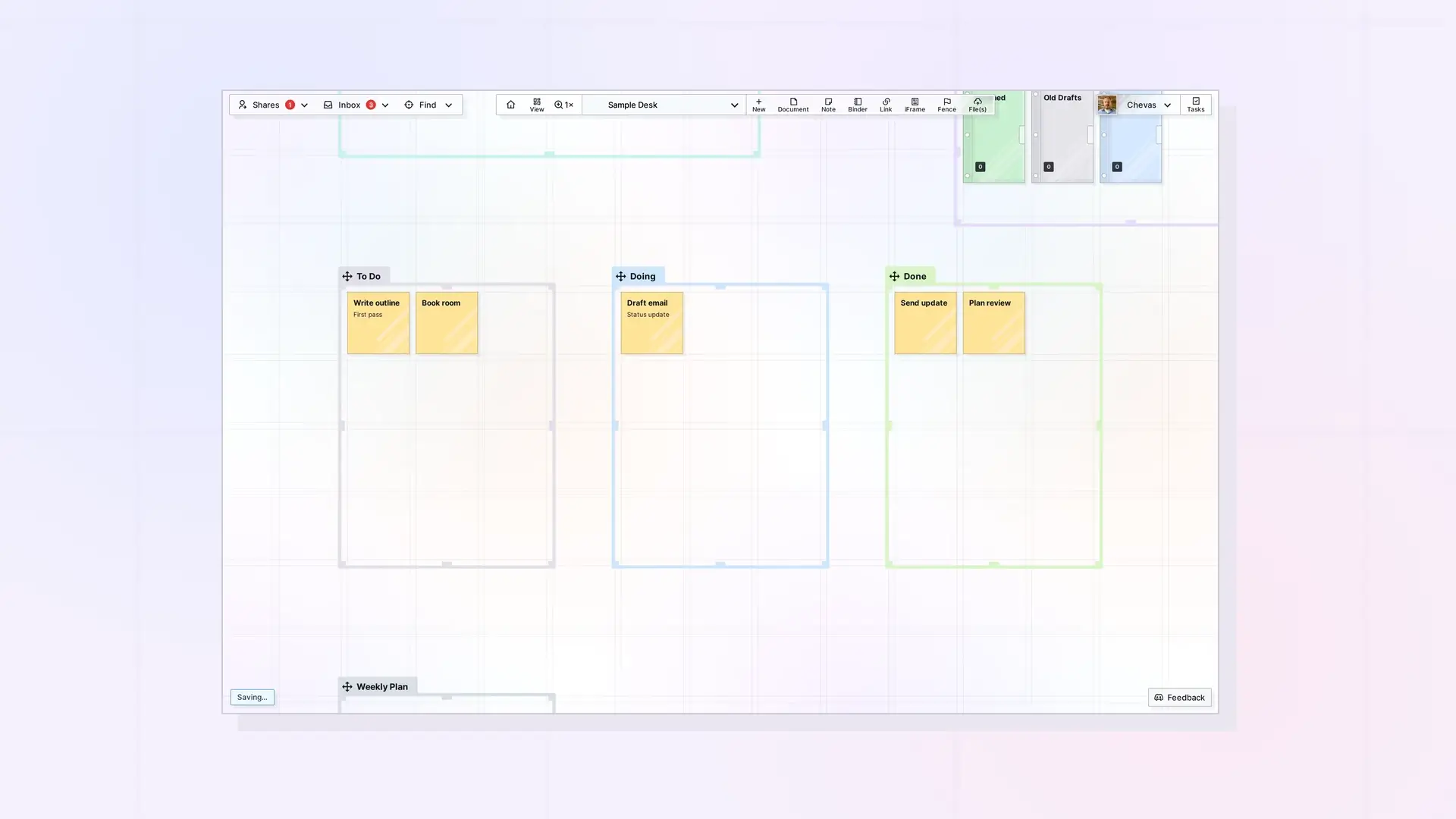
Fence Focus zooms straight to one fence. Double-click a fence’s name tab and Opal sets the zoom to 100% and centers that fence on your screen. Double-click the same tab again to go back to where you were.
Use Fence Focus
- Find the fence’s name tab on the grid.
- Double-click the tab. Opal zooms to 100% and centers the fence.
- To return, double-click the same tab again without panning or zooming in between. Your previous zoom and position come back.
Large Fences
If the fence is too large to fit on your screen, Opal places the fence’s tab near the top left of your screen instead of centering it, so you start reading from the top.
When Fence Focus Helps
- Jumping between zones on a large workspace without hunting with the scroll wheel.
- Reading a fence’s items at full size after working zoomed out.
- Presenting one area of your desk on a screen share.
Next Steps
- Find a Fence
- Organize a Workspace with Fences: Layout Ideas
- How to Navigate Opal: Pan, Zoom, and Locating Items on the Workspace Grid
FAQ
Why did the second double-click not take me back?
It only restores your previous view if you did not pan or zoom in between. If you moved around, use your saved views or zoom out to get back.
Does Fence Focus change the fence?
No. It only changes your view.

