

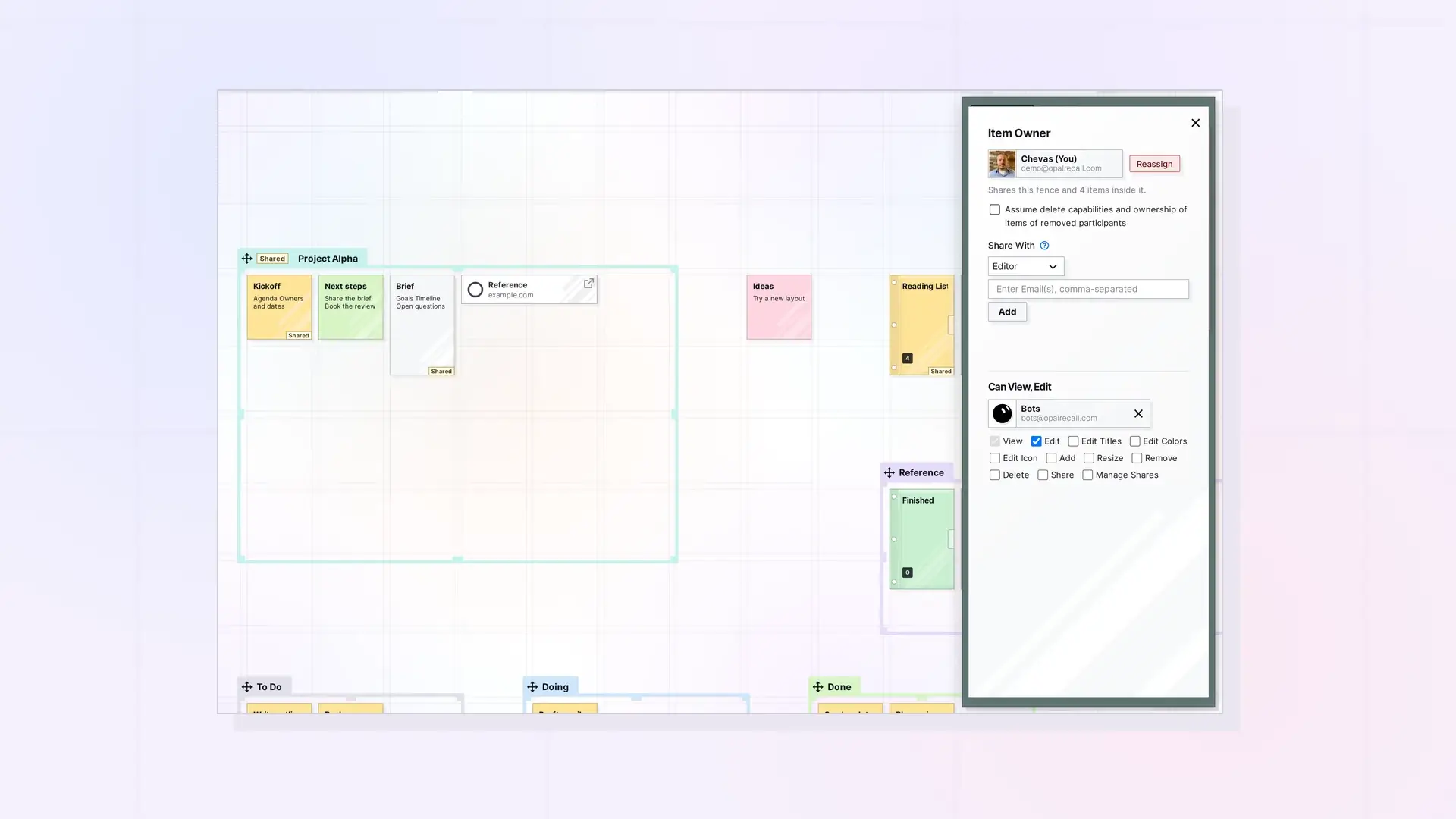
To share a fence, click the fence’s title tab to open its side panel, click …, then click Share. Sharing a fence shares everything inside it: items, nested fences, and binders. Each person places their own copy of the fence on their own desk, but the layout inside is the same for everyone, and everyone sees items come in, go out, or move inside the fence, live.
Sharing is different from publishing. Publishing makes a public, read-only page, and only a fence’s owner can publish it. Sending a copy gives someone their own independent duplicate, and copies are for single items only, so a fence cannot be sent as a copy.
Limits
- A fence can be shared when it holds at most 500 items, nested at most 10 levels deep.
- For the person you share with, the fence and everything in it count toward their plan’s item limit.
What Gets Shared (and What Does Not)
- Only your own items inside the fence are shared.
- An item someone else shared with you leaves the fence when you share the fence, and it cannot be put in later.
- A shared fence keeps what was put in it. Moving or resizing it does not pull in items it then covers.
Share a Fence Step by Step
- Click the fence’s title tab to open its side panel.
- Click … to open the menu, then click Share.
- The Share panel opens under the heading Item Owner, with you listed as the owner. A line under it tells you how much you are sharing, for example how many items and binders are inside the fence.
- Under Share With, choose a role from the dropdown: Viewer, Editor (the default), Contributor, Collaborator, Manager, or Custom. Custom lets you pick each permission yourself (see the table below).
- Type one or more addresses in Enter Email(s), comma-separated and click Add.
- Click Send Invite.
The share stays pending until the other person accepts it. People who do not have an Opal account get an email invitation.
Tip: The ? icon next to Share With opens the app’s own help for sharing.
Permissions, in Plain Words
These are the permissions you can pick with Custom:
| Permission | What it lets them do |
|---|---|
| View | See the fence and everything in it. |
| Edit | Move items around inside the fence. Items stay inside its walls. |
| Edit Titles | Change titles on the fence and the items in it. |
| Edit Colors | Change colors on the fence and the items in it. |
| Edit Icon | Change the icon on the fence and the items in it. |
| Add | Put their own items into the fence. |
| Resize | Change the fence’s width and height, together with Edit. This changes it for everyone, and a shared fence cannot be made smaller than what is in it. |
| Remove | Take other people’s items out of the fence. Those items go back to their owner. They are not deleted. |
| Delete | Delete items in the fence. |
| Share | Share the fence onward. |
| Manage Shares | Pass on the ability to manage shares when sharing onward. |
Publish is not offered when you share a fence. Only the owner can publish a fence. See Publish a Fence. For every role and what it includes, see Share Roles and Permissions Explained.
Accepting a Shared Fence
When someone shares a fence with you, you get a Shares notification. Open Shares in the top-left toolbar and find the invite under Incoming Requests to accept or decline it. See Accept or Decline Something Shared with You. Once you accept, the fence lands in your Inbox with everything inside it. Move it onto one of your workspaces. Where you put your copy is up to you and does not change anyone else’s desk.
Working Inside a Shared Fence
- Move items around inside the fence if you have Edit.
- Add your own items if you have Add. They stay yours, and they are saved on the owner’s workspace until you take them out.
- Take your own items out at any time.
- Take someone else’s item out only if you have Remove. It goes back to its owner.
Owner Settings
- Assume delete capabilities and ownership of items of removed participants: a checkbox in the Share panel for fences and binders, unchecked by default. When it is on, items other people put in your fence are yours to delete, and when someone leaves or is removed, their items become yours, right where they are, as far as your storage has room.
- Items stay in a shared fence by default: when another fence is moved with its contents, items that are also in your shared fence stay put. If you let them go with the other fence, the app asks first, and they leave your fence for everyone.
Leaving, Removing Someone, and Deleting
- When someone leaves the fence or is removed, their items leave it and land just outside where their copy of the fence was, or in their Inbox. With Assume delete capabilities and ownership of items of removed participants on, those items become yours and stay where they are.
- Deleting a fence leaves its items where they are. You can also delete the fence together with your own items inside it. Items other people put in go back to them, unless the checkbox above is on.
Hand the Fence to Someone Else
As the owner, you can make one of the people who accepted the share the new owner. See Reassigning Ownership of Shared Items and Containers.
For Developers
Everything here is also available in the Opal REST API: POST /shares, GET /shares/incoming?containerType=fence, GET /items/:id/fence/children, and the fence add, move, and remove routes. See Fences API: Add Items, Read Children, and Move a Fence and Sharing API: Shares, Permissions, and Recipient Placement.
Next Steps
- Hand off a shared fence: Reassigning Ownership of Shared Items and Containers
- Working in a Fence Someone Shared with You
- Share Roles and Permissions Explained
- What Is a Fence? Zones That Group Items on Your Workspace
- Change the Color of Notes, Binders, and Fences
- One Workspace or Many? How to Organize Your Opal Desks
FAQ
Can people I share a fence with move my items?
Only if you give them Edit, and only inside the fence. Items stay inside its walls.
If I remove someone, do their items disappear?
No. Their items leave the fence and go back to them, unless Assume delete capabilities and ownership of items of removed participants is on. Then the items become yours.
Why did an item leave the fence when I shared it?
It was shared with you by someone else. Only your own items are shared, so items others shared with you leave the fence when you share it.
Is there a size limit?
Yes. A shared fence can hold up to 500 items, nested up to 10 levels deep.
Can I share a whole workspace?
Not yet. You can share individual items, binders, and fences. Sharing whole workspaces is planned.

