

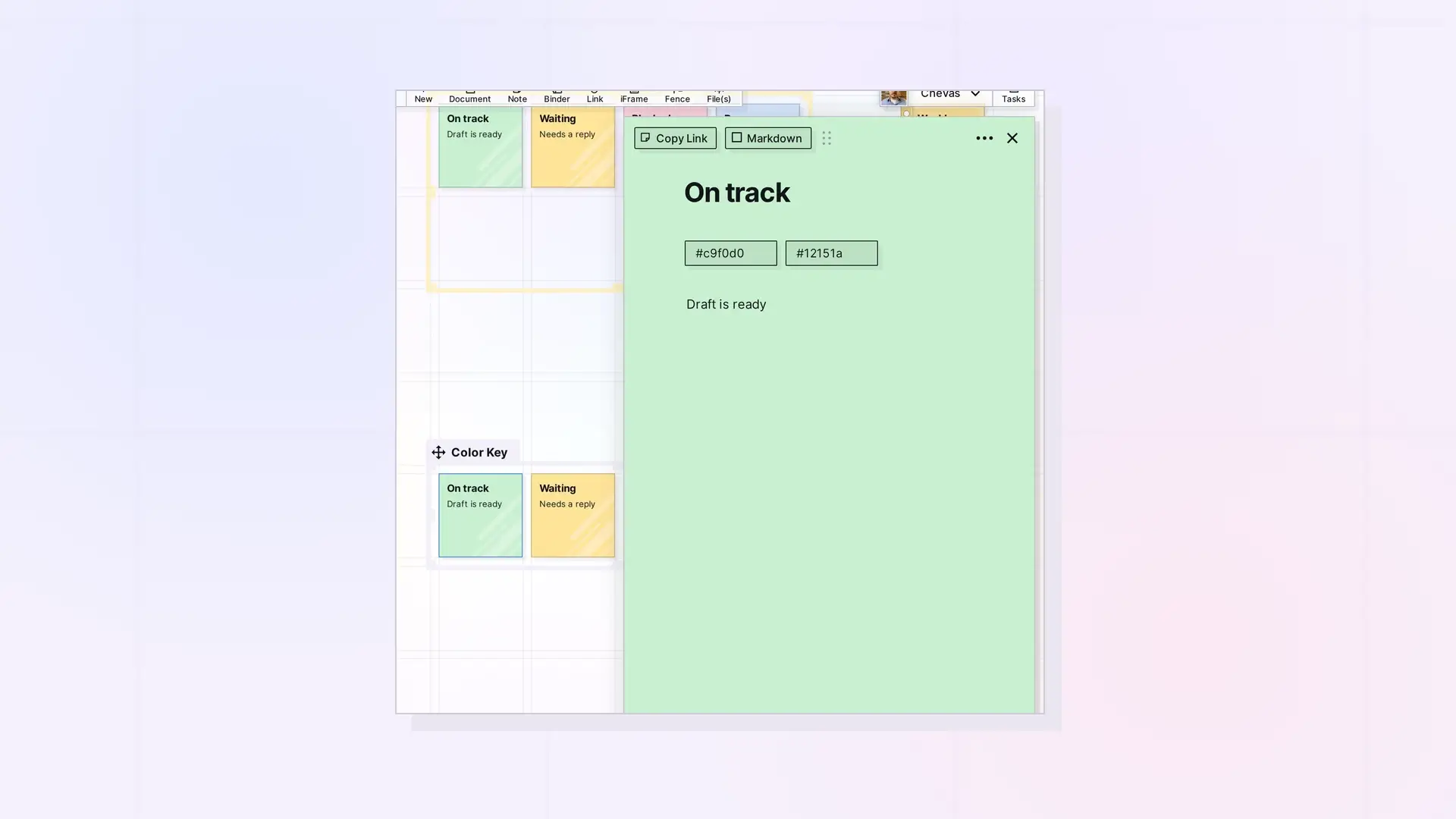
To change the color of an item in Opal, open it and use the Color field below its title for the background and the Text Color field for the text. Notes, binders, and fences all have colors, so you can use color to group things on your workspace at a glance.
Where the Color Control Lives
Click an item to open its page view. Below the title you see the CREATED and UPDATED stamps and the Color and Text Color fields. The ••• (more options) menu also has a Default Colors entry.
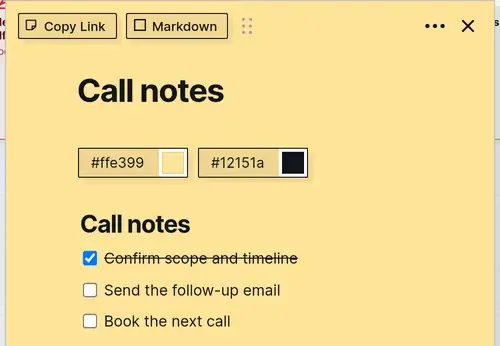
Both fields take a hex color such as #ffe399. Click a field and a small color swatch appears at its right end. Click the swatch to open the color picker, which has a color square, a hue slider, a hex box, and a grid of preset swatches. Notes, documents, and links all show the same two fields, and they are empty until you set a color.
Change a Note Color
Open the note, click the Color field, click the swatch that appears, and choose a color from the picker. The note on the workspace changes color the moment you choose, and there is no Save step.
Change Text Color
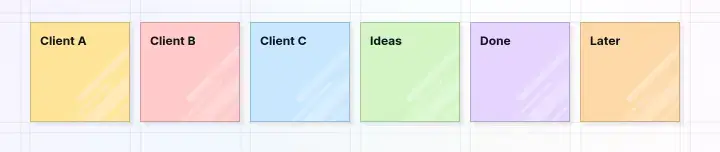
Use the Text Color field the same way. Pick a text color that stands out from the item’s color, so the title stays easy to read when you zoom out.
Binders and Fences
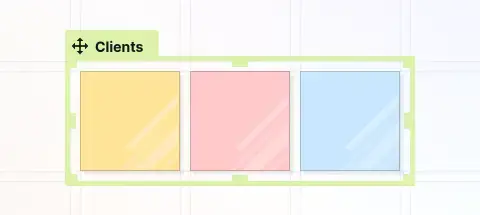
Binders and fences have colors too. To color a binder, double-click it to open its panel and use the two boxes at the top. They have no labels: the left box holds the color and the right box holds the text color. A fence has its own page view. Click the fence’s name tab once (the label with the move icon) and the panel shows Color, Text Color, Width, and Height fields. Pick a color the same way as for a note. The fence’s border and name tab change color, but the items inside it keep their own colors.
Using Colors as Categories
Color works best when each color means one thing. A few ways to use it:
- By client or project: one color per client, so you see whose work is whose.
- By status: one color for ideas, another for in progress, another for done.
- By type of information: one color for reference notes, another for to-dos.
Workspaces have colors too, which work as a little branding for each desk. Create Your First Workspace: A Visual Desk explains the workspace colors.
Accessibility: Keep Text Readable
- Choose a text color with strong contrast against the item color, such as dark text on a light color or white text on a dark color.
- Check how the item looks when you zoom out, because text gets smaller.
- Do not rely on color alone. Put a word in the title, such as Done, so the meaning survives for anyone who cannot tell the colors apart.
Next Steps
- Learn about notes: What Is a Note in Opal? Notes vs Documents
- Create your first workspace and set its colors: Create Your First Workspace: A Visual Desk
- See all the item types: What Are Opal Items
FAQ
Can I set a default color for new notes?
New notes start yellow, and you can change the color of any note at any time. The ••• menu has a Default Colors entry that empties the open item’s Color and Text Color fields, so the item goes back to its default colors.
Which items can I color?
Notes, binders, and fences. Open any of them and use the Color and Text Color fields.
How do I change the text color of a note?
Open the note and use the Text Color field below its title.

