

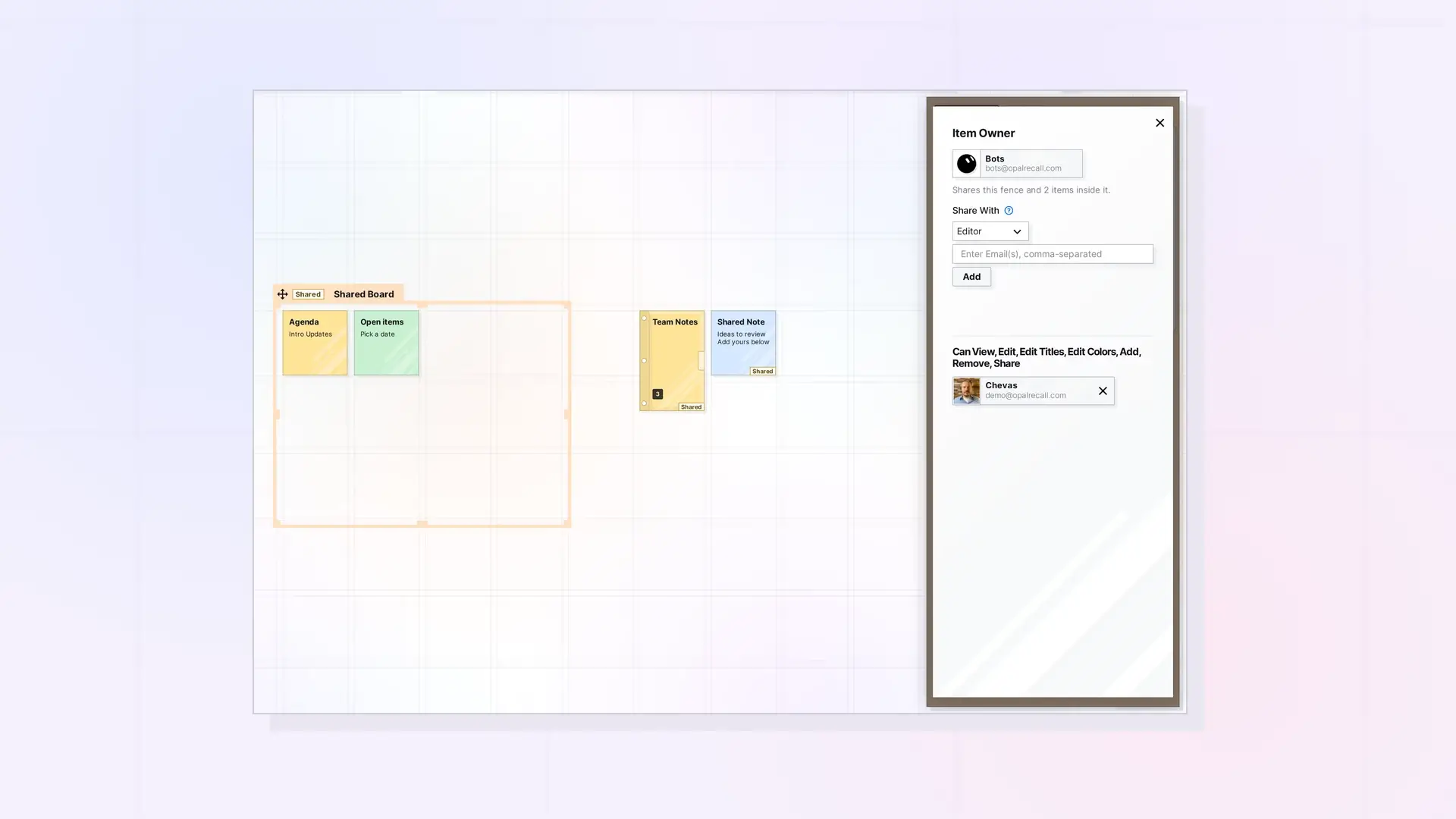
When someone shares a fence with you and you accept, the fence and everything in it land in your Inbox. Place it anywhere on one of your workspaces. The layout inside the fence is the same for everyone, and changes inside it show up live. What you can do depends on the permissions the owner gave you.
Accept and Place the Fence
- Open Shares in the top-left toolbar.
- Under Incoming Requests, find the fence and click Accept.
- The fence lands in your Inbox. Drag it onto one of your workspaces.
Where you put your copy is up to you and does not change anyone else’s desk. For more on accepting, see Accept or Decline Something Shared with You.
What You Can Do Inside
| Permission | What you can do |
|---|---|
| View | See the fence and everything in it. |
| Edit | Move items around inside the fence. Items stay inside its walls. |
| Edit Titles | Change titles on the fence and the items in it. |
| Edit Colors | Change colors on the fence and the items in it. |
| Edit Icon | Change icons on the items in it. |
| Add | Put your own items into the fence. |
| Resize | Change the fence’s width and height, together with Edit. |
| Remove | Take other people’s items out of the fence. They go back to their owner. |
| Delete | Delete items in the fence. |
| Share | Share the fence onward. |
To see your permissions, open the fence’s Share panel. Your entry shows what you can do.
Your Own Items in a Shared Fence
- With Add, you can drag your own items into the fence. They stay yours, and everyone in the fence can see them.
- You can take your own items out at any time by dragging them out of the fence.
Leave the Fence
When you no longer need it, open the fence’s side panel, click …, then click Leave Share. Items you added leave the fence and land just outside where your copy of the fence was, or in your Inbox. See Leave Something That Was Shared with You.
Next Steps
- Sharing a Fence: Give Others a Whole Zone of Your Desk
- Edit Together in Real Time
- Shared Items and Your Plan Limits
FAQ
Why can I not move items inside the fence?
You need the Edit permission. Ask the owner to change your permissions.
Does the fence count toward my item limit?
Yes. A shared fence and everything in it count toward your plan’s item limit.
Do I need a paid plan to view a shared fence?
Viewing a shared binder or fence needs a Studio or Workshop plan.

