

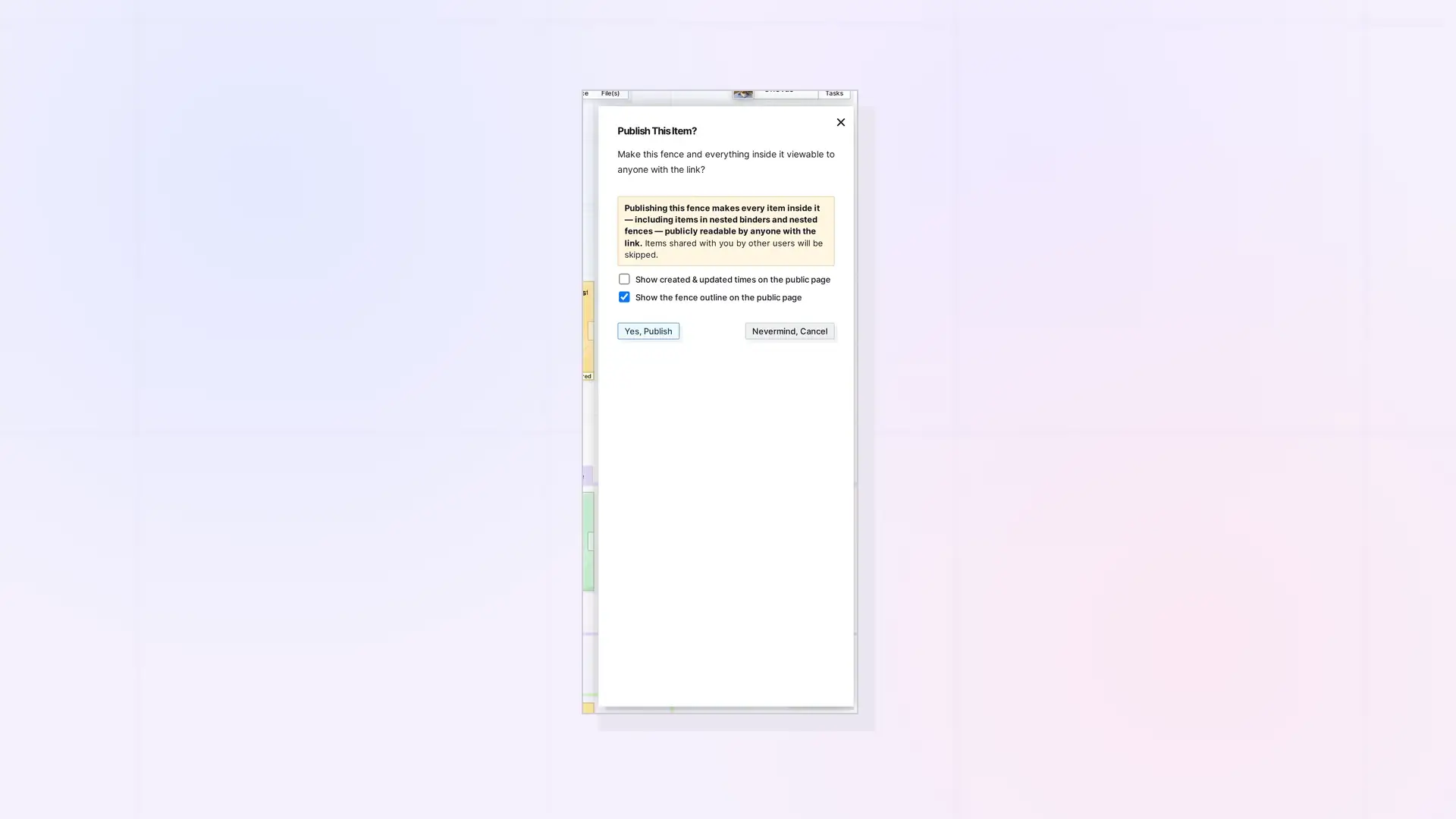
Publishing a fence makes it and everything inside it viewable to anyone with the link, no Opal account required. Open the fence’s side panel, click …, then click Publish. Only the owner can publish a fence, and publishing fences and binders needs a Studio or Workshop plan.
Publish a Fence Step by Step
- Click the fence’s name tab to open its side panel.
- Click …, then click Publish.
- The Publish This Item? dialog asks: “Make this fence and everything inside it viewable to anyone with the link?”
- Leave Show the fence outline on the public page checked to draw the fence’s outline on the public page, or uncheck it to show only the items.
- Click Yes, Publish.
The dialog then shows Published with the public link. Click Copy Link to copy it.
What Is Included
- Everything inside the fence, including nested binders and fences.
- Items someone else shared with you are skipped. Only your own items are published.
Update or Unpublish
Open Publish again from the fence’s … menu:
- Click Re-publish to Update to bring the public page up to date with your latest changes.
- Click Unpublish to take the public page down.
Publish, Share, or Send a Copy?
Publishing makes a public, read-only page. Sharing gives specific people access inside Opal. See Share, Send a Copy, or Publish? Choosing the Right Option.
For Developers
You can publish, refresh, check, and unpublish with the Opal REST API. See Publishing API: Publish, Refresh, Status, and Unpublish.
Next Steps
- Publish a Binder
- Sharing a Fence: Give Others a Whole Zone of Your Desk
- Share, Send a Copy, or Publish? Choosing the Right Option
FAQ
Why do I see an upgrade message instead?
Publishing containers needs Studio or Workshop. The app shows Publishing Containers Needs Studio or Workshop with a link to the plans.
Can someone I shared the fence with publish it?
No. Only owners can publish containers.
Does the public page update on its own?
Click Re-publish to Update after making changes to refresh it.

