

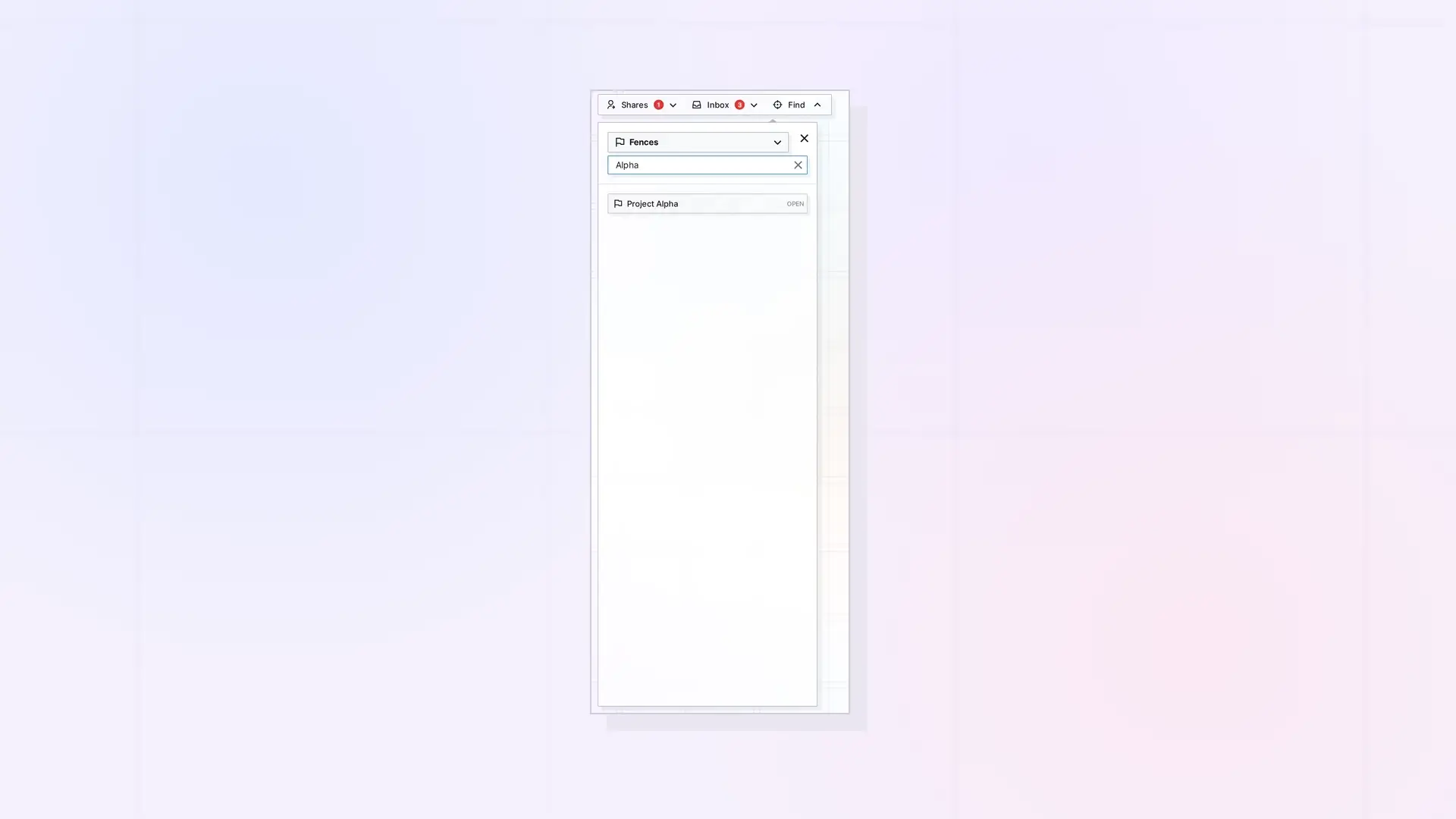
The Find panel in the toolbar lists your items by type, and one of its filters is Fences. Choose it to see every fence, then click a fence to pan to it. Once it is on screen, double-click its name tab to zoom to it with Fence Focus.
Find a Fence in the Find Panel
- Click Find in the toolbar.
- Choose the Fences filter.
- Click a fence in the list. Opal pans the workspace to it.
To open the fence’s side panel instead, click Open on its row.
Search by Name
Press Ctrl + K to open Search items and type part of the fence’s title.
Zoom In with Fence Focus
After Opal pans to the fence, double-click its name tab. Opal zooms to 100% and centers the fence. Double-click the tab again to go back. See Fence Focus: Jump to a Fence and Back.
Pan To Item
If the fence’s side panel is already open, click …, then click Pan To Item to bring the fence into view.
Next Steps
- Fence Focus: Jump to a Fence and Back
- Open Items in Opal: One Panel, Pan To Item, and Pop Out Item
- How to Navigate Opal: Pan, Zoom, and Locating Items on the Workspace Grid
FAQ
Why does clicking a fence in the list not pan to it?
The fence is on a different workspace or in your Inbox. Switch to that workspace first, or click Open to open it.
Can I find a fence someone shared with me?
Yes, once you have accepted it and placed it on a workspace.

