

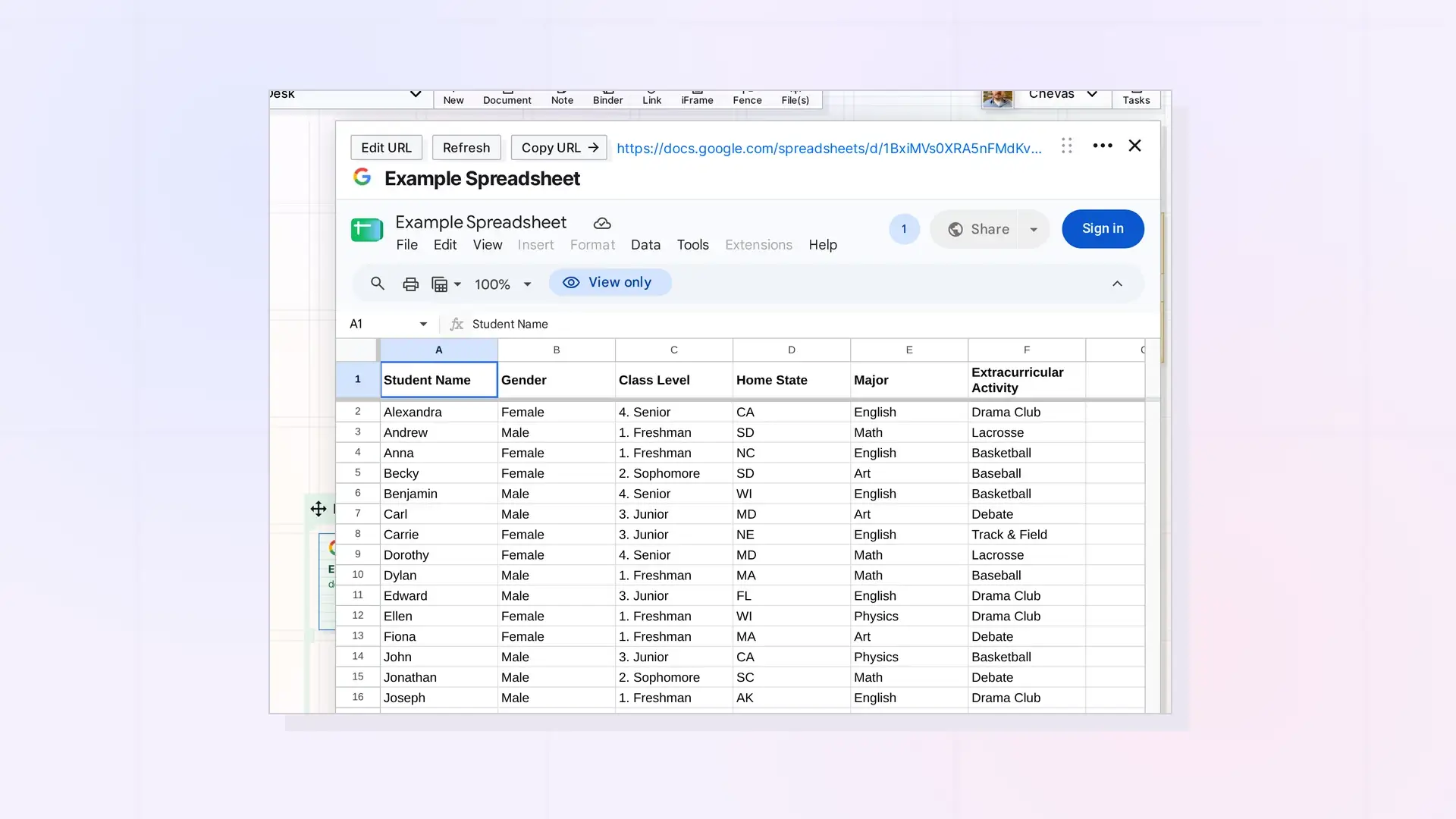
To embed a Google Sheet, create an iFrame with the Sheet’s address. The Sheet opens inside Opal, so a tracker, a budget, or a client dashboard can sit on your workspace next to the notes and documents that go with it.
Embed a Google Sheet Step by Step
- Open the Sheet in Google Sheets and copy the address from the browser’s address bar.
- In Opal, click + New, choose iFrames, paste the address, and click Create.
- Click the iFrame to open the Sheet inside Opal.
Use a Sheet as a Dashboard
- Put the Sheet’s iFrame in a fence named for the client or project, with the related notes and documents beside it.
- Click Toggle Width in the iFrame’s ••• menu to give the Sheet a wider page, and Default Width to go back.
- Click Refresh on the iFrame’s page to reload the title and description from the Sheet.
Access Still Comes from Google
Google decides what you can do in the Sheet. If you are not signed in to Google in the same browser, Google shows a Sign in button. People you share the iFrame with in Opal need their own access to the Sheet in Google.
Next Steps
FAQ
Will the Sheet show my latest numbers?
The iFrame loads the Sheet from Google each time you open it, so you see what Google shows at that moment.
Can I embed one tab of a Sheet?
Paste the address of that tab. Google decides which tab opens.

