

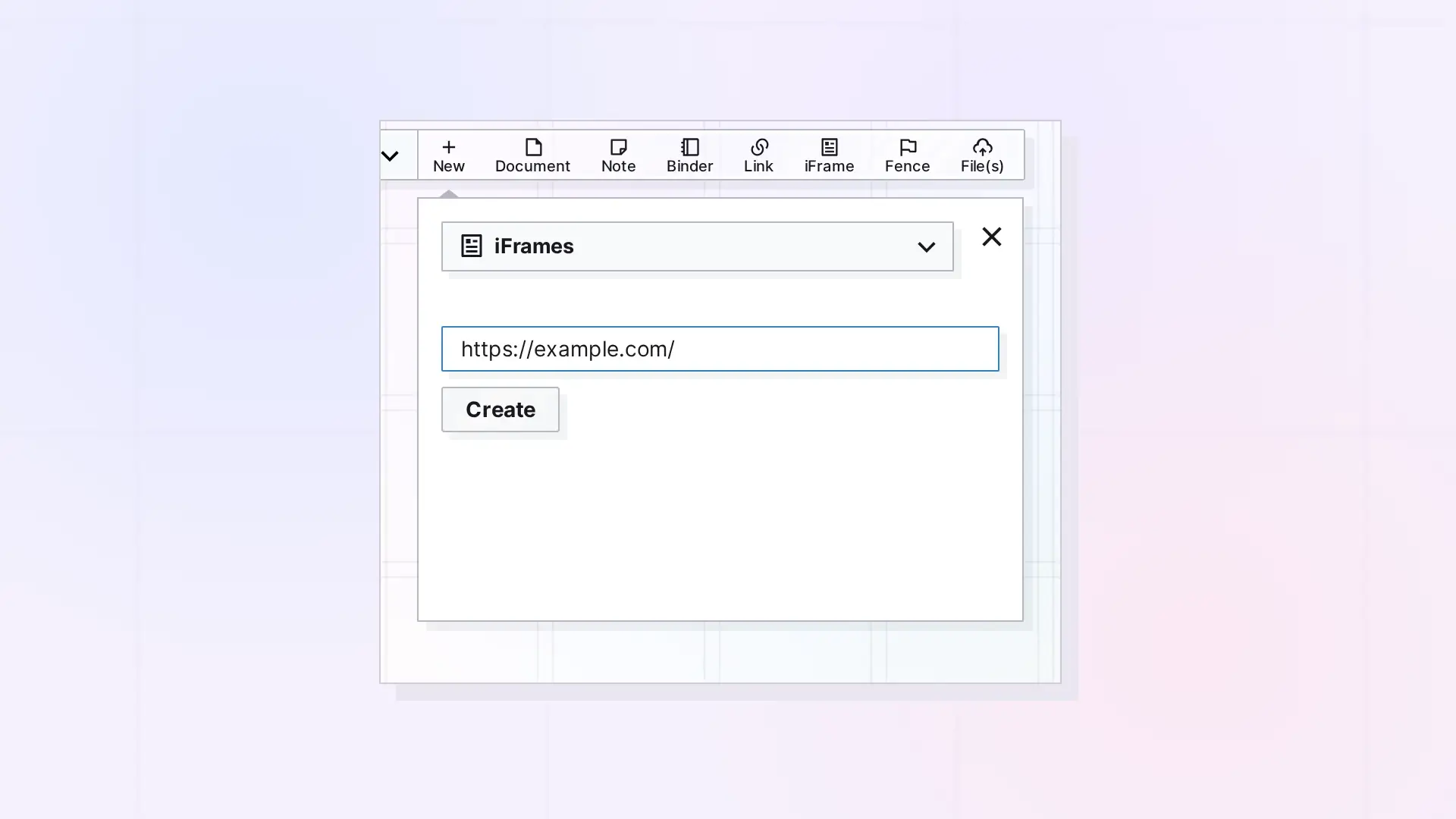
To create an iFrame, click + New, choose iFrames in the type list, paste the full web address (starting with https://), and click Create. The iFrame appears on your workspace with the page’s title, and clicking it opens the web page inside Opal.
Create an iFrame Step by Step
- Click + New in the toolbar.
- Open the type list at the top of the panel and choose iFrames.
- Paste the full web address, for example
https://example.com/. - Click Create.
- Drag the new iFrame to where you want it on the grid.
Use the One-Click iFrame Button
On larger screens the toolbar also has an iFrame button. It creates an iFrame named Untitled with no address yet, so its page shows Invalid URL: No Link. Open it, click Edit URL, paste the address, and click Done.
What Opal Fills In
Opal reads the page’s title and description when you create the iFrame. If the site does not provide a title, the iFrame is named Untitled. You can rename it by clicking the title on its page.
Tips
- Use the full address, including https://.
- Put the iFrame in a fence next to the notes and documents that go with it.
- If the page stays blank, the site may not allow embedding. See Why a Website Won’t Show in an iFrame.
Next Steps
FAQ
Can I create an iFrame without a URL?
Yes, with the one-click iFrame button. It stays Untitled with Invalid URL: No Link until you add an address with Edit URL.
Does an iFrame work with any address?
Only with sites that allow being shown inside other apps. Many sites do, and some block it.

