

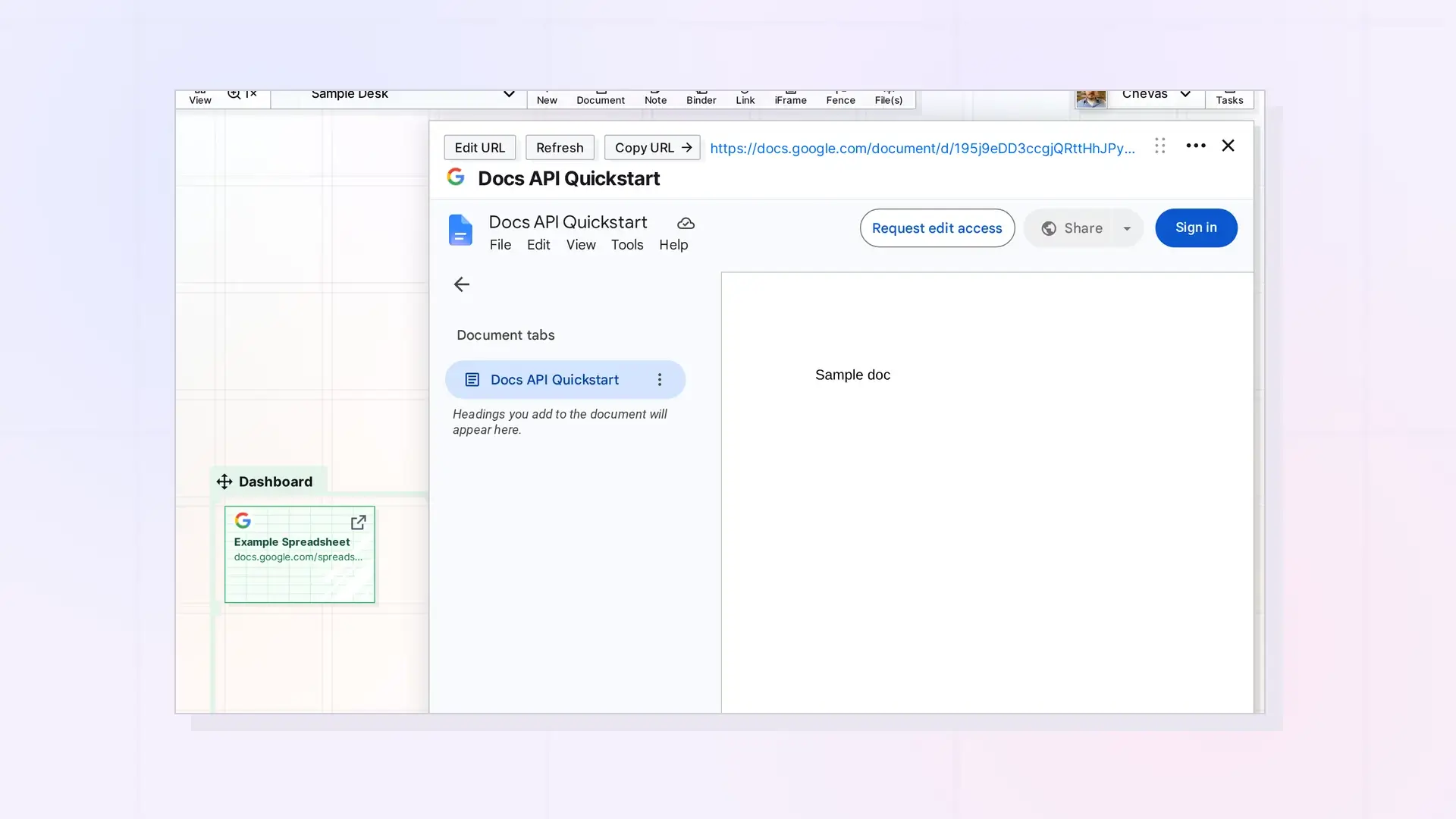
To embed a Google Doc, copy the Doc’s address from your browser, create an iFrame with it, and open the iFrame. The Doc loads inside Opal, so you can read it next to the notes and documents on your workspace, and Google decides what you can do in it based on your Google account.
Embed a Google Doc Step by Step
- Open the Doc in Google Docs and copy the address from the browser’s address bar.
- In Opal, click + New, choose iFrames, paste the address, and click Create.
- Click the new iFrame to open the Doc inside Opal.
What You See Depends on Google
The Doc behaves the way Google shows it in any embedded view:
- If you are not signed in to Google in the same browser, Google shows a Sign in button.
- If your Google account can only view the Doc, Google offers Request edit access.
- If your account can edit the Doc, you can work in it from Opal.
Anyone you share the iFrame with in Opal still needs their own access to the Doc in Google.
Tips
- Put the Doc’s iFrame in a fence with the notes, links, and tasks for the same project.
- Click Copy URL on the iFrame’s page to open the Doc in its own browser tab when you need the full Google window.
- If the Doc stays blank, save it as a link item instead. See Why a Website Won’t Show in an iFrame.
Next Steps
FAQ
Does Opal change my Google sharing settings?
No. Access to the Doc is still controlled in Google.
Why does the Doc ask me to sign in?
Google shows its sign-in prompt when it does not see a signed-in Google account in that browser.

