

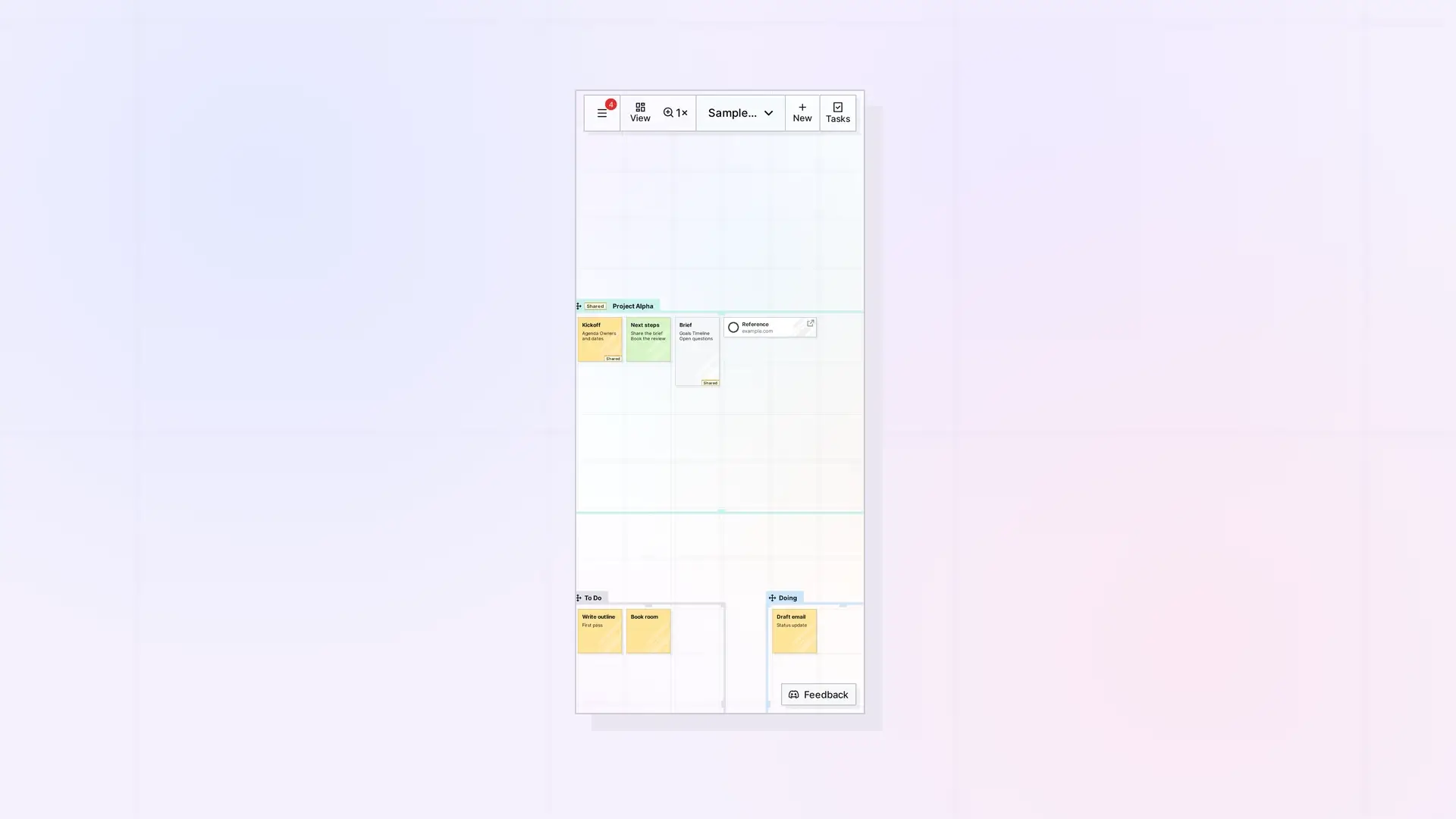
Opal runs in the browser, so there is nothing to install. At phone width, the toolbar shrinks to a single bar across the top of the screen. Opal does not have native iPhone or Android apps today.
What the Screen Looks Like at Phone Width
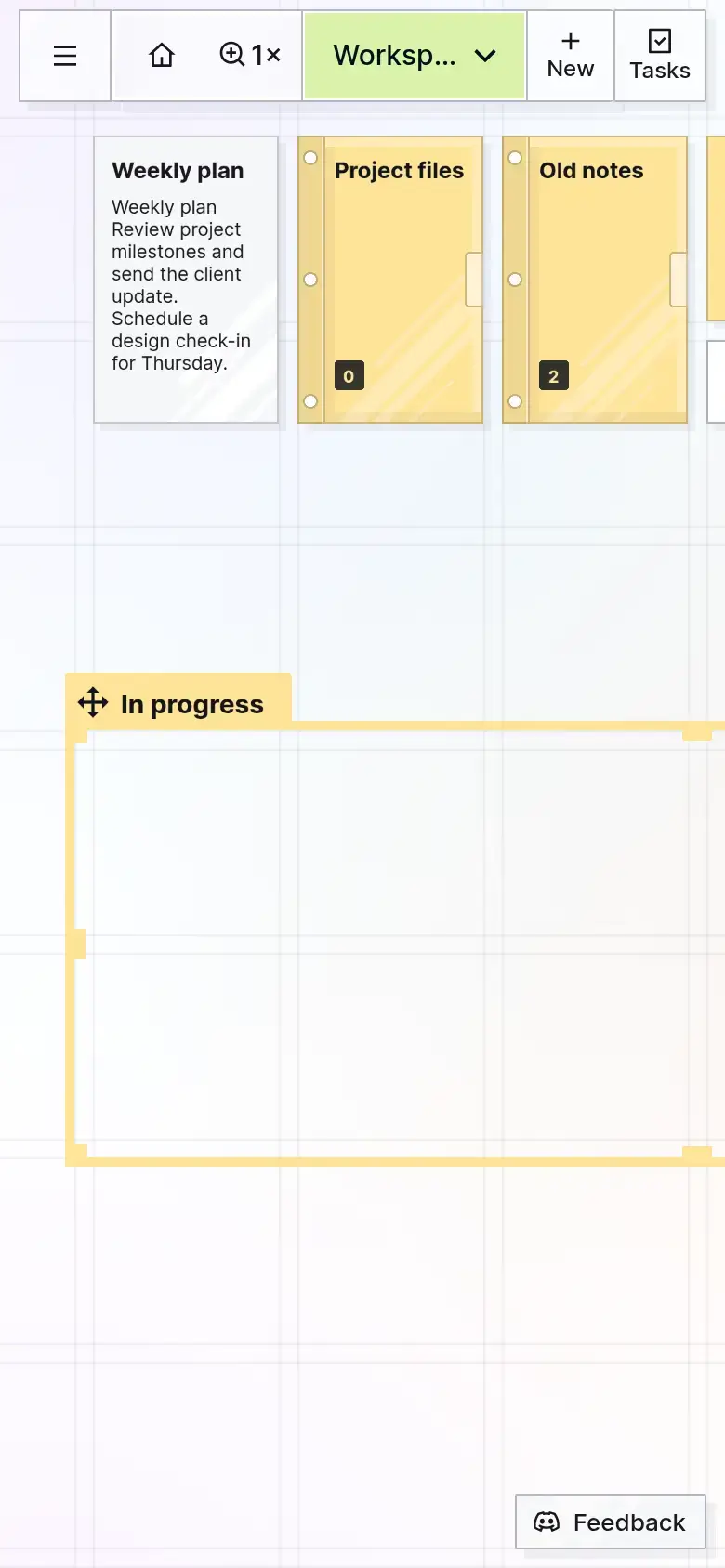
On a screen about 390 px wide, the left toolbar group (Shares, Inbox, and Find) and your profile button are not shown. One toolbar remains across the top. From left to right it has:
- A ☰ menu button
- Home
- The zoom button, which shows 1× at normal zoom
- The workspace dropdown, with the workspace name shortened to fit (for example, “Worksp…”)
- + New
- Tasks
Your items and fences still appear on the workspace, and the Feedback button stays at the bottom right of the screen:
Reset Your View
If you lose your place, use Home in the toolbar to return to the center of the grid at 100% zoom, or the zoom button (1×) to reset the zoom where you are.
Opal remembers your position and zoom for each workspace. The full details are in How to Navigate Opal.
Open and Move Items
Moving, Positioning, and Managing Items on a Workspace explains how to open and move items and the snapping rules. This page does not cover how that works by touch yet.
Create Items on a Small Screen
Tap + New in the top toolbar to open the New panel. At phone width, the panel runs past the right edge of the screen, so its X button is off the screen. The steps for creating an item are in Creating Items in Opal: Your First Few.
Limits on Phones and Tablets
- Selecting several items at once uses a box or
SHIFT+Click, which are mouse and keyboard actions. This page does not describe a touch way to do it. - Opal does not have native iOS or Android apps yet. You use it in a browser.
- At phone width, the Shares, Inbox, and Find buttons and your profile button are not on the toolbar.
This page covers phone width only. Tablet layout has not been checked.
Tips for a Phone-Sized Desk
- Keep a compact layout, with the items you use most close together.
- Use the zoom button (1×) and Home when you need to reset your view.
You can find the full list of pan and zoom controls in How to Navigate Opal, and the screen tour in Tour of the Opal Interface.
FAQ
Is there an Opal app for iPhone or Android?
Not yet. Native apps are on the roadmap, starting with mobile. For now, use Opal in your browser.
Can I select multiple items on a phone or tablet?
Selecting several items uses a box or SHIFT+Click, which are mouse and keyboard actions. This page does not describe a touch way to do it.

