

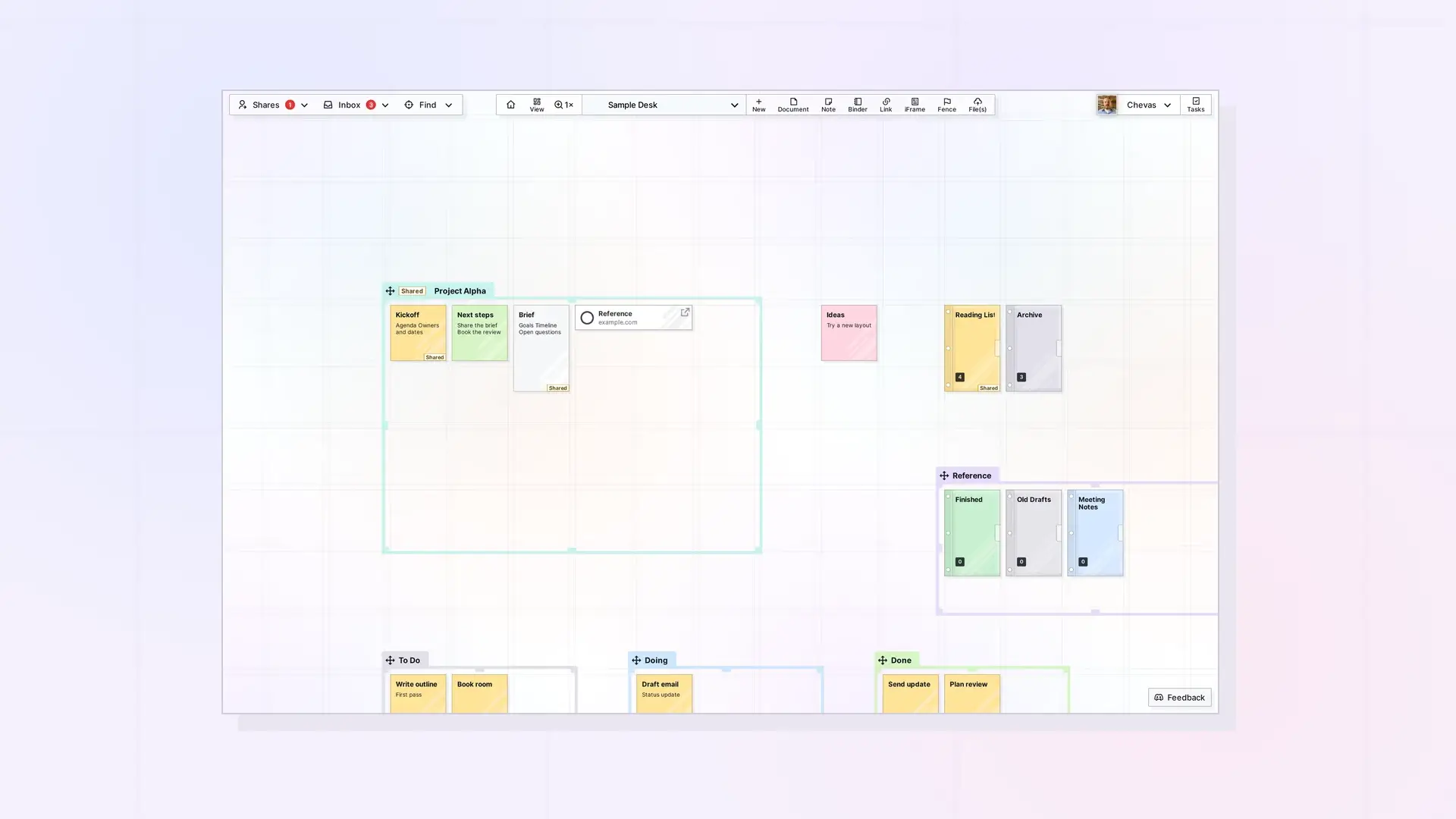
The Opal screen has four areas. Shares, Inbox, and Find sit at the top left, each with a dropdown arrow. Pan Home & Reset Zoom (the home icon), the 1× zoom, the workspace pill, and + New sit at the top center. Your profile (your display name and avatar, with a dropdown) and Tasks are at the top right, and a Feedback button sits at the bottom right. This page names each control, says what it does, and links to the doc that covers it.
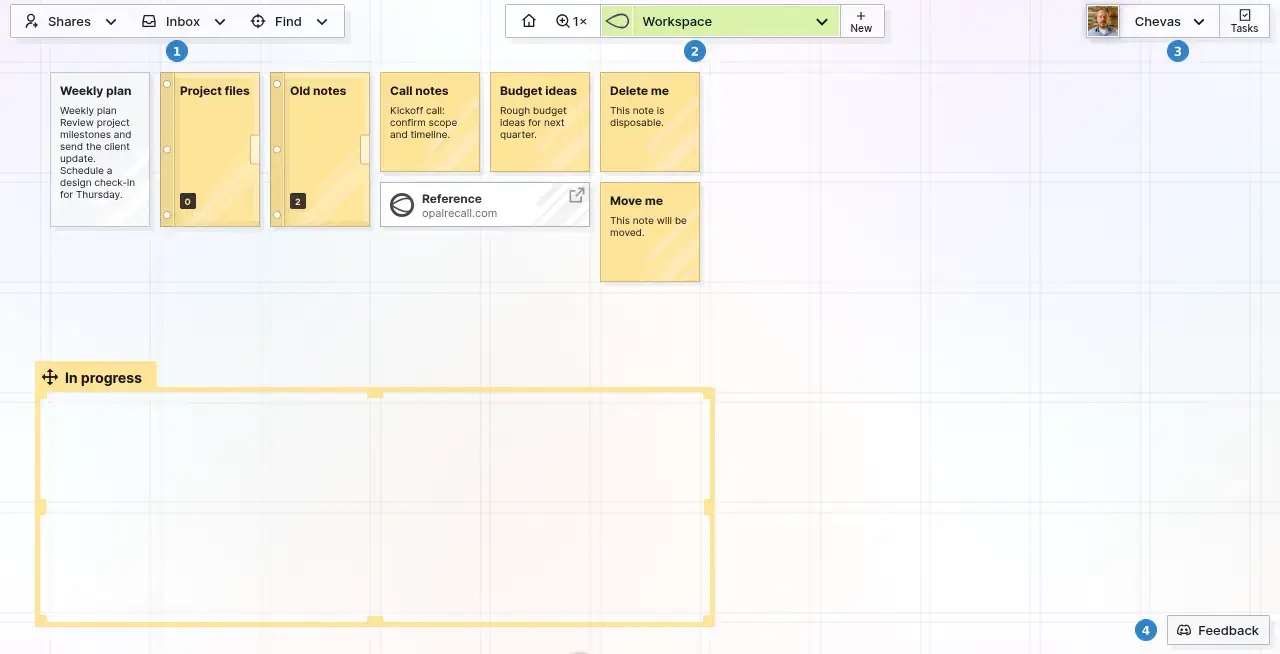
Top Left: Shares, Inbox, and Find
- Shares (with a dropdown arrow) opens a panel titled Active Shares, where your active shares are listed.
- Inbox (with a dropdown arrow) holds items that do not have a place on a workspace yet.
- Find (with a dropdown arrow) opens a panel with a filter list (All, Fences, Documents, Notes, Binders, Links, iFrames, and Files), a Search box, and a list of items. Each row in the list has an OPEN label at its right.
Find gets its own walkthrough in How to Navigate Opal.
Top Center: Pan Home & Reset Zoom, 1× Zoom, Workspace Pill, and + New
- Pan Home & Reset Zoom (the home icon) pans the view to the middle of the grid (10,000 × 10,000) and sets the zoom to 100%.
- The 1× zoom button sets the zoom back to 100% and leaves you where you are.
- The workspace pill shows the name of the workspace you are in. Click it to open the workspace picker, where you can switch workspaces, click the Edit link on a workspace row, create another with + New, sort the list by name, A to Z or Z to A, with Sort Workspaces, and close the picker with the X.
- + New opens the New panel, where you choose an item type from a dropdown and give the item a title and a short description.
Workspaces are covered in Create Your First Workspace: A Visual Desk and Switch and Sort Your Workspaces. Creating items is covered in Creating Items in Opal: Your First Few.
The New Panel: Choose a Type and Create an Item
Click + New to open the New panel. Its type dropdown lists Documents, Notes, Binders, Links, iFrames, Fences, and Files. Pick a type, fill in the Enter a title and Enter a short description boxes, and click Create. The X closes the panel without creating anything.
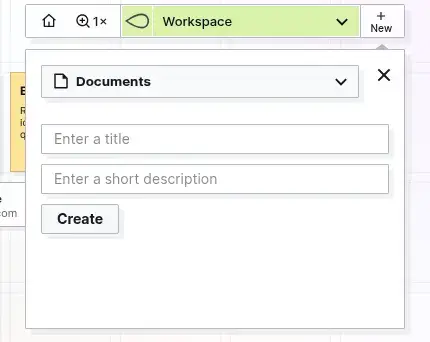
Note: Files is in the type dropdown too. You can also drag a file from your computer onto the workspace.
Top Right: Profile Menu and Tasks
Your profile (your display name and avatar, with a dropdown arrow) opens a menu with Account & Profile, Plan & Billing, Contacts, Integrations, Keyboard Shortcuts, and Sign Out. Your display name and photo are set in your profile, and your plan and billing details are under Plan & Billing. Read Set Up Your Opal Profile for the profile settings.
Tasks opens the task panel.
Bottom: Feedback
The Feedback button at the bottom right of the screen links to Opal on Discord.
Open Item Pages: Copy Link, Markdown, and the ••• (More Options) Menu
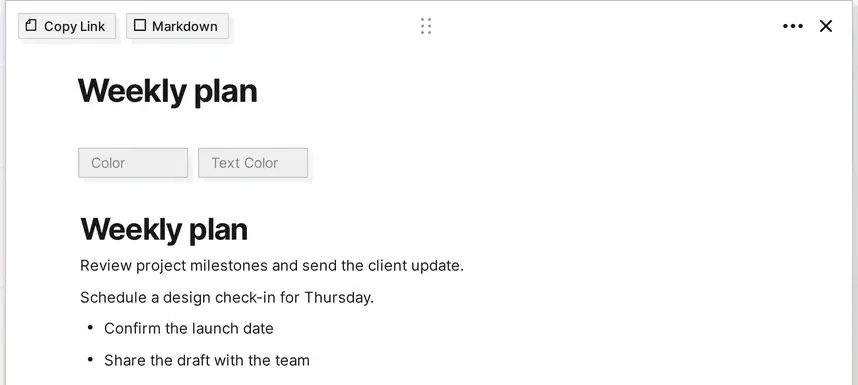
Click or tap an item to open its page view. In the header, Copy Link and Markdown are on the left, and ••• (more options) and X (close) are on the right:
- Copy Link, which copies an internal link to the item so you can paste it into another item.
- Markdown, for items that use the block editor.
- The ••• (more options) button on the right. Its menu lists Duplicate, Toggle Width, Pan To Item, Pop Out Item, Publish, Share, Send a Copy, Export, Import Markdown, Default Colors, and Delete Item.
- The X (close) button on the right, which closes the item and takes you back to the grid. The
Escapekey does not close an item, so use the X.
Below the title you will see the CREATED and UPDATED stamps and the Color and Text Color fields.
To see how documents work, read The Basics of Opal Documents.
Smaller Screens: What Collapses
On a screen about 390 px wide, the Shares, Inbox, and Find buttons and your profile button are not shown. One toolbar remains, with a menu button, Home, the zoom button, the workspace dropdown, + New, and Tasks. Using Opal on a Phone or Tablet describes the small-screen layout in detail.

Next Steps
- Creating Items in Opal: Your First Few
- How to Navigate Opal
- Opal Quick Start: Your First 10 Minutes
- What Are Opal Items
FAQ
What is the Inbox button for?
The Inbox holds items that have not been placed on a workspace yet. Drag an item out of it onto a workspace to give it a place.
Where do I find Plan & Billing?
Open the profile menu at the top right (your display name and avatar) and choose Plan & Billing.

