

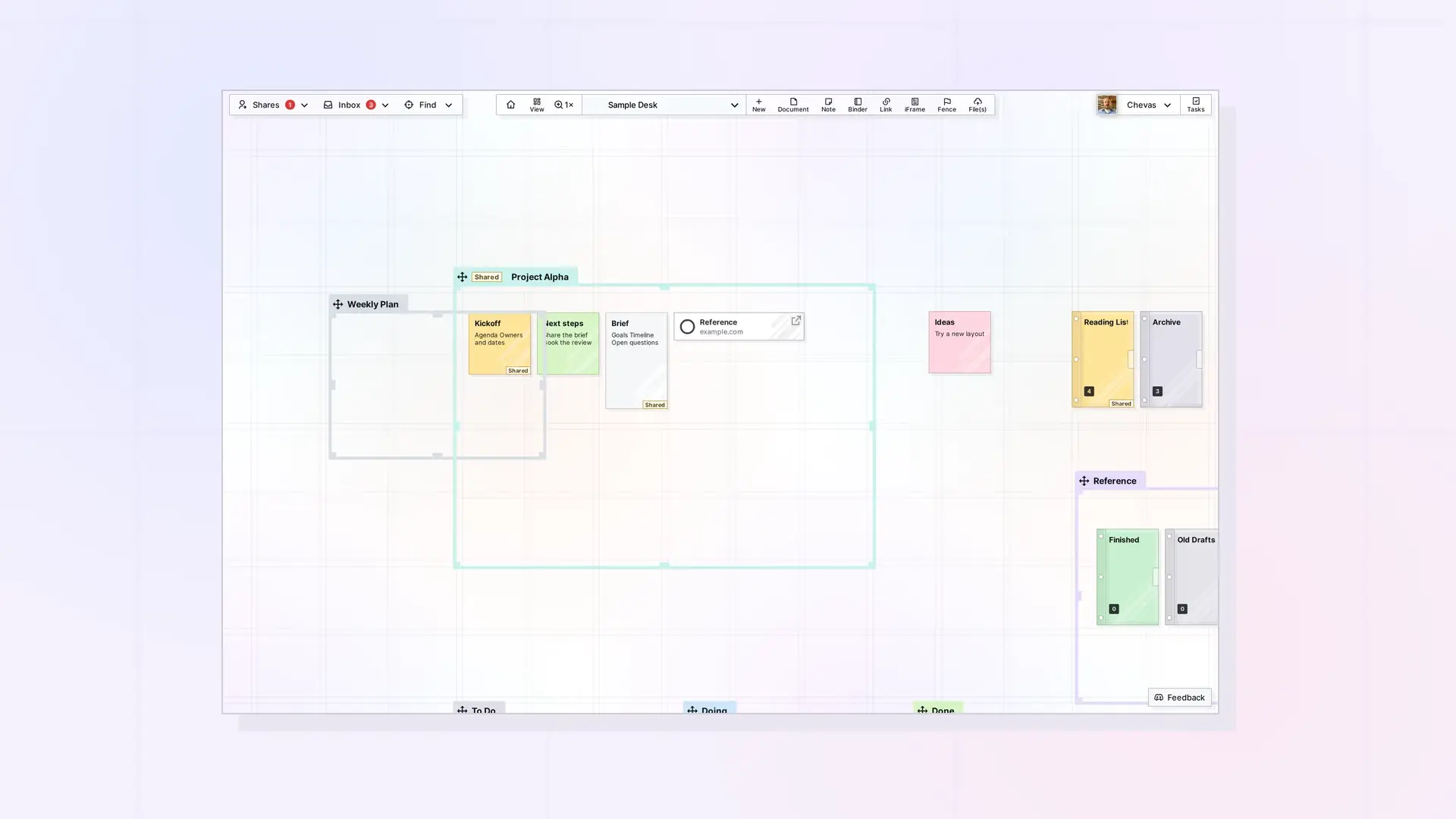
Opal is a visual workspace where your notes, documents, links, and files sit on a big grid that you pan and zoom, like a desk. To start, register at app.opalrecall.com/register, create a workspace, and add a few items. This guide covers six short steps and points you to a longer help doc for each one.
What You Will Set Up
In about ten minutes you will have an account, a profile, one workspace, and a few items arranged on it. There is nothing to install, because Opal runs in your browser.
The toolbar at the top of the screen is your home base. The numbers below match steps 2 to 6 in this guide. Step 1 happens before you see the toolbar:

Step 1: Register and Sign In
Registration is open, so you can create an account at any time. Go to app.opalrecall.com/register, fill in the form, and create a password.
Bookmark app.opalrecall.com so your desk is one click away. Opal has three plans, Day Desk, Studio, and Workshop. The Pricing page shows what each one includes.
For more on what Opal is and how signup works, read What is Opal and How to Register.
Step 2: Set Up Your Profile
Click your profile (your display name and avatar) at the top right and choose Account & Profile. Set your Display Name and Profile Image, and click Save Profile. Other people see these when you share an item with them, so use a name they will recognize. The full walkthrough is in Set Up Your Opal Profile.
Step 3: Create a Workspace
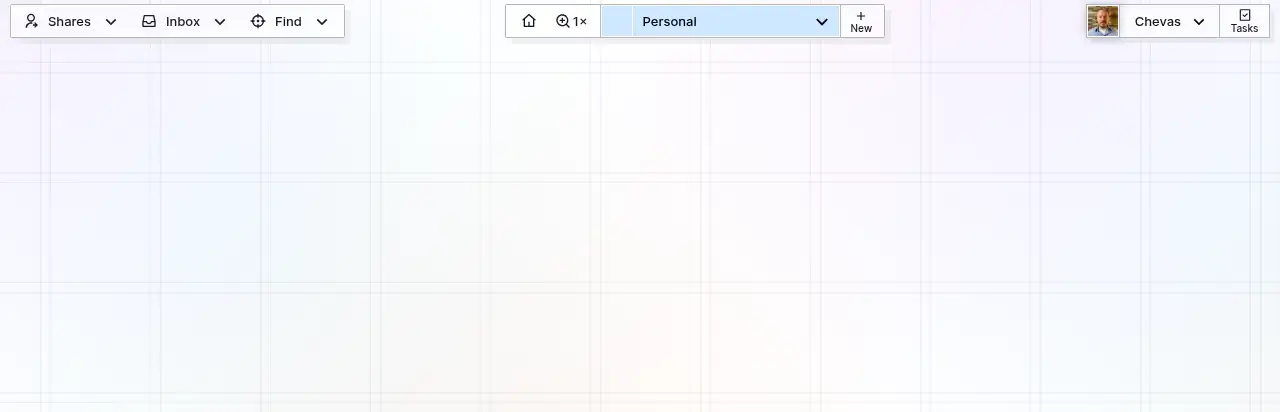
A workspace is one large, scrollable grid that holds your items. Think of it as a big visual desk. Until you have a workspace, the top of the screen shows a message that says Click here to start.
Click that message to open the workspace picker, then click the + New button. Type a Name, choose a Slug Prefix, pick colors if you like, and click Save Workspace. Opal selects the new workspace for you:
Tip: Start with one workspace. You can add more later, up to the limit on your plan. One Workspace or Many? helps you decide.
You can find every field on the workspace form explained in Create Your First Workspace: A Visual Desk.
Step 4: Add Your First Items
Items are the content on your workspace: documents, notes, binders, links, iFrames, fences, and files. The quickest way to make one is the + New button.
Click the + New button to open the New panel, then pick an item type, such as Documents or Notes, from the type dropdown. Type a title in the Enter a title box and a short description in the Enter a short description box, then click Create. Click the X to close the panel without creating anything. Opal puts the item in the middle of your screen. To place it somewhere else, click that spot on the workspace instead.
Files are in the type dropdown too. You can also drag a file or an image from your computer onto the workspace.
Creating Items in Opal: Your First Few covers both ways in more detail, and What Are Opal Items explains the item types.
Step 5: Move, Pan, and Zoom
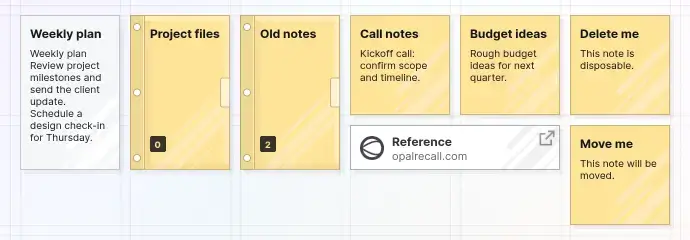
Click and hold an item, then drag it where you want it. Items snap to the grid in 10 px steps, so they line up easily. A single click or tap opens the item in its page view.
To pan, hold the middle mouse button and move the mouse. On a Mac, or without a middle button, hold CTRL and the left mouse button. To zoom, scroll the mouse wheel.
If you get lost, click Pan Home & Reset Zoom (the home icon) to return to the center of the grid at 100% zoom. The 1× zoom button resets only the zoom and keeps you where you are:
For the full list of pan and zoom controls, see How to Navigate Opal. For selecting and moving several items, see Moving, Positioning, and Managing Items on a Workspace.
Step 6: Share or Publish Something
Sharing is per item. You choose who gets it and what they can do with it. Publishing turns an item into a public, read-only page that anyone with the link can open without an Opal account.
To share an item, open it, click the ••• (more options) button at the top right of its page view, and choose Share. To publish it, choose Publish from the same menu.
The Shares and Inbox buttons at the top left are where shared items are managed.
Where to Go Next
- Learn what every button does: Tour of the Opal Interface
- Understand the item types: What Are Opal Items
- Start writing: The Basics of Opal Documents
- Keep work and personal apart: One Workspace or Many?
- Use Opal on a phone or tablet: Using Opal on a Phone or Tablet
- Remove something you no longer need: Delete or Archive an Item in Opal
FAQ
How long does it take to set up Opal?
About ten minutes, including creating a workspace and a few items.
Do I need to install anything to use Opal?
No. Opal runs in your browser at app.opalrecall.com. Native apps for phones and computers are on the roadmap, but they are not available yet.
Can I use Opal on a phone or tablet?
Opal runs in a browser, so you can open it in a mobile browser. At phone width the toolbar shrinks to a single bar. Read Using Opal on a Phone or Tablet for what the small-screen layout shows.
Can anyone register for Opal?
Yes. Registration is open at app.opalrecall.com/register.

