

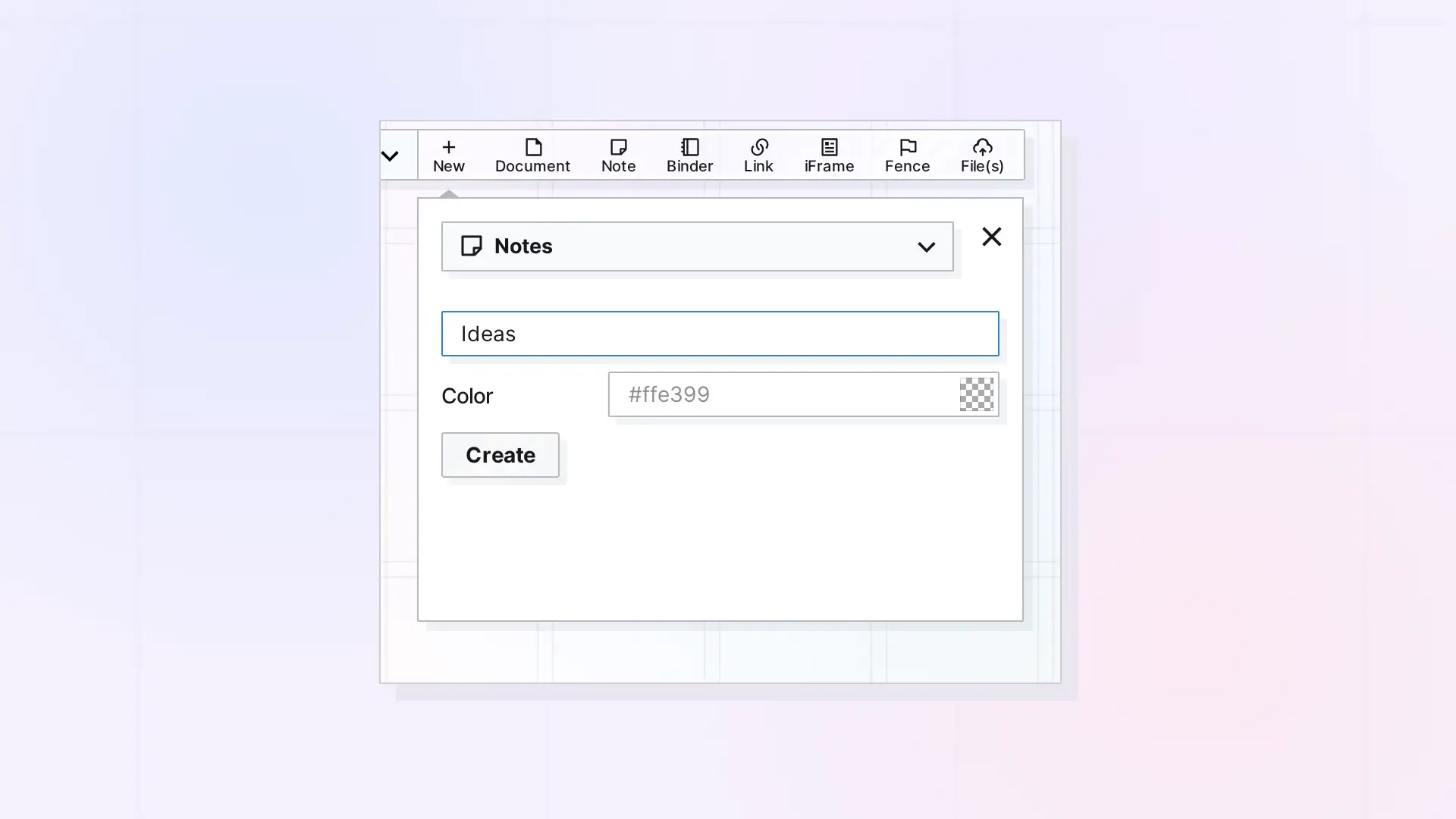
There are two ways to create a note: from the New panel, or with the one-click Note button in the toolbar. Either way, the note lands on your workspace and its page opens so you can start writing.
Create a Note from the New Panel
- Click + New in the toolbar.
- Open the type menu at the top of the panel (it starts on Documents) and choose Notes.
- Type a title in Enter a title. The title is optional. If you leave it empty, the note is called Untitled.
- Optionally, pick a color in the Color box. Notes start out yellow if you leave it empty.
- Click Create.
Notes have no description box. The panel shows only the title and the color.
Create a Note in One Click
Click Note in the toolbar. Opal adds a note named Untitled to the grid near the middle of your screen and opens its page. Click the title to rename it.
After You Create It
- Type in the page to add text. Notes use the same block editor as documents. See Write in a Note: The Same Editor in a Smaller Page.
- Drag the note on the grid to place it, or drop it into a fence or a binder.
- Change its color any time. See Change an Item’s Color and Text Color.
Next Steps
- What Is a Note in Opal? Notes vs Documents
- Use Notes for Quick Capture and At-a-Glance Status
- Creating Items in Opal: Your First Few
FAQ
Do I have to give a note a title?
No. A note without a title is called Untitled. You can rename it later by clicking the title in its page.
What color does a new note get?
Yellow, unless you pick another color in the Color box before you click Create.
Where does the new note appear?
On the grid near the middle of your screen.

