

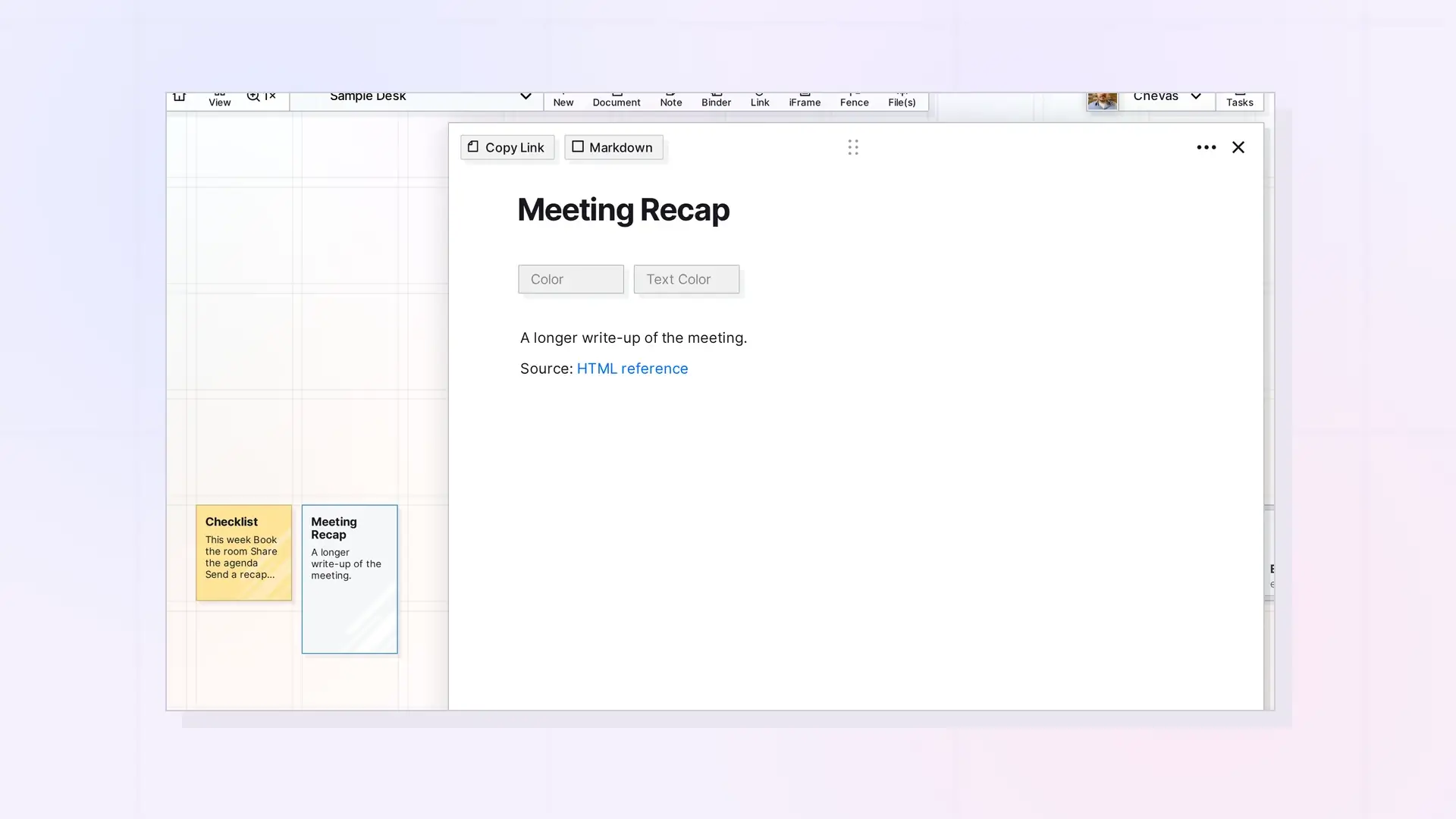
Opal has no option that turns a note into a document. When a note outgrows its page, create a document and copy the note’s content into it. The note stays as it was, so you can delete it, keep it as a short summary, or link to the new document from it.
Copy the Content Over
- Create a document. Click + New, choose Documents, give it a title, and click Create.
- Open the note, click in its page, and select the content you want to move.
- Copy it with Ctrl+C (Cmd+C on a Mac).
- Open the document, click where you want the content, and paste with Ctrl+V (Cmd+V on a Mac).
Copy It as Markdown Instead
If you prefer working with plain text, use the Markdown button at the top of the note’s page to switch to Markdown, copy the text, then paste it into the document in Markdown mode. See Markdown Mode: Write, Import, and Export Markdown in Opal Documents.
What to Do with the Old Note
- Keep it as a short summary on the grid and add an item link to the new document. See Item Links: Link Opal Items Together (Wikilinks).
- Put it in a binder to keep it out of the way.
- Delete it if you no longer need it. See Delete or Archive an Item in Opal (and Whether You Can Undo It).
Next Steps
FAQ
Can I convert a note into a document?
Not with a menu option. Create a document and copy the note’s content into it.
Will the copied content keep its formatting?
Headings, lists, and checklists come along when you copy and paste between pages.

