

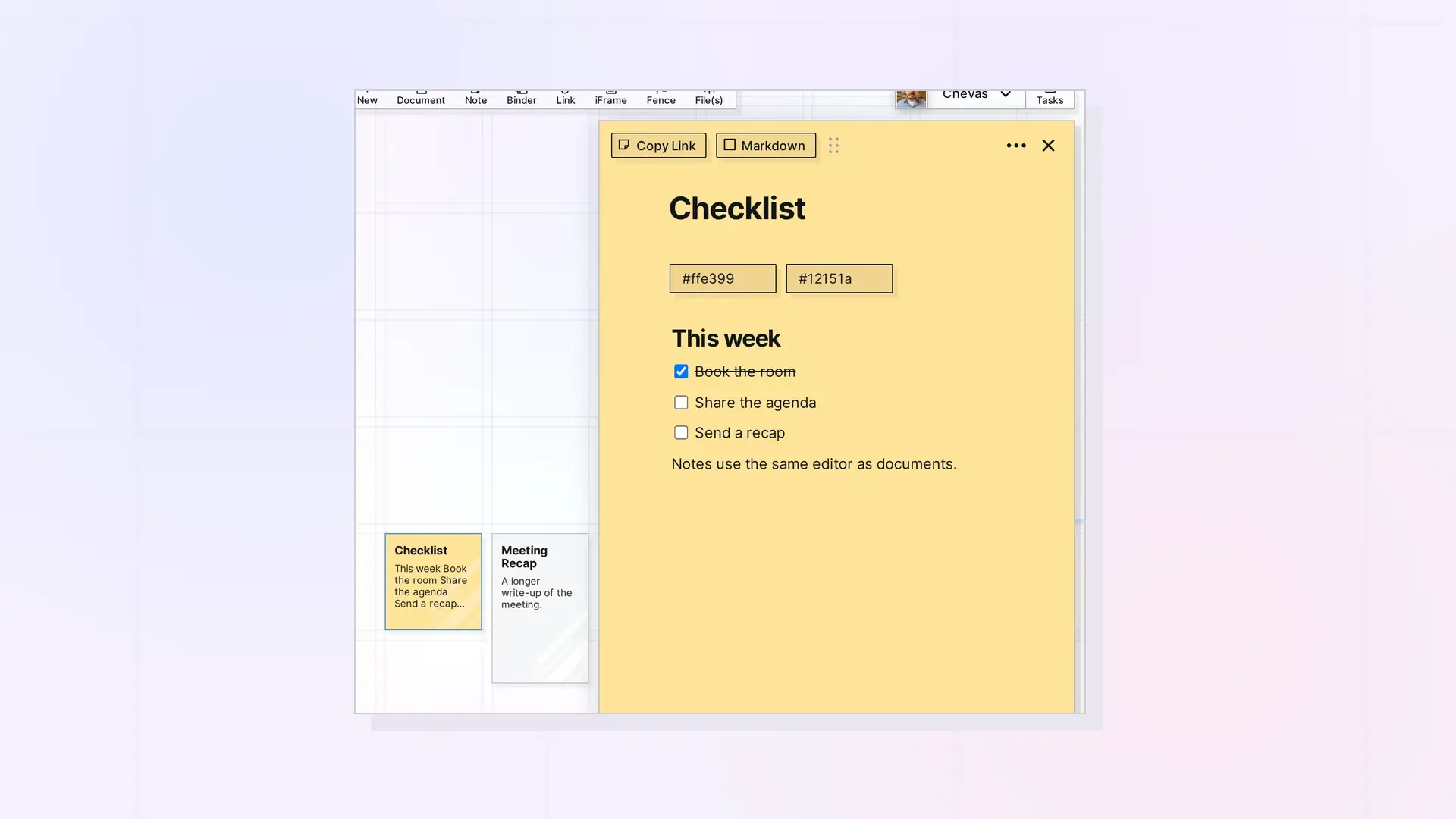
A note opens into the same block editor you use in documents. You can add headings, lists, checklists, tables, images, and code. The only difference is the size of the page: a note’s page is narrower than a document’s, which suits short, focused content.
Open a Note and Start Typing
- Click the note on your workspace. Its page opens on the right.
- Click below the title and type.
- Type / to open the slash menu and pick a block, such as a heading or a checklist.
Everything you type saves on its own. There is no Save button.
What Fits Well in a Note
- A short checklist for the day or the week.
- A status line you want to read at a glance on the grid.
- A few links or a quick sketch of an idea.
- A small table, such as a list of dates.
On the grid, a note shows its title and the first lines of its text, so put the most important line first.
When the Page Feels Too Small
- Use Toggle Width in the ••• menu to make the open page wider. Default Width puts it back.
- If the content keeps growing, move it into a document. See Move a Note’s Content into a Document.
Next Steps
- How to Use the Opal Text Editor: Formatting, Slash Commands, and Shortcuts
- Opal Block Types Cheat Sheet: Every Block and How to Insert It
- Markdown Mode: Write, Import, and Export Markdown in Opal Documents
FAQ
Can a note hold images and tables?
Yes. Notes use the full block editor, so images, tables, checklists, and code all work.
Is a note’s page smaller than a document’s?
Yes. A note opens in a narrower page. Use Toggle Width in the ••• menu when you need more room.
Does a note save automatically?
Yes. Your changes save as you type.

