

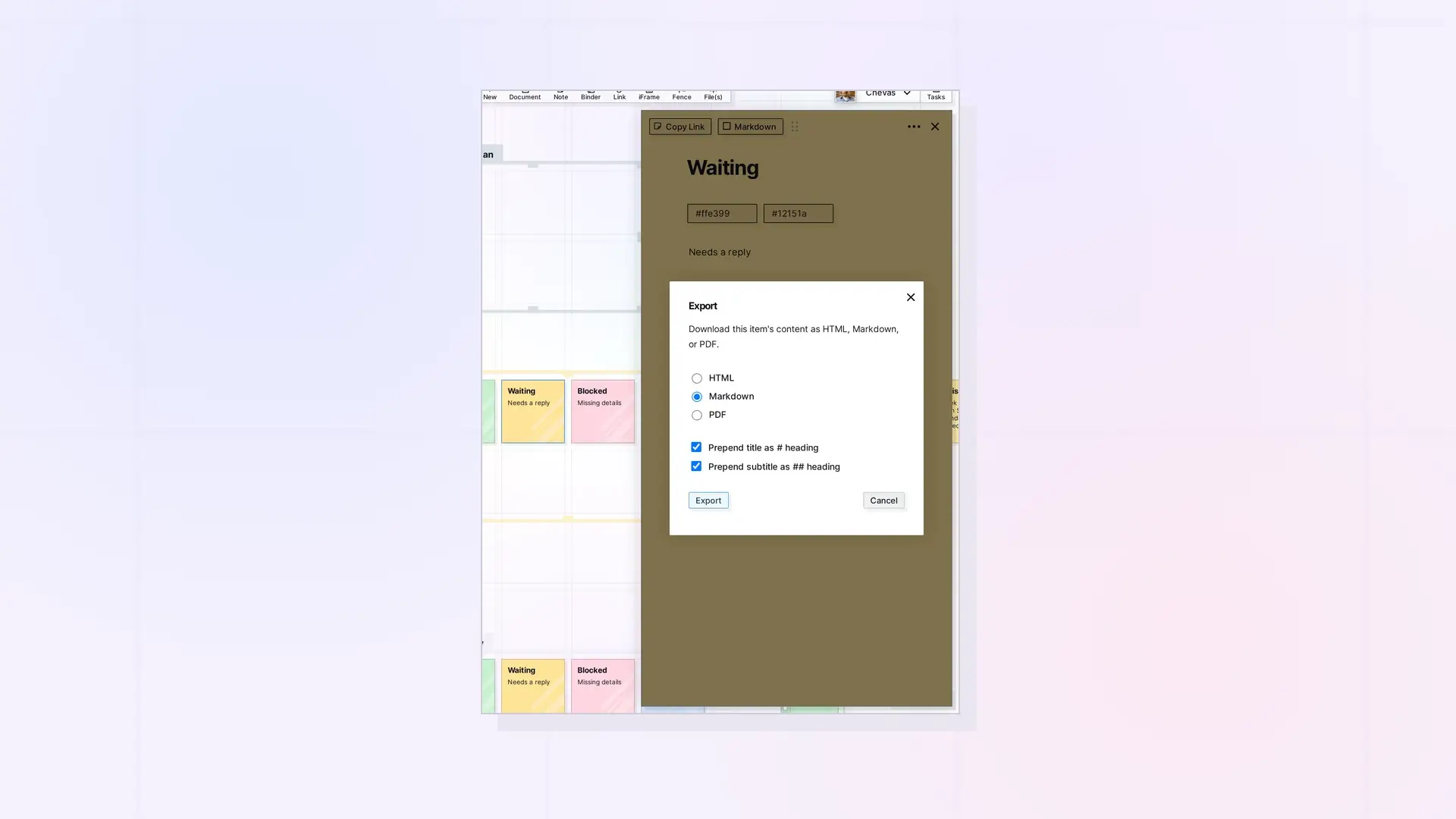
A note’s ••• menu has three handy tools. Duplicate makes a copy of the note on your workspace. Pop Out Item opens the note in its own browser window. Export downloads the note’s content as HTML, Markdown, or PDF.
Duplicate a Note
- Click the note to open its page.
- Click the ••• menu at the top right of the page and choose Duplicate.
The copy appears on your workspace. Edit it separately from the original.
Pop Out a Note
- Open the note and click the ••• menu.
- Choose Pop Out Item. The note opens in a new browser window.
This is useful when you want the note on a second screen while you work on your workspace. See Open Items in Opal: One Panel, Pan To Item, and Pop Out Item.
Export a Note
- Open the note and click the ••• menu.
- Choose Export. The Export dialog opens.
- Choose HTML, Markdown, or PDF.
- Leave Prepend title as # heading and Prepend subtitle as ## heading checked if you want the title and subtitle at the top of the file.
- Click Export.
To bring Markdown back in, see Import Markdown into a Note. To download a whole workspace or everything in your account, see Export Everything in Your Opal Account.
Next Steps
FAQ
Which formats can I export a note to?
HTML, Markdown, and PDF.
Does Duplicate copy the note’s content?
Yes. Duplicate makes a separate copy of the note on your workspace.
What does Pop Out Item do?
It opens the note in its own browser window.

