

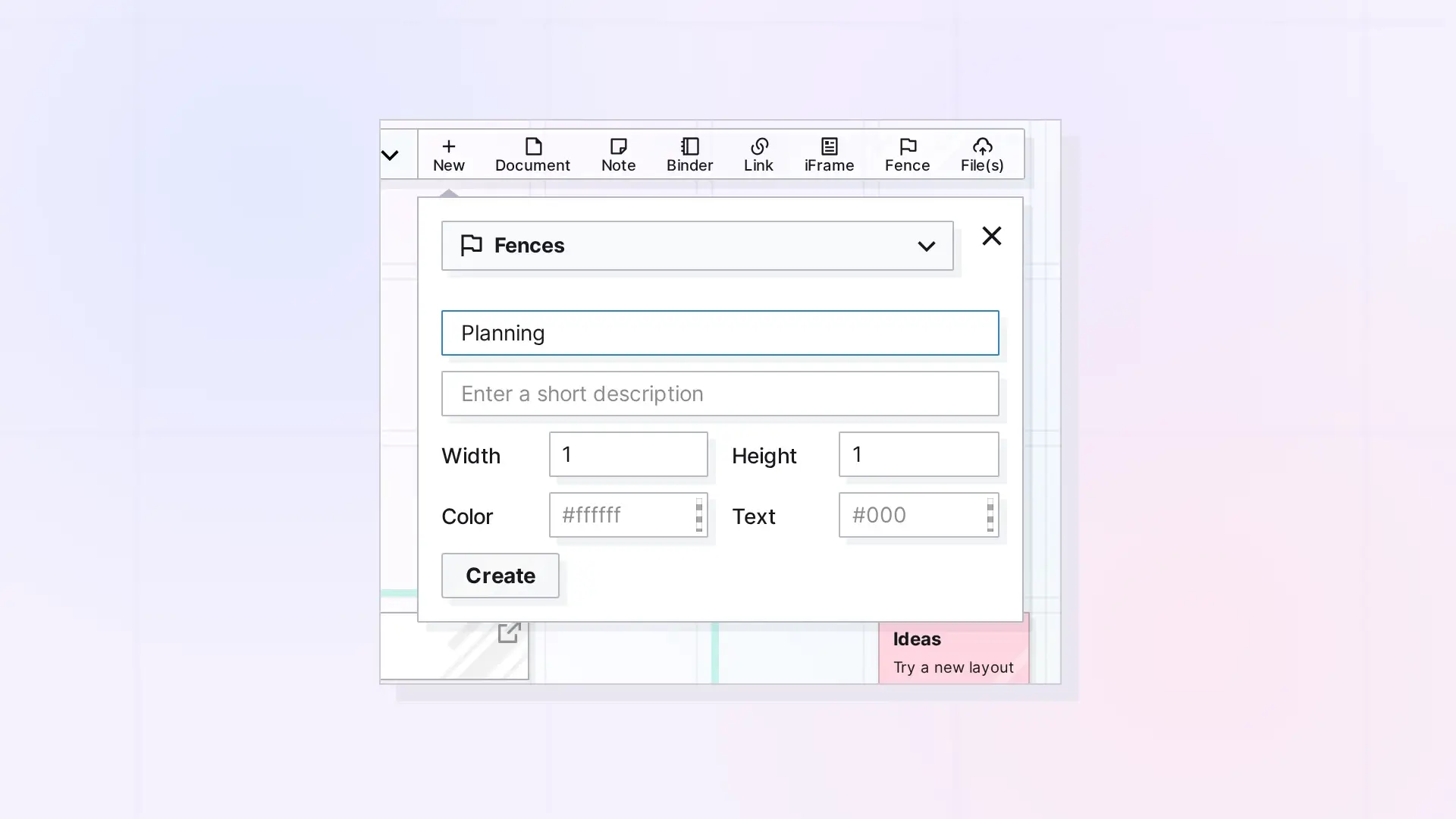
You create a fence from the New panel, the same place you create every other item. Pick Fences as the type, give it a title and a size, and click Create. The fence appears on your workspace, ready for you to drag items into it.
Create a Fence Step by Step
- Click + New in the toolbar.
- Open the type menu at the top of the panel (it starts on Documents) and choose Fences.
- Type a title in Enter a title. This is the name that shows on the fence’s tab.
- Optionally, type a short description in Enter a short description.
- Set Width and Height in grid squares. Each accepts a value from 1 to 30.
- Optionally, pick a Color for the fence and a Text Color for its name.
- Click Create.
Create a Fence in One Click
Click Fence in the toolbar at the top of your screen. Opal adds a fence named Untitled to your workspace and opens its side panel, where you can rename it and set its Width and Height.
Tips for Sizing
- Make the fence a little larger than the group you plan to put in it. It is easier to drop items into a fence with room to spare.
- You can change the size at any time, so a first guess is fine. See Resize a Fence.
- Items are about one grid square each by default, so a fence 6 squares wide fits a row of a few items with gaps between them.
For Developers
You can create a fence with the Opal REST API by creating an item of type fence with a width and height. See Fences API: Add Items, Read Children, and Move a Fence.
Next Steps
- Put Items in a Fence (and Take Them Out)
- Rename and Color a Fence
- Creating Items in Opal: Your First Few
FAQ
Can I create a fence around items that are already on the grid?
Yes. Create the fence, then drag it so it surrounds the items, or drag the items into it. Items belong to a fence when their centers are inside it.
What is the largest fence I can make?
30 grid squares wide by 30 grid squares tall.
Can I change the colors later?
Yes. Open the fence’s side panel by clicking its tab and change Color and Text Color there.

